

Windows Workflow Foundation (WWF) 4.0 is a complete departure from previous versions of Workflow. The activities and services from WWF 4.0 are not interchangeable with previous versions. This article will show step by step process of creating simple workflow application having various basic activities like WriteLine, Assign, Switch<T>, If etc.
Some of the differences between WWF 3.5 and 4.0 are:
- In WWF 3.5, there was a code class and a designer class. The code class contained the implementation for the CodeActivity objects. It also contained the definition of the class members and the event handler code. In WF 4.0, there is no code class.
- There is no longer a state machine workflow.
- Added use of variables and arguments because there is no code file.
- There is no WorkflowRuntime class. Previously, you would have created the WorkflowRuntime class and then called its CreateWorkflow () method. With WF 4.0, the code simply calls this:
WorkflowInvoker.Invoke (new Workflow1 ());
Step 1: Create new Workflow Console Application
- Open Visual Studio 2010 and click on File -> New -> Project
- From the template window select Workflow -> Workflow Console Application
- Enter Project and Solution Name: OrderProducts
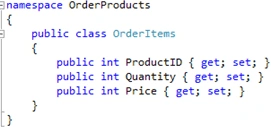
Here values can be ProductID = 1, Quantity = 10, Price = 20
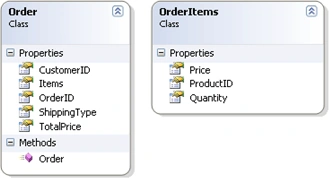
Step 3: Add new class Order
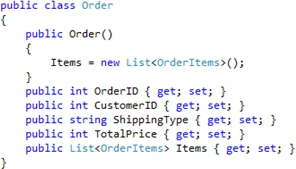
Here values can be OrderID = 1, CustomerID = 1, ShipingType = "NextDay", TotalPrice = 40 (Total Price of all items + Shipping Charges) and Items is collection of products from OrderItems class.
Step 4: Add OrderDetails activity
- Right Click OrderProducts project and click add new item
- Select Workflow -> Activity. Name = "OrderDetails.xaml"
On Toolbox, under Control Flow section drag Sequence activity.
Step 6: Create variables and arguments
- Create Variables ShippingPrice and TotalPrice. Variables are like class members to store data that can be shared between activities.

- Create argument OrderInfo of type Order class. Arguments are similar to variables, but they are intended for passing data in or out of the workflow. You can think of them as method parameters.

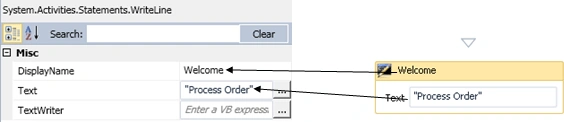
On Toolbox, under primitive section drag WriteLine activity to the sequence activity.
In the properties, set DisplayName = Welcome and Text = "Process Order" as shown below
Step 8: Add ForEach<T> activity
Purpose of this activity is to get each items from OrderItems, depending on ProductID and Quantity set the item price and add this price to variable TotalPrice.
On Toolbox, under Control Flow section drag ForEach<T> activity under WriteLine activity that was added in previous step.
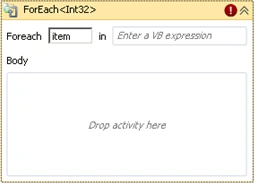
In the properties,
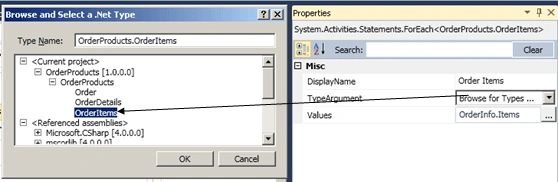
- Set DisplayName = OrderItems
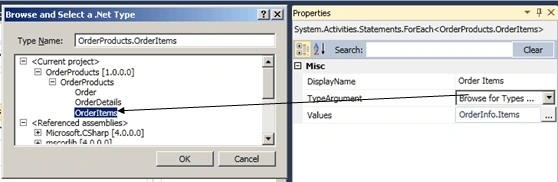
- For TypeArgument, from dropdown list on selecting "Browse for Types…" a dialogue box pops up. Expand OrderProducts to Select OrderItems and click ok. This way type <T> in ForEach<T> is set to OrderProducts.OrderItems.
- For Values, type OrderInfo.Items. Here OrderInfo is the argument of type Order
- After setting above values, ForEach<T> activity is changed as below
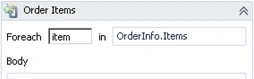
On Toolbox, under Control Flow section drag Switch<T> activity in the body of ForEach<T> activity.
In the properties box of Switch<T>
- Set DisplayName to Calculate Total Item Price
- Set Expression to item.ProductID. Here item is coming from ForEach<item>.
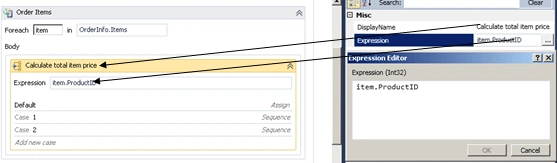
- For Default click on Add Activity and drag Assign activity (under Primitive section).
In the properties box, set To = TotalPrice (This is Property) and Value = 0.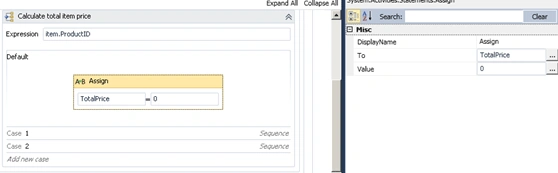
- For Case 1 click on Add Activity and drag Sequence activity. Drag Assign activity (under Primitive section).
In the properties box,
Set DisplayName = Quantity * price, To = item.Price, Value = item.Quantity * 10
- Drag Assign activity after above assign activity.
In the properties box,
Set DisplayName = Calculate total item price, To = TotalPrice, Value = TotalPrice + item.Price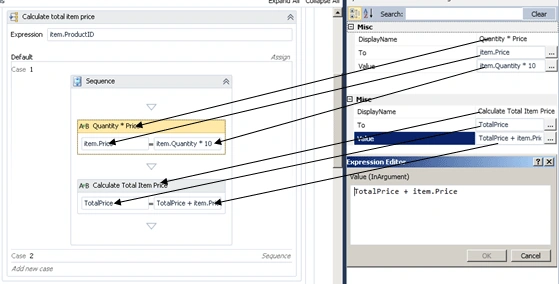
- For Case 2 click on Add Activity and drag Sequence activity. Drag Assign activity (under Primitive section).
In the properties box,
Set DisplayName = Quantity * price, To = item.Price, Value = item.Quantity * 20
- Drag Assign activity after above assign activity.
In the properties box,
Set DisplayName = Calculate total item price, To = TotalPrice, Value = TotalPrice + item.Price
On Toolbox, under Control Flow section drag If activity after ForEach<T> activity. The purpose of this activity is add Shipping Price depending on shipping type selected.
In the properties box,
- Set DisplayName -> Add Shipping Price
- Condition -> OrderInfo.ShippingType = "NextDay"
- In the Then section Drag Assign activity and Set
DisplayName -> Next Day, To -> ShippingPrice, Value -> 10 - In the Else section Drag Assign activity and
DisplayName -> Others, Set To -> ShippingPrice, Value -> 5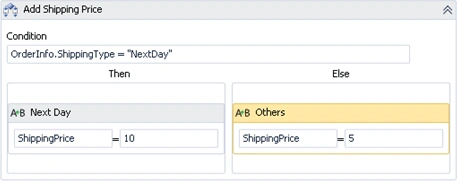
On Toolbox under primitive section drag Assign activity after If activity. The purpose of this activity is to set the total price of order which is sum price of all items for an order and shipping price calculated in previous step.
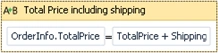
In the properties,
- Set DisplayName -> Total Price including shipping
- Set to -> OrderInfo.TotalPrice
- Set Value -> TotalPrice + ShippingPrice
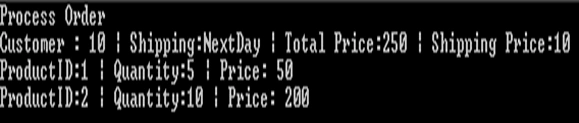
On Toolbox, under primitive section drag WriteLine activity. The purpose of this activity is to display order related details like OrderID, CustomerID, TotalPrice and ShippingType on console window.
In the properties,
- Set DisplayName -> Order
- Set Text -> "Customer: " + OrderInfo.CustomerID.ToString() + " | Shipping:" + OrderInfo.ShippingType + " | Total Price:" + TotalPrice.ToString() + " | Shipping Price:" + ShippingPrice.ToString()
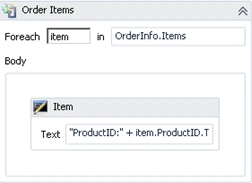
On Toolbox, under drag ForEach<T> activity. The purpose of this activity is to display order items details like ProductID, Quantity and Price.
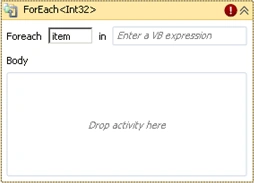
In the properties,
- Set DisplayName = Items
- For TypeArgument, from dropdown list on selecting "Browse for Types…" a dialogue box pops up. Expand OrderProducts to Select OrderItems and click ok. This way type <T> in ForEach<T> is set to OrderProducts.OrderItems.
- For Values, type OrderInfo.Items. Here OrderInfo is the argument of type Order
- After setting above values, ForEach<T> activity is changed as below
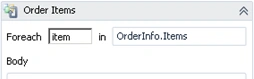
- Drag WriteLine Activity in the Body of ForEach<T> activity.
- Set DisplayName -> Item
- Set Text -> "ProductID:" + item.ProductID.ToString () + " | Quantity:" + item.Quantity.ToString () + " | Price: " + item.Price.ToString ()
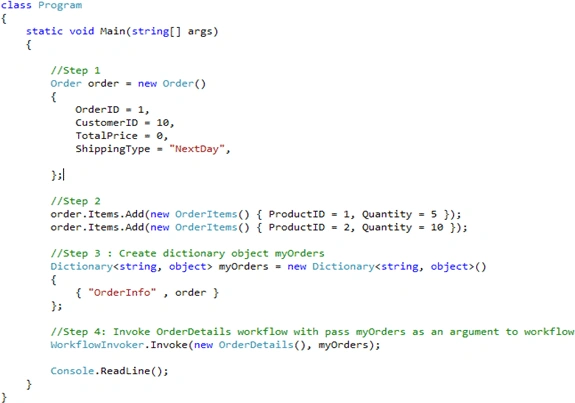
Purpose of this code is to create Order and Order Items as show in step 1 and 2. Create dictionary object of orders and pass that as an argument to workflow.
Step 15: Run the application
Conclusion:
Here I have implemented a fairly simple workflow using the workflow designer. In next article I will show you how to implement the same workflow using code instead. Any workflow can be implemented in code or with the designer; the choice is simply a matter of preference.
Emil GeorgePosted Sep 20, 2018, 2:28 AM
I am not able to add Order as Argument type. Please help me.
Chris WernerPosted Sep 6, 2016, 10:38 AM
Thank you. Got me through a couple rough spots that I could place my finger on.
Juan MarkezPosted Nov 6, 2015, 1:12 PM
Hola Sanket, buen articulo, me agradar?a que en tu siguiente blog explicaras el mismo ejemplo pero ahora con formularios, no sea una aplicaci?n de consola.
sai jamesPosted Jul 28, 2015, 5:46 AM
very nice article sanket ....very useful
Nam NaPosted Sep 23, 2013, 9:27 PM
Thanhk very much
Rajesh JoyPosted Mar 16, 2013, 6:06 AM
I am Rajesh before step 6 you will have to build the project
Nadeem AhmedPosted Nov 22, 2012, 2:39 AM
I am Nadeem i am a great fan of this "C# Cornor",Its help me allot during coding period.Thanks
Arun ManjhieditedPosted Sep 19, 2012, 9:45 AMEdited Sep 19, 2012, 9:46 AM
Hi Bhupendrakumar,when you are placing third order in code.Then you have to mention that third order in Work Flow Case. For Example ProjectId is 3, then your case sholud be Case 3(its an Product Id) .. and the logic.
Arun ManjhiPosted Sep 19, 2012, 9:44 AM
hi
Bhupendrakumar TiwariPosted Jan 17, 2012, 12:18 AM
plz reply sir m wating for your reply
Bhupendrakumar TiwariPosted Jan 16, 2012, 7:08 AM
if i m placing three order then it not showing the price of third order. what is the use of case1 and case 2(i mean what is use of case 2)
C# CornerPosted Oct 12, 2010, 4:03 PM
good thanks
Anupam SoniPosted Jun 18, 2010, 9:09 AM
Hi , Its nice article but can you highlight the point the need of WWF like WCF is wrapper of various communication methods or LINQ is helpfull in various data source like wise why this WWF ? we can write same code in other way as we do ?.
varma viswanathaPosted Jun 1, 2010, 4:32 AM
Thanks for the article.Waiting for more article from your side.
Oussama BahriPosted May 27, 2010, 6:48 PM
Thank you.
Ibrahim ErsoyPosted May 27, 2010, 9:03 AM
Thank you for the article Looking forward more reading from you.
Mahesh ChandPosted May 26, 2010, 11:46 AM
Nice work. Well written step by step. Easy to understand.