

Go to your SharePoint list.
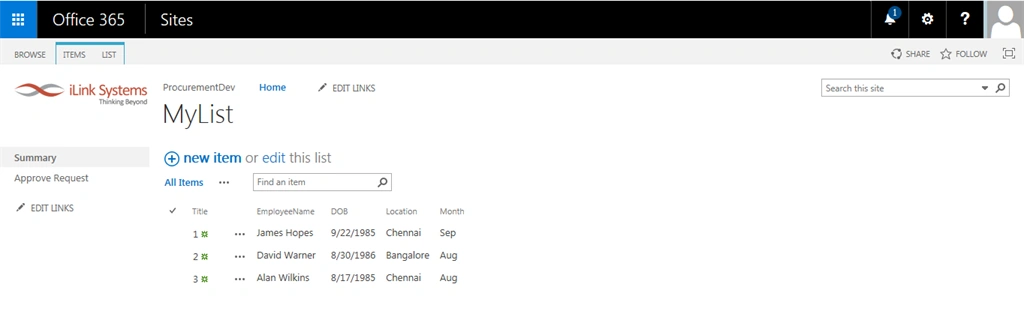
Figure 1: Office
Here I have an Year from DOB column. Click Create Column from the top ribbon.
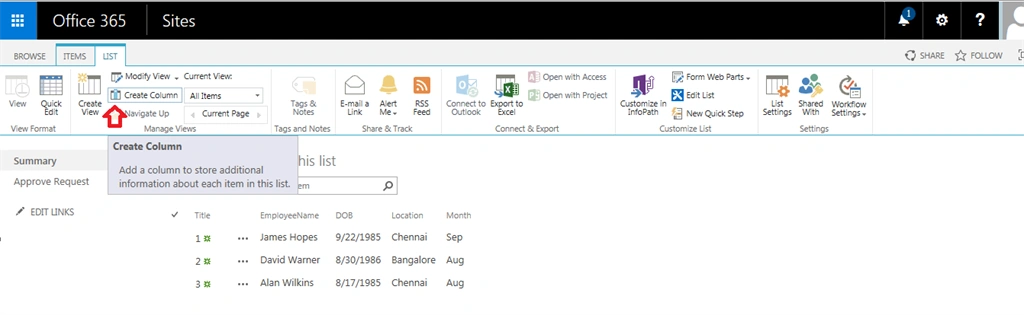
Figure 2: Ribbon
The following popup will appear.
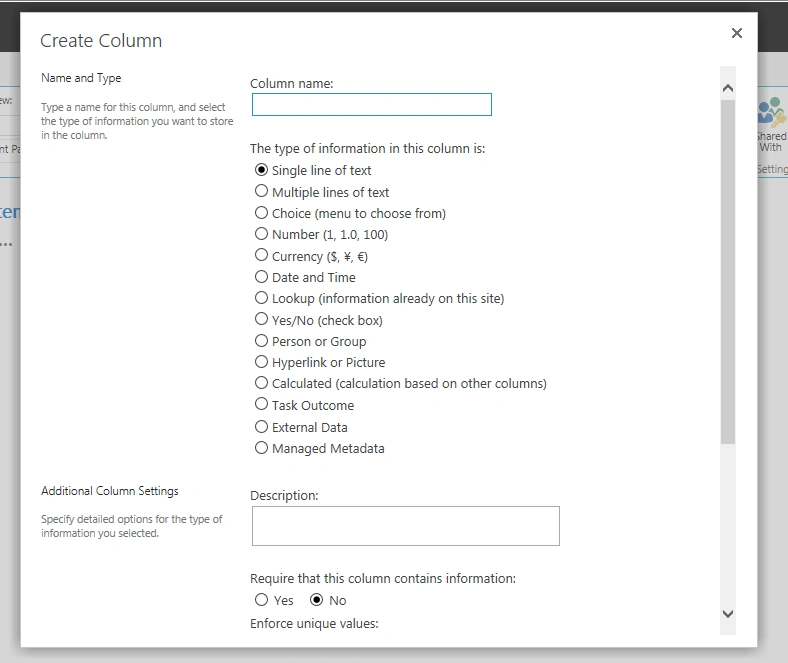
Figure 3: Appear
Enter column name (Year) and select calculated column.
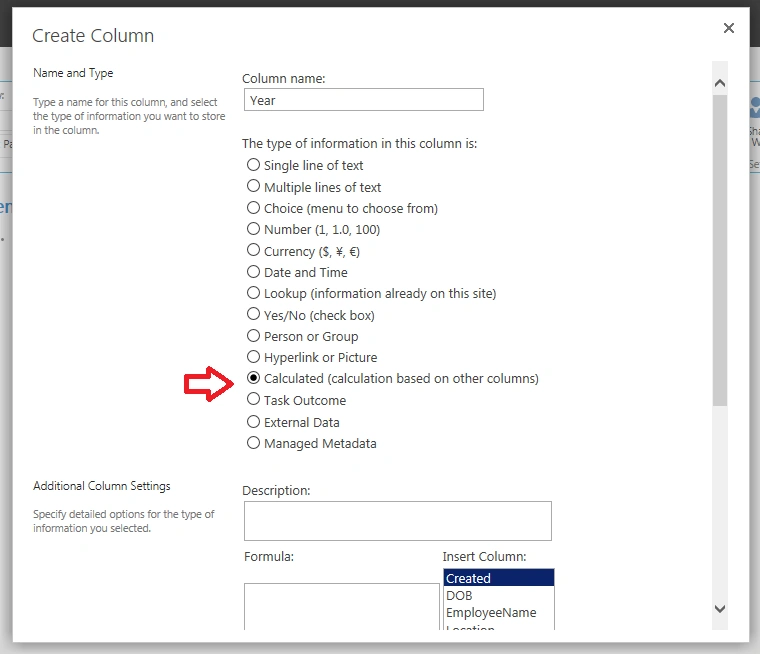
Figure 4: Create Column
Paste the following code to Formula field.
=CONCATENATE(YEAR(DOB)) Here, I have an year from DOB date time column.
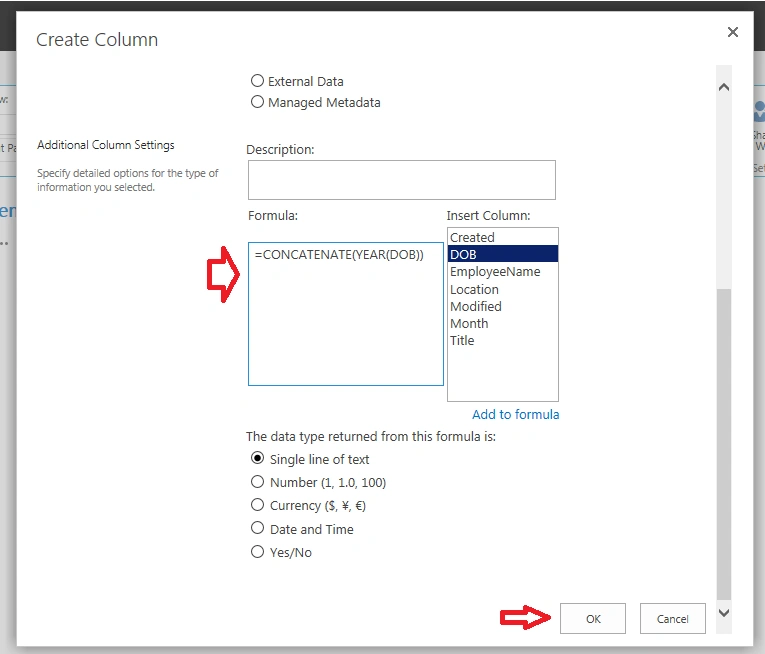
Figure 5: Time Column
Click Ok button. The results will be as in the following screenshot:
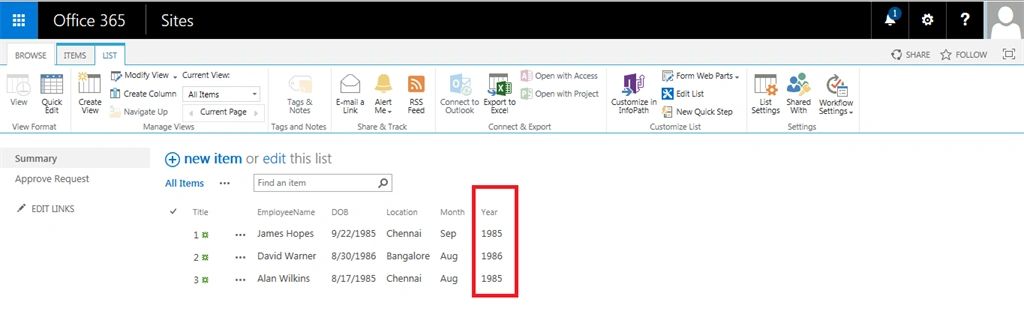
Figure 6: Result
Summary
In this article we have seen how to get an Year only from the date time column using calculation field in SharePoint 2013 list.
Saineshwar BageriPosted Sep 25, 2015, 8:34 AM
Nice one
Pankaj Kumar ChoudharyPosted Sep 25, 2015, 3:46 AM
Nice Explain Sir.......
Sibeesh VenuPosted Sep 25, 2015, 3:41 AM
Nice Share :)
Jacob RobinsonPosted Sep 25, 2015, 3:33 AM
Thanks Sujeet and Viipiin..
Jacob RobinsonPosted Sep 25, 2015, 3:32 AM
Thanks Santhakuamr sir...
Vipin TyagiPosted Sep 25, 2015, 2:54 AM
Informative Article Sir........
Sujeet SumanPosted Sep 25, 2015, 2:53 AM
Nice Article................
Santhakumar MunuswamyPosted Sep 25, 2015, 2:42 AM
Nice share
Jacob RobinsonPosted Sep 25, 2015, 1:41 AM
Thanks Sumit...
Jacob RobinsonPosted Sep 25, 2015, 1:41 AM
Thanks Ankit..
Sumit DeshmukhPosted Sep 25, 2015, 1:32 AM
good one Thanks for share
Ankit BansalPosted Sep 25, 2015, 1:08 AM
nice...thanks for sharing
Jacob RobinsonPosted Sep 25, 2015, 1:03 AM
Thanks Rakesh sir and Nilesh...
Jacob RobinsonPosted Sep 25, 2015, 1:02 AM
Thanks Vinodh..
Nilesh JadavPosted Sep 24, 2015, 11:53 AM
Nice post !!
RakeshPosted Sep 24, 2015, 10:22 AM
Good share
Vinodh NarayananPosted Sep 24, 2015, 6:54 AM
nice share