

Introduction
In modern cloud-based applications, scalability and cost efficiency are critical. Instead of managing servers, we can use serverless computing .
This is where Azure Functions come in.
Microsoft provides Azure Functions as a serverless compute service that allows you to run code on-demand without managing infrastructure.
In this article, we will learn:
What Azure Functions are
Azure Function vs Azure App Service
How Azure Functions work and Types of triggers
Creating a Blob Trigger Function in .NET 8
Configure Azure Function (Cloud).
Publish the Azure Function using Visual Studio.
What is Azure Functions?
Azure Functions are a serverless computing service that allows developers to run code in response to events without managing infrastructure.
Key benefits include:
Run code when an event occurs
Automatic scaling
Pay only for execution time
No server management required
Azure Functions follows an event-driven architecture , where functions execute automatically when specific events occur.
It follow the event-driven architecture.
Azure Function vs Azure App Service
| Feature | Azure Functions | Azure App Service |
|---|---|---|
| Purpose | Event-driven serverless computing | Host full web applications and APIs |
| Infrastructure | Fully serverless | Managed servers |
| Scaling | Automatic scaling based on events | Manual or automatic scaling |
| Billing | Pay only when code runs | Pay for the running instance |
| Best for | Background jobs, event processing | Web apps, APIs, microservices |
| Execution model | Trigger based | Request based |
| Cold start | Possible (in consumption plan) | No cold start |
| Runtime | Small functions | Full application runtime |
How Azure Functions Work
Azure Functions works using the following:
Trigger
An event that starts the function.
Binding
Connects to external services (Blob, Queue, Cosmos DB, etc.)
Function Code
Your actual business logic.
Types of Triggers
Here are commonly used triggers:
HTTP Trigger : An HTTP Trigger runs a function when an HTTP request (GET, POST, PUT, DELETE) is sent to an endpoint. It works like a lightweight Web API .
Blob Trigger : A Blob Trigger runs when a file is uploaded or modified in Azure Blob Storage . Azure monitors the storage container and triggers the function when a new blob appears.
Queue Trigger : A Queue Trigger runs when a new message arrives in a storage queue . It works with Azure Queue Storage .
Timer Trigger : A Timer Trigger runs a function on a schedule .Similar to Cron Jobs .
Event Hub Trigger : An Event Hub Trigger runs when streaming data arrives in Event Hub . It works with Azure Event Hubs .
Service Bus Trigger : A Service Bus Trigger runs when a message arrives in Azure Service Bus queue or topic . It works with Azure Service Bus .
HTTP → API calls
Blob → File uploads
Queue → Background tasks
Timer → Scheduled jobs
Event Hub → Streaming data
Service Bus → Enterprise messaging
Creating a Blob Trigger Function in .NET 8
Diagram explanation before coding
Azure Blob Storage (practice-container)
            ↓
Azure Function (Blob Trigger)
            ↓
Process File
(Check if file is PDF)
            ↓
Azure Blob Storage (processed-container)
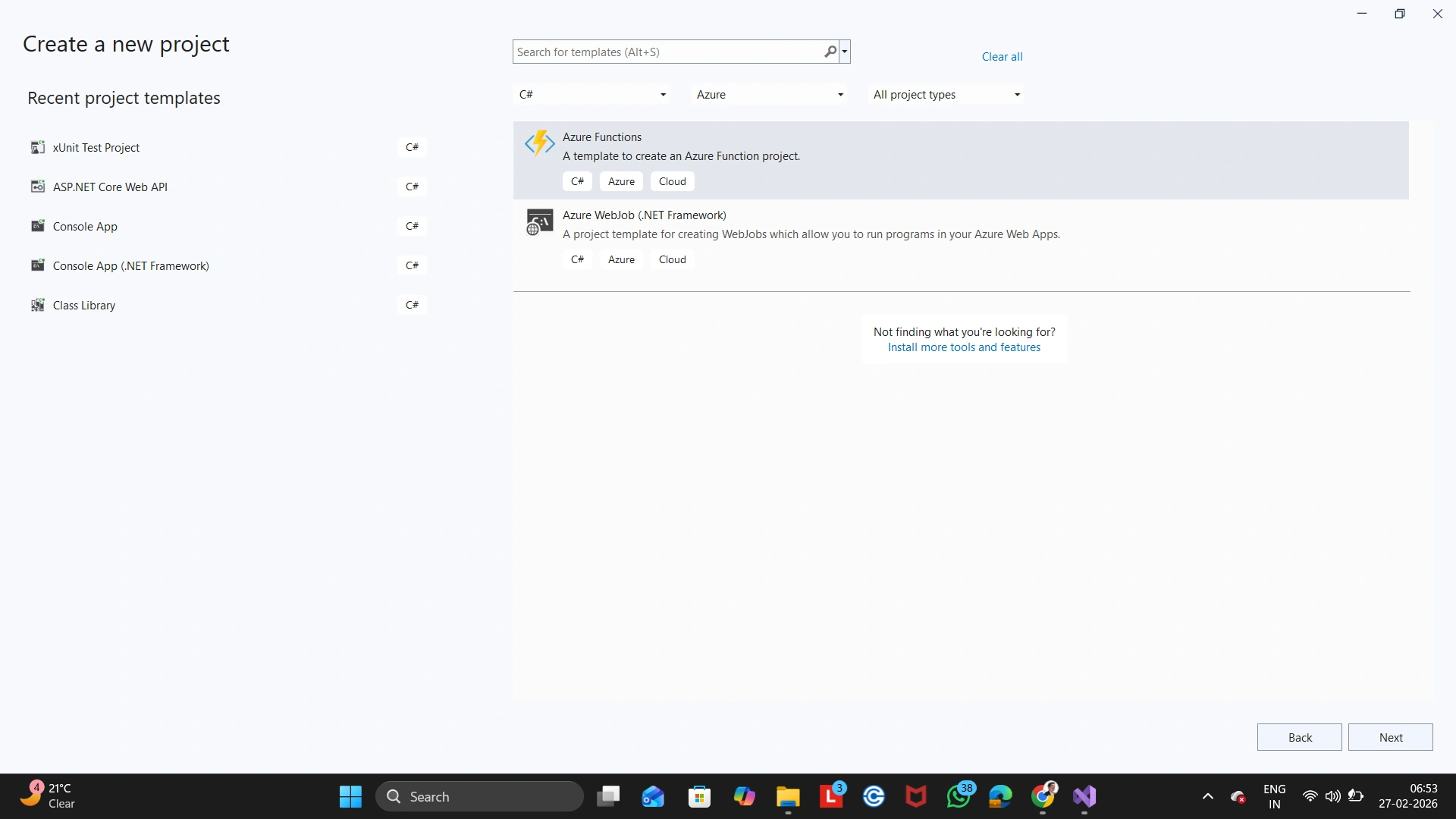
Open Visual studio and create the new project Azure Functions
STEP 1 — Click Next
On this screen:
Select Azure Functions
Click Next
Configure Project
You'll see the project configuration screen.
Fill like this:
Project name →
BlobToApiFunctionLocation → Your solution folder
Framework → .NET 8 (Long Term Support)
Click Create
If needed, please check this. Article Azure Blob
Now Visual Studio will ask:
Worker: .NET 8 Isolated
Function: Blob Trigger
Azurite: Unchecked
Connection string setting name:
AzureWebJobsStoragePath:
practice-container/{name}
Then click Create
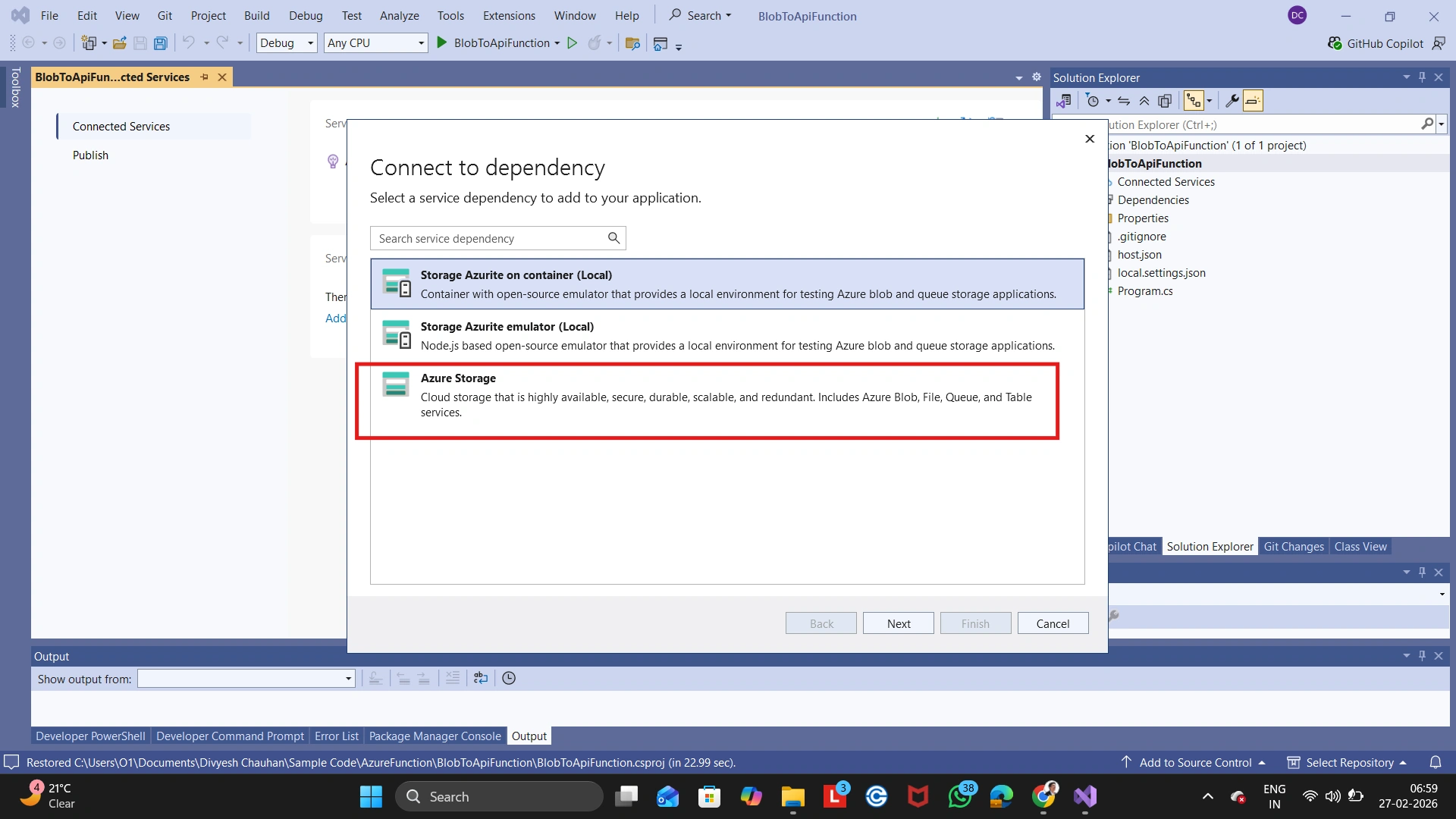
Choose:
Click Azure Storage
Click Next
Sign in if prompted
Select:Your Subscription
Your Resource Group
Your Storage Account (the one with
practice-container)
Click Finish
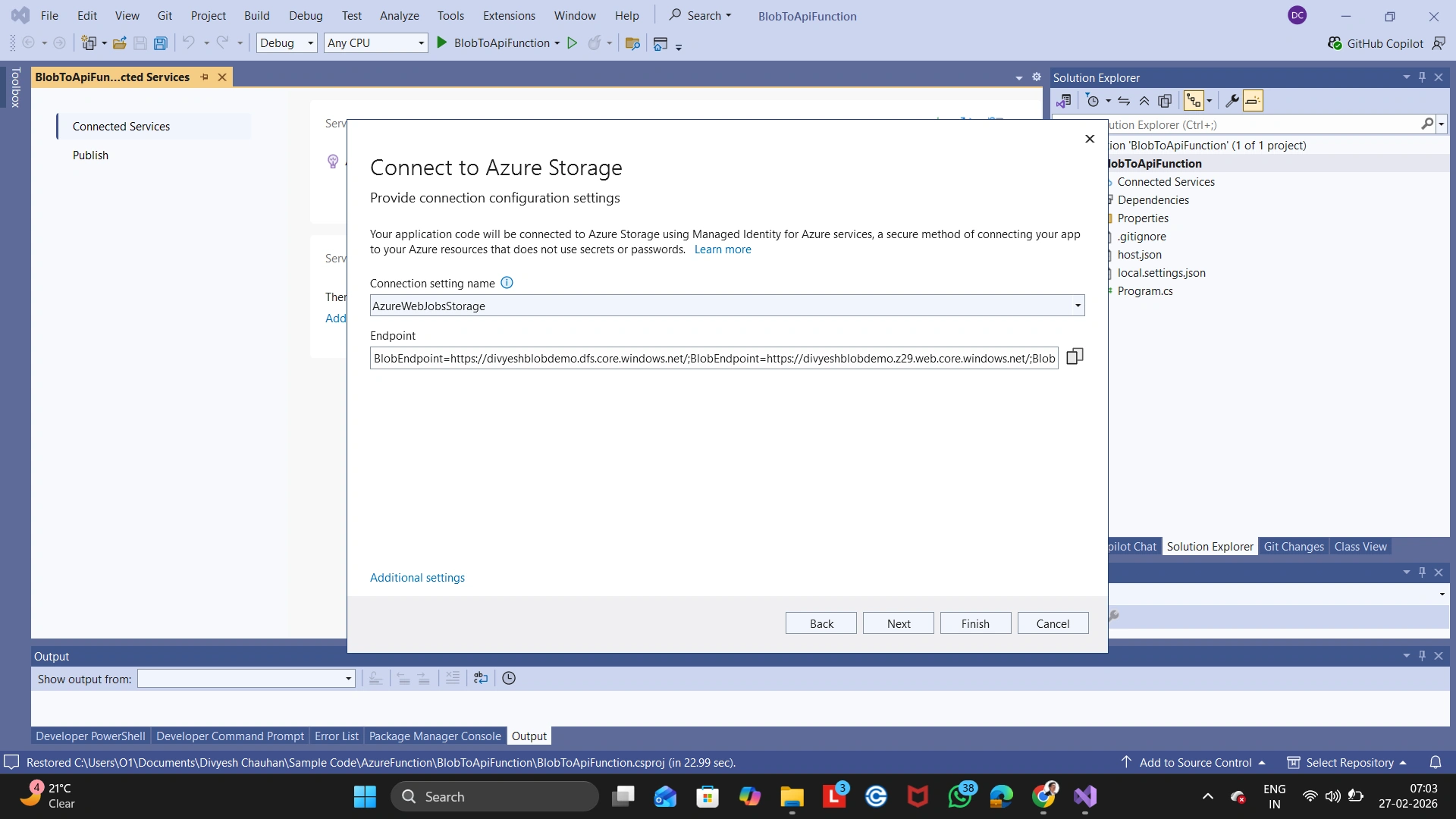
Visual Studio will:
Automatically configure
local.settings.jsonAdd connection string
Link your function to real Azure Blob
This is the correct professional setup
    using System.IO;
using System.Threading.Tasks;
using Azure.Storage.Blobs;
using Microsoft.Azure.Functions.Worker;
using Microsoft.Extensions.Logging;

namespace BlobToApiFunction
{
    public class Function1
    {
        private readonly ILogger<Function1> _logger;
        private readonly string _connectionString;

        public Function1(ILogger<Function1> logger)
        {
            _logger = logger;
            _connectionString = Environment.GetEnvironmentVariable("AzureWebJobsStorage");
        }

        [Function(nameof(Function1))]
        public async Task Run(
            [BlobTrigger("practice-container/{name}", Connection = "AzureWebJobsStorage")]
            Stream stream,
            string name)
        {
            _logger.LogInformation($"Blob received: {name}");

            if (!name.EndsWith(".pdf", StringComparison.OrdinalIgnoreCase))
            {
                _logger.LogWarning("File is not a PDF. Ignoring...");
                return;
            }

            var blobServiceClient = new BlobServiceClient(_connectionString);

            var sourceContainer = blobServiceClient.GetBlobContainerClient("practice-container");
            var destinationContainer = blobServiceClient.GetBlobContainerClient("processed-container");

            var sourceBlob = sourceContainer.GetBlobClient(name);
            var destinationBlob = destinationContainer.GetBlobClient(name);

            // Copy blob
            await destinationBlob.StartCopyFromUriAsync(sourceBlob.Uri);

            _logger.LogInformation("Blob copied to processed-container.");

            // Delete original blob
            await sourceBlob.DeleteAsync();

            _logger.LogInformation("Original blob deleted from practice-container.");
        }
    }
}
Configure local.settings.json
    {
  "IsEncrypted": false,
  "Values": {
    "AzureWebJobsStorage": "YOUR_STORAGE_CONNECTION_STRING",
    "FUNCTIONS_WORKER_RUNTIME": "dotnet-isolated"
  }
}
Storage Account → Access Keys
Run the Function
Click Start (F5)
Now:
Go to Azure Portal
Open your Blob container →
uploadsUpload any file
Your function will trigger locally.
You'll see logs in Visual Studio output window.
Configure Azure Function (Cloud)
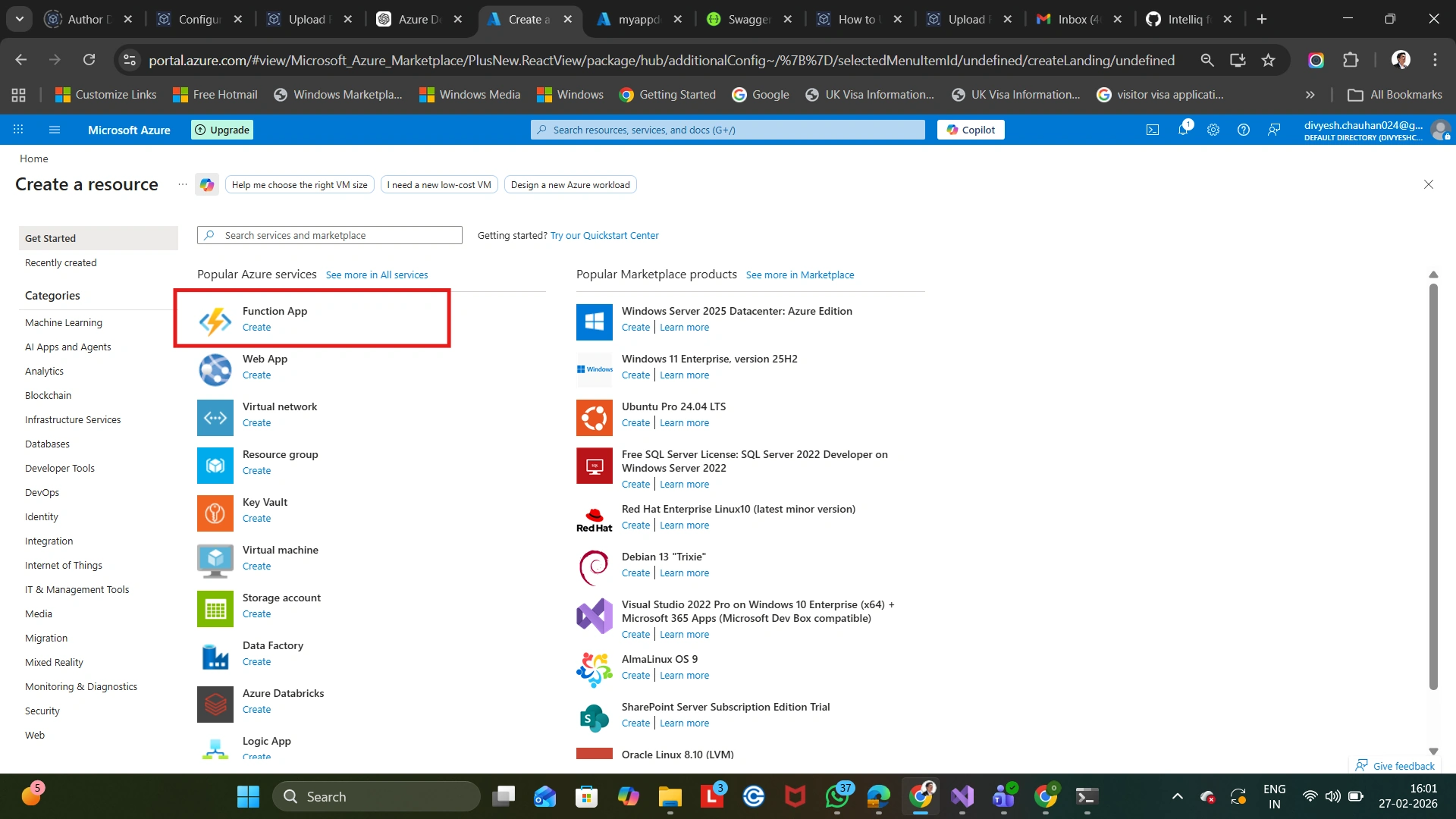
Go to Azure Portal → Create → Function App
Basics
Runtime stack → .NET
Version → .NET 8 (Isolated)
Hosting → Consumption (Serverless)
Storage → Select your existing storage account
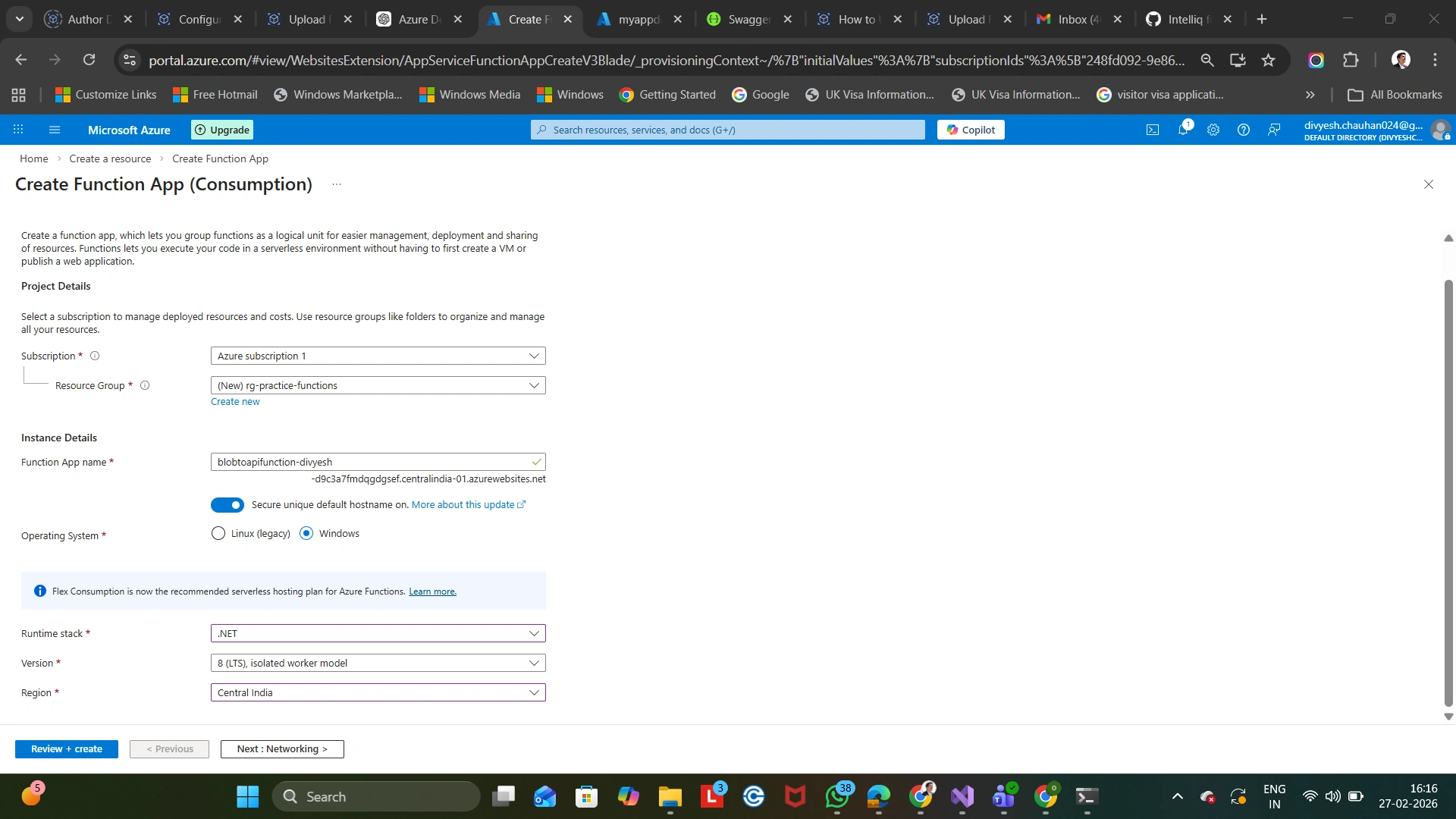
Click Review + Create
Publish the Azure Function using Visual Studio.
Open Visual Studio
Right-click your project
Publish
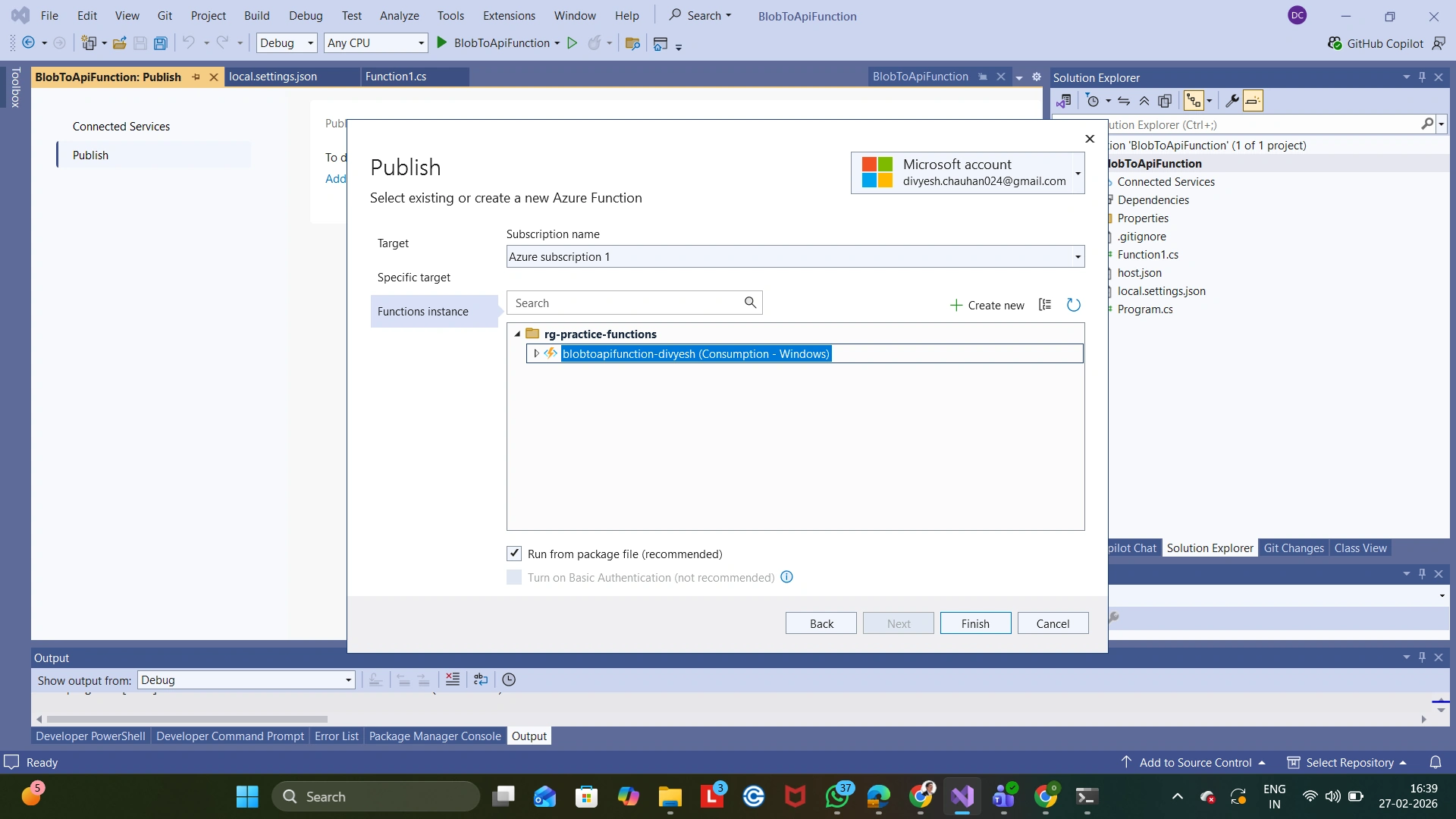
Azure Function App (Windows)
Select your created app
Click Publish
Wait until it says: Publish succeeded
After Publishing (Very Important)
Go to the Azure Portal:
Function App →
Settings → Environment Variables
Check if:
AzureWebJobsStorage
is automatically added.
If NOT:
Go to your Storage Account → Access keys → Copy Connection String →
Paste into:
AzureWebJobsStorage
Save → Restart Function App
Upload a PDF into:
practice-container
Go to:
Function App → Functions → Function1 → Monitor
You should see execution logs.
Conclusion
Azure Functions provide a powerful serverless solution that enables developers to build scalable and cost-efficient applications.
Key advantages include:
Reduced infrastructure management
Automatic scaling
Pay-per-execution pricing
Ideal for background processing and microservices
Azure Functions integrate seamlessly with many Azure services, making them a great choice for event-driven architectures.
You can Join me on LinkedIn to follow my learning journey.
Thank you so much for your time. Happy Coding !!
Join the conversation! Your thoughts help the community grow.