

This article is in continuation of my articles related to Cognitive Services. I came across some complicated articles on Cognitive Services, but as I've been working on this service for the last six months, I thought of writing simple, step by step articles on the same.
If you have landed directly on this article, I also recommend that you read the following.
- Getting started with Microsoft Cognitive Services – Face API
- Getting started with Microsoft Cognitive Services – Emotion API
- Getting started with Microsoft Cognitive Services – LUIS API
- Getting Started With Microsoft Azure Cognitive Services - Recommendations API
- Getting Started With Microsoft Azure Cognitive Services - Speaker Recognition API
- Getting Started With Microsoft Azure Cognitive Services - Text Analytics API
- Getting Started With Microsoft Azure Cognitive Services - Computer Vision API
- Getting Started With Microsoft Azure Cognitive Services – Web Language Model API
- Getting Started With Microsoft Azure Cognitive Services - Bing Autosuggest API
As defined, Cognitive Services provides the best suite for having interactive, automated models of application. It helps to build powerful intelligence into applications to enable natural and contextual interactions.
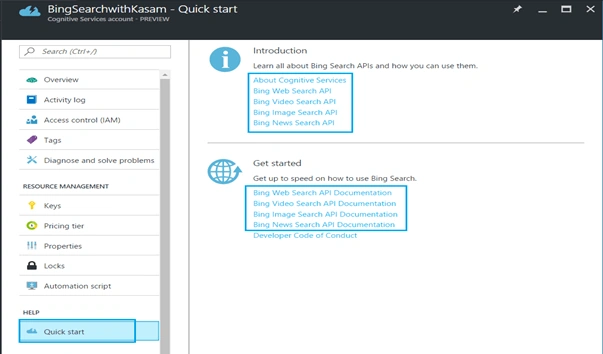
The Bing Search API, as stated by Microsoft, makes your apps, web-pages, and other experiences smarter and more engaging. It provides the following APIs.
- Bing Web Search API
Get enhanced search details from billions of web documents - Bing Image Search API
Search for images and get comprehensive results - Bing Video Search API
Search for videos and get comprehensive results - Bing News Search API
Search for news and get comprehensive results
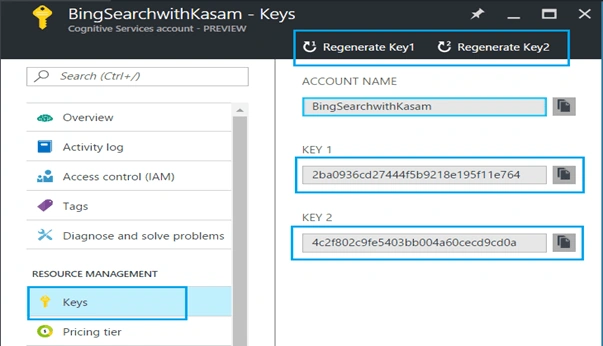
This Bing Search APIs are just one call away — and available ad-free. We will learn more about Bing Search API in later articles. To start with, let's create Cognitive account to use Bing Search API, using Azure Portal.
Here, let's assume that you have Azure Portal account. If not, create your free Azure account.
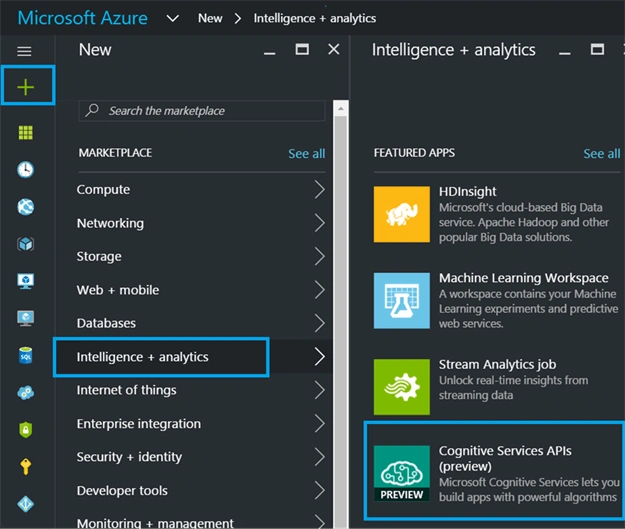
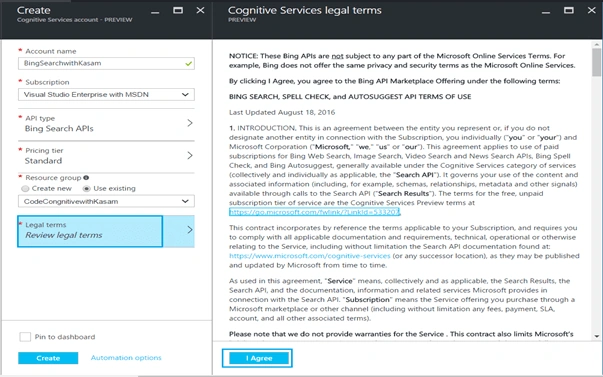
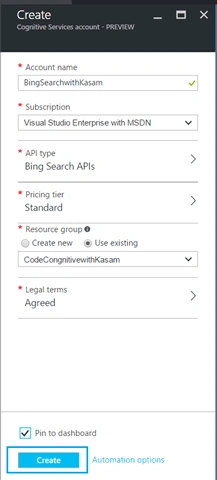
Once done with account creation, Click '+’ => Category, Intelligence + analytics => Services, Cognitive Services APIs.
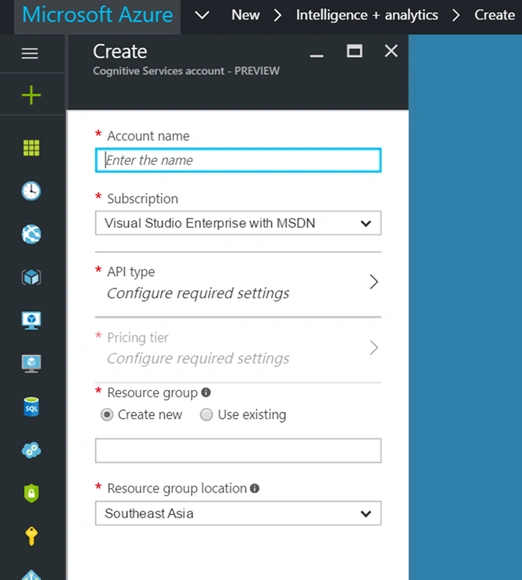
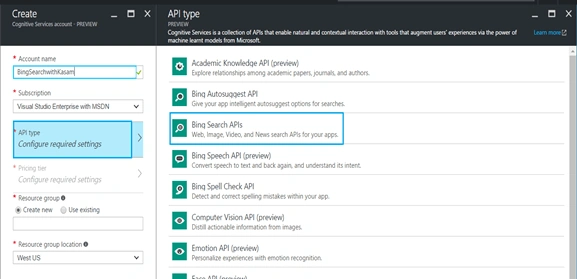
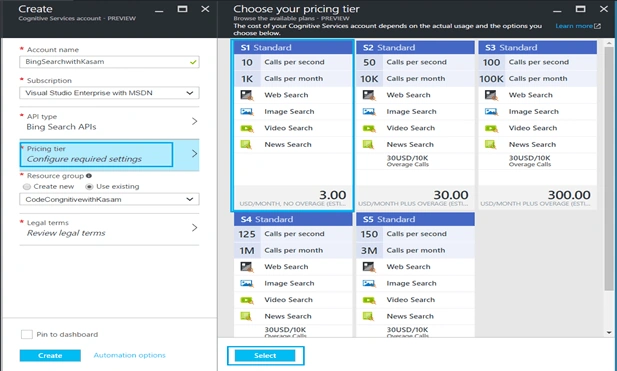
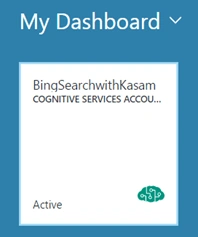
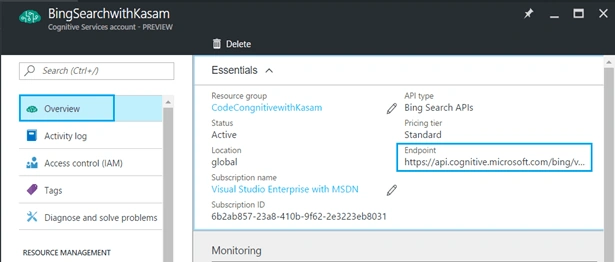
Fill in below details
Join the conversation! Your thoughts help the community grow.