

This article is in continuation of my articles related to Cognitive Services. I came across some complicated articles on Cognitive Services, but as I've been working on this service for the last six months, I thought of writing simple, step by step articles on the same.
If you have landed directly on this article, I also recommend that you read the following.
- Getting started with Microsoft Cognitive Services – Face API
- Getting started with Microsoft Cognitive Services – Emotion API
- Getting started with Microsoft Cognitive Services – LUIS API
- Getting Started With Microsoft Azure Cognitive Services - Recommendations API
- Getting Started With Microsoft Azure Cognitive Services - Speaker Recognition API
- Getting Started With Microsoft Azure Cognitive Services - Text Analytics API
- Getting Started With Microsoft Azure Cognitive Services - Computer Vision API
- Getting Started With Microsoft Azure Cognitive Services – Web Language Model API
- Getting Started With Microsoft Azure Cognitive Services - Bing Autosuggest API
As defined, Cognitive Services provides the best suite for having interactive, automated models of application. It helps to build powerful intelligence into applications to enable natural and contextual interactions.
The Translator Speech API, as described by Microsoft, is a cloud-based automatic translation service. The API enables developers to add end-to-end, real-time, speech translations to their applications or services. It easily adds speech translation to your app, optimized for real-life conversation.
We will learn more about Translator Speech API in later articles. To start with, let's create a Cognitive account to use Translator Speech API, using Azure Portal.
Here, let's assume that you have Azure Portal account. If not, create your free Azure account.
Once done with account creation, Click '+’ => Category, Intelligence + analytics => Services, Cognitive Services APIs.
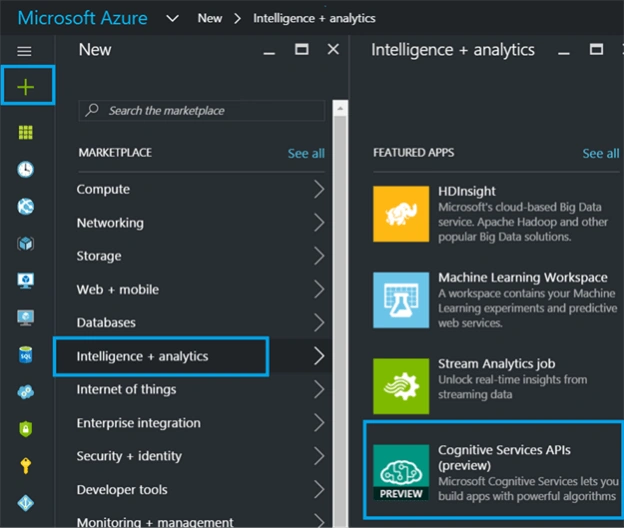
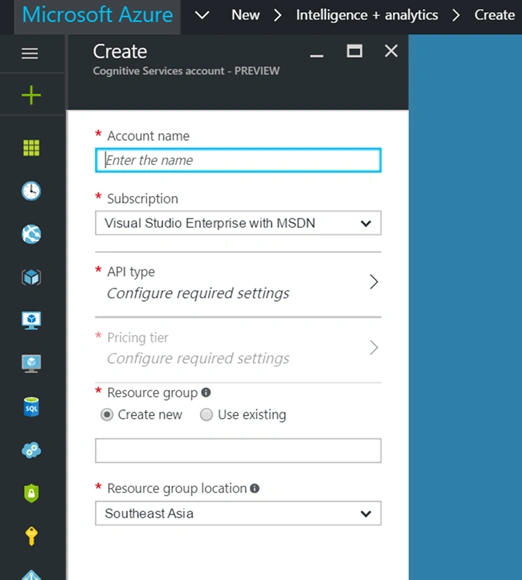
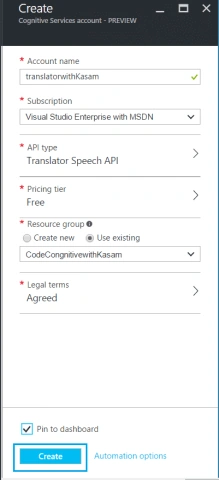
Fill in the below details
- Account Name
Unique name for cognitive Translator Speech API account.
- Subscription
Free; or in case of any subscription you have, must be selected here.
- API Type
Cognitive Service provides a set of awesome APIs. For this article, we will go with Translator Speech API.
- Pricing Tier
As per API selected, pricing option will be listed. Select anyone among the listed options.
- Resource Group
Can select existing Resource group or create new.
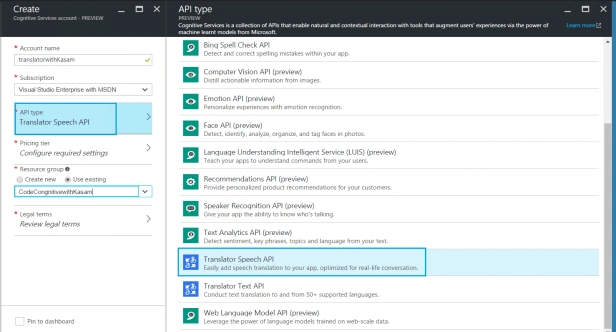
- Account Name
translatorwithKasam
- Subscription
Have selected my subscription.
- Resource Group
Created new resource group for grouping Cognitive related services, named CodeCognitivewithKasam
- API Type
Cognitive services provides a set of awesome APIs. For this article, I selected Translator Speech API.
Pricing Tier
For Translator Speech API selected, the below pricing option are listed. Let's select Free as pricing tier. You can go with other options, which are available in the free trial account.
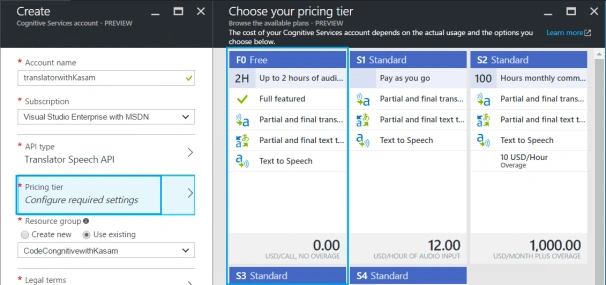
Once done with choosing pricing tier, Click on "Legal Terms" option. A blade with detailed terms will be displayed.
Read it carefully and then click, I Agree .
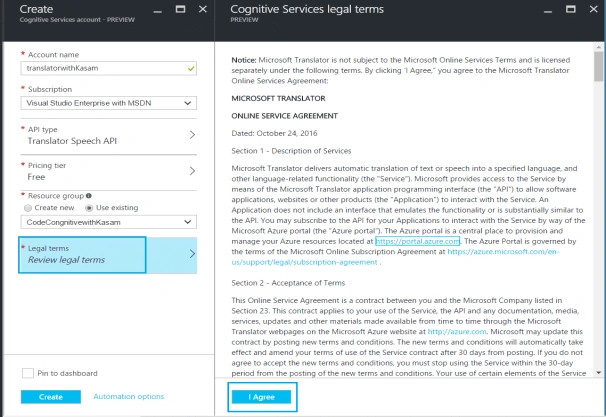
Once you've agreed with Legal terms Click => Create
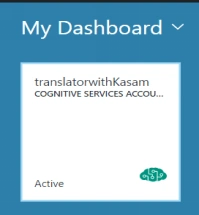
After successful creation, the below box can be seen in Dashboard (it will have option to pin it, while creating).
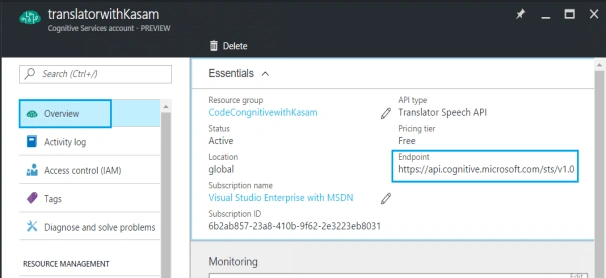
Click on Resource groups => CodeCognitivewithKasam (resource group selected) => Overview. Translator Speech API cognitive account created will be listed. Click on the account name.
Overview => Will list all details associated with Translator Speech API Cognitive account.
Endpoint is base URL of RESTful Translator Speech API provided by Microsoft. Will look into it with deep details in coming articles.
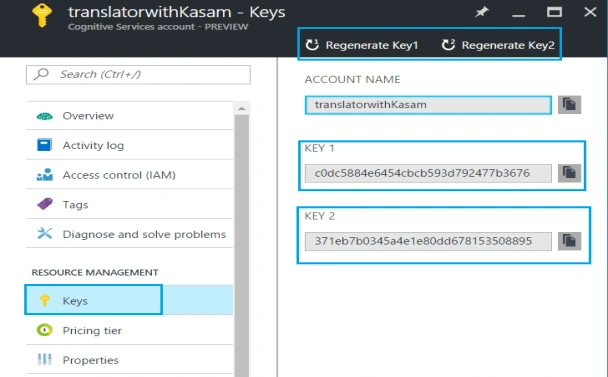
Click on Keys under Resource Management. This will list the key details (Key 1, Key 2), which we will be using in our application to leverage Translator Speech API services.
We can also regenerate this Key by clicking Regenerate Key option available, as shown below.
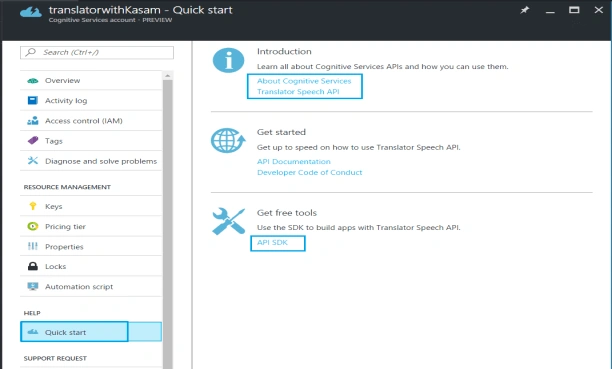
Click on Quick Start for a quick introduction of Cognitive Services, along with API documentation to use Cognitive Translator Speech APIs
Summary
How easy it is to get started with Cognitive Services. By now, we saw how effortlessly we can create Cognitive Services Translator Speech API account, using Microsoft Azure Portal.
We can use the Keys, being generated, to allow our app to communicate with super intelligent Translator Speech API. In later articles, we will use Keys and look at how this could be used in our application. I would recommend you try this and be ready with Keys.
Happy Azure coding!
Karthikeyan KPosted Nov 1, 2016, 4:16 AM
Good one..