

Note: this article is published on 05/13/2024.
This is a series of articles related to Git GUI Clients.
- Git GUI Clients (0), Overview
- Git GUI Clients (1), Visual Studio
- Git GUI Clients (2), VS Code
- Git GUI Clients (3), GitHub Desktop
- Git GUI Clients (3-1), GitHub Server --- this article
- Git GUI Clients (4), TortoiseGit
- Git GUI Clients (6), SmartGit
Note. Although Git is very popular in the software development process, there is no category defined in this C # Corner site. So, we put the articles under the DevOps category.
A - Introduction
This is a series of articles related to Git GUI Clients. However, asspcoated with GitHub GUI Client, the Desktop, in this article, we will describe the GitHub server briefly with its major functionalities.
- A: Introduction
- B: GitHub Server Major Functionalities
B - GitHub Server Major Functionalities
GitHub Home Page:
After login, we will see the GitHub Home Page, on the left Panel, showing: Repository Panel:
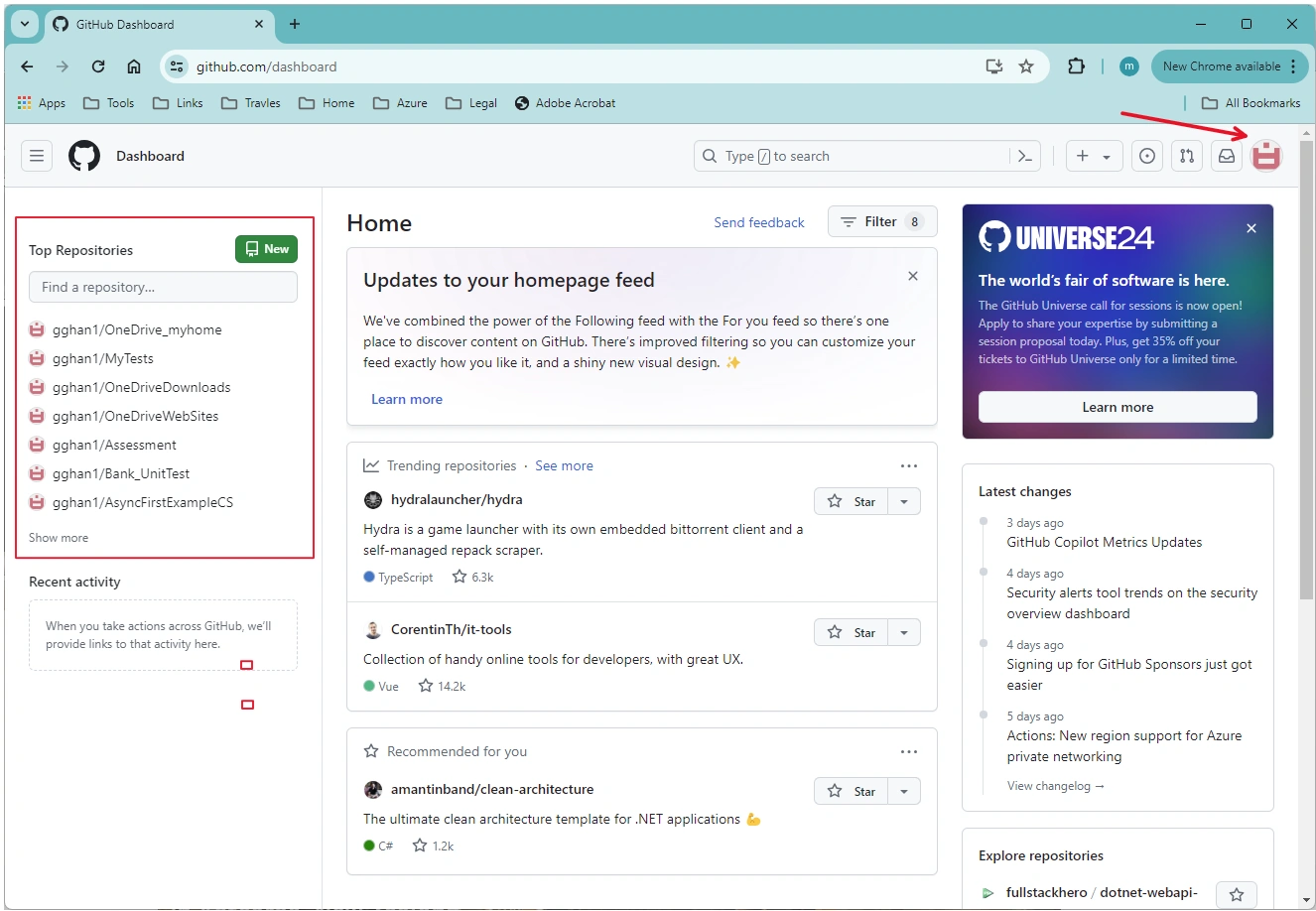
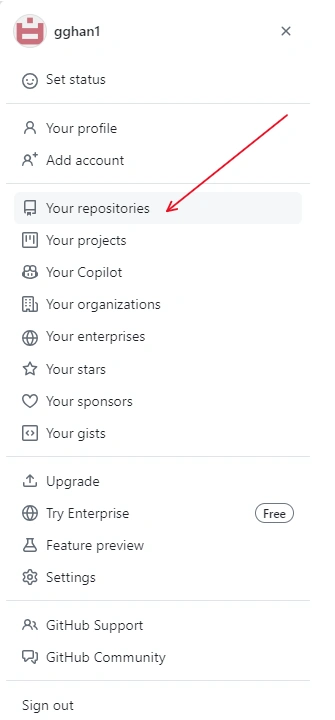
Click on the right top corner: the disk sign => Your Repositories:
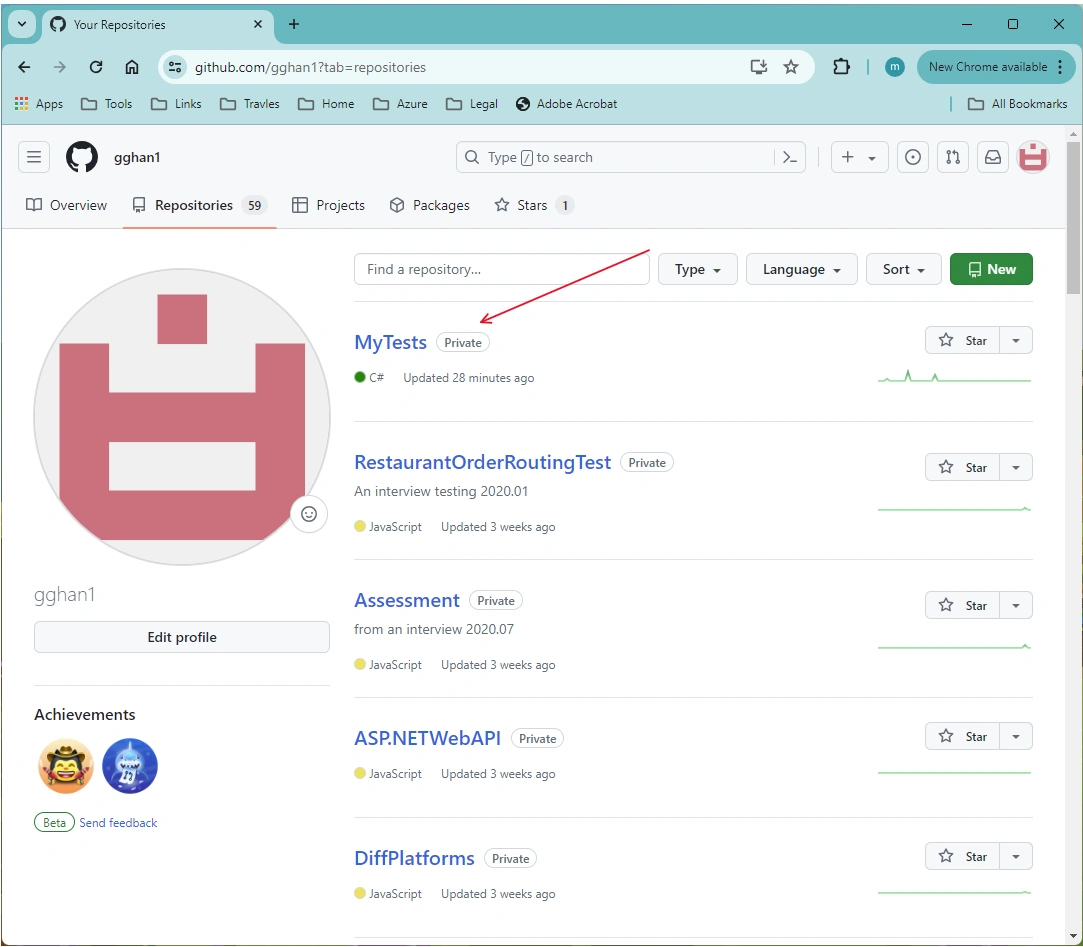
Showing the Repositories Page => Click one Repository:
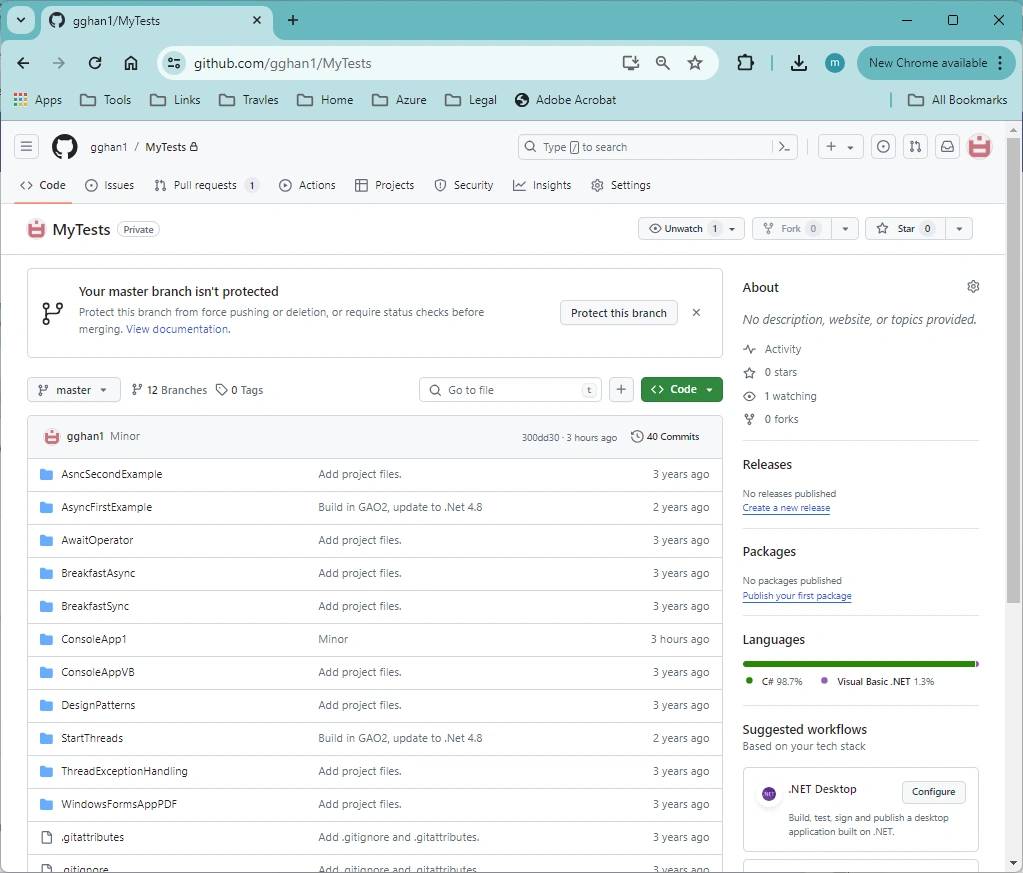
Showing the repository page:
Click Branch sign on the left panel to show the droplown list of Branches:
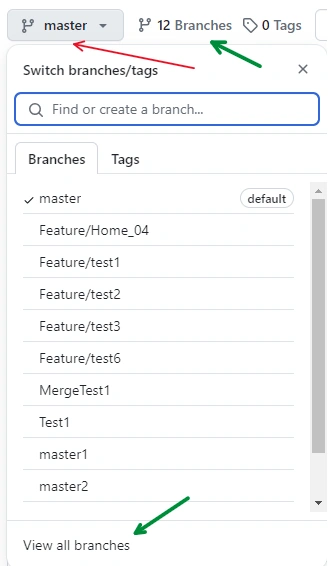
Click either View all branches button at the bottom or the Branches sign on the top to open Branches Page:
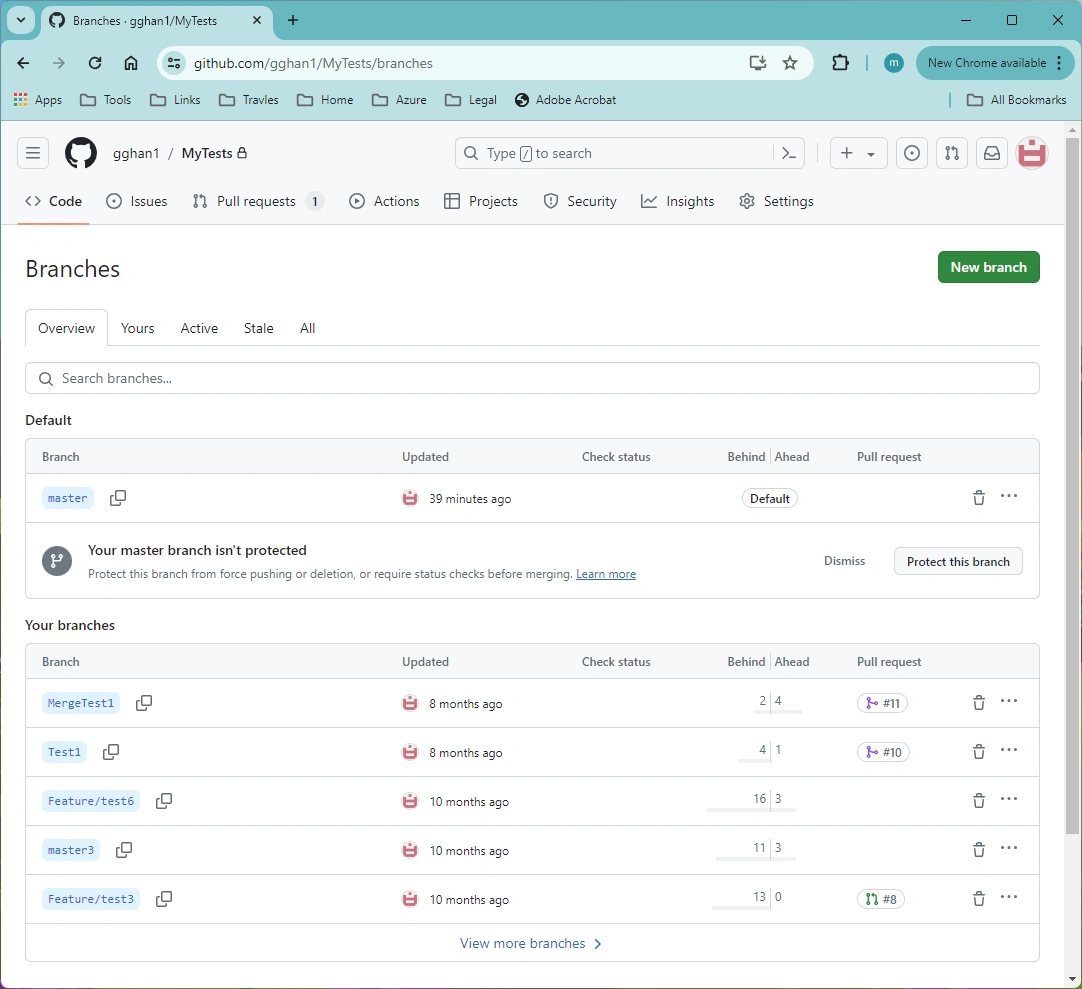
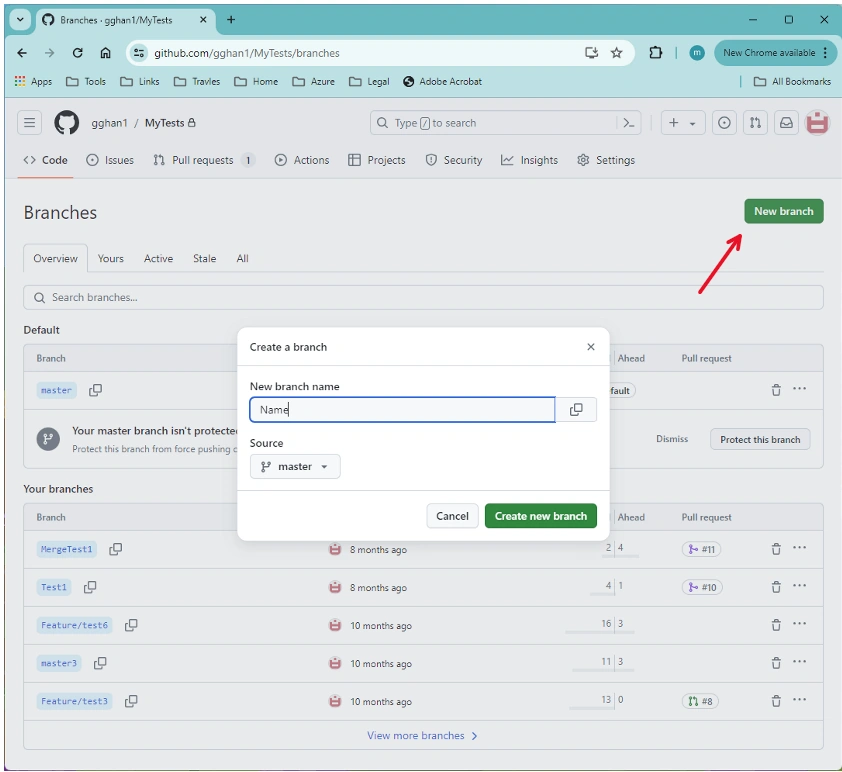
Create a New Branch:
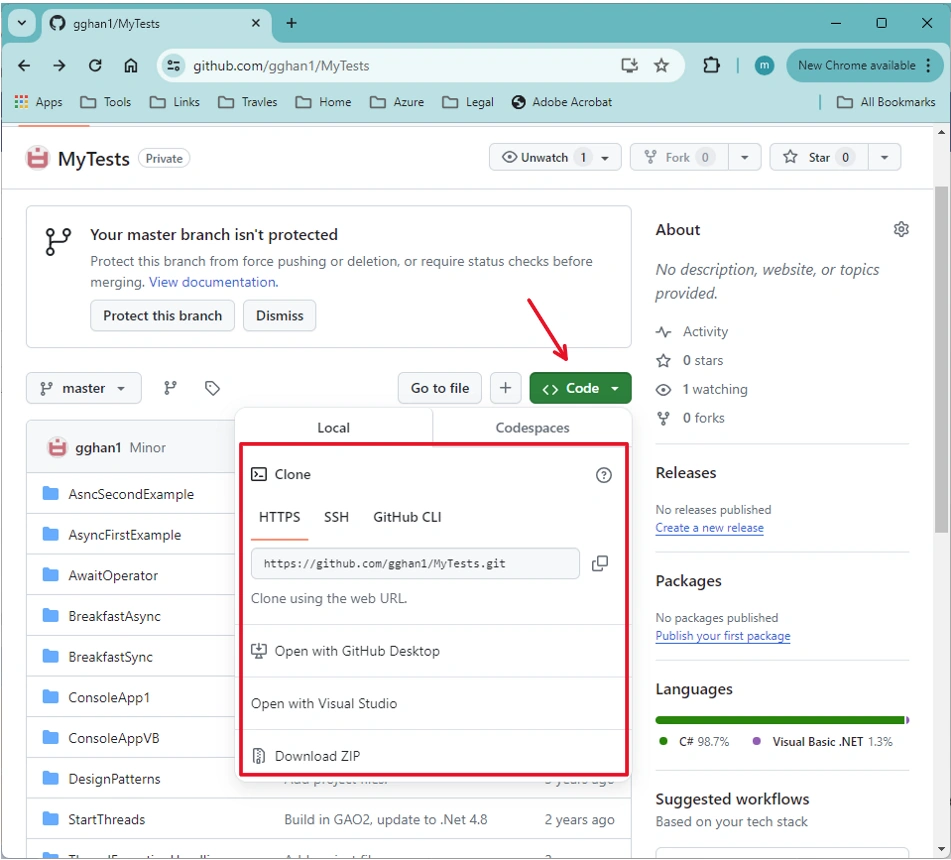
From the Repository Page => Click Code button => Open the repository by different method and different tool:
Click Pull Requests Tab on the top menu bar:
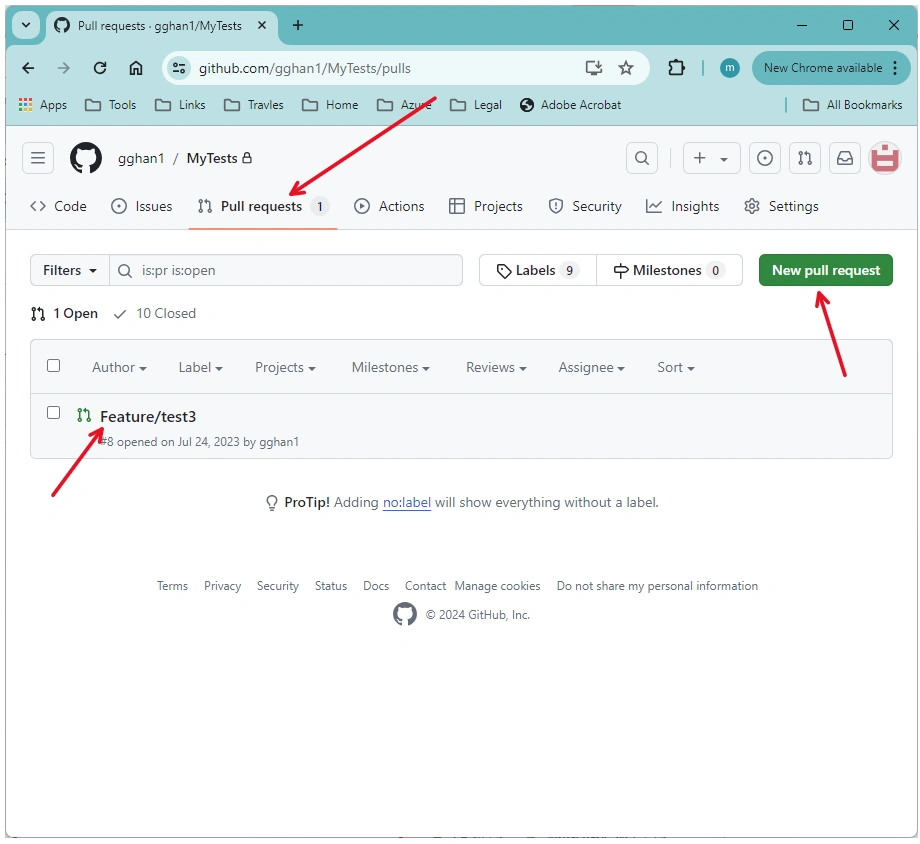
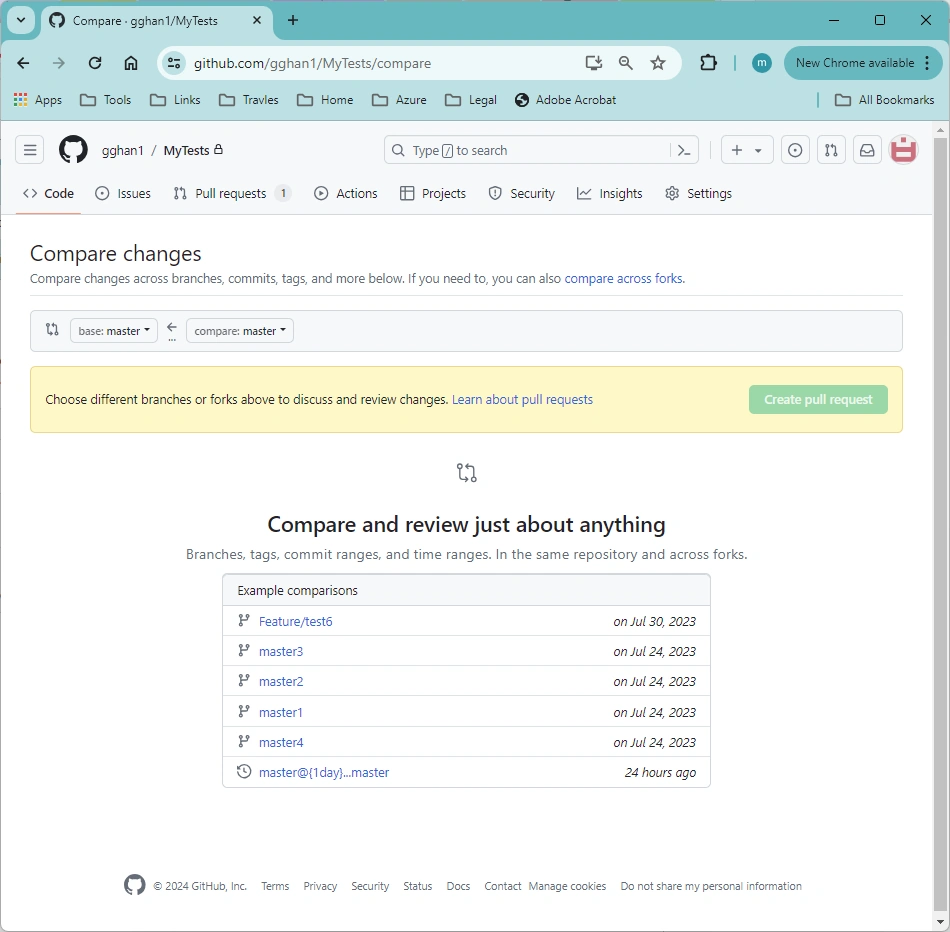
Click New Pull Request button to open a New Pull Request:
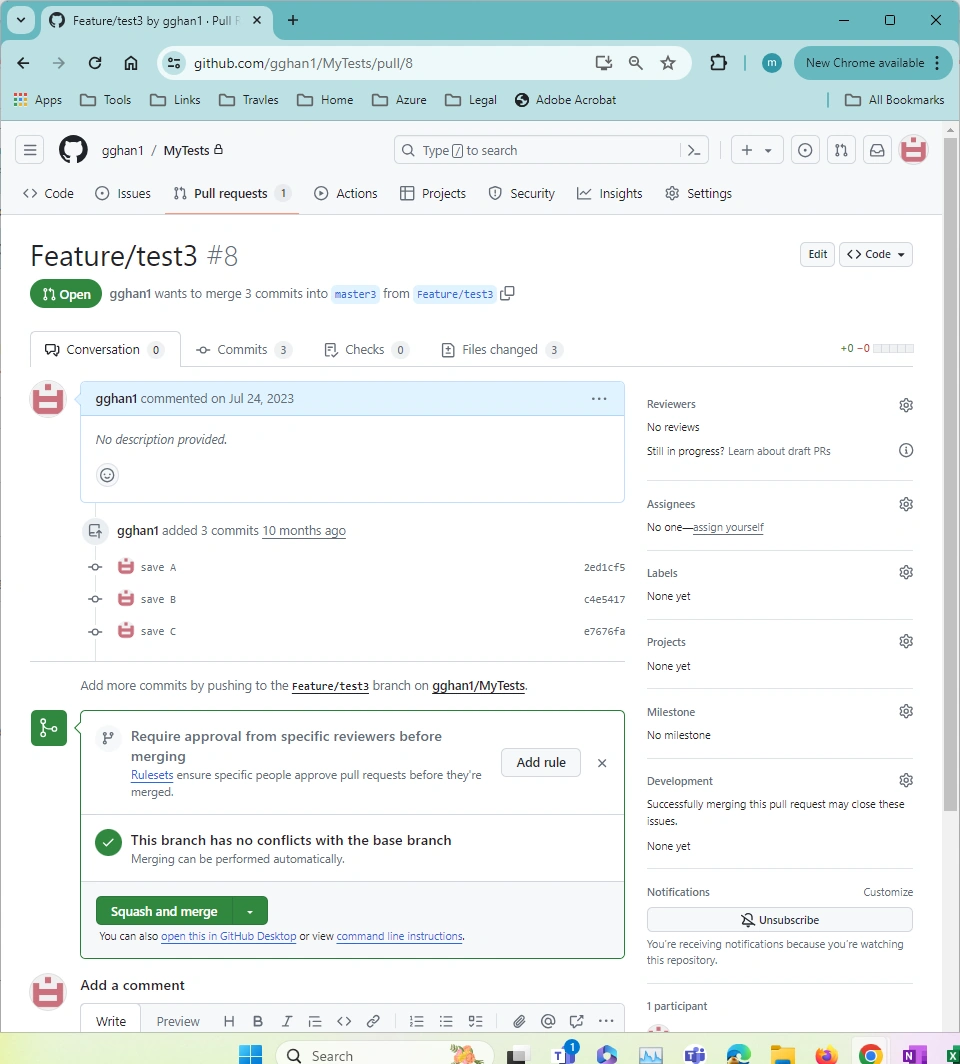
Click an existing Pull Request to access the page:
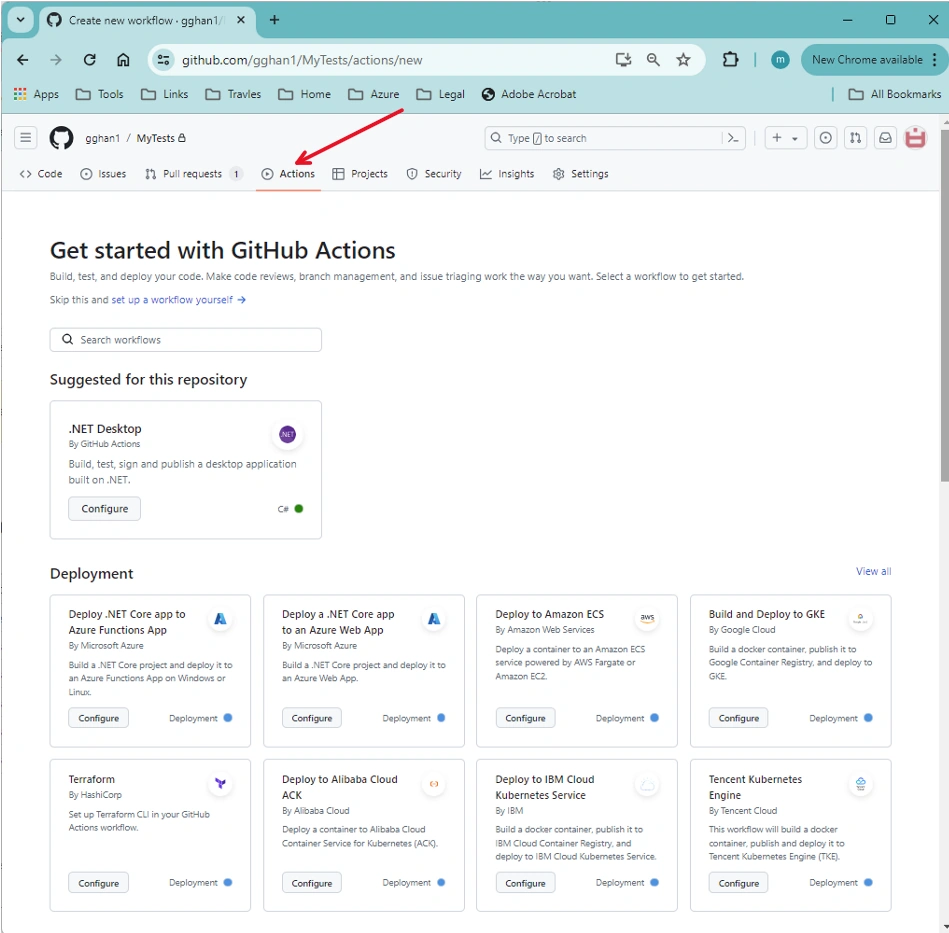
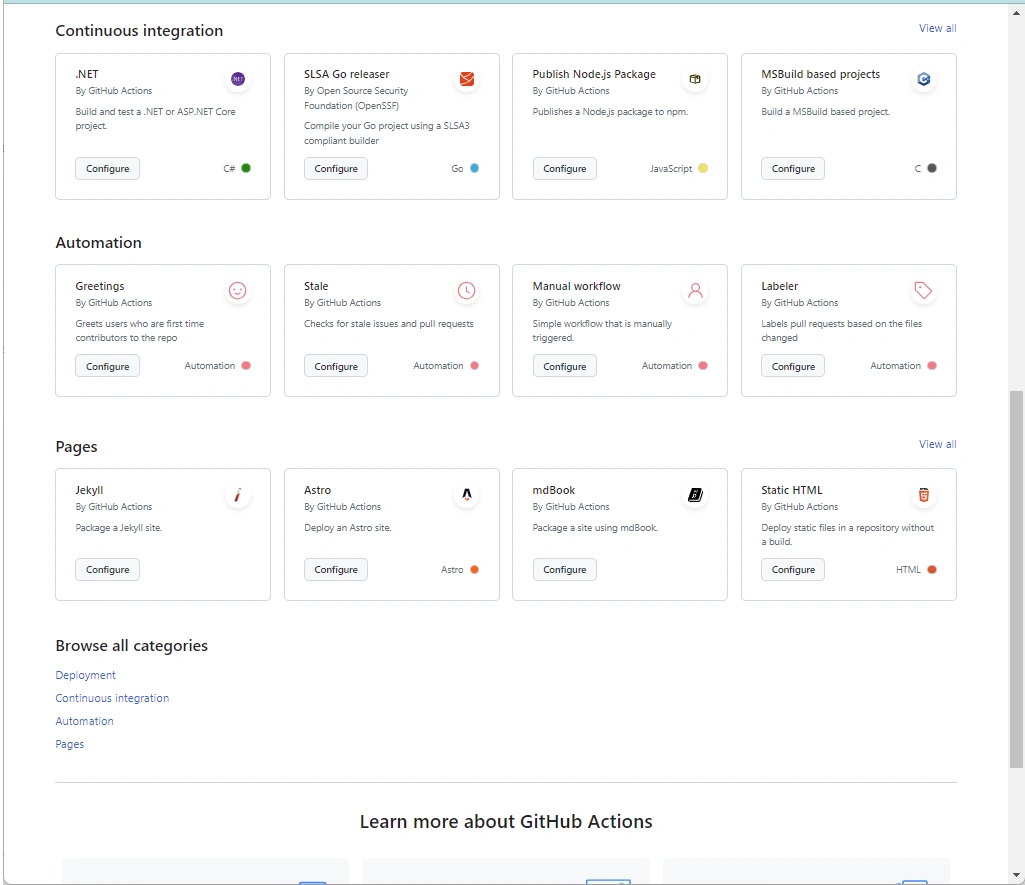
Click Actions Tab on the top menu bar => Get Started with GitHub Action
References:
Join the conversation! Your thoughts help the community grow.