

Introduction
In the realm of data visualization, representing complex data sets in three dimensions can offer valuable insights and enhance understanding. This article explores the Draw_Matrix class, a component of a C# application Graphical Matrix Representation, designed to visualize numerical data stored in a three-dimensional matrix. Utilizing Microsoft DirectX for rendering, this class converts matrix data into a dynamic 3D representation, allowing users to interactively explore and analyze the data.
Through a combination of custom vertex rendering, interactive controls, and real-time updates, the Draw_Matrix class demonstrates key concepts in 3D graphics programming and offers a practical tool for visualizing and interpreting complex data structures. This introduction provides an overview of the class’s functionality, from initializing the 3D environment to handling user interactions, and serves as a guide for understanding its implementation and applications.
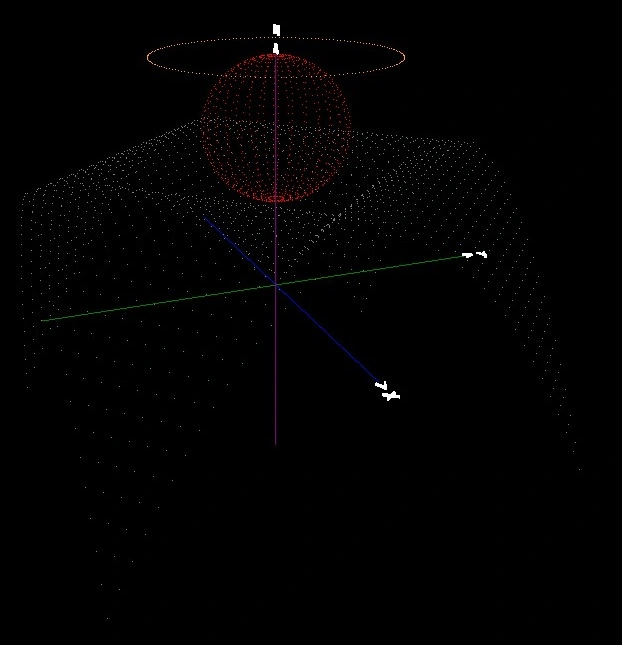
Visualizing 3D Data with a Graphical Matrix Representation
The Graphical Matrix Representation program was developed to provide a graphical representation of numerical data stored in a three-dimensional matrix. Using the matrix M( x, y, z ) the program maps data coordinates to a visually intuitive 3D space, where each matrix value corresponds to a color point in a 3D orthogonal grid. This allows users to explore complex data through visual patterns.
Matrix Structure and Data Visualization
The program employs a 3D matrix to store values, where each ( x, y, z ) coordinate holds a specific color value. These color values represent points in 3D space, creating a vibrant and interactive visual display. For instance, the program can render multiple mathematical functions simultaneously. In the example provided, three functions—an orange circle, a red sphere, and a grey 3D function—are displayed within the same XYZ coordinate system. The values of X, Y, and Z are calculated within a selected range, and the corresponding color values are stored in the matrix.
Program Structure and Functionality
The program is built around two key classes.
- Main Class: Responsible for populating the 3D matrix with numerical values, representing coordinates and color data.
- DrawMatrix Class: This class handles rendering the 3D graphical display, transforming the matrix into a visual output for users.
Class Overview: Draw_Matrix
The Draw_Matrix class is part of a C# application designed to graphically represent a 3D matrix. It utilizes Microsoft DirectX for rendering and provides the functionality to visualize data points in 3D space based on a matrix stored in a DataGridView. Users can rotate, zoom, and interact with the 3D scene using keyboard and mouse controls.
The Draw_Matrix class is pivotal in rendering the 3D graphical representation of the matrix data. Here's a detailed look at its key components.
Initialization
- Device and Camera Setup: Initializes the DirectX device and camera settings, defining how the 3D scene will be projected and viewed.
- The first important part of the class is how it sets up the 3D rendering environment using DirectX.
- The Initialize_Device() method creates a DirectX Device which manages the 3D rendering.
void Initialize_Device() { presentParams = new PresentParameters { Windowed = true, SwapEffect = SwapEffect.Copy }; device = new Device( 0, DeviceType.Hardware, Panel, CreateFlags.HardwareVertexProcessing, presentParams ); device.RenderState.Lighting = false; device.RenderState.FillMode = FillMode.Solid; device.RenderState.CullMode = Cull.None; } - Device Setup: DirectX Device is created to control hardware-accelerated graphics.
- RenderState: This defines settings like turning off lighting (since the scene is based on colored points) and disabling face culling to render both sides of triangles.
Camera Setup
- The Camera is positioned and oriented in the 3D space using the Initialize_Camera() method.
- This defines the perspective from which the user views the 3D scene.
void Initialize_Camera() { device.Transform.Projection = Matrix.PerspectiveFovRH( (float)Math.PI / zoom, Panel.Width / Panel.Height, 1f, 150f ); device.Transform.View = Matrix.LookAtRH( new Vector3(camera_x, camera_y, camera_z), new Vector3(camera_look_x, camera_look_y, camera_look_z), new Vector3(0.0f, 1.0f, 0.0f) ); } - Projection Matrix: This sets the field of view (zoom), and the depth range (1 to 150 units).
- View Matrix: It defines the position of the camera and where it’s looking. This gives the user control over how they navigate and rotate through the 3D space.
- Vertex and Text Initialization: Converts matrix data into 3D vertex points and sets up text labels for the coordinate axes.
- The Initialize_Vertex() method processes the matrix data and converts it into 3D vertex points that can be visualized.
void Initialize_Vertex(DataGridView Data) { // // Convert matrix data to 3D vertex points // World = Data.Rows.Count - 1; points_x = new CustomVertex.PositionColored[World]; int p = 0; int q = 0; for (p = 0; p < World; p++) { // Matrix string[] Matrix = Data[q, p].Value.ToString().Split(';'); // Matrix coordinates float x = float.Parse(Matrix[0]); float y = float.Parse(Matrix[1]); float z = float.Parse(Matrix[2]); // Matrix value var v = Int32.Parse(Matrix[3]); if (x_max < x) { x_max = x; } if (x_min > x) { x_min = x; } if (y_max < y) { y_max = y; } if (y_min > y) { y_min = y; } if (z_max < z) { z_max = z; } if (z_min > z) { z_min = z; } points_x[p] = new CustomVertex.PositionColored(x, y, z, v); } // // Orthogonal Axes vertex declaration // axes = new CustomVertex.PositionColored[6]; // X axes[0] = new CustomVertex.PositionColored(x_min, 0, 0, Color.Blue.ToArgb()); axes[1] = new CustomVertex.PositionColored(x_max, 0, 0, Color.Blue.ToArgb()); // Y axes[2] = new CustomVertex.PositionColored(0, y_min, 0, Color.Green.ToArgb()); axes[3] = new CustomVertex.PositionColored(0, y_max, 0, Color.Green.ToArgb()); // Z axes[4] = new CustomVertex.PositionColored(0, 0, z_min, Color.Purple.ToArgb()); axes[5] = new CustomVertex.PositionColored(0, 0, z_max, Color.Purple.ToArgb()); } - Matrix to Vertices: The matrix data is read from a DataGridView and converted into 3D points.
- The Initialize_Vertex() method processes the matrix data and converts it into 3D vertex points that can be visualized.
These points are stored in points_x and colored based on the values stored in the matrix.
- Axis Setup: Axes for the X, Y, and Z directions are also defined for reference in the 3D scene.
- Text initialization: Sets up text labels for the coordinate axes
void Initialize_Text()
{
    System.Drawing.Font font = new System.Drawing.Font("Arial", 14.0f, FontStyle.Regular);

    mesh_x = Mesh.TextFromFont(device, font, "> x", 0.01f, 0.1f);
    mesh_y = Mesh.TextFromFont(device, font, "> y", 0.01f, 0.1f);
    mesh_z = Mesh.TextFromFont(device, font, "> z", 0.01f, 0.1f);
}
Join the conversation! Your thoughts help the community grow.