Hello World With TypeScript 2.0
Today, we will be discussing how to set up your first application using TypeScript 2.
Objective
- What is TypeScript
- Nodejs installation
- Install TypeScript
- Create the first project
- Run the project
What is TypeScript
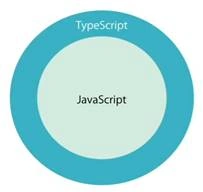
TypeScript is a language superset of JavaScript language. It compiles the code as written in the plain JavaScript code. So all the correct JS code is valid in TypeScript. Apart from that, TypeScript provides extra features also which are very useful for writing a good code.
TypeScript has a compiler/transpiler in place which converts code into javascript. It is open-source and maintained by Microsoft. It’s continuously evolving and providing better features to developers enforcing them in writing better code.
It’s not a mandatory step for TypeScript. But if you are going to build an Angular application, then it’s a must-do step.
Let’s get started:
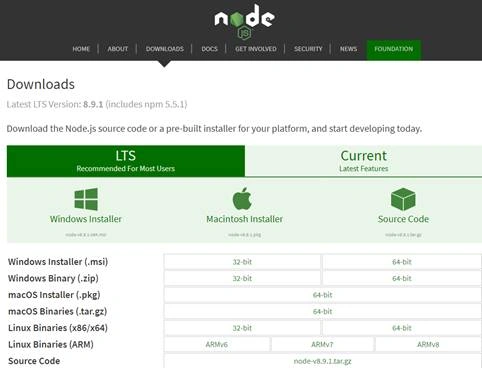
- Go to https://nodejs.org/en/ this is the official site for node.js.
- Click on downloads.
It will give you options for Windows, Mac, or Linux systems. Download the one in which you would be developing the application.
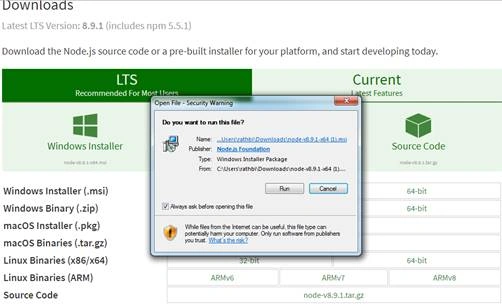
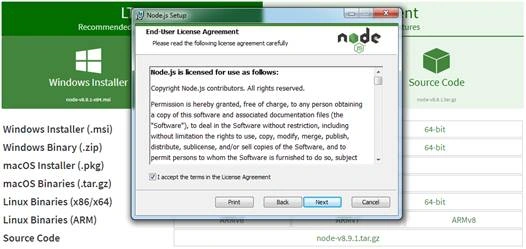
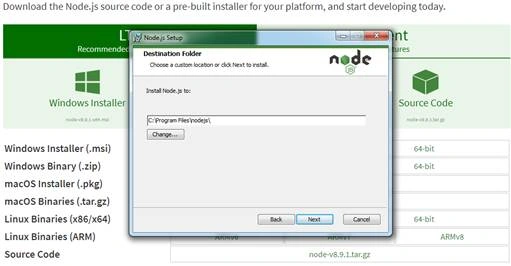
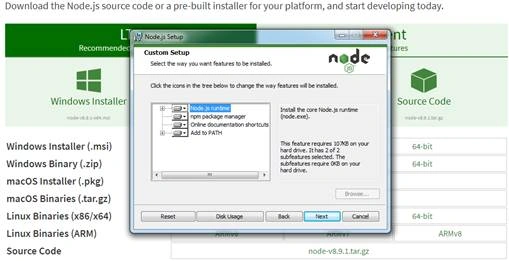
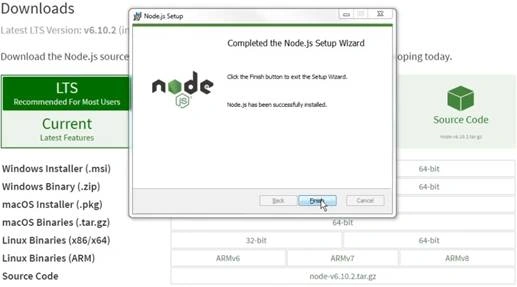
Once downloaded, double-click on the installer file and follow the steps.
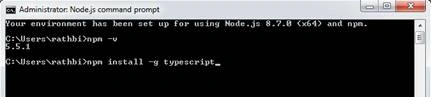
Let's verify the installation by going to cmd (in Windows) and checking the version
Run the following command.
Now, node.js installation is complete for our requirements.
Install TypeScript
TypeScript can be installed in different ways.
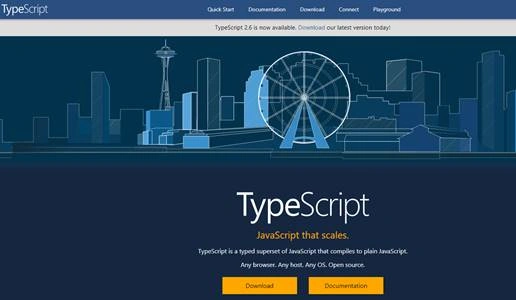
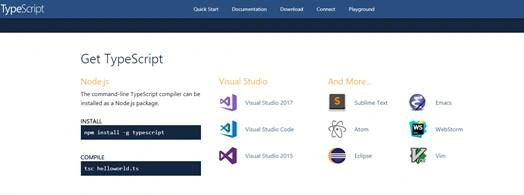
- If you are not using npm, then directly you can go to https://www.typescriptlang.org/ and download it from there and use it. It is compatible with Visual Studio 2017, Visual Studio 2015. You can use major text editors for the TypeScript editing also.
Let’s Install TypeScript using npm (node package manager).
Following is the command you need to type in npm command prompt.
npm install -g typescript
It will install the full package of typescript for the application. It will install always the latest version of the package here. Here, in command, “–g” stands for global, which is saying to install the package at the global level. It will install the TypeScript compiler also. Which plays a very important role in converting the typescript code to native javascript.
Create the first project
Now let’s create the first project in TypeScript2.
Let’s check the version of the typescript installed first.
- Run nodejs command prompt as Administrator.
- Go to the respective folder in the system where you will be creating the project
cd <folder path> enter
- Run the following code to generate a new project config. in the folder
tsc -init
It will create the config file for the project in the respective folder. The name of the file will be tsconfig.json. We will discuss the config file in future articles.
- Let’s see the code editors we can use for TypeScript application. There are many good open-source code editor for typescript or any js files.
Following are some of the best one which I prefer to use.
You can open your project by going to the folder where it is created.
Run the project
- Let’s open the folder in Visual Studio code for creating the first project. Get Visual Studio code from here.
File menu - Open folder
Select the folder where you have created the config file.
- Create a new file in the same folder with name,
HelloWorld.ts
ts is the extension used for the typescript files. Once the file will be compiled it will create a js file with the same name automatically.
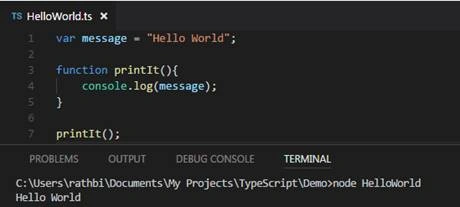
- In the file write the following code,
- var message = "Hello World";
- function printIt() {
- console.log(message);
- }
- printIt();
- Let’s build the application.
Press ctrl+shift+B to build the application
- This build will create a js file for the respective ts
- You can open a terminal in visual studio code by clicking ctrl+~
- You call the following command to run the file
node HelloWorld
- You will get “Hello World” printed in the console.
Conclusion
This is the first article on Exploring TypeScript2. In the next article, we will be looking into the Type annotations, Modules, Interfaces, Namespaces in TypeScript2. Stay tuned!!!
Please let me know your feedback/questions in the comment section.
Happy coding !!!

 TypeScript has a compiler/transpiler in place which converts code into javascript. It is open-source and maintained by Microsoft. It’s continuously evolving and providing better features to developers enforcing them in writing better code.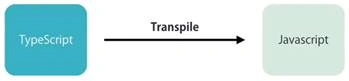


Amit Kumar SinghPosted Nov 23, 2018, 2:31 AM
Thanks for sharing Biswabid !!!
Arvind SinghPosted Jan 4, 2018, 7:11 AM
Good article for beginners..keep it up.......