

Azure
Azure is an internet-scale computing and services platform hosted in data centers managed or supported by Microsoft. It includes many separate features with corresponding developer services that can be used individually or together.
Want to know more? Click here.
Here’s how you can create a website using Microsoft Azure!
- Go to Azure portal.
- Click on my Account.
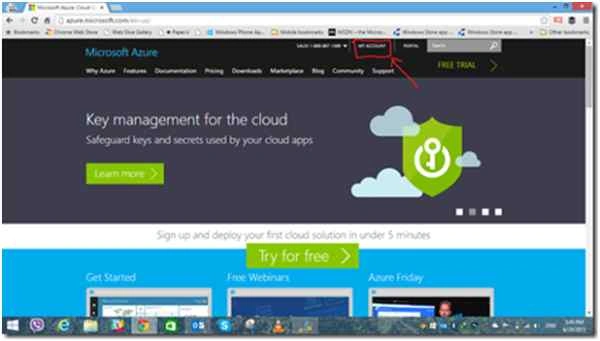
After clicking on my account! you will get two options:
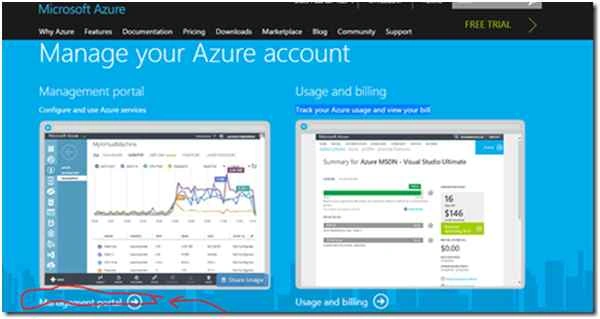
- Management Portal
Management portal is basically for managing/configuring and using Azure services. - Usage and Billings
Usage and Billing tracks your Azure usage and shows you your bill.
- Management Portal
- Now click on Management Portal.
After clicking Management Portal it will move to the login page. - Now enter you email address that you used to get your Azure subscription.

- Click on Continue.
Then you will then see a sign in page. - Now enter your Microsoft Account credentials (Email and Password) associated with your Azure subscription.and click on Sign in.

After signing in it will take some time to load the portal (it also depends on your connection speed ). You will see this screen.
Then you will see Azure portal.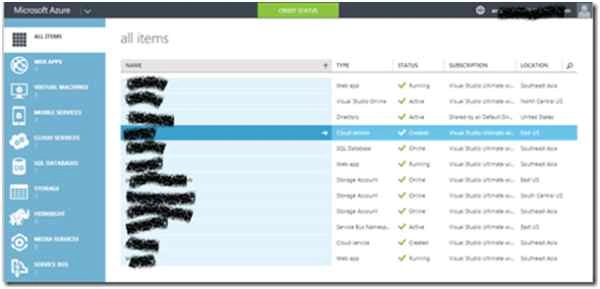
- Now click on Web Apps.
- Click on New.
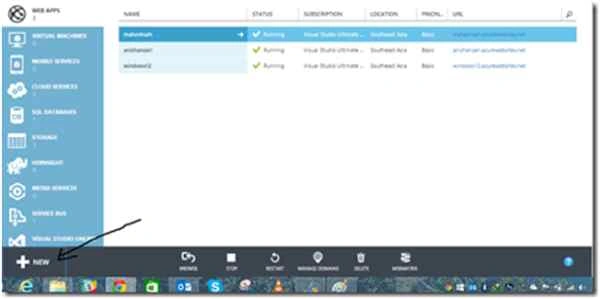
You will have with three options:
- Quick create
Quickly create your web app by specifying a URL. You can perform tasks like deployment and configuration later. - Custom Create
Create a web app with additional options, such as a new or existing database, or with continuous deployment from source control. - From Gallery
Choose a web application from the gallery.
I will choose Quick Create.
- Quick create
- Now click on Quick Create.
- Enter a unique name of your site and select Region.
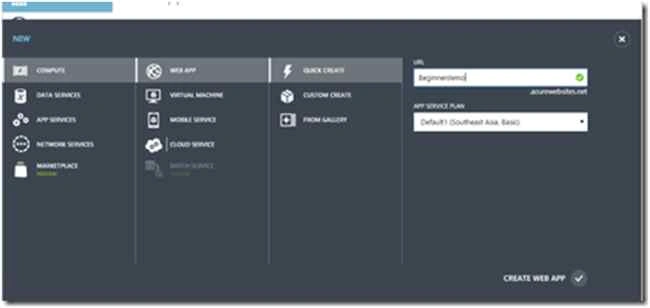
- Then clock on create web APP.
Then it will take some time to create your website.
And then your site will be ready.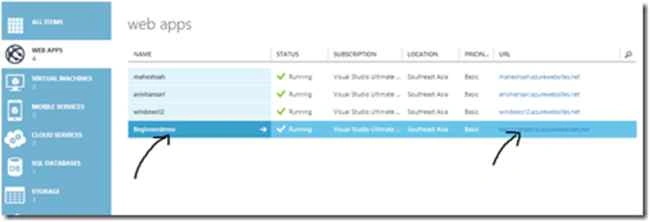
Now if you click that link you will see another screen!
That’s it.
Now you can use GIT, FTP ,Visual Studio Online, Visual Studio, or WEBMetrix to deploy your website in Azure.
Tarkeshwar Prasad YadavPosted Sep 29, 2015, 12:58 PM
Thankyou Dai, for sharing this articles
Vaikesh K PPosted Sep 29, 2015, 7:56 AM
Nice Share
Anish AnsariPosted Aug 31, 2015, 10:03 PM
Thank you Shridhar Sharma Brother :)
Shridhar SharmaPosted Aug 31, 2015, 11:28 AM
Very nice article my friend Anish Ansari .
Ankit BansalPosted Aug 31, 2015, 4:25 AM
thanks for share..
Manas MohapatraPosted Aug 31, 2015, 2:22 AM
Informative one..
Yashwanth MuthineniPosted Aug 31, 2015, 1:31 AM
Nice Share
Rajeesh MenothPosted Aug 31, 2015, 12:40 AM
Nice One
Karthikeyan KPosted Aug 30, 2015, 11:13 PM
Good one sir....Thanks for share
Anish AnsariPosted Aug 30, 2015, 10:07 PM
Thanks :)
Mohammed IbrahimPosted Aug 30, 2015, 9:53 PM
nice information
Hashim ShafiqPosted Aug 30, 2015, 9:41 PM
nice