

Introduction
Here, we are going to learn to make Windows local user account using C#. We will make a C# console application and write the code in it to create user accounts via C#.
Tools You Need
You just need Visual Studio installed on your PC to start working.
Who is the Targeted Audience?
People with basic knowledge of C# are the targeted audience.
Note. You need to run Visual Studio as an administrator in order to get permission and to create Local Windows account.
What you need to do?
- Run Visual Studio as administrator.
- Make a C# console application and select your targeting .NET framework.
- Add the reference “System.DirectoryServices ” in your project.
- Code and Run
Firstly, make a C# console application, and then, add the reference given blow to start development.
Here is the reference you need to add.
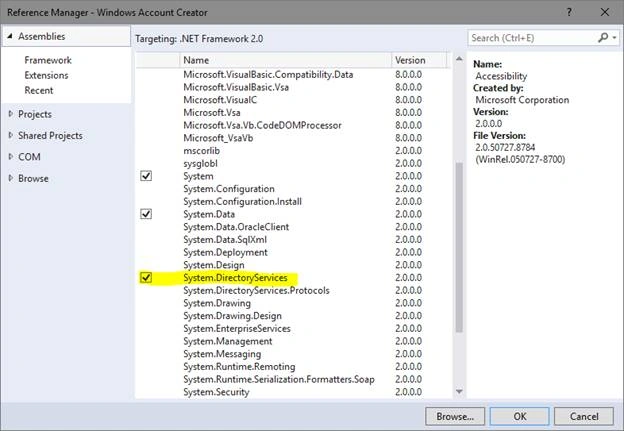
Example. Code for main Program.cs file.
using System;
using System.DirectoryServices;

class Program
{
    public static string Name;
    public static string Pass;

    static void Main(string[] args)
    {
        Console.WriteLine("Windows Account Creator");
        Console.WriteLine("Enter User Name");
        Name = Console.ReadLine();

        Console.WriteLine("Enter User Password");
        Pass = Console.ReadLine();

        CreateUser(Name, Pass);
    }

    public static void CreateUser(string name, string password)
    {
        try
        {
            DirectoryEntry AD = new DirectoryEntry("WinNT://" + Environment.MachineName + ",computer");
            DirectoryEntry newUser = AD.Children.Add(name, "user");

            // Set the password for the new user
            newUser.Invoke("SetPassword", new object[] { password });

            // Set the description for the new user
            newUser.Invoke("Put", new object[] { "Description", "Test User from .NET" });

            newUser.CommitChanges();

            // Add the new user to the Administrators group
            DirectoryEntry administratorsGroup = AD.Children.Find("Administrators", "group");
            if (administratorsGroup != null)
            {
                administratorsGroup.Invoke("Add", new object[] { newUser.Path.ToString() });
            }

            Console.WriteLine("Account Created Successfully");
            Console.WriteLine("Press Enter to continue....");
            Console.ReadLine();
        }
        catch (Exception ex)
        {
            Console.WriteLine("An error occurred: " + ex.Message);
            Console.ReadLine();
        }
    }
}
By this code, you can add user account in administrator group. If you need to add a Guest User. You can change “Administrators” to “Guest”.
Output
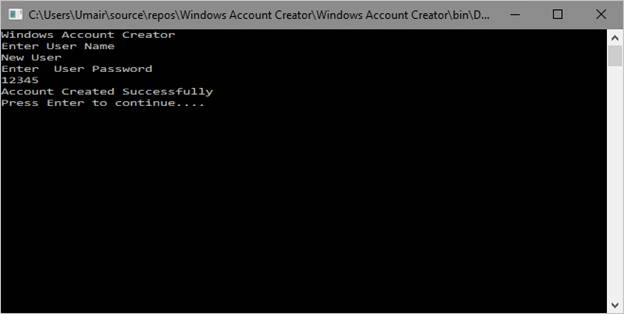
This is the output of our console application.
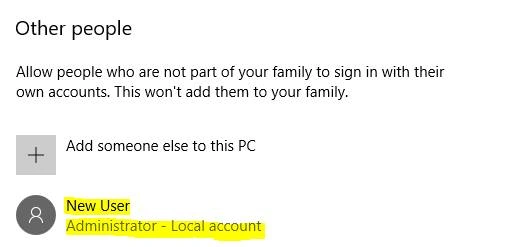
Here, you see that a new local Windows account is created with the username “New User” in administrator group.
Guest UserPosted Aug 2, 2019, 8:16 PM
You need to run this code as admin to add an user. Otherwise it'll not work.
Guest UserPosted Aug 2, 2019, 8:14 PM
It's not working, it freezes when it creates the user.
Victor OnyedikachukwuPosted Oct 11, 2017, 12:06 PM
Must you Add the reference “System.DirectoryServices ” in your project before it can run, What if you want to write and run it plain?