

In this article you will see how to delete a site using NINTEX workflow in SharePoint.
Introduction
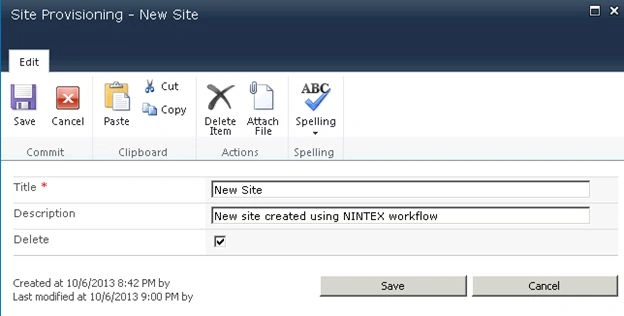
In my previous article you saw how to create a site using NINTEX workflow in SharePoint 2010. In this article you will see how to delete the site using the NINTEX workflow in SharePoint. I have created a custom list named "Site Provisioning" in which I have the following columns: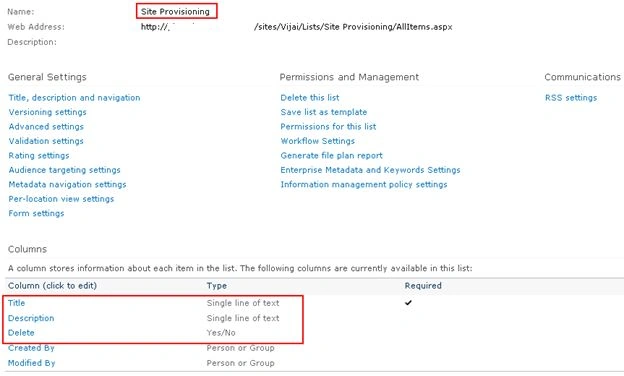
The Title column specifies the site title and description column to specify the site description and Delete is a Boolean value to specify whether the site must be deleted.
Create of site deletion workflow
The following is the procedure for creation of the site deletion workflow:
- Navigate to the "Site Provisioning" list.
- Click on the List tab and then click on "Workflow Settings".
- Click on "Create a Workflow in Nintex Workflow".
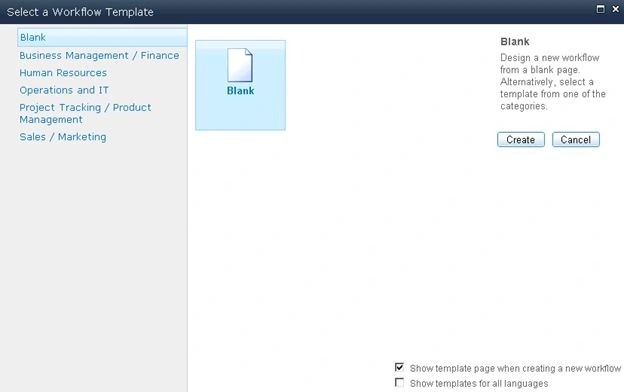
- Click on "Cancel".
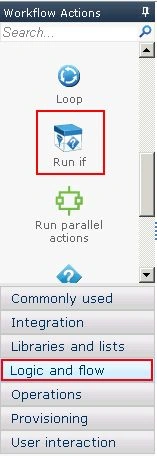
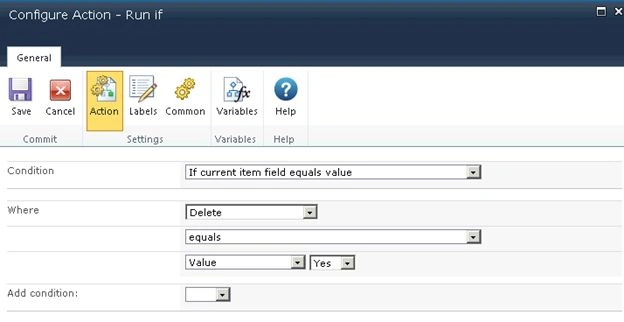
- Drag and drop the "Run if" (used to check if the "Delete" column has a yes value then only the "Delete Site" action will be executed) action from the "Logic and flow" section.
- Drag and drop the "Delete Site" action from the "Provisioning" section.
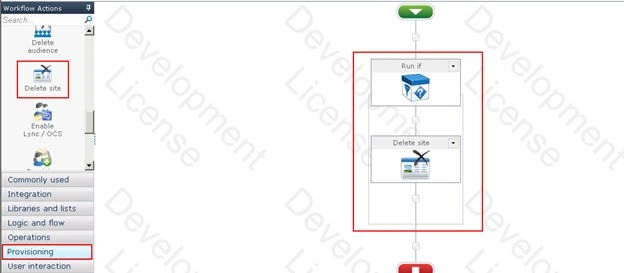
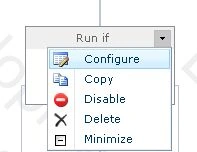
- Click on "Configure" from the drop down list in the "Run if" action.
- Set the condition as shown below.
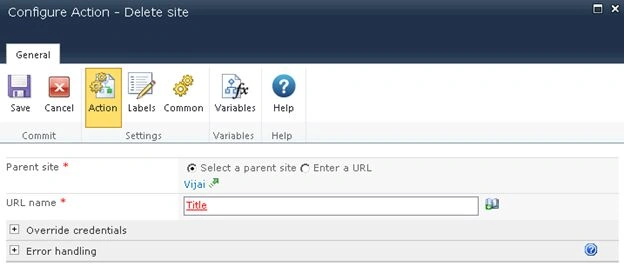
- Click on "Configure" from the drop down list in the Delete site action.
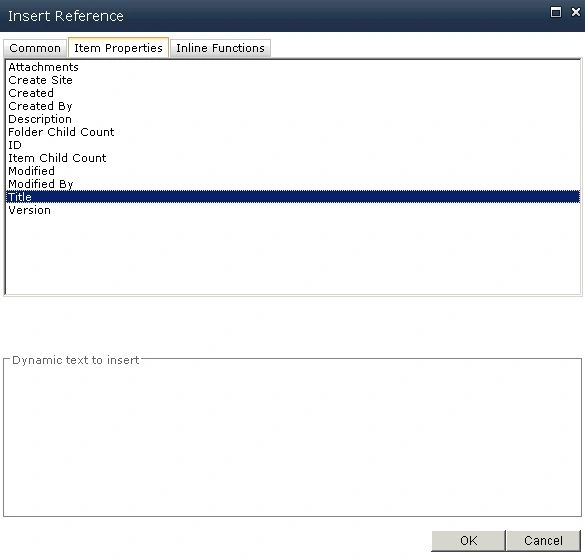
- Click the on "Insert Reference" button for the "URL name" column and then click on the "Item Properties" tab. Select "Title" and then click on "Ok".
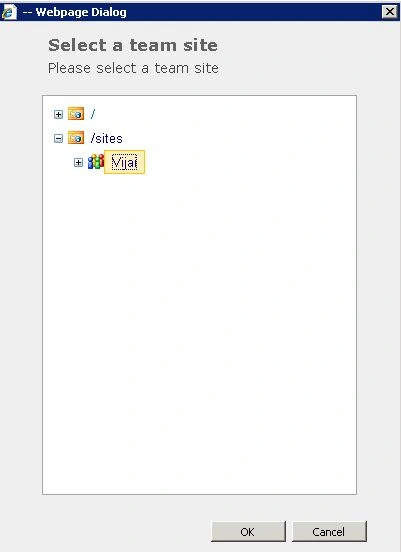
- Click on "Select a parent site" link to select the parent site from where the site must be deleted.
- Click on "Save".
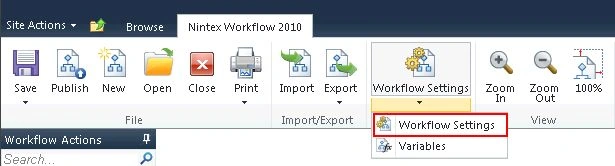
- Click on "Workflow Settings" in the ribbon interface.
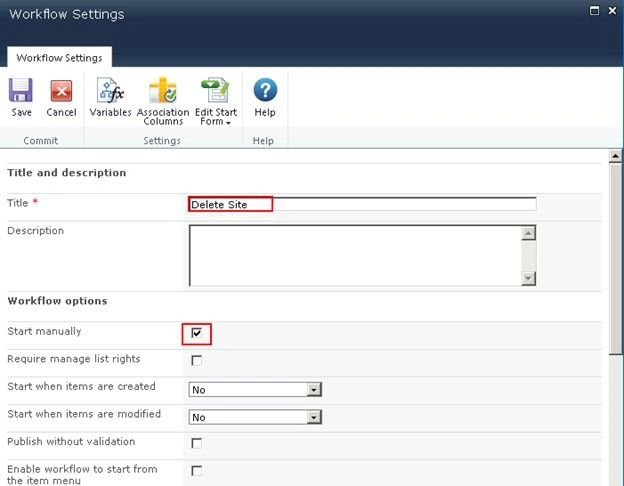
- Enter the "Name" and select the check box for "Start manually".
- Click on "Save".


Join the conversation! Your thoughts help the community grow.