
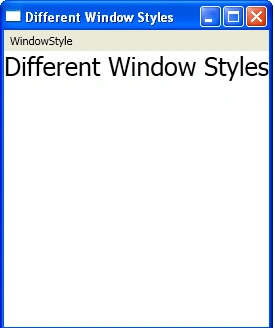
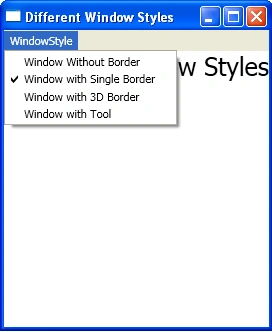
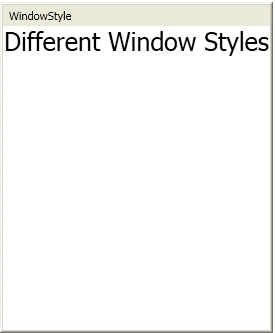
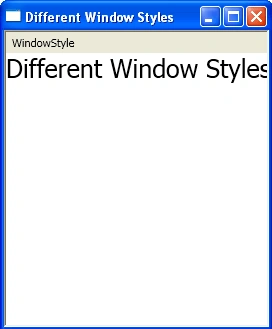
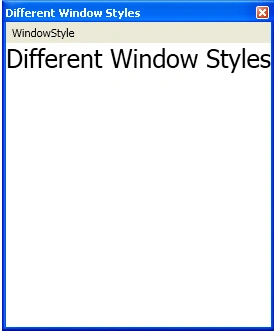
Today I am going to explain how you can display different window styles in WPF using F#. If you want to show a different window style firstly you will create a MenuItem Object to change the window style than you will add the items (Window Styles) to the menu. Then you will add this style menu to a Dock Panel and lastly add a TextBlock to the Dock panel to show the Text in the Window. where you can set the Title, FontSize and Alignment properties for the Text.
A MenuItem
object will be created by below code.
//
This will Create the MenuItem objects to change WindowStyle
let
stylItm = new MenuItem(Header="_WindowStyle");
The below
given code will add the Items to the Menu.
//
This will Add window styles menu items
[("_Window
Without Border", WindowStyle.None);
("_Window with Single Border",WindowStyle.SingleBorderWindow);
("_Window with 3D Border",WindowStyle.ThreeDBorderWindow);
("_Window with Tool",WindowStyle.ToolWindow)]
|> Seq.iter (fun (str,style)
->
let cmpnt =
new MenuItem(Header=str,
Tag=style,
IsChecked= (style=wndw.WindowStyle))
if cmpnt.IsChecked
then itemChecked <- cmpnt
cmpnt.Click.Add( fun _
->
itemChecked.IsChecked <- false
cmpnt.IsChecked <- true
wndw.WindowStyle <-(cmpnt.Tag :?> WindowStyle)
itemChecked <- cmpnt)
stylItm.Items.Add(cmpnt) |> ignore)
Then you
will add this style Menu to the Dock Panel with the below code.
//
This will Add Style menu to dock panel
let
nwmnu = new Menu()
nwmnu.Items.Add(stylItm)|>ignore
dck.Children.Add(nwmnu)|>ignore
DockPanel.SetDock(nwmnu, Dock.Top)
Lastly a
TextBlock will be added to the Dock Panel with the below code.
//This will Add TextBlock to DockPanel
dck.Children.Add
(new TextBlock(Text=wndw.Title,
FontSize=25.0,
TextAlignment = TextAlignment.Center)
) |> ignore
Steps For Window style
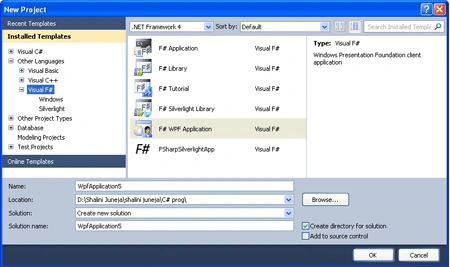
Step 1: Firstly Open a new project in F# using Visual Studio 2010. Select F# WPF application template and give name to it like below image.
Step 2: Now add the below define references to the project by right clicking on the project in Solution Explorer.
PresentationCore
PresentationFramework
System
System.Xaml
WindowsBase
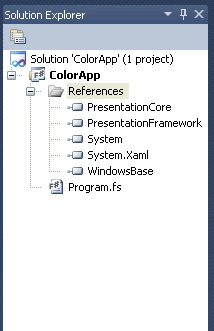
Step 3: When you have added all these references, your Solution Explorer will look like the below image.
Step 4:
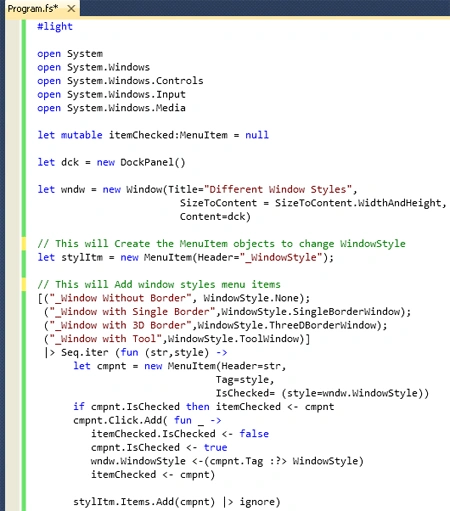
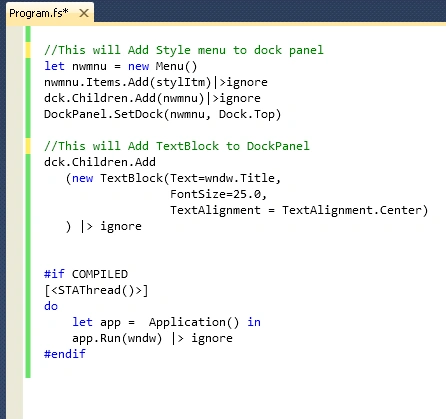
Now click on Program.fs in Solution Explorer and write the below code in the Program.fs window. Your window will look like below.
Join the conversation! Your thoughts help the community grow.