

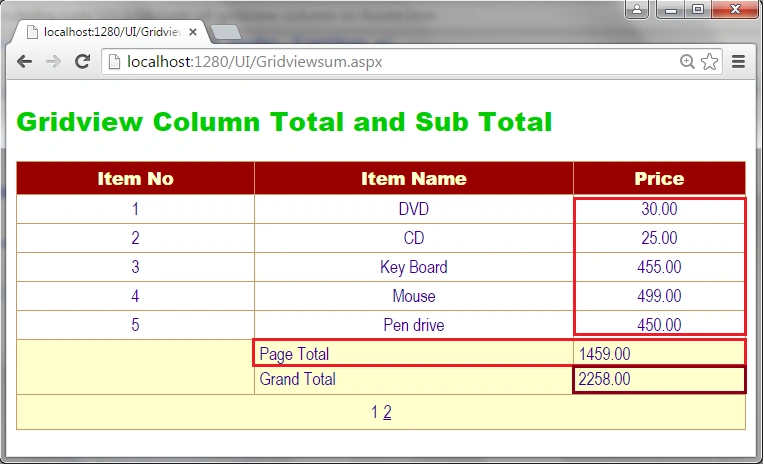
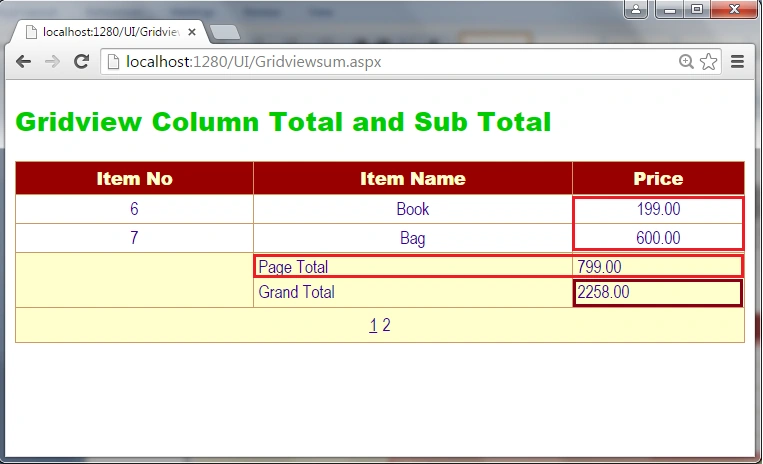
This article shows how to get a GridView's current page row column total of a sum and the GridView's all rows column grand total of the sum.
Step 1: Database
First create a table in a database as in the following.
Table: Item
- create table Item
- (
- Itemid int identity(1, 1) primary key,
- ItemName varchar(100),
- ItemPrice decimal(7, 2)
- )
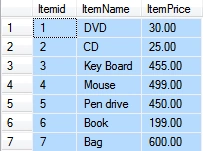
Figure 1: Table Record
Step 2: Visual Studio
- Add a new project.
- Go to the project in Solution Explorer.
- Right-click and Add Item.
- Select Web Form as in the following.
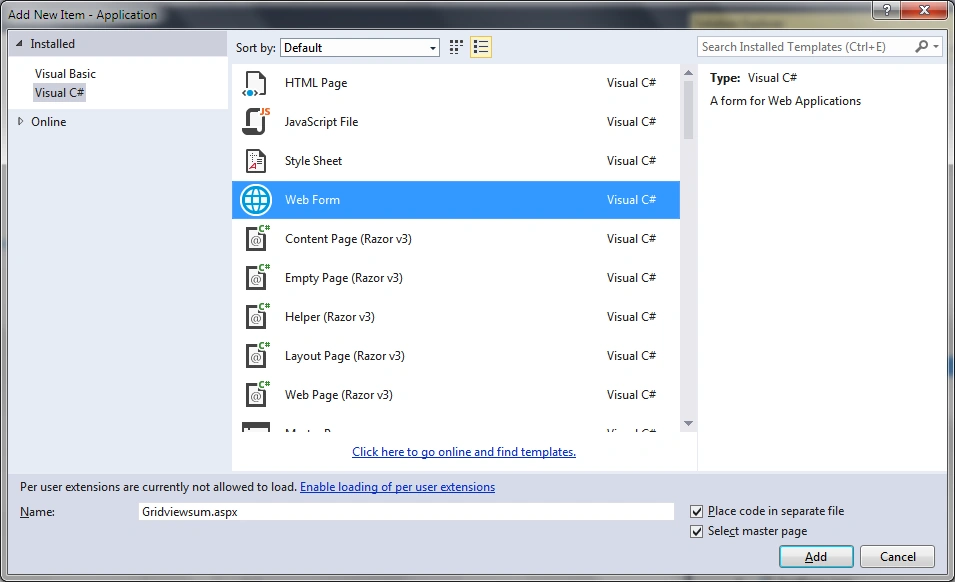
Figure 2: Add Form
Step 3: UI Design
In this Design section add a GridView control to display the database table data on a web page.
UI Design
- <%@ Page Title="" Language="C#" MasterPageFile="~/Master/Master.master" AutoEventWireup="true" CodeFile="Gridviewsum.aspx.cs" Inherits="UI_Gridviewsum" %>
- <asp:Content ID="Content1" ContentPlaceHolderID="head" Runat="Server">
- </asp:Content>
- <asp:Content ID="Content2" ContentPlaceHolderID="ContentPlaceHolder1" Runat="Server">
- <h2 style="color: #00CC00">Gridview Column Total and Sub Total</h2>
- <div>
- <asp:GridView ID="GridItem" runat="server" Width="100%"
- AutoGenerateColumns="False"
- RowStyle-HorizontalAlign="Center"
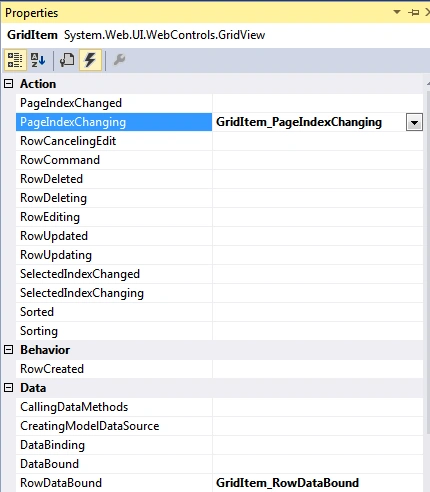
- ShowFooter="True" AllowPaging="True" PageSize="5" OnPageIndexChanging="GridItem_PageIndexChanging" OnRowDataBound="GridItem_RowDataBound"
- BackColor ="White" BorderColor="#CC9966" BorderWidth="1px" CellPadding="4" >
- <Columns>
- <asp:TemplateField HeaderText="Item No">
- <ItemTemplate><%#Eval("Itemid")%></ItemTemplate>
- </asp:TemplateField>
- <asp:TemplateField HeaderText="Item Name">
- <ItemTemplate><%#Eval("ItemName")%></ItemTemplate>
- <FooterTemplate>
- <div style="padding:0 0 5px 0"><asp:Label Text="Page Total" runat="server" /></div>
- <div><asp:Label Text="Grand Total" runat="server" /></div>
- </FooterTemplate>
- </asp:TemplateField>
- <asp:TemplateField HeaderText="Price ">
- <ItemTemplate><asp:Label ID="lblPrice" runat="server" Text='<%#Eval("ItemPrice")%>'>
- </asp:Label></ItemTemplate>
- <FooterTemplate>
- <div style="padding:0 0 5px 0"><asp:Label ID="lblTotal" runat="server" /></div>
- <div><asp:Label ID="lblTotalPrice" runat="server" /></div>
- </FooterTemplate>
- </asp:TemplateField>
- </Columns>
- <FooterStyle BackColor="#FFFFCC" ForeColor="#330099" />
- <HeaderStyle BackColor="#990000" Font-Bold="True" ForeColor="#FFFFCC" />
- <PagerStyle BackColor="#FFFFCC" ForeColor="#330099" HorizontalAlign="Center" />
- <RowStyle BackColor="White" ForeColor="#330099" />
- <SelectedRowStyle BackColor="#FFCC66" Font-Bold="True" ForeColor="#663399" />
- <SortedAscendingCellStyle BackColor="#FEFCEB" />
- <SortedAscendingHeaderStyle BackColor="#AF0101" />
- <SortedDescendingCellStyle BackColor="#F6F0C0" />
- <SortedDescendingHeaderStyle BackColor="#7E0000" />
- </asp:GridView>
- </div>
- </asp:Content>
Sr KarthigaPosted Mar 29, 2016, 9:22 AM
good one
Sr KarthigaPosted Mar 29, 2016, 9:22 AM
nice explanation
RakeshPosted Aug 22, 2015, 2:48 PM
Thank you Santhakumar Munuswamy Sir
Santhakumar MunuswamyPosted Aug 22, 2015, 6:33 AM
Good Article. Thanks for sharing
Gopi ChandPosted Aug 21, 2015, 1:54 PM
Good going Mr Rakesh
RakeshPosted Aug 21, 2015, 1:49 PM
Thank you Shridhar Sharma
Shridhar SharmaPosted Aug 21, 2015, 11:46 AM
good one Rakesh
Vipul MalhotraPosted Aug 21, 2015, 7:47 AM
nice article sir
Mohammed IbrahimPosted Aug 21, 2015, 7:46 AM
good one
Upendra Pratap ShahiPosted Aug 21, 2015, 5:41 AM
nice one sir
Sibeesh VenuPosted Aug 21, 2015, 5:26 AM
Nice Share...
Ankit BansalPosted Aug 21, 2015, 4:37 AM
good share...
Gowtham KPosted Aug 21, 2015, 3:58 AM
Nice one
Rajeesh MenothPosted Aug 21, 2015, 3:53 AM
Good One
Sumit JoshiPosted Aug 21, 2015, 3:43 AM
Thanks for sharing.
Karthikeyan KPosted Aug 21, 2015, 3:32 AM
Good one sir...Thanks for share
Vaikesh K PPosted Aug 21, 2015, 3:17 AM
Good share