

Introduction
Hi friends, In this article, we are going to learn what appium is and how to install appium in our system. Appium is a popular open-source tool for automating mobile applications across various platforms like Android and iOS. Appium's support for multiple programming languages, including Java, Python, JavaScript, and more, ensures flexibility and accommodates diverse skill sets within development teams.

Why Mobile Automation Testing Required?
Mobile automation testing offers numerous benefits that contribute to the overall quality and success of mobile applications. Here are several key reasons why mobile automation testing is essential:
- Saves time by automating repetitive testing tasks.
- Improves test coverage across different devices and operating systems.
- It helps catch bugs early in the development process.
- Ensures consistent and reliable testing results.
- Facilitates faster releases, keeping pace with market demands.
- Supports scalability and reusability of test scripts.
- Optimizes resource utilization and allows focus on complex testing scenarios.
- Aligns with Agile and DevOps practices for continuous integration and delivery.
- Ultimately, enhances user experience by delivering high-quality mobile apps.
Why Appium For Mobile Automation Testing?
Whether you're a QA engineer, developer, or testing enthusiast, Appium is awesome for mobile automation testing because:
- Works Everywhere: It can test both Android and iOS apps, covering all bases.
- No Code Changes Needed: You don't have to change the app's code to test it.
- Easy to Learn: It's simple to pick up, especially if you know web automation.
- Saves Time: Automates repetitive tasks so you can focus on the fun stuff.
- Community Support: You're not alone! There's a big community ready to help.
- Fits Your Language: You can write tests in Java, Python, JavaScript, and more.
- Continuous Integration: Integrates smoothly with your development pipeline for seamless testing.
- Real Devices: Test on real phones and tablets, just like your users.
- Cost-Effective: Being open-source means it's free to use and adapt.
Appium makes mobile testing easy, effective, and enjoyable!
Prerequisite
- Having installed Java JDK
- Having installed Android Studio
How To Install Appium
We need to install Appium Server GUI and Appium Inspector for Appium Setup.
Step 1. Downloading Appium Server GUI
- Navigate to the link Appium Server UI Download Link and Choose the appropriate version for your operating system (Windows, macOS, or Linux)
- In my case, I have a Windows machine, so I am selecting Appium-Server-GUI-windows-1.22.3-4.exe
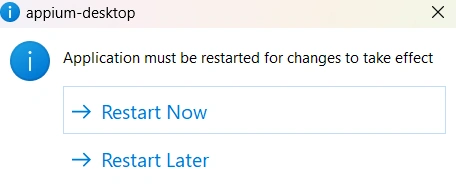
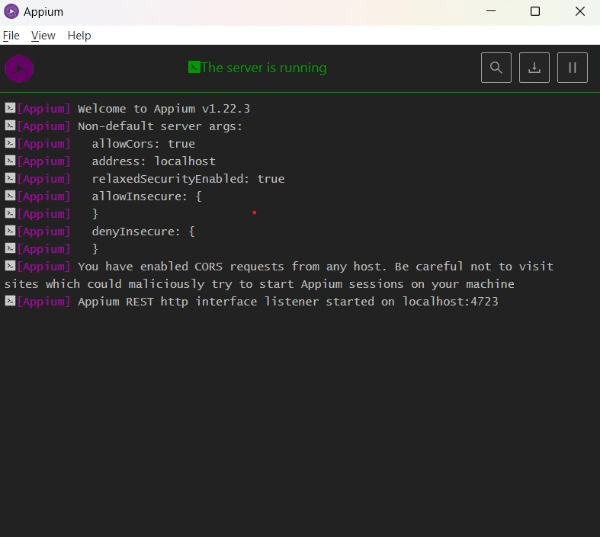
- Once downloaded, proceed with the installation process by following the on-screen instructions.
Step 2. Downloading Appium Inspector
- Navigate to the link Appium Inspector Download Link and Choose the appropriate version for your operating system (Windows, macOS, or Linux)
- In my case, I have a Windows machine, so I am selecting Appium-Inspector-windows-2024.3.1-x64.exe
- Once downloaded, proceed with the installation process by following the on-screen instructions.






Join the conversation! Your thoughts help the community grow.