

I am going to demonstrate you how to make a simple PhoneDirectoryApplication using the windows form application and c# language.
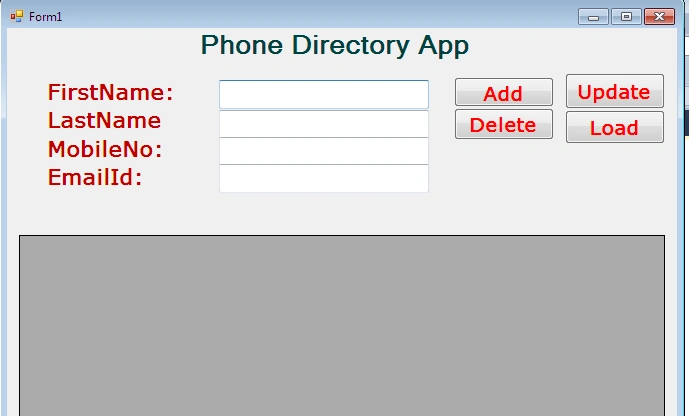
Figure 1: PD App
This is how it will look after completing the project.
Step 1
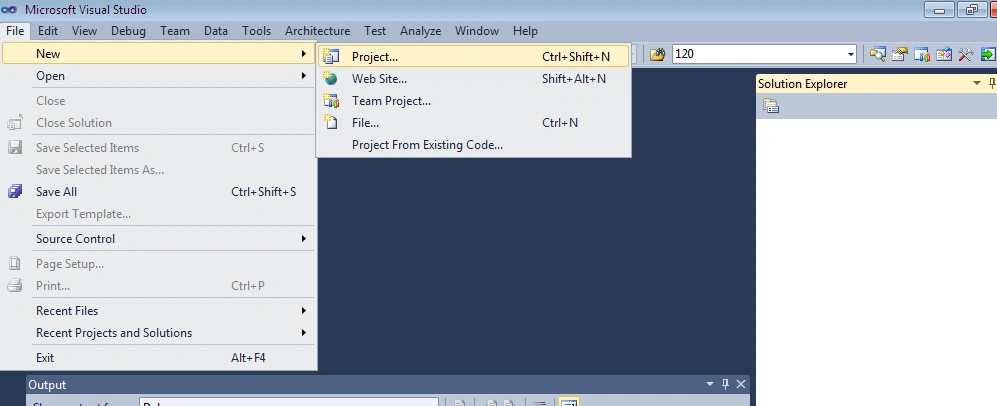
Figure 2: New Project
Step 2
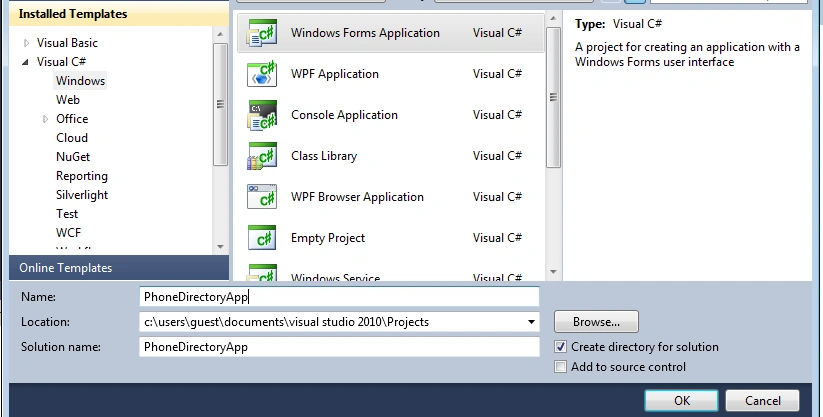
Figure 3: Windows Form App
Step 3
Once you done with the naming project and clicking OK, you will be redirected to an empty blank Windows Form.
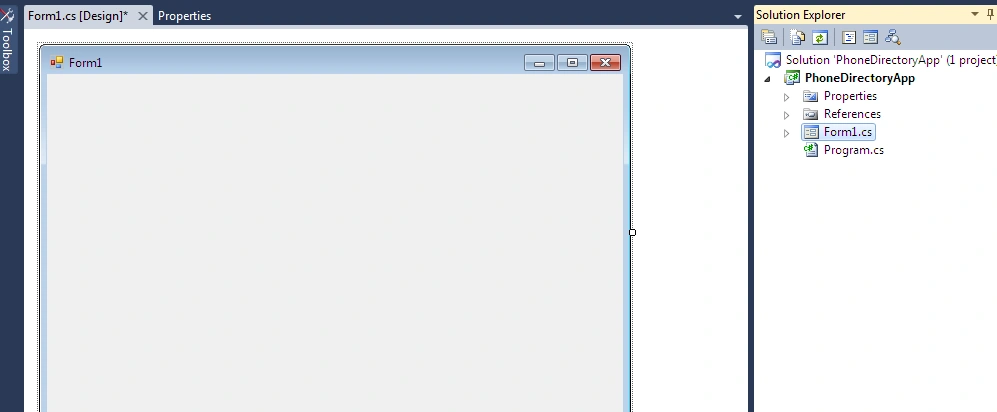
Figure 4: Windows Form
Step 4
Now you need to drag and drop few controls from toolbox window which are required.
For example, Buttons, Labels, TextBoxes, and DataGridView.
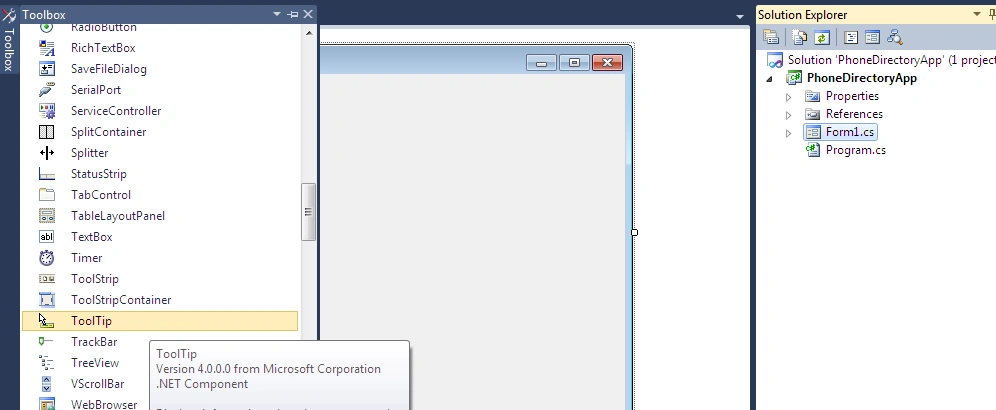
Figure 5: ToolTip
Step 6
Once you drag and drop the controls on an empty blank form your form will look like the following and you can enhance the look and feel the controls on the form according to one’s requirement.
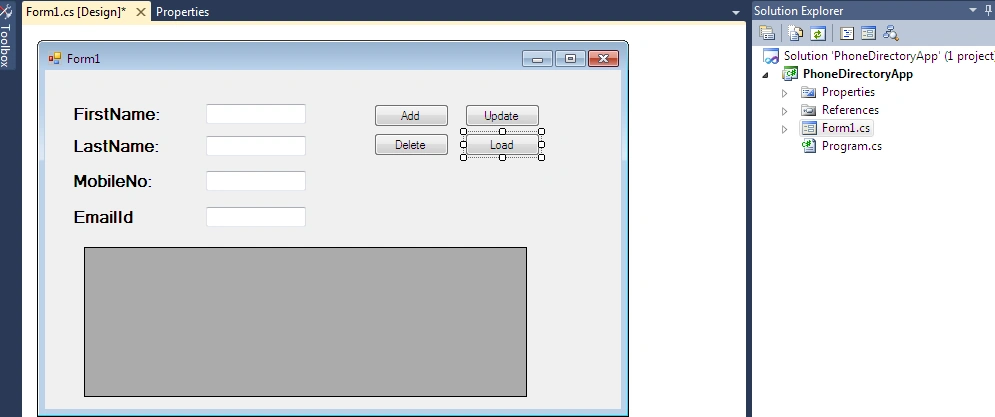
Figure 6: Look and Feel
Step 7
Then open Microsoft Access and create a table with some dummy values in it.
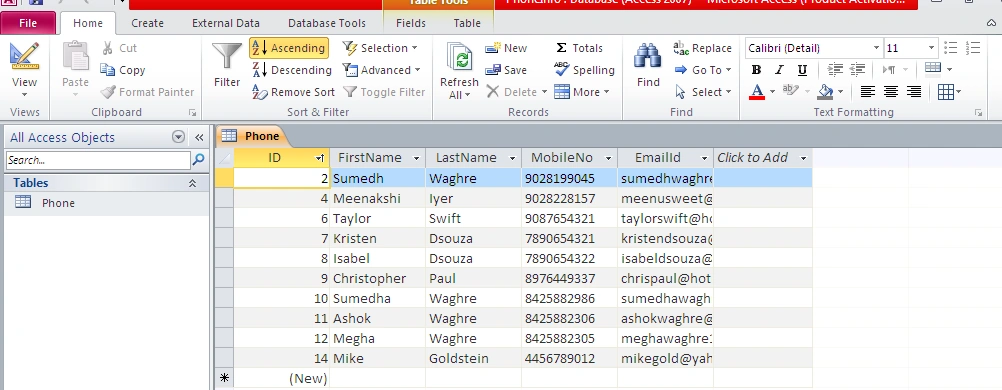
Figure 7: Dummy
Step 8
Now you need to import or mention one namespace in the above section where all namespaces are mentioned.
i.e : using System.Data.OleDb;
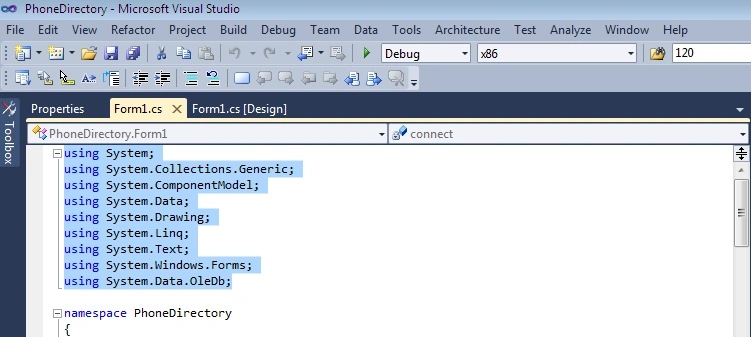
Figure 8: System Data
Step 9
After importing this namespace in your application, ensure that you can use Microsoft Access in your application.
Once importing the namespace, you need to create the instance(object ) of the OleDbConnection.
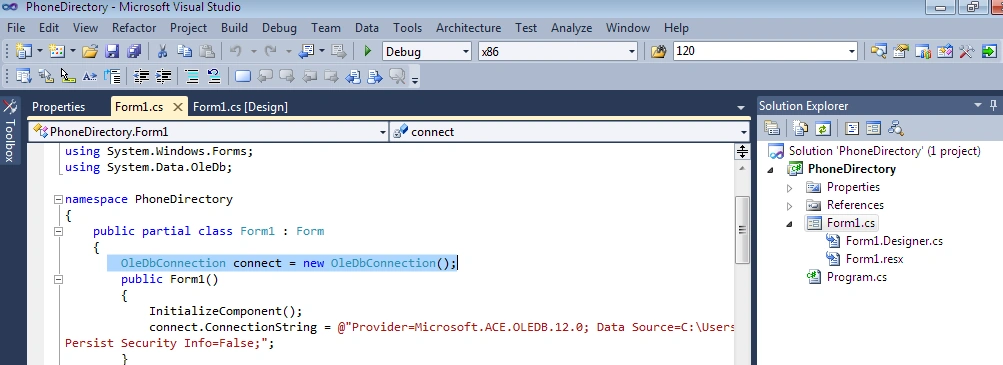
Figure 9: OleDbConnection
Step 10
Now write the connection string of Microsoft Access, every ConnectionString varies from other database. So you need to type one website for that i.e: http://www.connectionstrings.com/.

Figure 10: Connection String
Select the access option from there and copy paste the connection string from there that is available for access database
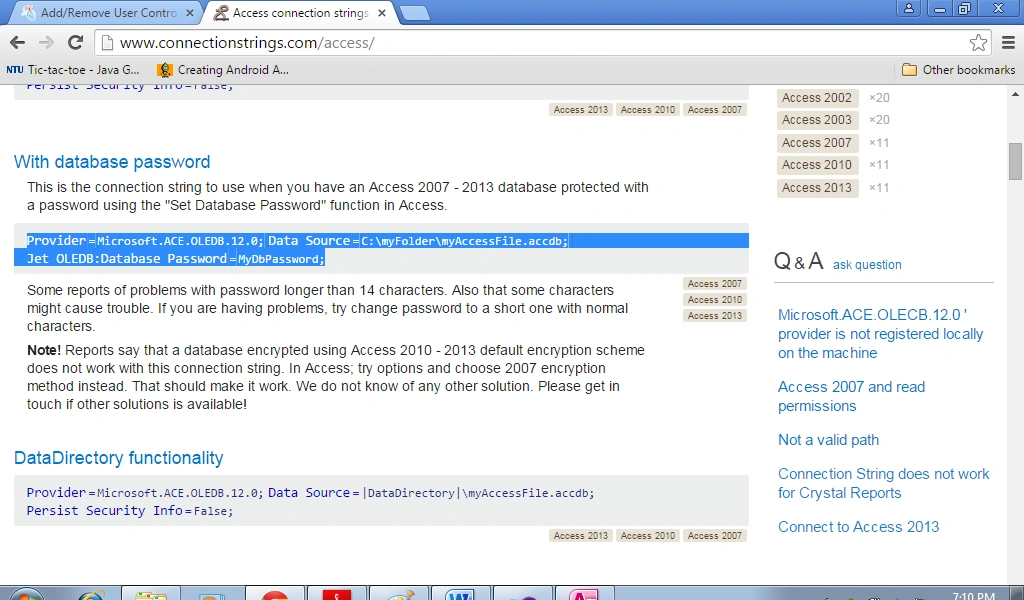
Figure 11: Access Point
Step 11
Now what you can do is you can double click on the add button which was created by you in the user interface section i.e on the windows form application, and just write the following code:
- private void btn_add_Click(object sender, EventArgs e)
- {
- try
- {
- connect.Open();
- OleDbCommand cmd = new OleDbCommand();
- cmd.Connection = connect;
- cmd.CommandText = "insert into Phone (FirstName,LastName,MobileNo,EmailId) values('" + txt_fname.Text + "','" + txt_lname.Text + "','" + txt_mobile.Text + "','" + txt_email.Text + "')";
- cmd.ExecuteNonQuery();
- MessageBox.Show("Data Inserted");
- connect.Close();
- }
- catch (Exception ex)
- {
- MessageBox.Show("Error" + ex);
- }
- }
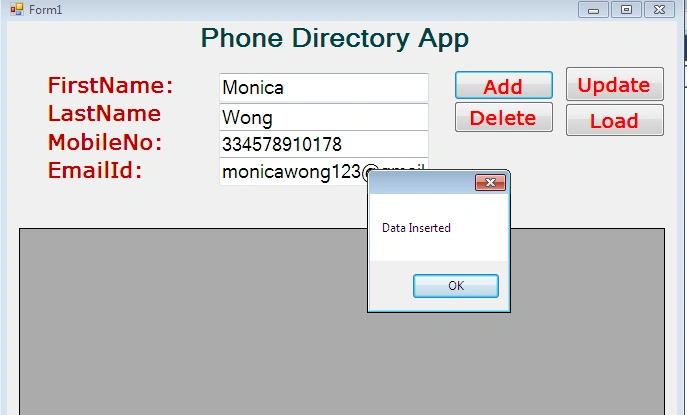

Anusha csPosted Nov 28, 2017, 5:06 AM
Hello Sir,We have developed a telephone diary project in Visual studio 2012 and now we are not able to validate the fields.. can you please share some validation codes..
Anusha csPosted Nov 28, 2017, 5:06 AM
The email ID which u have mention in the above comment is invalid sir.... can i get an valid working mail id of urs...
Prazeen ShresthaPosted Jan 23, 2017, 9:25 AM
'Microsoft.ACE.OLEDB.12.0' provider is not registered on the local machine' Please help
Santhakumar MunuswamyPosted Sep 12, 2015, 3:09 AM
Thanks for nice article:)
Mohammed IbrahimPosted Sep 12, 2015, 1:50 AM
nice information
Sumedh WaghrePosted Sep 12, 2015, 12:31 AM
Thank you Nilesh Jadhav sir
Nilesh JadavPosted Sep 12, 2015, 12:12 AM
Nicely done !! Good Article :)
Pankaj Kumar ChoudharyPosted Sep 11, 2015, 1:18 PM
Nice Start Sumedh, Welcome to C#-Corner community........
Shridhar SharmaPosted Sep 11, 2015, 1:16 PM
nice demo.
RakeshPosted Sep 11, 2015, 10:32 AM
Good share sir
Shakti SaxenaPosted Sep 11, 2015, 8:27 AM
A Good Start :) all the best for future post. Keep up the good work.
Karthikeyan KPosted Sep 11, 2015, 7:43 AM
Good one...
Harshad PansuriyaPosted Sep 11, 2015, 6:05 AM
Nice One
Ankit BansalPosted Sep 11, 2015, 5:29 AM
nice share...
Afzaal Ahmad ZeeshanPosted Sep 11, 2015, 5:01 AM
You missed many points here, Sumedh. Like how to read the records, update or delete them. :-) I hope adding them will make your post even better!
Rajeesh MenothPosted Sep 11, 2015, 3:41 AM
Nice Share...