Introduction
When working with Microsoft Power Platform CLI, you may need to connect to multiple Power Platform Dataverse environments or tenants.
For example, a typical project might have:
Development
Test
UAT
Production
Instead of authenticating every time you want to work with a different environment, PAC CLI authentication profiles allow you to maintain multiple authentication configurations locally and switch between them.
Microsoft's current pac auth command group provides commands including:
pac auth clear
pac auth create
pac auth delete
pac auth list
pac auth name
pac auth select
pac auth who
Microsoft describes pac auth as the command group for managing authentication to various services and specifically documents maintaining multiple authentication profiles when working with multiple tenants.
In this article, we will explore these commands individually with practical examples.
Prerequisites
Before proceeding, make sure:
Before continuing, make sure Microsoft Power Platform CLI is installed.
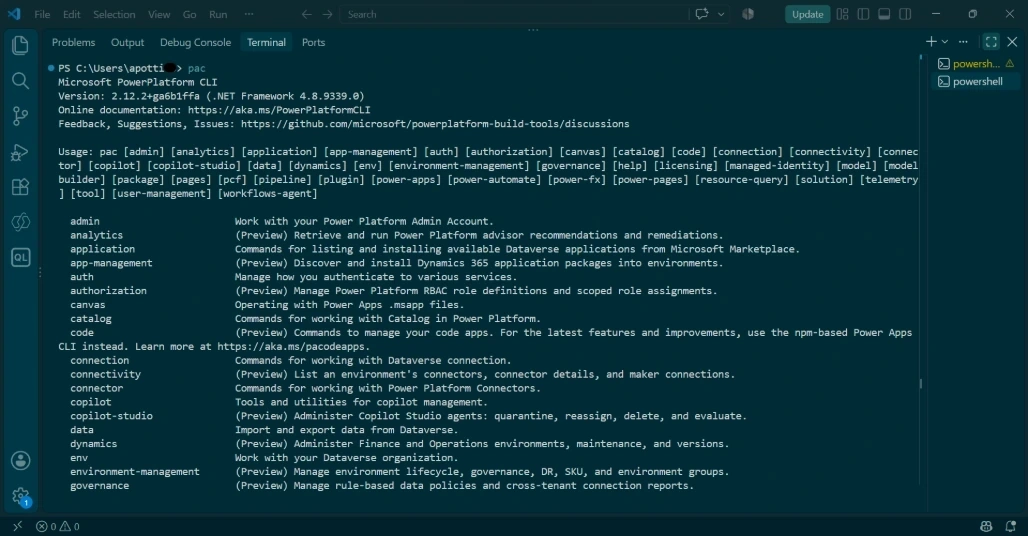
Check the installation using:
pac
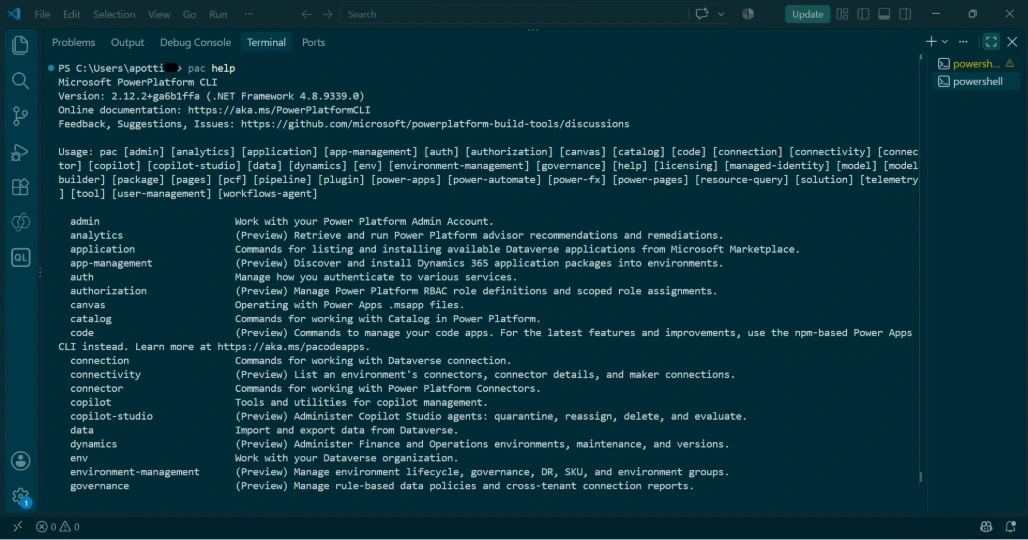
You can also explore the authentication commands using:
pac auth --help
Note: Click on the below article link to connect to Dataverse Environments.
How to Connect to Microsoft Dataverse Using Power Platform CLI
Will start exploring the pac auth commands.
1. pac auth list
Once authentication profiles have been created, we need a way to see them.
pac auth list
Microsoft documents pac auth list as displaying all authentication profiles available on the machine.
The output includes an Index and indicates which profile is currently Active. Microsoft's documented example marks the active profile with *.
This is one of the PAC CLI commands I use conceptually before switching environments because it lets you check your current authentication context.

Note: Make sure which environment is Active, before doing any Dataverse operations.
2. pac auth select
What if multiple profiles exist and we want to change the active one?
That's where:
pac auth select
Example: Change the Dataverse Environment from UAT to DEV.
Identify the Index of the profile that you want to use.
For example, if the required profile has index 3 Dev environment to be used
Use the below command,
pac auth select --index 3

Then check again;
pac auth list
This lets you confirm which authentication profile is currently active.

Now the Dev environment is active.
Using pac auth list and pac auth select together, to switch between multiple authentication profiles.
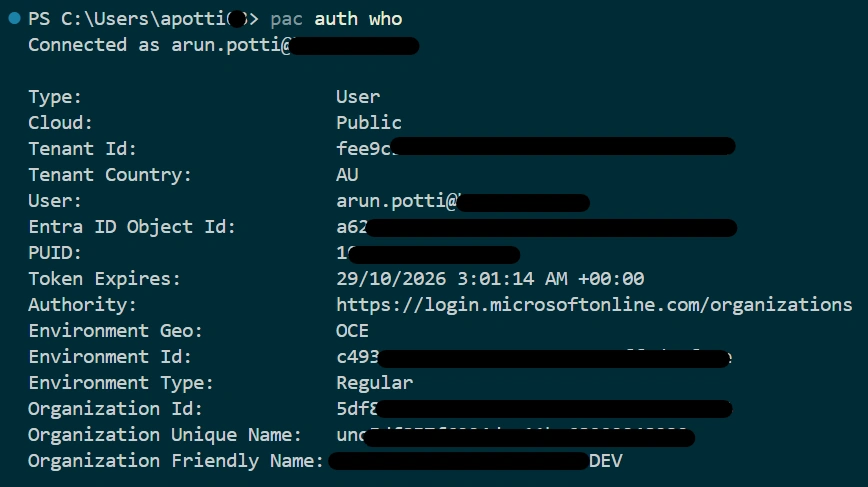
3.pac auth who
This gives the reader a simple safety habit: check the authentication context before running environment-specific commands.
Use the below command
pac auth who
4. pac auth name
When you maintain several authentication profiles, meaningful names make them easier to identify.
Use the below command
pac auth name
I would use profile names based on the environment or purpose, for example:
Development
Test
UAT
Production
Example: Change the name of Dataverse environment from Dev to Development.
Check pac auth list for the required environment to change the name and provide the required name as mentioned below,
pac auth name --index 3 --name "Development"

Run the below command to see the Name of the Dev environment.
pac auth list

5. pac auth delete
Eventually, some authentication profiles may no longer be required.
pac auth delete
Example: Delete the profile of UAT Environment.
Provide the index number for which you want to delete the profile.
pac auth delete --index 5

6. pac auth clear
It clears all the Dataverse environment profiles from your PC.
pac auth clear

To check use the below,
pac auth list

Conclusion
Authentication profiles make it much easier to work with multiple Power Platform environments using Microsoft Power Platform CLI.
In this article, we explored the main authentication profile management commands:
list
select
who
name
delete
clear
Rather than repeatedly establishing a new authentication context, you can maintain multiple profiles and select the appropriate one when needed. Microsoft explicitly supports multiple authentication profiles and documents pac auth list and pac auth select for switching between them.
For developers working across multiple Dataverse environments, understanding these commands provides a good foundation before moving into environment management, solution operations, plug-in development, and ALM automation with PAC CLI.


Join the conversation! Your thoughts help the community grow.