

Introduction
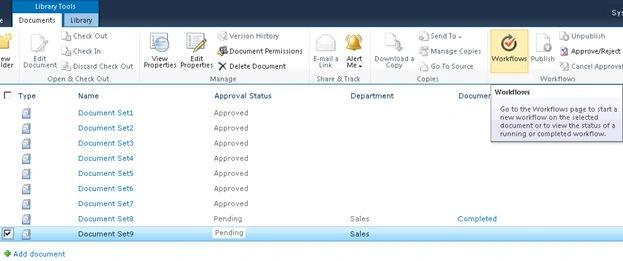
This article shows how to set Document Set approval status using NINTEX workflow in SharePoint. I have a team site in which I have activated the site collection feature "Document Sets". I have created a Document Library "Vijai Documents" and set up the document set for the library. Please refer to set up Document Set in SharePoint document library. Make sure content approval is enabled for the document library. (Click on the "Library" tab in the ribbon interface then seelct "Library Settings" => "Versioning Settings" then set "Require content approval for submitted items is set" to "Yes".) I have created a choice column "Department" in the document library. In this article you will see how to set Document Set approval status.
Workflow Design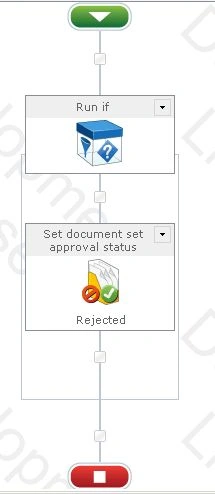
Run if action is used to check whether "Department" column has "Sales" value.
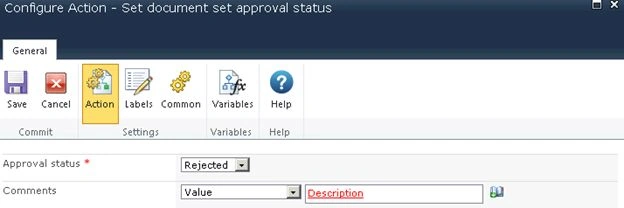
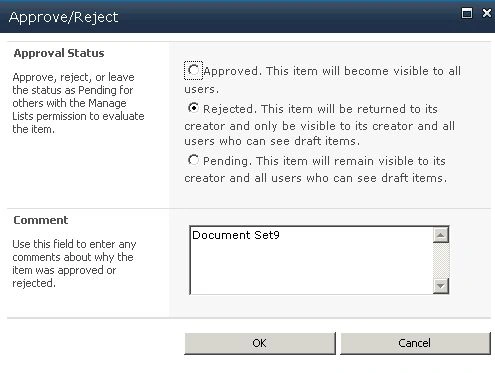
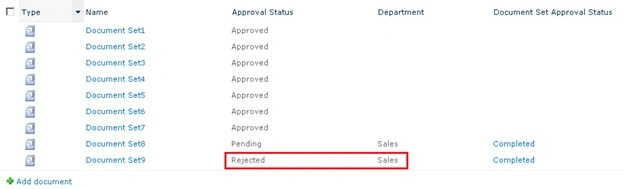
The set document set approval status action sets the approval status to "Rejected" if the "Department" column has a "Sales" value to capture the document set version.
Set document set approval status workflow
Set the document set approval status workflow using the following procedure:
- Navigate to the Vijai Documents library.
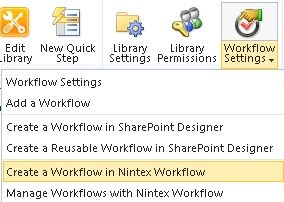
- Click on the "Library" tab and then click on "Workflow Settings".
- Click on "Create a Workflow in Nintex Workflow".
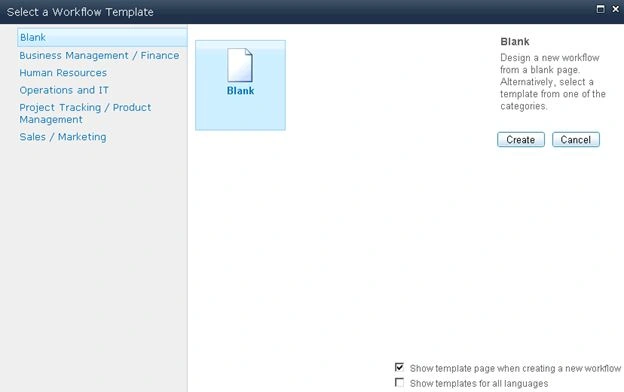
- Click on "Cancel".
- Drag and drop the "Run if" action from the Logic and flow section.
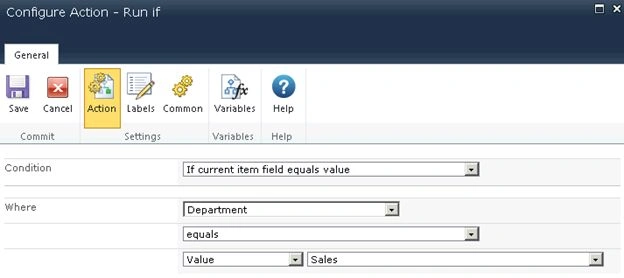
- Click on "Configure".
- Check if the "Department" field has a "Sales" value.
- Click on "Save".
- Drag and drop the "Set document" set approval status from the Libraries and lists action.
- Click on "Configure".
- Set the approval status to "Rejected".
- Click on "Save".
Publish the workflow
- Click on the "Publish" button in the ribbon interface.

- Make sure the Title is set; optionally you can set the values for Description and Change Comments.
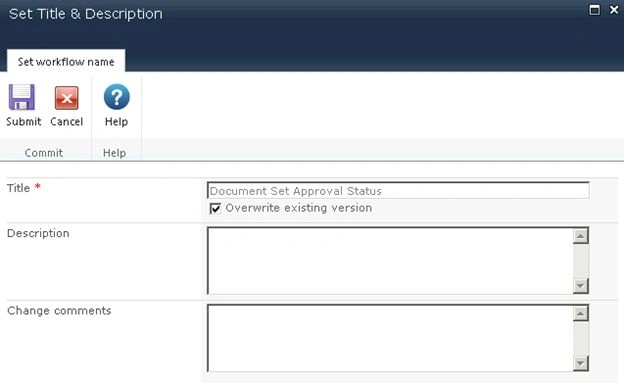
- Click on the "Submit" button.
- The workflow is published successfully.
Sumit AryaPosted Nov 8, 2013, 4:06 AM
Nice Article