

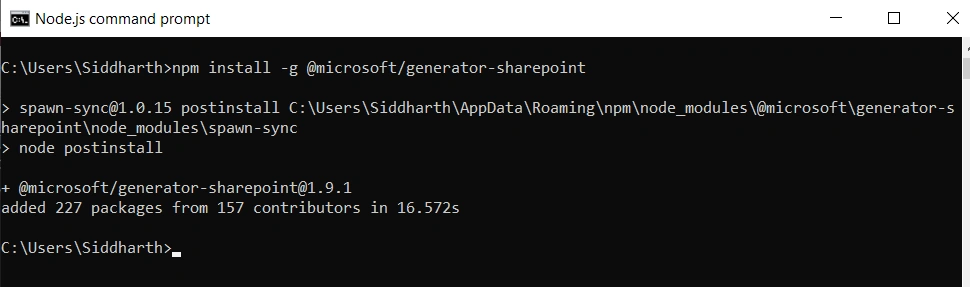
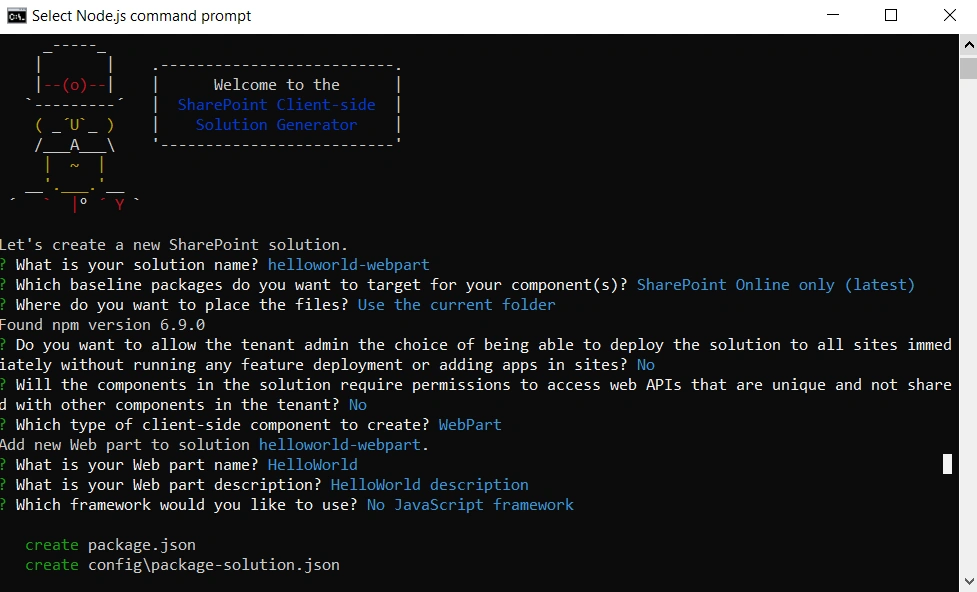
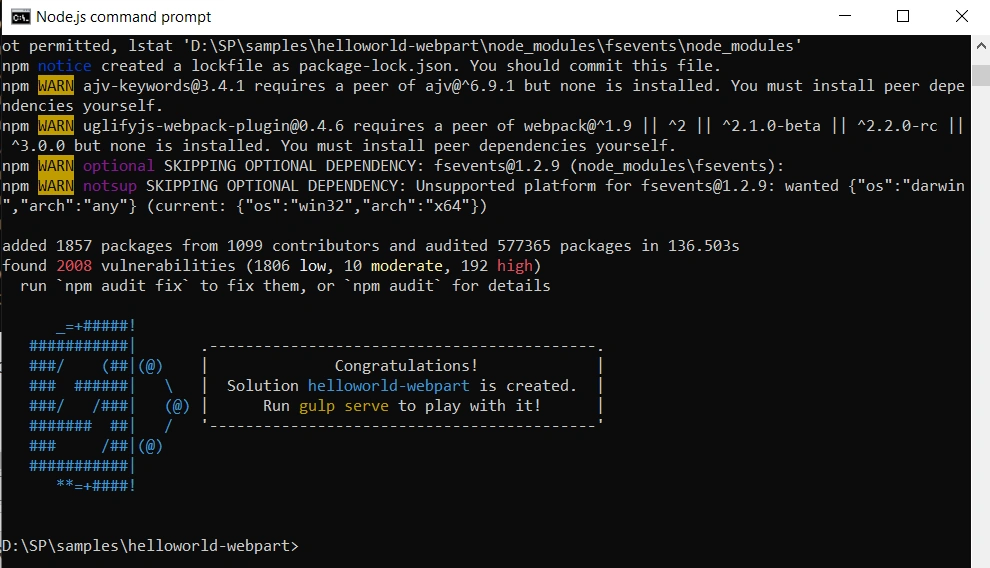
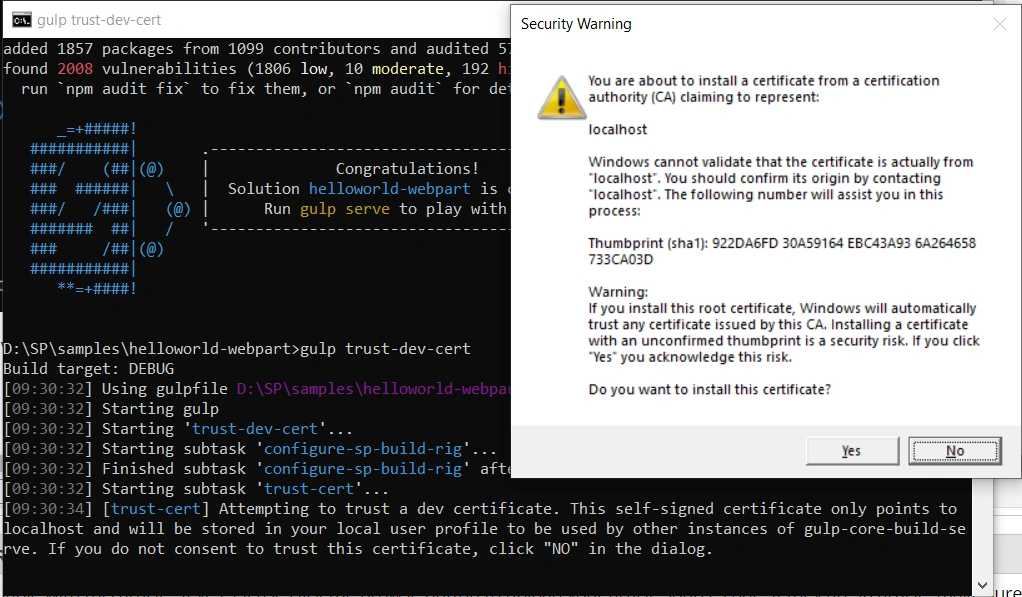
Recently, I got a new laptop and wanted to set up SharePoint Framework development environment. I thought to document it with a screenshot so that it would be useful for those who are doing it for the first time. As SPFx development is open source driven, and a whole new set of toolchains are used to develop the SPFx solution. There are many introductory articles on understanding this toolchain and how it can be compared with typical previous SharePoint development models, so I won't get into those details. Our focus on this article will be to set up a development environment.
Please note that I will follow official Microsoft link but we will see each step in detail in this article. I am assuming, that we already have an Office 365 tenant which will be used later. If not, use this link to set up. Please note that we will be setting up the environment for a Windows 10 64 bit machine.
Step 1 - Download and Install Node JS LTS Version 10
Download MSI installer from https://nodejs.org/en/
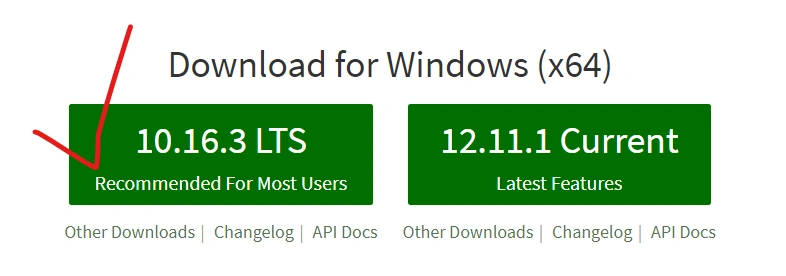
Run the installer
- On the welcome screen, click next
- Next screen would be End-user license agreement, check 'I agree...' and click next
- Next screen select destination path 'c:\Program files\nodejs', you can choose to install on another path also.
- In the next screen, to select features, keep everything default
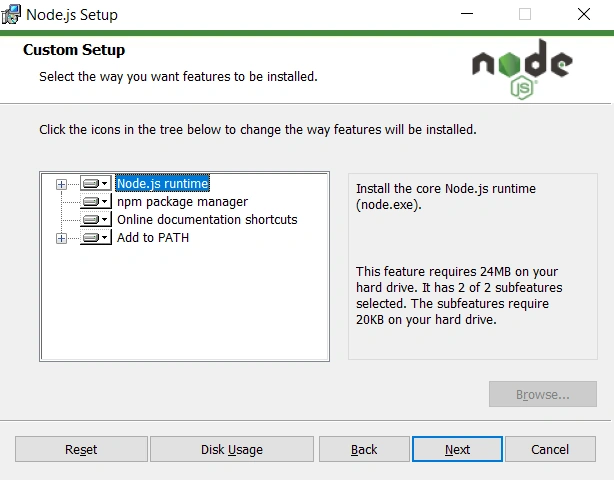
- In the next screen, we will get the Install button. Click on Install.
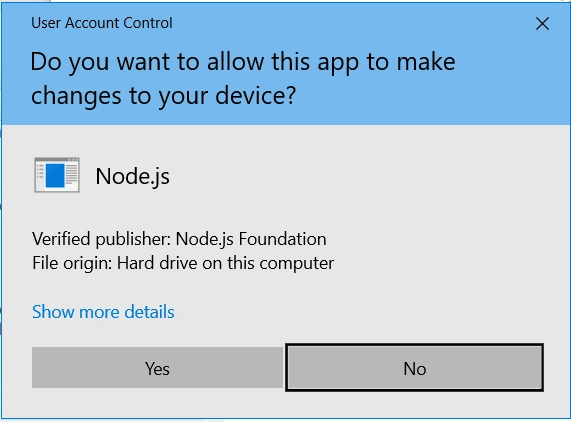
- Based on your security settings, it might ask to allow the below. Click yes
- Once completed your will get the below screen, click Finish
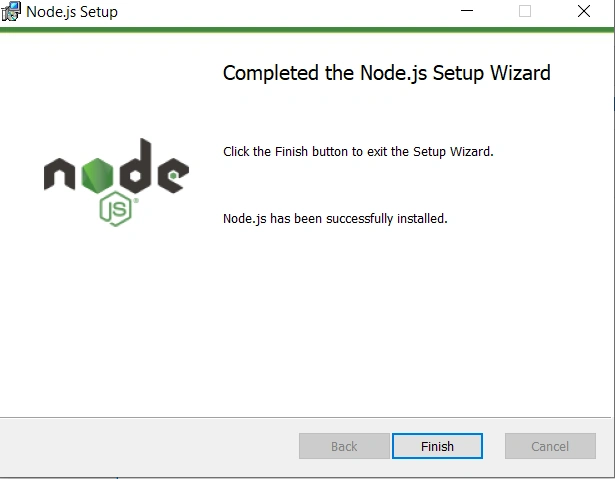
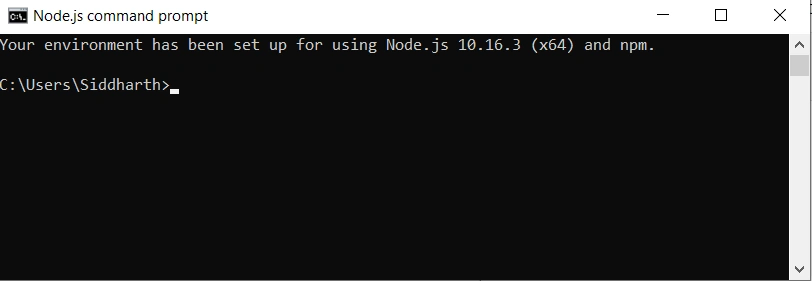
That's it, Node JS is installed. Click on Windows Icon and we will see Node JS command prompt. Open Node JS command prompt.
We should get the below screen,
Step 2 - Installing Visual Studio Code
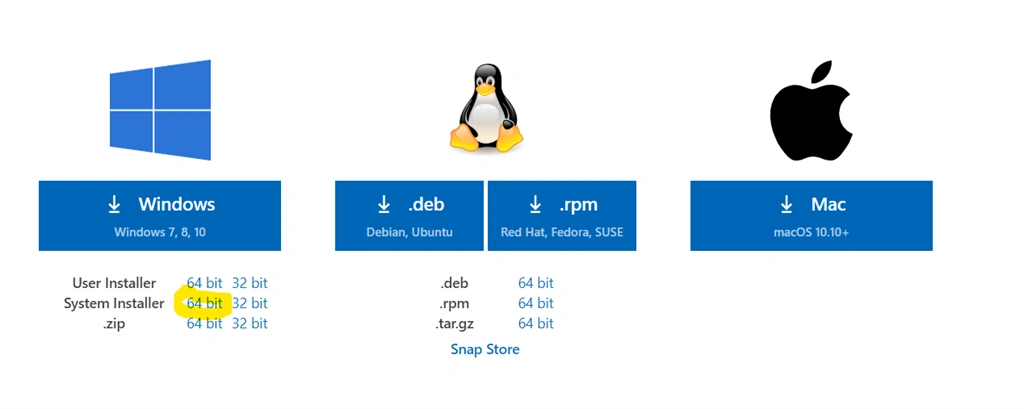
We can use any code editor to develop SPFx solution but mostly it's used in Visual Studio code. Download Visual Studio code stable version from the below link.
https://code.visualstudio.com/ - Please make sure you download System installer(refer below screenshot)
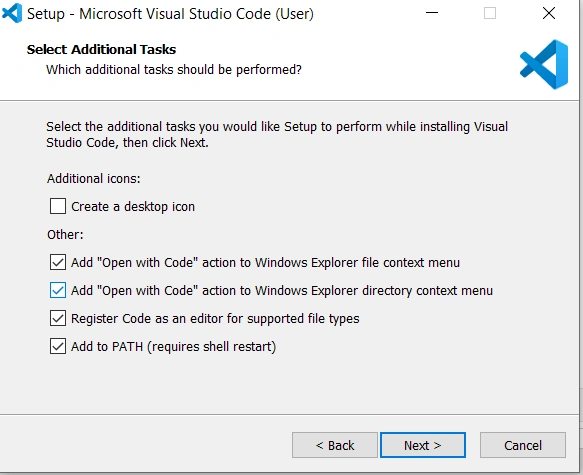
Run the setup wizard and follow along with the instructions to install, it is pretty much self-explanatory. In Additional task link below, use the below preferred option. It will help you later.
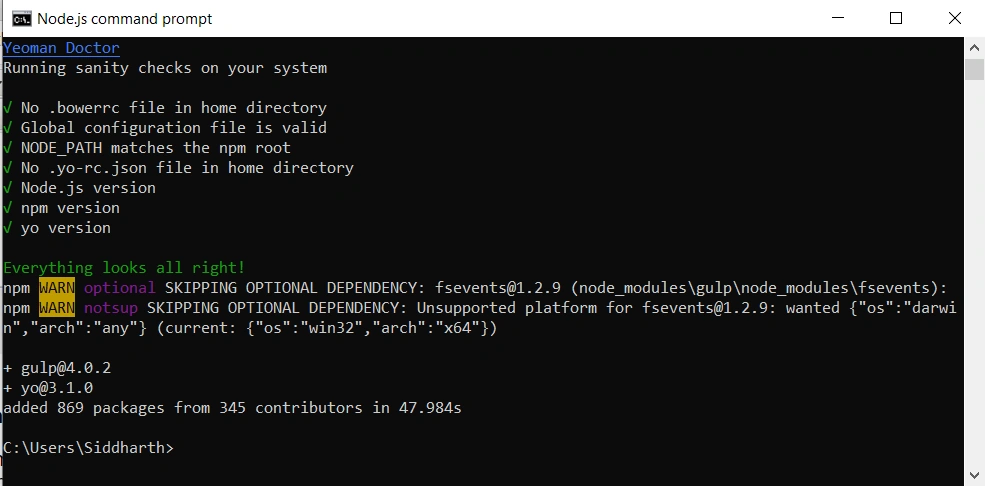
You should get the below success message when completed.
JAY WIEGMANNPosted Aug 30, 2022, 1:20 AM
Workbench.html is not in my /temp
Akash KumharPosted Sep 14, 2021, 10:55 AM
Good one, thanks for sharing..
Vinay AyinapurapuPosted Jun 24, 2021, 4:00 AM
Nice one siddarth. able to follw the steps in sequence and helped us
Merid FikaduPosted Jan 4, 2021, 1:19 PM
Hi #Siddharth Vaghasia i hope you are great and fine t have one question about SharePoint ?? our company need to implement sharepoint 2019 on-prepesses for document management and internal notification and collaboration so can i get some support? please send me some important thing using [email protected]
Rushi MehtaPosted Jan 16, 2020, 2:57 PM
Nice Information. Thanks for sharing