

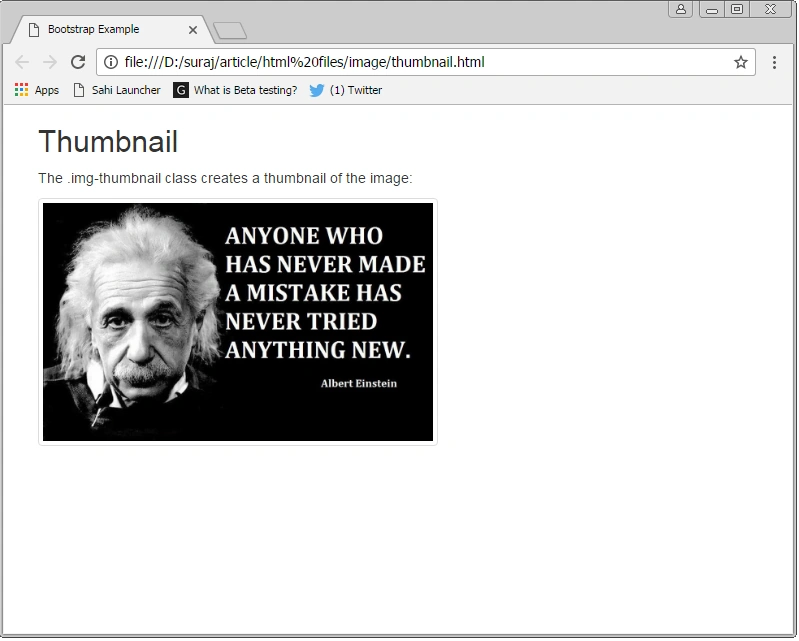
Images are very common in a website design. So, it is very important to style the images and place them properly in webpages for a better user experience. Bootstrap provides us with four built-in classes for image styling.
- .img-rounded
- .img-circle
- .img-responsive
- .img-thumbnail
Now, let us have a close look how these classes work in bootstrap.
.img-rounded
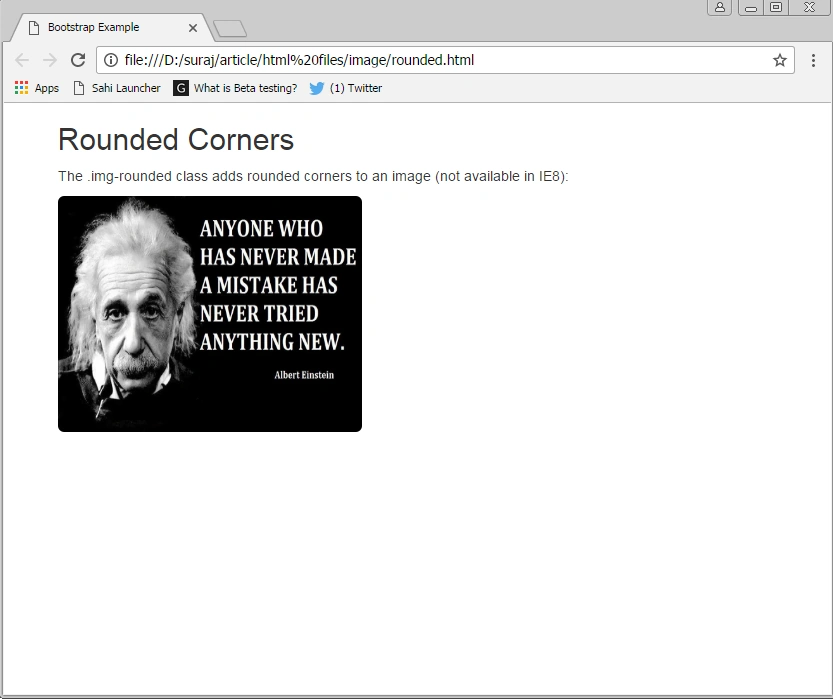
In bootstrap, this class is used to add rounded corners to an image. This class is used inside the container class. This type of image in Bootstrap is a more basic kind of image used in simple webpages. However, IE8 does not support rounded corners.
.img-rounded
In bootstrap, this class is used to add rounded corners to an image. This class is used inside the container class. This type of image in Bootstrap is a more basic kind of image used in simple webpages. However, IE8 does not support rounded corners.
Example
Let us understand the use of .img-rounded class with the help of below example.
- <!DOCTYPE html>
- <html lang="en">
- <head>
- <title>Bootstrap Example</title>
- <meta charset="utf-8">
- <meta name="viewport" content="width=device-width, initial-scale=1">
- <link rel="stylesheet" href="https://maxcdn.bootstrapcdn.com/bootstrap/3.3.7/css/bootstrap.min.css">
- <script src="https://ajax.googleapis.com/ajax/libs/jquery/3.1.1/jquery.min.js"></script>
- <script src="https://maxcdn.bootstrapcdn.com/bootstrap/3.3.7/js/bootstrap.min.js"></script>
- </head>
- <body>
- <div class="container">
- <h2>Rounded Corners</h2>
- <p>The .img-rounded class adds rounded corners to an image (not available in IE8):</p>
- <img src="D:\suraj\q4.jpg" class="img-rounded" alt="Cinque Terre" width="304" height="236">
- </div>
- </body>
- </html>
Src is used to give the image path, width attribute is used to set the image width, height attribute is used to set the height, and alt is used to provide an alternative text if the image cannot be displayed due to some reason.
Output
.img-circle
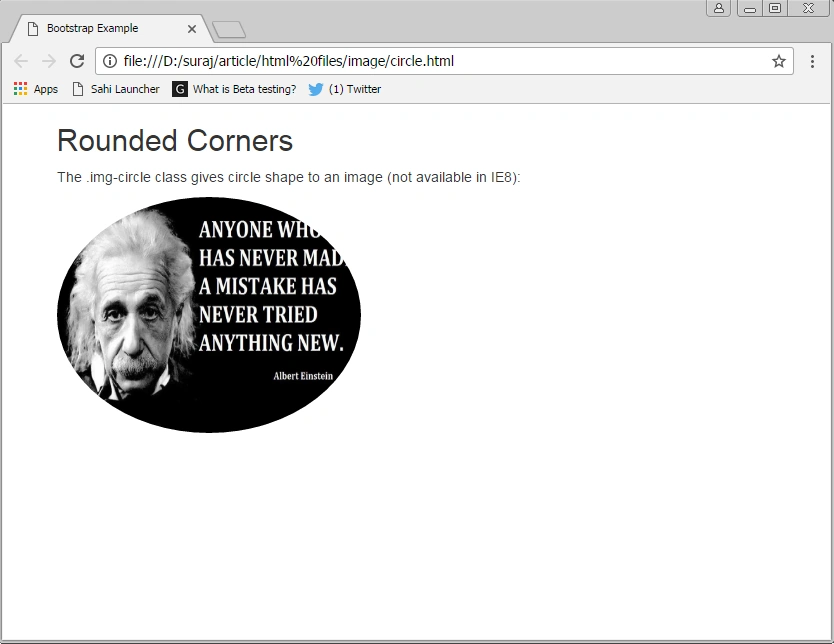
In bootstrap, this class is used to give circular shape to an image. All the attributes used in .img-rounded class can be used in this class also, with the exact meaning.
In bootstrap, this class is used to give circular shape to an image. All the attributes used in .img-rounded class can be used in this class also, with the exact meaning.
Example
Let us see this class with the help of same image which we used in earlier example.
- <!DOCTYPE html>
- <html lang="en">
- <head>
- <title>Bootstrap Example</title>
- <meta charset="utf-8">
- <meta name="viewport" content="width=device-width, initial-scale=1">
- <link rel="stylesheet" href="https://maxcdn.bootstrapcdn.com/bootstrap/3.3.7/css/bootstrap.min.css">
- <script src="https://ajax.googleapis.com/ajax/libs/jquery/3.1.1/jquery.min.js"></script>
- <script src="https://maxcdn.bootstrapcdn.com/bootstrap/3.3.7/js/bootstrap.min.js"></script>
- </head>
- <body>
- <div class="container">
- <h2>Rounded Corners</h2>
- <p>The .img-circle class gives circle shape to an image (not available in IE8):</p>
- <img src="D:\suraj\q4.jpg" class="img-circle" alt="Cinque Terre" width="304" height="236">
- </div>
- </body>
- </html>
Output
Img-responsive

In bootstrap, we can make an image responsive by using this class. Responsive images automatically adjust to fit in all size screens. The .img-responsive class applies max-width i.e. 100% and height automatically to image while the display will be in block view. This way of defining images is most popular and demanding now-a-days, the reason being responsive webpages are in demand.
In bootstrap, we can make an image responsive by using this class. Responsive images automatically adjust to fit in all size screens. The .img-responsive class applies max-width i.e. 100% and height automatically to image while the display will be in block view. This way of defining images is most popular and demanding now-a-days, the reason being responsive webpages are in demand.
Example
Below is the bootstrap responsive image example. We have used the same set of attributes which we used in the above classes.
- <!DOCTYPE html>
- <html lang="en">
- <head>
- <title>Bootstrap Example</title>
- <meta charset="utf-8">
- <meta name="viewport" content="width=device-width, initial-scale=1">
- <link rel="stylesheet" href="https://maxcdn.bootstrapcdn.com/bootstrap/3.3.7/css/bootstrap.min.css">
- <script src="https://ajax.googleapis.com/ajax/libs/jquery/3.1.1/jquery.min.js"></script>
- <script src="https://maxcdn.bootstrapcdn.com/bootstrap/3.3.7/js/bootstrap.min.js"></script>
- </head>
- <body>
- <div class="container">
- <h2>Image</h2>
- <p>Resize the browser window to see the effect:</p>
- <img class="img-responsive" src="D:\suraj\q4.jpg" alt="Chania" width="460" height="345">
- </div>
- </body>
- </html>
sradhanjali sahooPosted Dec 15, 2018, 9:24 AM
All are html img control . can u use img-responsive class <asp:Image class="img-responsive" runat="server" ID="img" ImageUrl='<%#Eval("ImageName","images/{0}")%>' /> control
Former memberPosted Jan 25, 2017, 3:39 AM
Nice one keep up the good job.