

Introduction
In this article, we are going to learn how to use weightsum and layout_weight in a linear layout. The linear layout is the simplest layout in android as compared to others. While using linear layout we may face some issues to setup all the android components such as buttons, textview, image, edittext, etc. So to avoid this problem, we use weightsum and layout_weight attributes which help us to manage all the android components easily.
How to use weightSum and layout_weight in android?
First, we need to decide which part(horizontal or vertical) of the whole screen is divided. Suppose we have decided to divide our screen into three equal parts in vertical order so here the weightsum value will be three. We use the layout_weight attribute for each part and the layout_weight value of each part value will be one. Now our screen is divided into three equal parts.
Let's understand with the example
Step 1
Create a new project in android studio and select an empty activity
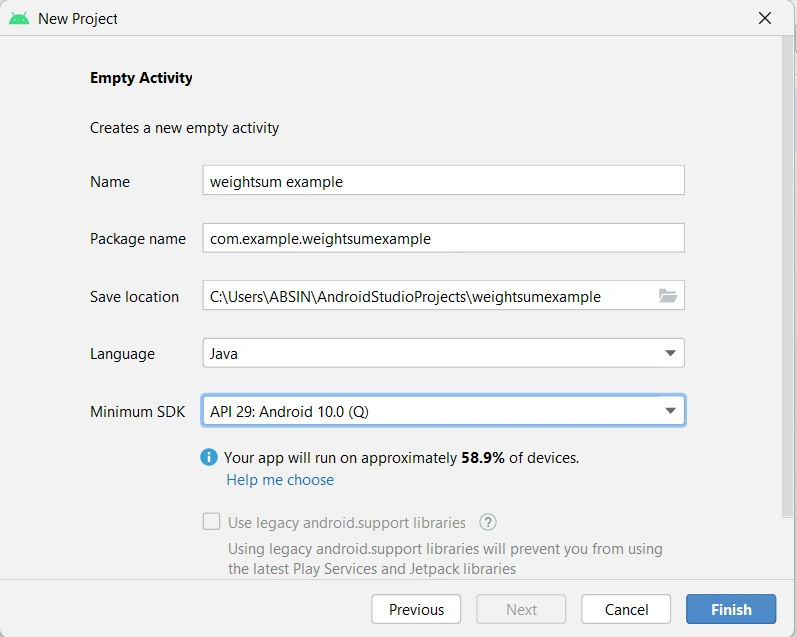
Click on the finish button.
Step 2
Go to activity_main.xml and add the following code
<?xml version="1.0" encoding="utf-8"?>
<androidx.constraintlayout.widget.ConstraintLayout
xmlns:android="http://schemas.android.com/apk/res/android"
    xmlns:app="http://schemas.android.com/apk/res-auto"
    xmlns:tools="http://schemas.android.com/tools"
    android:layout_width="match_parent"
    android:layout_height="match_parent"
    tools:context=".MainActivity">

    <LinearLayout
        android:layout_width="match_parent"
        android:layout_height="match_parent"
        android:orientation="vertical"
        android:weightSum="3"
        app:layout_constraintBottom_toBottomOf="parent"
        app:layout_constraintEnd_toEndOf="parent"
        app:layout_constraintStart_toStartOf="parent"
        app:layout_constraintTop_toTopOf="parent">

        <LinearLayout
            android:layout_width="match_parent"
            android:layout_height="0dp"
            android:layout_weight="1"
            android:weightSum="3"
            android:layout_margin="5dp"
            android:orientation="horizontal">
            <Button
                android:layout_width="0dp"
                android:layout_height="match_parent"
                android:text="1"
                android:textSize="30dp"
                android:layout_margin="5dp"
                android:layout_weight="1"/>
            <Button
                android:layout_width="0dp"
                android:layout_height="match_parent"
                android:text="2"
                android:layout_margin="5dp"
                android:textSize="30dp"
                android:layout_weight="1"/>
            <Button
                android:layout_width="0dp"
                android:layout_height="match_parent"
                android:text="3"
                android:layout_margin="5dp"
                android:textSize="30dp"
                android:layout_weight="1"/>
        </LinearLayout>

        <LinearLayout
            android:layout_width="match_parent"
            android:layout_height="0dp"
            android:layout_weight="1"
            android:weightSum="3"
            android:layout_margin="5dp"
            android:orientation="horizontal">
            <Button
                android:layout_width="0dp"
                android:layout_height="match_parent"
                android:text="4"
                android:textSize="30dp"
                android:layout_margin="5dp"
                android:layout_weight="1"/>
            <Button
                android:layout_width="0dp"
                android:layout_height="match_parent"
                android:text="5"
                android:layout_margin="5dp"
                android:textSize="30dp"
                android:layout_weight="1"/>
            <Button
                android:layout_width="0dp"
                android:layout_height="match_parent"
                android:text="6"
                android:layout_margin="5dp"
                android:textSize="30dp"
                android:layout_weight="1"/>
        </LinearLayout>

        <LinearLayout
            android:layout_width="match_parent"
            android:layout_height="0dp"
            android:layout_weight="1"
            android:weightSum="3"
            android:layout_margin="5dp"
            android:orientation="horizontal">
            <Button
                android:layout_width="0dp"
                android:layout_height="match_parent"
                android:text="7"
                android:textSize="30dp"
                android:layout_margin="5dp"
                android:layout_weight="1"/>
            <Button
                android:layout_width="0dp"
                android:layout_height="match_parent"
                android:text="8"
                android:layout_margin="5dp"
                android:textSize="30dp"
                android:layout_weight="1"/>
            <Button
                android:layout_width="0dp"
                android:layout_height="match_parent"
                android:text="9"
                android:layout_margin="5dp"
                android:textSize="30dp"
                android:layout_weight="1"/>
        </LinearLayout>
    </LinearLayout>
</androidx.constraintlayout.widget.ConstraintLayout>
Join the conversation! Your thoughts help the community grow.