
One of my requirements was to import data from Excel into a SharePoint List and I didn't want to use C# for it.
So, I used this approach.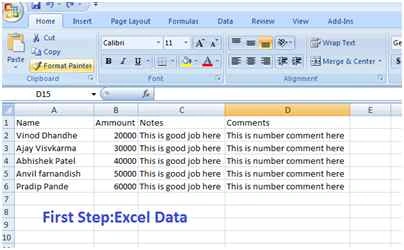
Here is the sample data I used (this is for a sample to show). 
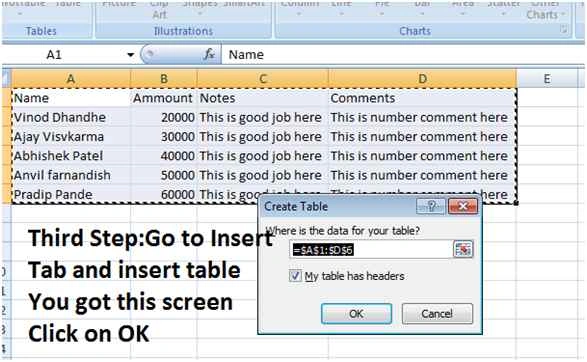
Do as shown in the following screenshot.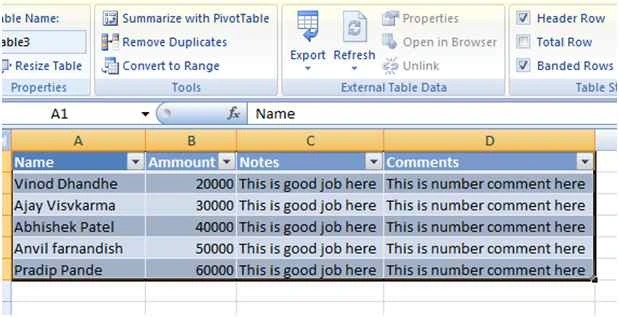
Now as shown in the screenshot your Excel data is ready to import. Now go to your SharePoint site and open Site Contents and click on add an app link. Then search for Import.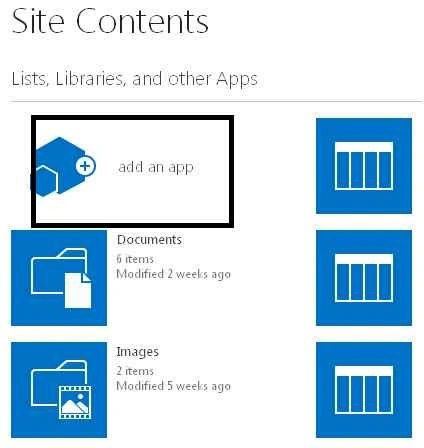

If you click on it you get this page.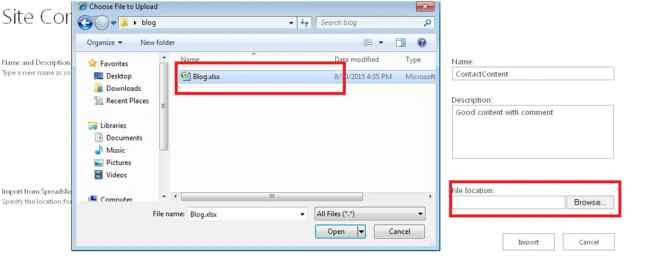

Select Excel spreadsheet and click on the Import button. It will open an Excel Spreadsheet in Excel Office as shown in the following screenshot.
Select a range for your Excel Sheet name and Table name.
For example. Sheet1! Table3.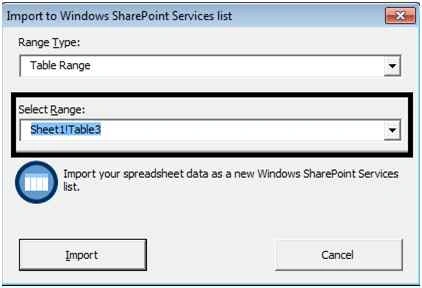
Now click on Import then move to your site. Your list is created with the Excel data. Here it is.
So that is how you can create a list from an Excel sheet or import data from an Excel list and create a list.

Import Excel Data into SharePoint 2013 List
Join the conversation! Your thoughts help the community grow.
Sign in to leave a comment
It is the same account you read, post and publish with — and you will come straight back to this page.
Devesh KachhawayPosted Sep 1, 2015, 8:15 AM
You Welcome..
Rajkiran SwainPosted Aug 31, 2015, 8:43 AM
nice
Ankit BansalPosted Aug 31, 2015, 4:25 AM
thanks for share..
Yashwanth MuthineniPosted Aug 31, 2015, 1:30 AM
Nice Share
Rajeesh MenothPosted Aug 31, 2015, 12:40 AM
Thanks for sharing
Karthikeyan KPosted Aug 30, 2015, 11:12 PM
Good one sir...Thanks for share
Mohammed IbrahimPosted Aug 30, 2015, 9:52 PM
nice
Hashim ShafiqPosted Aug 30, 2015, 9:41 PM
nice