

Introduction
In the modern world of web development, creating responsive and visually appealing websites is crucial. Bootstrap, an open-source CSS framework, has become an essential tool for front-end developers, providing a powerful and flexible toolkit to build dynamic and mobile-first websites. Developed by Twitter, Bootstrap offers a wide range of pre-designed components, responsive grid systems, and JavaScript plugins that simplify the development process and enhance the user experience. In this article, we will explore the importance of Bootstrap in front-end development and demonstrate its implementation through a detailed project.
Bootstrap Features
- Responsiveness: Bootstrap's responsive grid system allows developers to create layouts that automatically adjust to different screen sizes and devices. This ensures a consistent user experience across desktops, tablets, and smartphones.
- Pre-designed Components: Bootstrap offers a rich collection of pre-designed UI components such as buttons, modals, navigation bars, and forms. These components are easily customizable and can be seamlessly integrated into any project, saving valuable development time.
- Consistency: Using Bootstrap ensures design consistency across different sections of a website. The framework follows a unified design language, providing a cohesive look and feel.
- Browser Compatibility: Bootstrap is designed to work seamlessly across all modern browsers, ensuring that websites function correctly regardless of the user's browser choice.
- Ease of Use: Bootstrap's well-documented and easy-to-use classes make it accessible for developers of all skill levels. Whether you are a beginner or an experienced developer, Bootstrap simplifies the process of building beautiful and functional websites.
Building a Responsive Portfolio Website
To demonstrate the implementation of Bootstrap, we will build a simple responsive portfolio website. The project will include a navigation bar, a hero section, a portfolio gallery, and a contact form.
Step 1. Setting Up the Project
Create a new project directory and include the following files:
- index.html: The main HTML file.
- styles.css: Custom CSS file for additional styling.
Step 2. Adding Bootstrap
Include Bootstrap in your project by adding the following links to the index.html file within the <head> section:
<!DOCTYPE html>
<html lang="en">
<head>
    <meta charset="UTF-8">
    <meta name="viewport" content="width=device-width, initial-scale=1.0">
    <title>Responsive Portfolio</title>
    <link rel="stylesheet" href="https://maxcdn.bootstrapcdn.com/bootstrap/4.5.2/css/bootstrap.min.css">
    <link rel="stylesheet" href="styles.css">
</head>
<body>
    <!-- Content will go here -->
</body>
</html>
Step 3. Creating the Navigation Bar
Add a responsive navigation bar using Bootstrap's navbar component:
<nav class="navbar navbar-expand-lg navbar-light bg-light">
  <a class="navbar-brand" href="#">My Portfolio</a>
  <button class="navbar-toggler" type="button" data-toggle="collapse" data-target="#navbarNav" aria-controls="navbarNav" aria-expanded="false" aria-label="Toggle navigation">
    <span class="navbar-toggler-icon"></span>
  </button>
  <div class="collapse navbar-collapse" id="navbarNav">
    <ul class="navbar-nav ml-auto">
      <li class="nav-item active">
        <a class="nav-link" href="#">Home</a>
      </li>
      <li class="nav-item">
        <a class="nav-link" href="#">About</a>
      </li>
      <li class="nav-item">
        <a class="nav-link" href="#">Portfolio</a>
      </li>
      <li class="nav-item">
        <a class="nav-link" href="#">Contact</a>
      </li>
    </ul>
  </div>
</nav>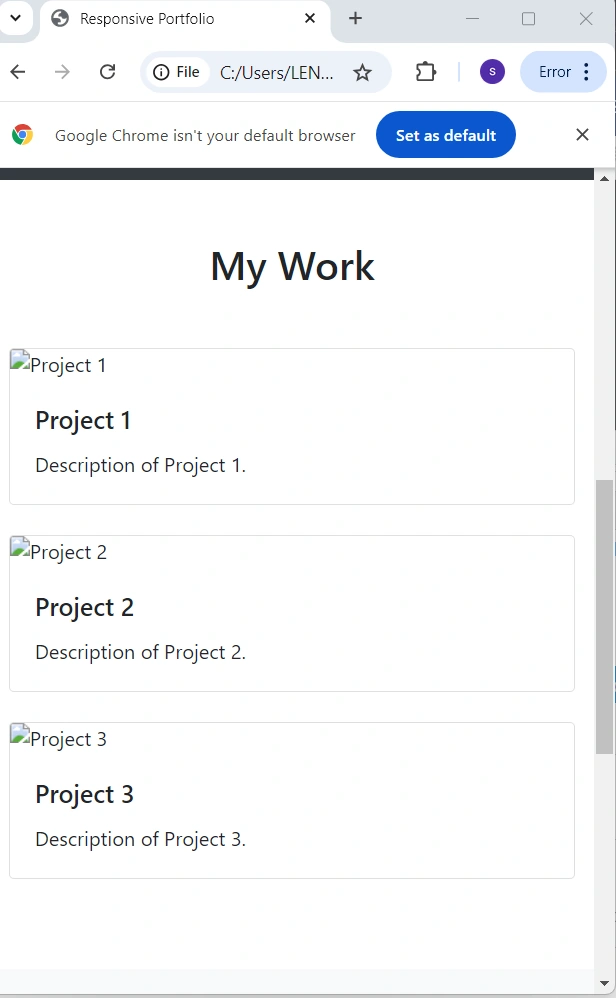
Join the conversation! Your thoughts help the community grow.