

Introduction
Microsoft Azure offers several web platform options by default. In this demo, I’m going to show the process of installing and configuring Joomla on Azure. Joomla is one of the free and open-source platforms for publishing websites.
Step 1
Log in to the Azure portal using your account credentials at the following URL. https://portal.azure.com/
On the dashboard, choose to create a resource and type "Joomla", and then click it.
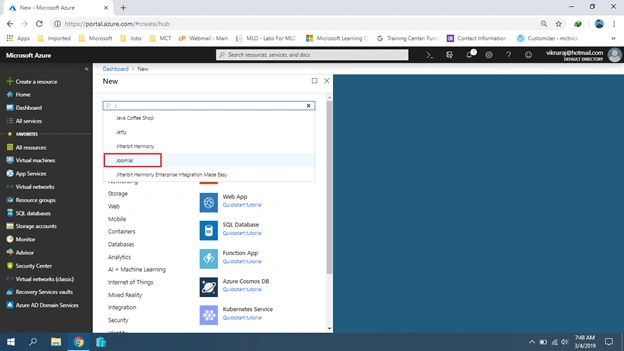
Step 2
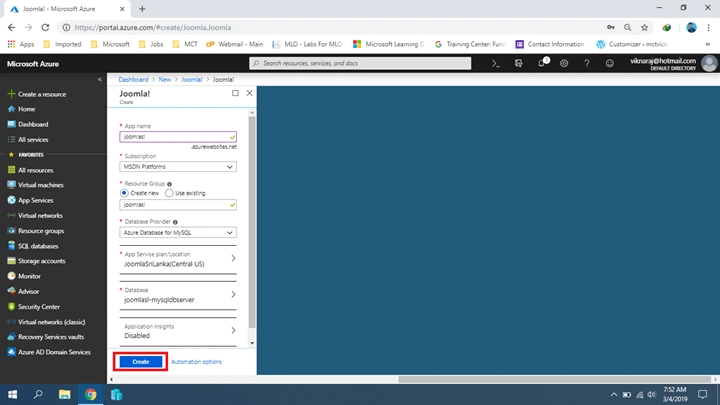
In the Joomla window, click "Create".
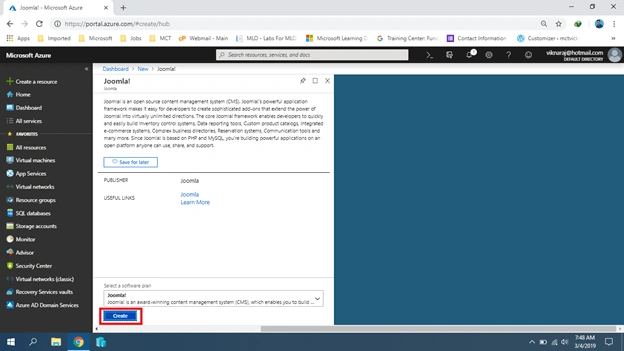
Step 3
On the "Joomla Configuration" page, enter the name that you want to assign to the Joomla site, and for the Database Selection, there are two options - Azure Database for MySQL and MySQL in Azure. In this demo, I have chosen "Azure Database for MySQL".
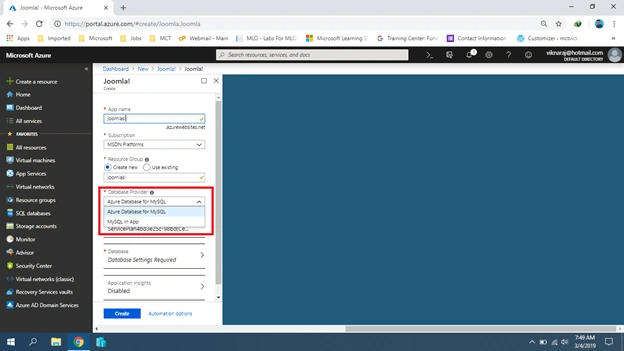
Step 4
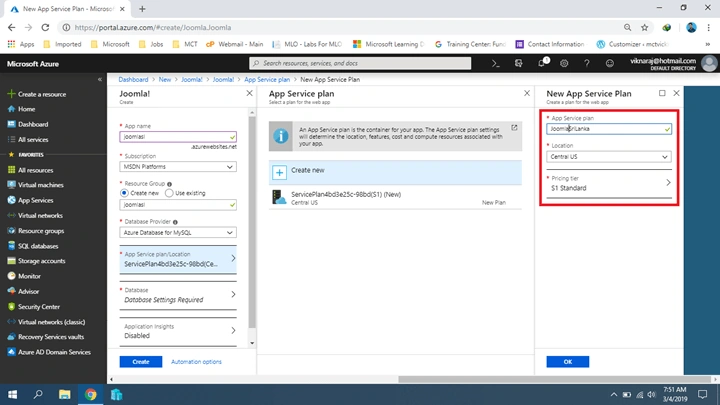
In the App Service Plan, we can choose the default plan or we can create a new plan for our requirement, so select the “Create New”.
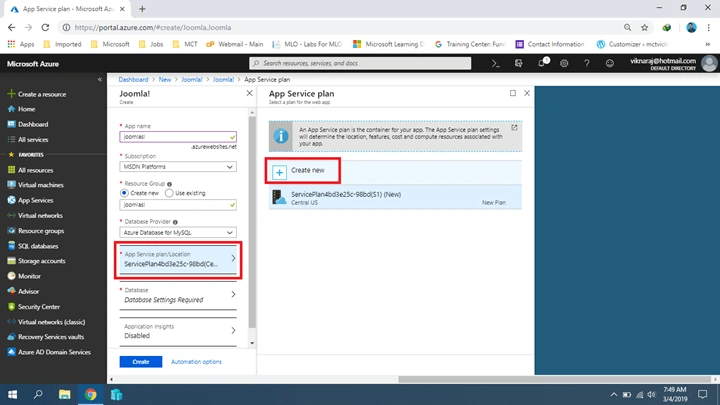
Step 5
In the New App Service Plan part, you can enter the Plan Name, and you can choose Pricing. For Pricing tier, click "S1 Standard".
Step 6
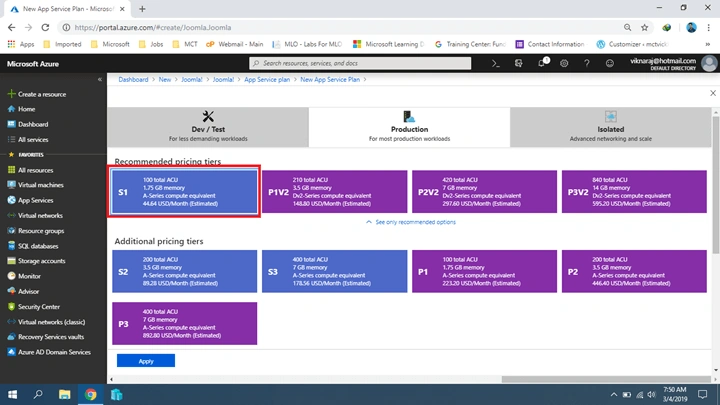
In the price tier plan, you can choose the plan as per your requirement. After choosing the plan, click "Apply" and Click "Ok" to close the App Service Plan page.
Step 7
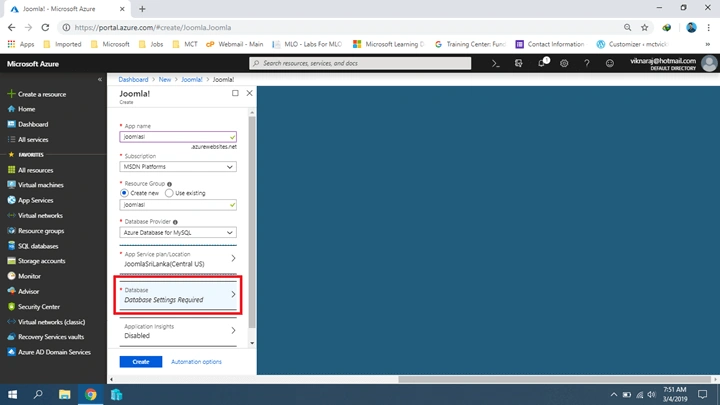
In the Database part, you need to set the database, so click “Database Setting Required”.
Step 8
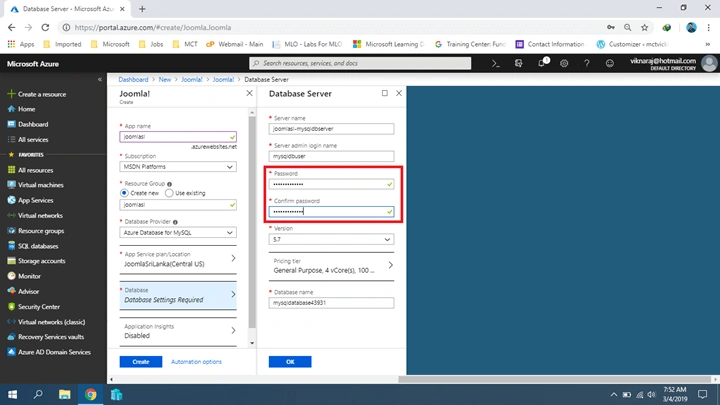
In the Database Server, you need to assign the database password. Also, you can change the SQL version, Database name, and the server name. After completing the settings, click OK.
Step 9
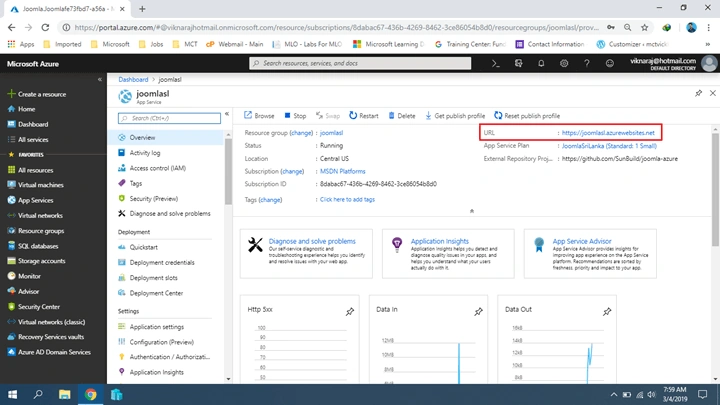
Yes, now you are ready to set up Joomla, so click “Create”.
Hadshana KamalanathanPosted May 11, 2019, 5:20 AM
Nice article....
Najath RisniPosted Mar 10, 2019, 12:13 AM
It's Very Helpful Thank YOU......