Introduction
Integrating external applications with Microsoft Dynamics 365 CRM can be efficiently managed using Power Automate. In this article, we will walk through the process of setting up an HTTP trigger in Power Automate to receive requests from an external application, authenticate using a JWT token, and perform operations in D365 CRM.
Prerequisites
Before proceeding, ensure you have the following.
- Access to Microsoft Entra ID (formerly Azure AD)
- Power Automate license
- D365 CRM instance
- Postman for testing API requests
Step 1. Register an Application in Microsoft Entra ID.
To enable external applications to authenticate and interact with Power Automate, follow these steps.
- Go to Microsoft Entra ID in the Azure portal.
- Navigate to App registrations and click New Registration.
- Enter a name for your application and select the supported account type.
- Once registered, note down the Client ID.
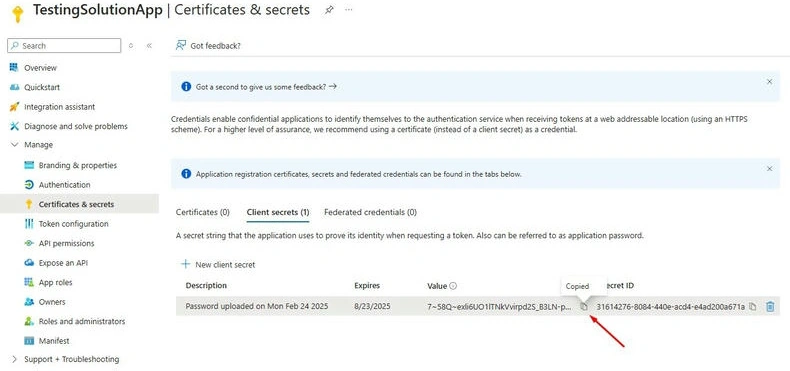
- Under Certificates & secrets, generate a new Client Secret and copy its value.
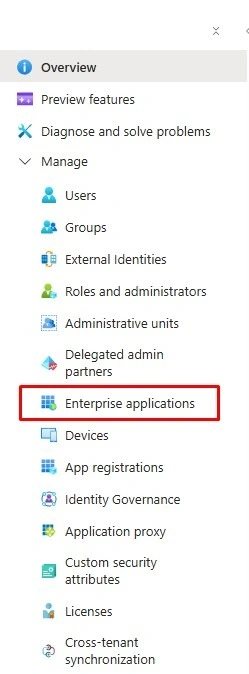
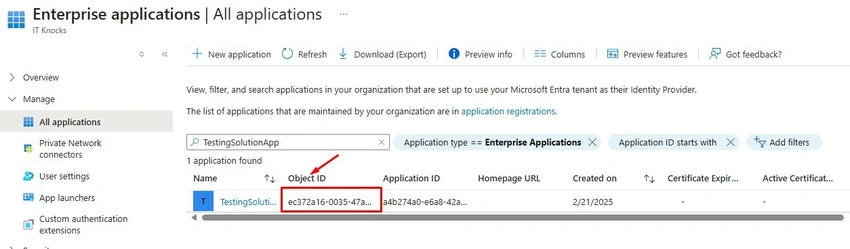
- Navigate to Enterprise applications, find your registered app, and note down the Object ID.

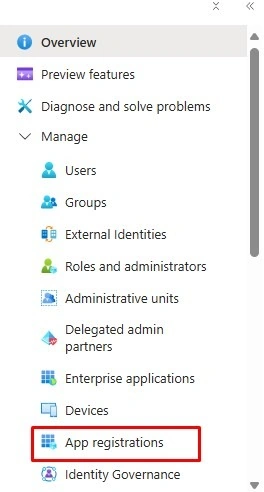

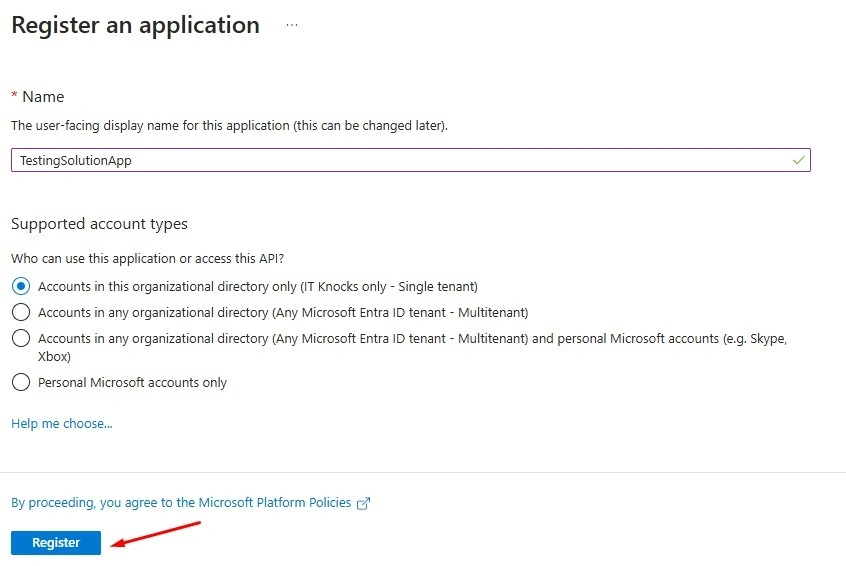
- Copy the Client ID.

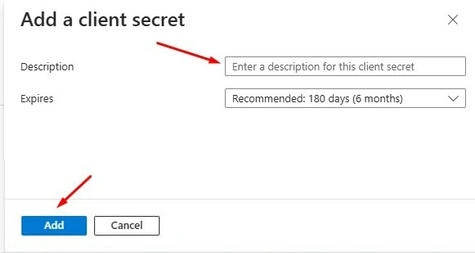
- Create Client Secrete from here.
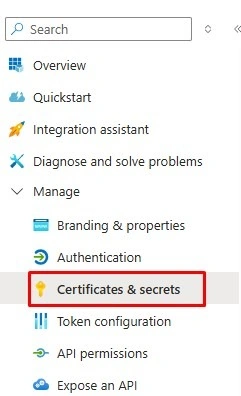
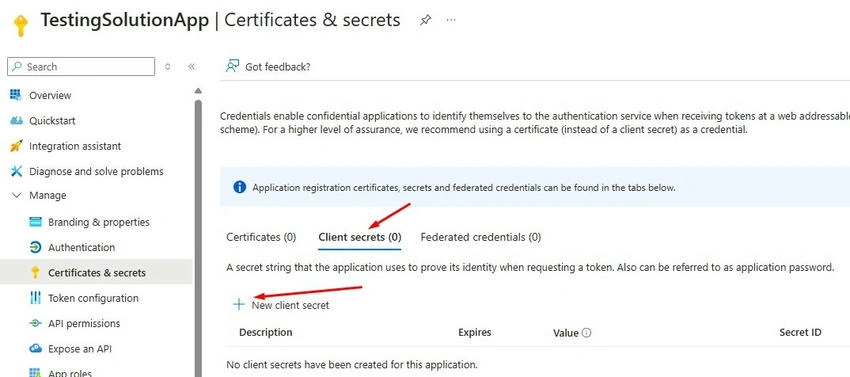
- Add the Secret.
- Copy the Secret else it will not be visible after a few minutes.
- Go back to Entra ID and copy the Tenant ID as well.

- Now, we have to get the Object ID from the Enterprise Application.
Step 2. Create a Power Automate Flow with HTTP Trigger.
- Go to Power Automate.
- Click Create and select Instant Cloud Flow.
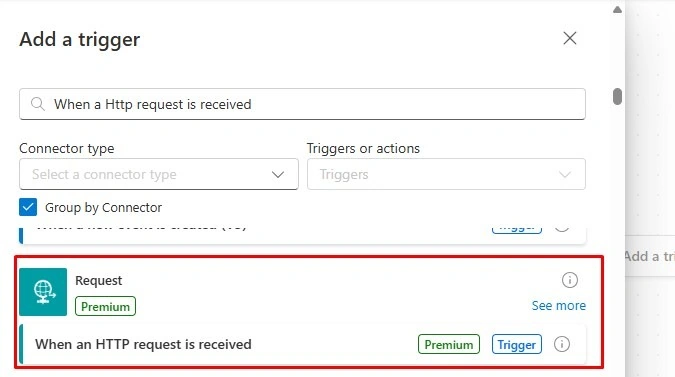
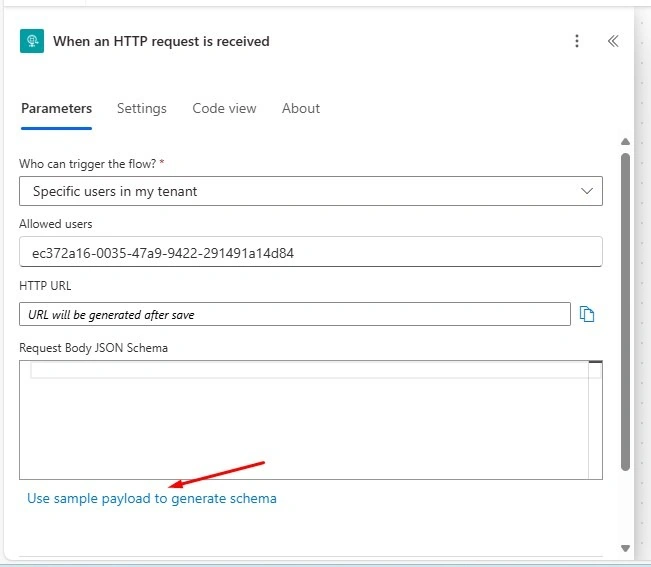
- Choose When an HTTP request is received as the trigger.
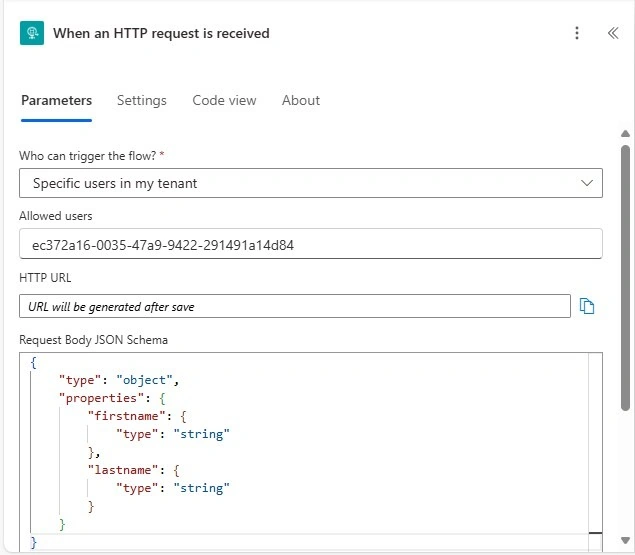
- Define the request schema based on the expected payload.
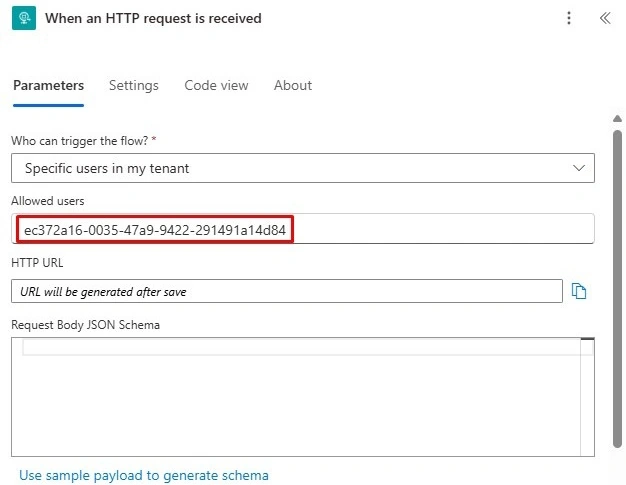
- Under Settings, go to Allowed Users and paste the Object ID obtained from Entra ID.
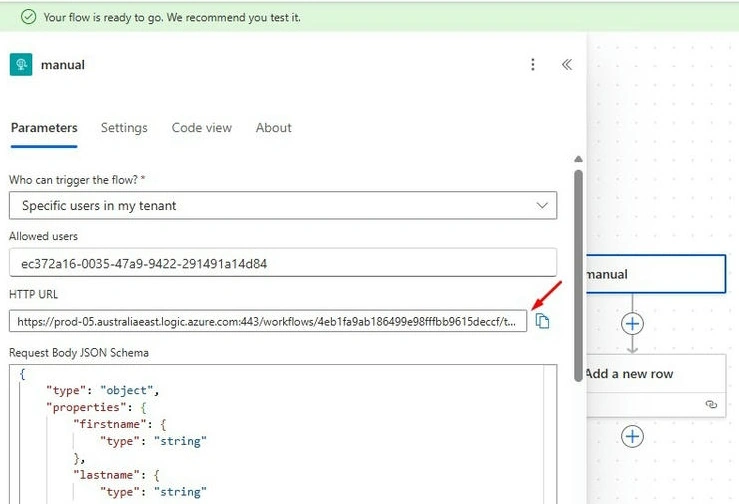
- Save the flow to generate a unique HTTP POST URL.
Go to https://make.powerautomate.com
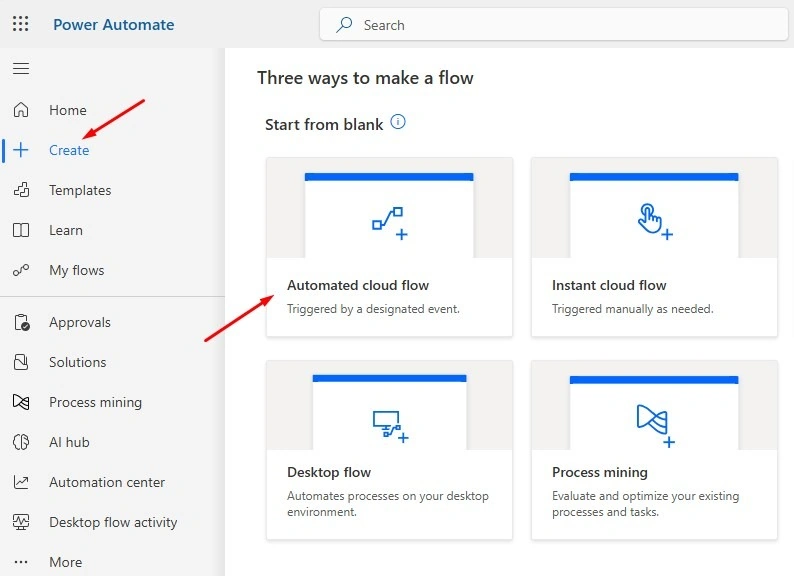
Add a trigger When an HTTP request is received.
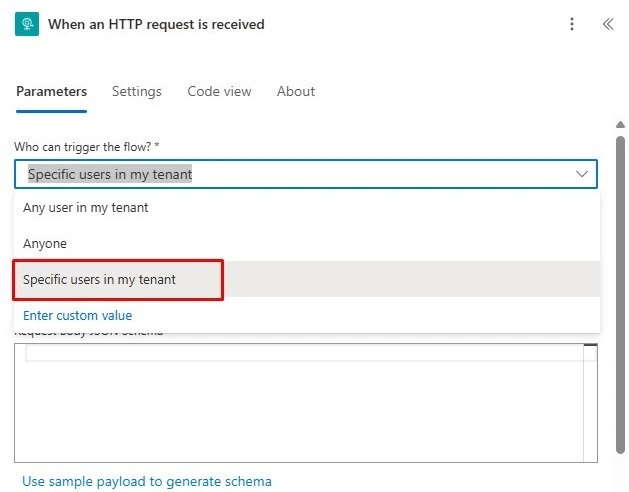
Select Specific users in my tenant.
Paste the Object ID.
Give a sample JSON that you want to get as a request from the External Application.
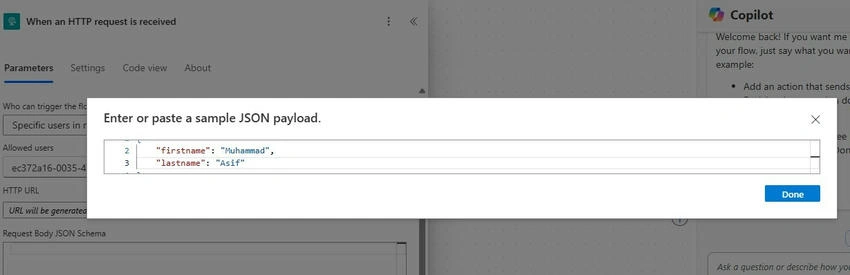
{
    "firstname": "Muhammad",
    "lastname": "Asif"
}
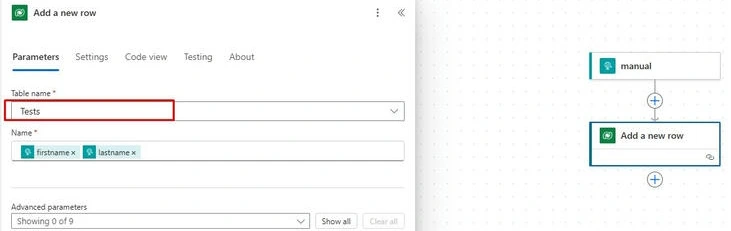
Add New Step Add a new row.
Save the flow and then copy the updated URL from the Step.

Step 3. Generate JWT Token Using Postman.
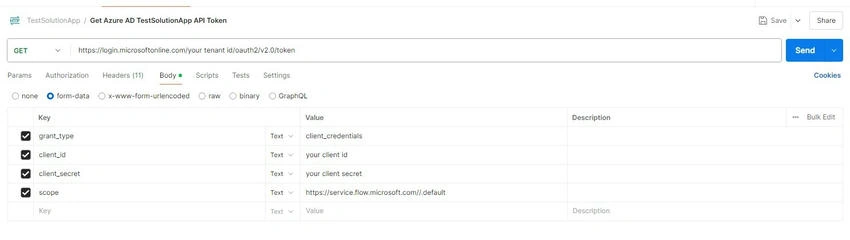
To authenticate requests, generate a JWT token using Postman.
- Open Postman and create a new POST request.
- Set the request URL to: https://login.microsoftonline.com/{TenantID}/oauth2/v2.0/token
- In the Body, select form-data and add the following fields.
- grant_type: client_credentials
- client_id: Your registered application's Client ID
- client_secret: The generated Client Secret
- scope: https://service.flow.microsoft.com//.default
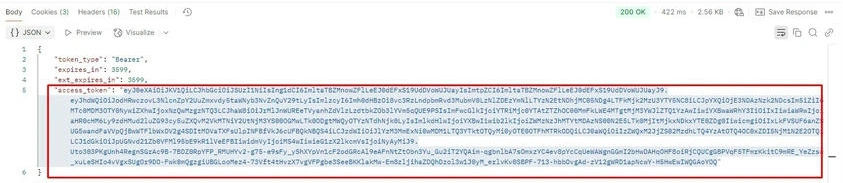
- Click Send and copy the access_token from the response.
Step 4. Test the Power Automate Flow.
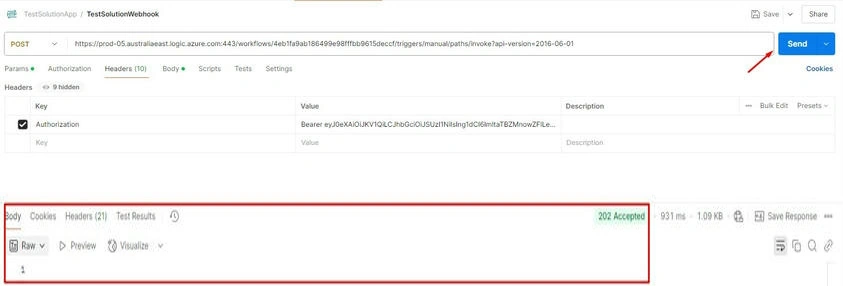
- In Postman, create a new POST request to the Power Automate URL generated earlier.
- Add the following headers.
- Authorization: Bearer {access_token}
- Define the Body payload matching the request schema in Power Automate.
- Click Send and verify if Power Automate receives the request.
Add JSON into the request body.

Add Authorization Header and Add Bearer Token.

Execute the API call from POST Man.
Step 5. Perform Operations in D365 CRM.
Once Power Automate receives the request, it can process it to interact with D365 CRM using the Dataverse connector.
Create a record: Use the "Add a new row" action to insert data.
Now go to the Power Automate Run History.

The request is received successfully.

The record is created into CRM Dataverse successfully.

Conclusion
Integrating an external application with D365 CRM using Power Automate and Microsoft Entra ID provides a secure and efficient way to automate CRM interactions. By leveraging HTTP triggers and JWT authentication, you can seamlessly perform CRUD operations within D365 CRM. This approach enhances automation, improves data consistency, and streamlines business workflows, making it a powerful solution for integrating third-party applications with Dynamics 365 CRM.


Join the conversation! Your thoughts help the community grow.