

Introduction
This article is useful for developers encountering exceptions during development. It also provides some tips for common errors and gives a solution for common exceptions and issues encountered during development.
1. The 500 Error occurs when publishing a website in IIS. The most configuration errors occur due to this.
Solution
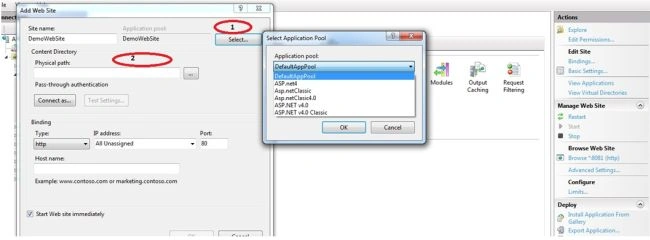
Figure 1: Configuration procedure related to publishing website in IIS
- Open a command prompt using Run as administrator.
- Change the directory path for the proper framework in the command prompt.
CD C:\Windows\Microsoft.NET\Framework64\v4.0.30319
- After changing the directory path hit Enter "aspnet_regiis i", this command registers aspnet_regiis availability into the directory.
Step 1: Choose the appropriate application pool and if the target framework is missing in the application pool, use the following procedure depending on your Windows system.
Step 2: Select proper publish code.
Step 3: Check that the physical path is accessible for the current user or IUSR by verifying using “Test Settings”.
2. If you have published your website to a live server and want to change some minor code behind file and upload it to live server, then what is the best way?
Solution:
Instead of publishing the complete site, use the following:
Step 1: Just build the project without error and go to the project bin folder, then find "projectname.dll" and "projectname.pdb" (if available).
Step 2: Then put those two file into the live project's bin folder and just replace it. Now the website runs with the latest changes because our .cs file (code behind file) is converted to a DLL and our page searches for the method reference from the DLL file.
3. Now to resolve the "Maximum request length exceeded" exception when working with a web service or JSON data.
Solution
- <system.web>
- <httpRuntime executionTimeout="240" maxRequestLength="20480" />
- </system.web>
- <system.webServer>
- <security>
- <requestFiltering>
- <requestLimits maxAllowedContentLength="3000000000" />
- </requestFiltering>
- </security>
- </system.webServer>
The 4MB default is set in machine.config, but you can override it in you web.config. For instance, to expand the upload limit to 20MB, add the following code to the web.config:
4. The request filtering module is configured to deny a request that exceeds the request content length (IIS 7).
Solution
- <system.webServer>
- <security>
- <requestFiltering>
- <requestLimits maxAllowedContentLength="100000000" />
- </requestFiltering>
- </security>
- </system.webServer>
You need to add the following configuration to the web.config file.
5. The page you are requesting cannot be served because of the extension configuration. If the page is a script, add a handler. If the file should be downloaded, add a MIME map (for JSON file).
Solution
- <system.webServer>
- <staticContent>
- <mimeMap fileExtension=".json" mimeType="application/json" />
- </staticContent>
- </system.webServer>
You need to add the following configuration to the web.config file.
6. When I integrated WebAPI2 into an existing MVC web application then some dependency error occurred.
Solution
- public static void Register(HttpConfiguration config)
- {
- // Web API routes
- config.MapHttpAttributeRoutes();
- config.Routes.MapHttpRoute(
- name: "DefaultApi",
- routeTemplate: "api/{controller}/{id}",
- defaults: new
- {
- id = RouteParameter.Optional
- });
- //To return json format data
- config.Formatters.JsonFormatter.SupportedMediaTypes.Add(new MediaTypeHeaderValue("text/html"));
- }
- AreaRegistration.RegisterAllAreas();
- FilterConfig.RegisterGlobalFilters(GlobalFilters.Filters);
- //added before RouteConfig
- GlobalConfiguration.Configure(WebApiConfig.Register);
- RouteConfig.RegisterRoutes(RouteTable.Routes);
- BundleConfig.RegisterBundles(BundleTable.Bundles);
I reinstalled the "system.web.http.webhost" package using Nuget and added a WebApiConfig file to the ”appstart” folder. Now register to the global.asax file before RouteConfig. If RouteConfig was added before webapiconfig, then the WebApi stops working properly.
WebApiConfig.cs
7. How to speedup page request in ASP.NET.
Solution
- <system.webServer>
- <httpCompression directory="%SystemDrive%\inetpub\
- temp\IIS Temporary Compressed Files">
- <scheme name="gzip" dll="%Windir%\system32\inetsrv\gzip.dll"/>
- <dynamicTypes>
- <add mimeType="text/*" enabled="true"/>
- <add mimeType="message/*" enabled="true"/>
- <add mimeType="application/javascript" enabled="true"/>
- <add mimeType="*/*" enabled="false"/>
- </dynamicTypes>
- <staticTypes>
- <add mimeType="text/*" enabled="true"/>
- <add mimeType="message/*" enabled="true"/>
- <add mimeType="application/javascript" enabled="true"/>
- <add mimeType="*/*" enabled="false"/>
- </staticTypes>
- </httpCompression>
- <urlCompression doStaticCompression="true" doDynamicCompression="true"/>
- </system.webServer>
Just add the following configuration to web.config file and it will take care automatically.
Conclusion
In this article we learned some basic configuration tips as well as common exceptions and their solution. These exceptions occur frequently when developing web applications. I will update this article with other useful tips.
SubashPosted Aug 23, 2016, 12:35 AM
Good work sir
Pankil BhattPosted Aug 24, 2015, 5:42 AM
perfect Nice :)
Ano MepaniPosted Jun 25, 2015, 1:00 PM
Thank you for liking my article
Neeraj KumarPosted Jun 25, 2015, 5:03 AM
nice
Debendra DashPosted Jun 25, 2015, 2:18 AM
good one......
Santhakumar MunuswamyPosted Jun 24, 2015, 11:27 PM
Thanks for nice article:)
Gopi ChandPosted Jun 24, 2015, 11:23 PM
Great effort
sreenivasa kPosted Jun 24, 2015, 2:05 PM
nice one
Pankaj Kumar ChoudharyPosted Jun 24, 2015, 10:44 AM
Nice Start Sir.................
Nilesh JadavPosted Jun 24, 2015, 9:16 AM
Nice information sir !
Vipul MalhotraPosted Jun 24, 2015, 9:01 AM
nice...Thanks for writing
Jaipal ReddyPosted Jun 24, 2015, 3:20 AM
Nice aricle
Debasis SahaPosted Jun 24, 2015, 2:42 AM
Nice Article