

Introduction
This is a fantastic option provided by Microsoft to narrate everything on the desktop and what/where we are navigating. A background speech tells you what you are doing. The narration can be controlled; for example, the pitch and speed of the voice.
Let's move on to "How the Narrator option works in Windows 10."
Step 1
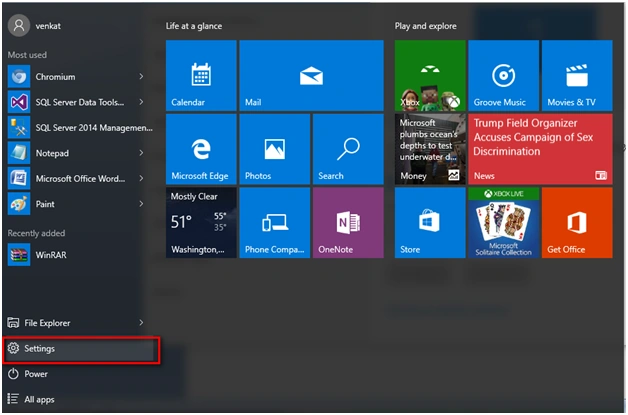
Go to a Setting tab in Windows 10.
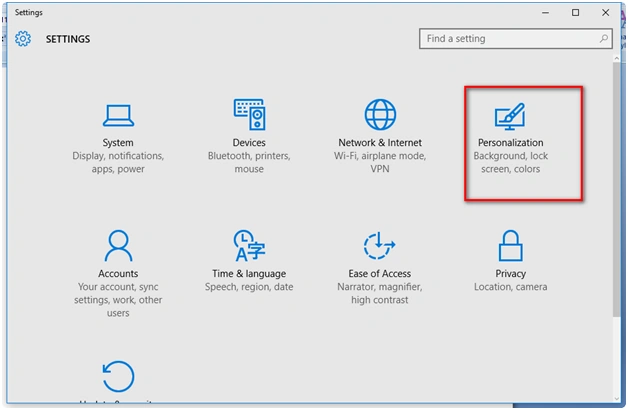
Under Settings go to the "Personalization" icon.
Step 3
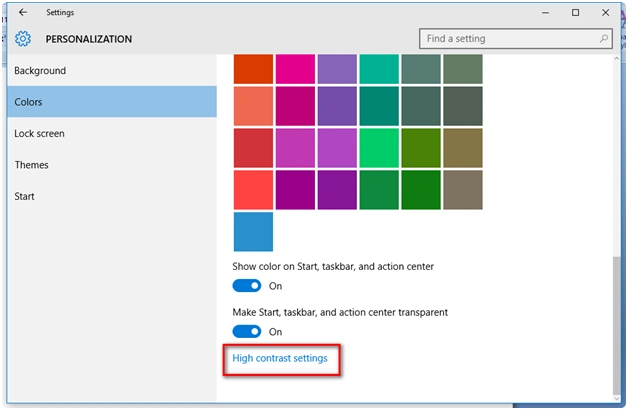
Under Settings, Personalization, click the "High contrast settings" tab.
Step 4
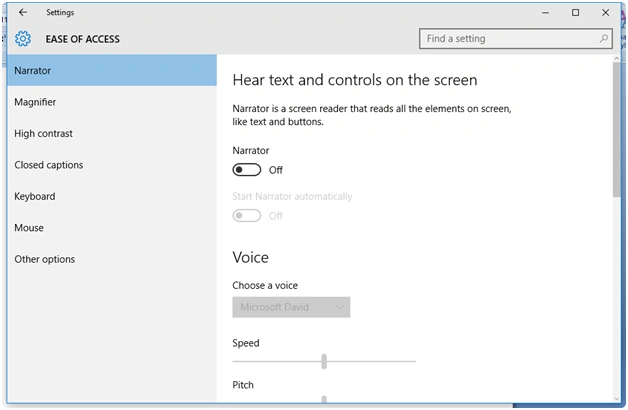
Click "High contrast settings," Ease of Access, Narrator option, and then click On for the Narrator as in the following screenshot:
Step 5
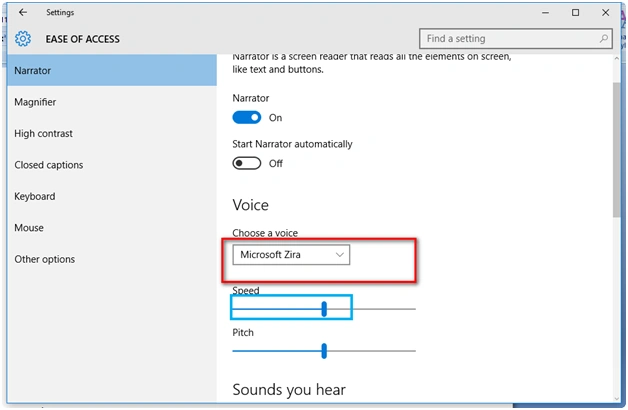
You can see the voice indicating the documents available on your desktop. The option of selecting the male voice or female voice is provided and I tried to highlight the same.
Step 6
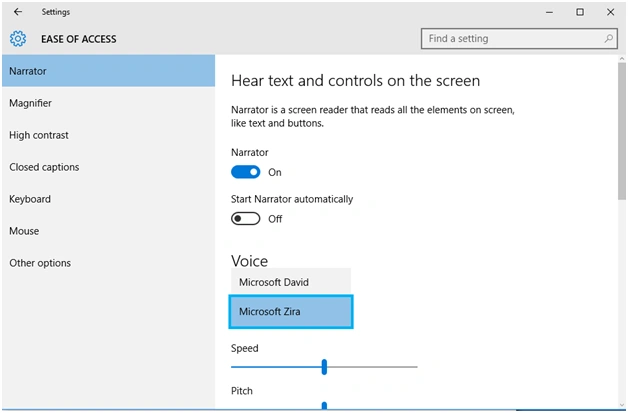
By default, two inbuilt voices were added.
- Microsoft David
- Microsoft Zira
Step 7
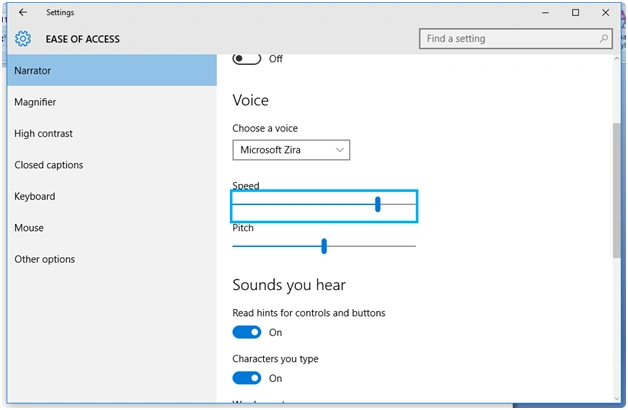
You are provided an option to control the voice by manipulating the speed and pitch of the voice.
Step 8
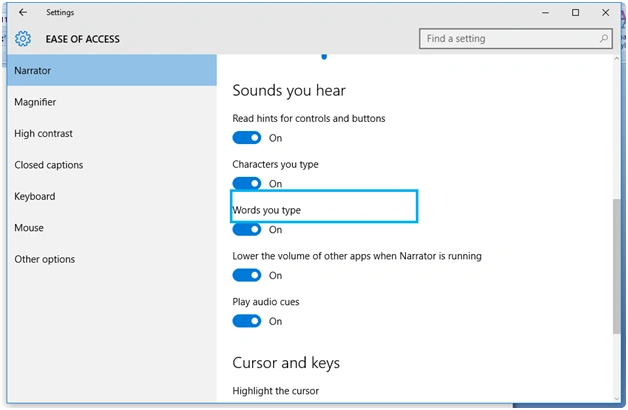
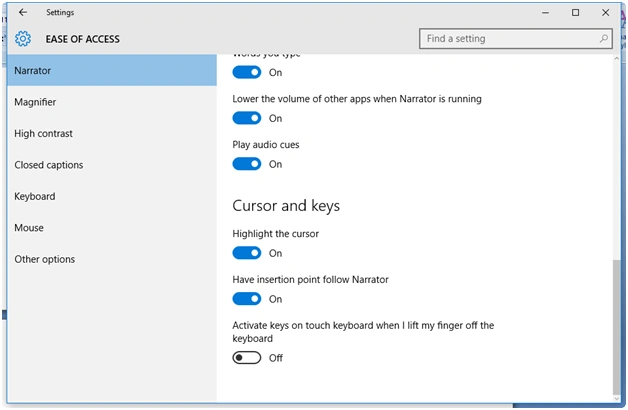
If you want to narrate the words you are typing, yes, it's possible.
Read more articles on Windows 10:
Summary
In this article, we learned about Narrator Option In Windows 10.
Shubham KumarPosted Feb 15, 2016, 12:55 AM
Nice Share
Sibeesh VenuPosted Feb 15, 2016, 12:35 AM
Nice Share
Mohammed IbrahimPosted Feb 14, 2016, 11:22 PM
nice
Kumaresh RajalingamPosted Feb 14, 2016, 12:23 PM
Nice