If you’ve ever wanted to try a .NET command-line tool just once, you know the process it used to require. You install the tool, run it, realize you only needed it for that one task, and then either uninstall it or leave it sitting in your global tool list forever. Multiply that across a team or a build pipeline and you’ve got clutter, version drift, and a surprising amount of friction for something that should be simple.
.NET 10 fixes this with a feature called one-shot tool execution. It lets you download and run a .NET tool in a single command, without ever formally installing it. If you’ve used npx in the JavaScript world, the idea will feel familiar.
The old way
To appreciate what changed, it helps to remember the two ways you used to get a tool onto a machine.
A global install put the tool on your PATH for the whole user account:
dotnet tool install -g dotnetsay
dotnetsay "Hello, World!"
dotnet tool uninstall -g dotnetsay
That works, but global state is exactly the kind of thing that quietly accumulates. Six months later your machine has a dozen tools you installed for one-off tasks and can’t remember the purpose of. This becomes worse when two projects might need different versions of the same global tool and step on each other.
A local install scoped the tool to a project via a manifest, which was even more tightly coupled with the system:
dotnet new tool-manifest
dotnet tool install dotnetsay
dotnet tool run dotnetsay "Hello, World!"
Both approaches share the same fundamental process of installing a separate process, apart from running step. If all you want is to run the thing once, you’re forced to install. This is where One-shot execution comes into the picture.
The dotnet tool exec command
The feature is a new command, dotnet tool exec. It executes a .NET tool without installing it globally or locally. Here's what running a tool looks like:
dotnet tool exec --source ./artifacts/package/ dotnetsay "Hello, World!"
The first time you reach for a tool that isn’t already present, the CLI prompts you to confirm the download before it proceeds.
The — source option points at where the package should come from. You can aim it at a local folder, as in the above example, or at a private or public NuGet feed. By default, CLI uses your configured package sources, just like a normal restore.
dotnet tool exec dotnetsay "Hello, World!"
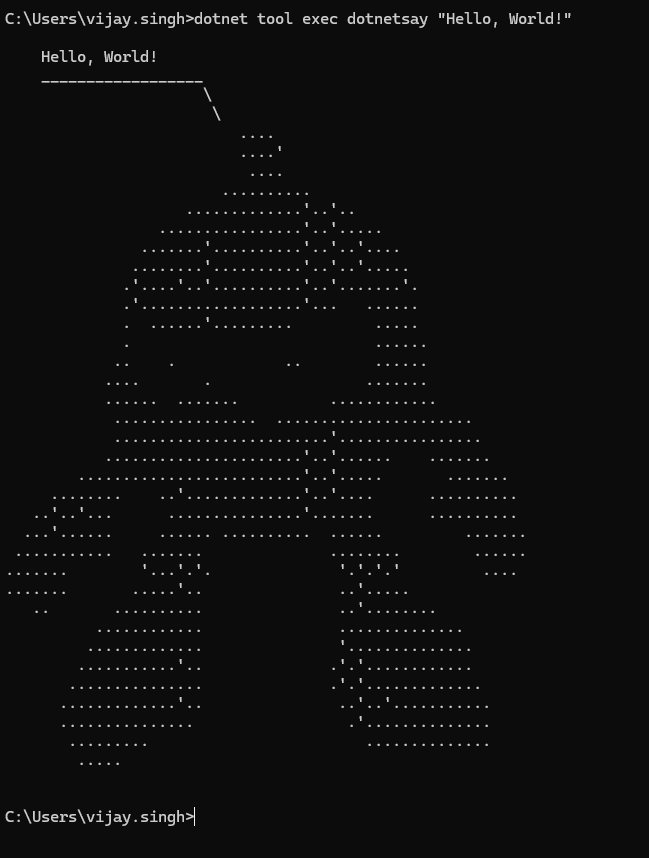
Choosing which version runs
By default, the command installs the latest available version of the tool. When you need any specific version then you can define with ‘@version’.
dotnet tool exec [email protected]
It respects your local manifests
One detail elevates this from “neat trick” to “actually trustworthy in a real project”: one-shot execution honors local tool manifests. If you run a tool from a directory that has a .config/dotnet-tools.json file nearby, the CLI uses the version pinned in that manifest instead of grabbing the latest available.
This is exactly the behavior you want. Teams that already pin their tool versions for reproducibility don’t have to think about whether one-shot execution will quietly pull something newer. The version everyone agreed on is the version that runs, whether a teammate installed it the traditional way or fired it off on demand.
The dnx shortcut
dotnet tool exec is descriptive, but it's also a tedious task when you're typing it dozens of times a day. .NET 10 introduces a streamlined script called dnx that makes the common case as short as possible:
dnx dotnetsay "Hello, World!"
Under the hood, dnx simply forwards its arguments to the dotnet CLI for processing. Because the real logic lives inside the CLI rather than in the script itself, the behavior can evolve over time without anyone needing to swap out the dnx script on their machine.
Handling the prompt in automation
The interactive confirmation is great at a keyboard and a problem in a pipeline, where there’s no human to answer “y” every time. The general pattern in the .NET 10 CLI is that interactivity is enabled by default in interactive terminals and can be turned off for non-interactive scenarios by passing — interactive false. In a CI job you'll want to make sure the download proceeds without waiting on input, so combine one-shot execution with non-interactive settings and an explicit version pin.
dotnet tool exec [email protected] --interactive false "Hello from CI"
A few practical use cases
The feature shines anywhere a tool is needed briefly. A few scenarios are:
Evaluating a tool before committing to it.
Bootstrapping a fresh environment.
Ephemeral CI/CD agents.
Occasional maintenance tasks.
Getting started
If you’re on .NET 10 or later, you already have everything you need. Pick a tool and run it:
dnx dotnetsay "Hello, World!"
Confirm the download when prompted, and that’s it. No install, no cleanup, no leftover.
Conclusion
One-shot tool execution is a small command with an outsized effect on how comfortable .NET tooling feels day to day.
Run without installing. dotnet tool exec fetches and runs a .NET tool in a single step, with no global or local install to manage afterward, and dnx is the short alias for the everyday case.
You can control versions. The latest version runs by default. You can pin any version with package@version.
It’s built for automation. Pair it with —interactive false and an explicit version pin in CI so downloads proceed without hanging on a confirmation prompt, which makes it a natural fit for ephemeral build agents.
Thank You, and Stay Tuned for More!
More Articles from my Account


Join the conversation! Your thoughts help the community grow.