

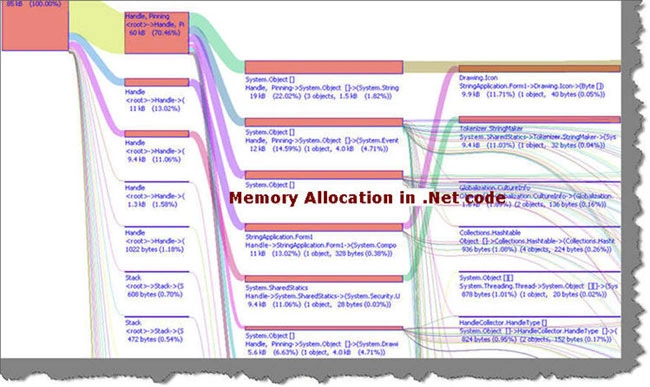
Introduction and Goal
One of the important factors for performance degradation in .NET code is memory consumption. Many developers just concentrate on execution time to determine performance bottle necks in a .NET application. Only measuring execution time does not clearly give idea of where the performance issue resides. Ok, said and done one of the biggest task is to understand which function, assembly or class has consumed how much memory. In this tutorial we will see how we can find which functions consume how much memory. This article discusses the best practices involved using CLR profiler for studying memory allocation.
Please feel free to download my free 500 question and answer ebook which covers .NET , ASP.NET , SQL Server , WCF , WPF , WWF@ http://www.questpond.com/.
Thanks a lot Mr. Peter Sollich
Let's start this article by first thanking Peter Sollich who is the CLR Performance Architect to write such a detail help on CLR profiler. When you install CLR profiler do not forget to read the detail help document written by Peter Sollich.
Thanks a lot sir, if ever you visit my article let me know your inputs.
CLR Profiler to rescue
CLR profiler is a tool which helps to detect how memory allocation happens in .NET code. CLR profiler tool is provided by Microsoft, you can download the same from
http://www.microsoft.com/downloads/details.aspx?familyid=A362781C-3870-43BE-8926-862B40AA0CD0&displaylang=en.
Note :- There are two version of CLR profiler one for .NET 1.1 and the other 2.0 framework. For 2.0 CLR profiler you can visit http://www.microsoft.com/downloads/details.aspx?familyid=A362781C-3870-43BE-8926-862B40AA0CD0&displaylang=en and to download 1.1 you can use http://www.microsoft.com/downloads/details.aspx?familyid=86ce6052-d7f4-4aeb-9b7a-94635beebdda&displaylang=en#Overview
Once you download CLR profiler you can unzip and run 'CLRProfiler.exe' from the bin folder.
If you have downloaded 2.0 CLR profiler it provides executables for 'X86' and 'X64' environment. So please ensure to run the appropriate versions.
Features of CLR profiler
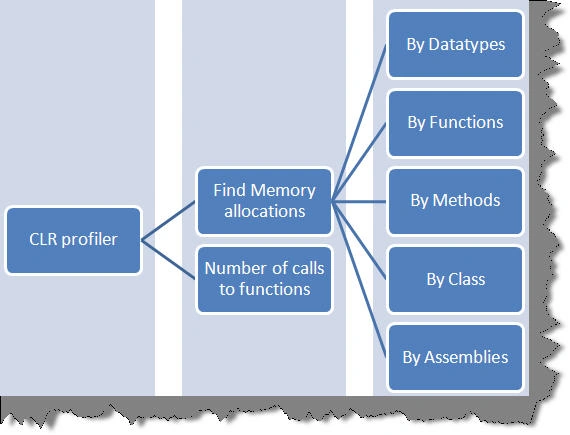
CLR profiler is the best tool when it comes to understanding how memory allocations are done in .NET application code. It does two prime importance functions:-
- Gives a complete report of how memory is allocated in a .NET application. So you can see full report how memory is allocated as per data types, functions, methods etc.
- It also provides how much time the method was called.
Do not user CLR on production and as a starting tool for performance evaluation
CLR is an intrusive tool. In other words it runs its own logic of dumping memory values for every function / class / modules inside the application. In other words it interferes with the application logic. Let' say you have a normal application which calls function 1 and function 2. When you profile your application with CLR profiler it injects dumping of memory heap data after every function call as shown below.
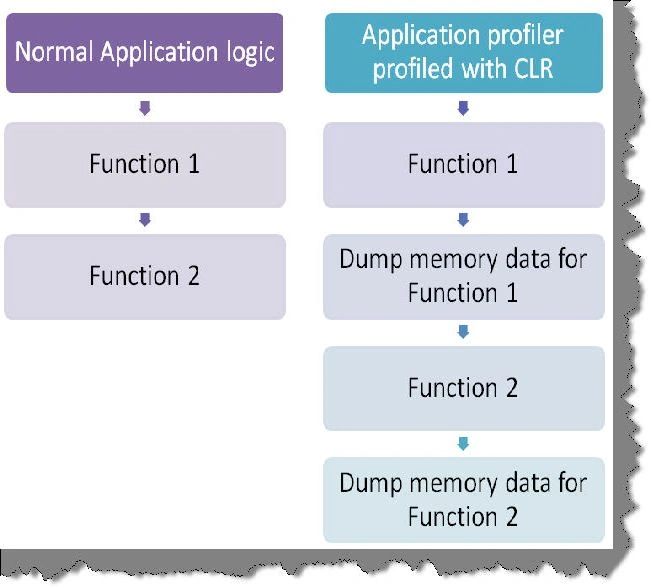
In other words do not use CLR profiler to find execution time of your application. It actually slows down your application 10 to 100 times. You will end up with wrong results.
As said because it's an intrusion tool you should never use the same in production environment.
First thing you should never first start analyzing your performance issues by CLR profiler tool. It's more of a second step activity where you have zeroed on a function or a class which is having memory issues. So probably you can use performance counters to first find which methods and functions take long execution time and then use CLR profiler to see how the memory allocations are done.
How can we run CLR profiler?
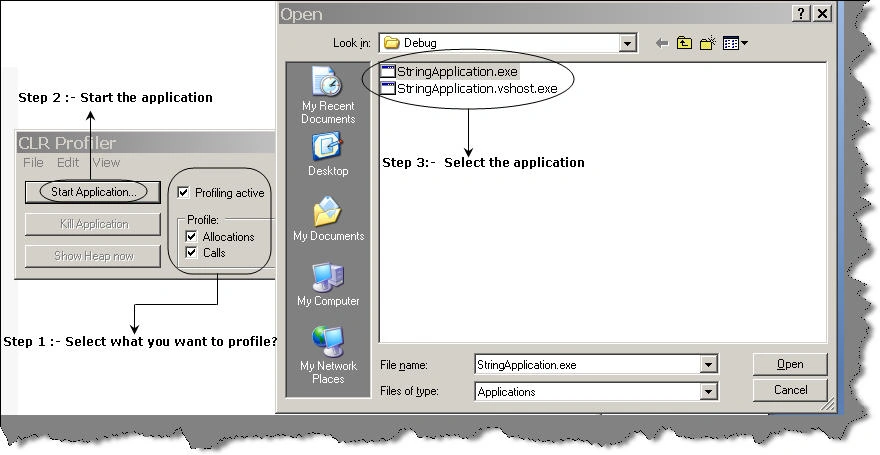
One you have downloaded the CLR profiler from Microsoft site, unzip the files in a folder. Go to the unzipped folder in Binaries --> choose your processor and run 'CLRProfiler.exe'. You will be shown the CLR profiler as shown in the below figure.
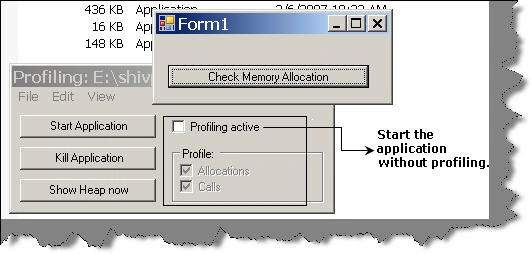
The first step we need to decide what do we want to profile. There are two things one is the memory allocation and the other is number of calls to a method. So select what data you want to profile and then click start application.
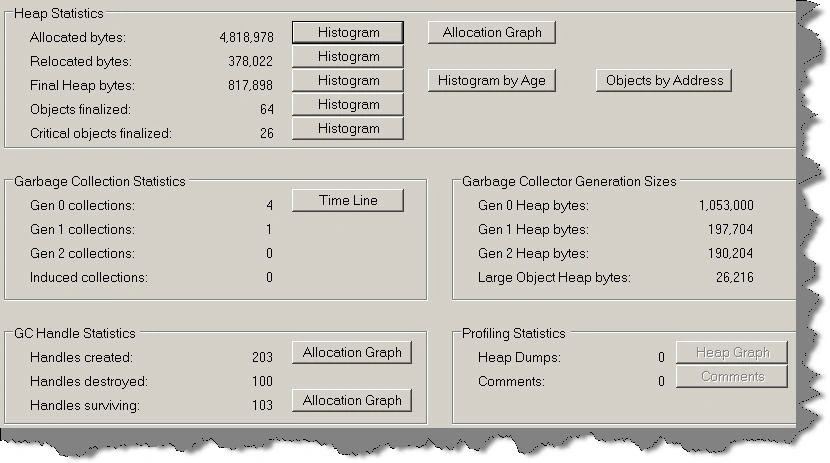
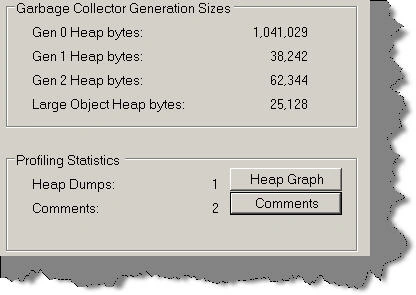
Once you are done you can see the complete summary of profiling as shown below. It's a very complicated report we will see a simplistic approach when we profile the sample application.
Issues faced by CLR profiler
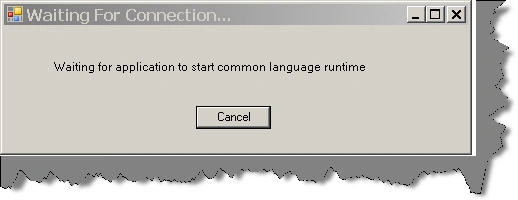
Some issues we faced while running CLR profiler. If you are getting the below screen and it does not stop, there can be two reasons:-
- You have .NET 2.0 and you are running CLR profiler 1.1.
- You have not registered ProfilerOBJ.dll in GAC.
The sample application we will profile
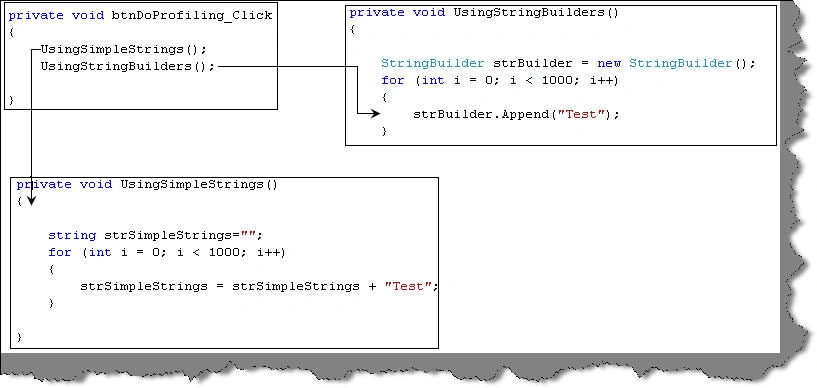
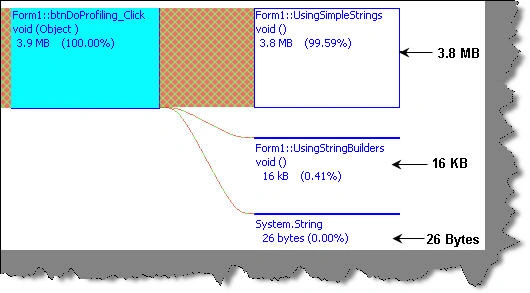
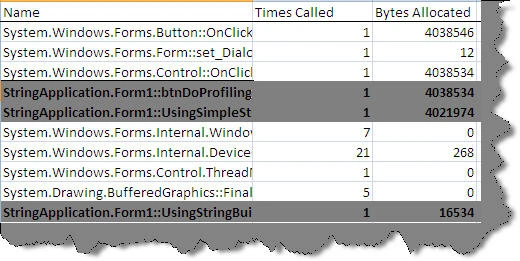
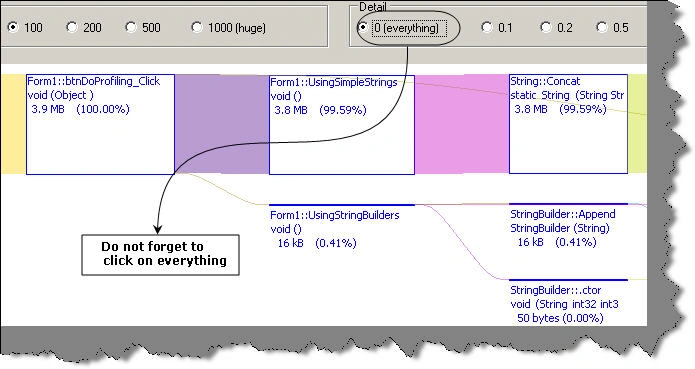
The application which we will profile is pretty simple. It has a simple button which calls two functions 'UseSimpleStrings' and 'UseStringBuilders'. Both these functions concatenate strings. One uses '+' for concatenations while the other uses the 'StringBuilder' class. We will be 1000 times concatenating the strings.
private void UsingSimpleStrings()
{
string strSimpleStrings = "";
for (int i = 0; i < 1000; i++)
{
strSimpleStrings = strSimpleStrings + "Test";
}
}
The function which uses 'StringBuilder' class to do concatenation.
private void UsingStringBuilders()
{
StringBuilder strBuilder = new StringBuilder();
for (int i = 0; i < 1000; i++)
{
strBuilder.Append("Test");
}
}
Both these functions are called through a button click.
private void btnDoProfiling_Click(object sender, EventArgs e)
{
UsingSimpleStrings();
UsingStringBuilders();
}
Using CLR profiler to profile our sample
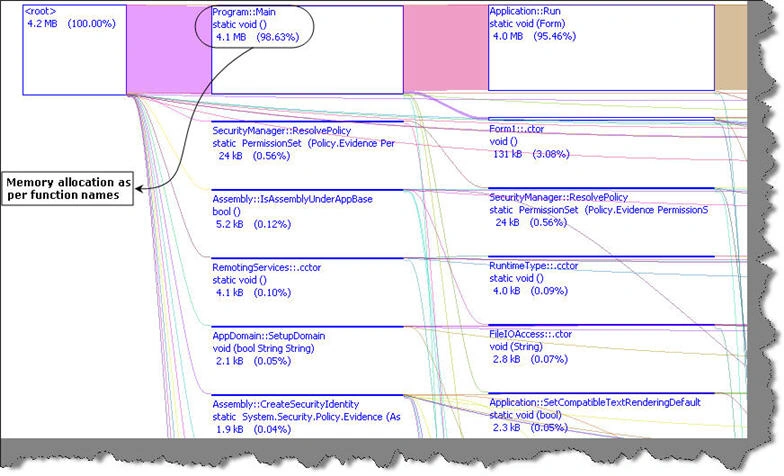
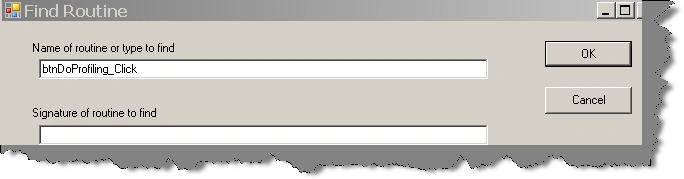
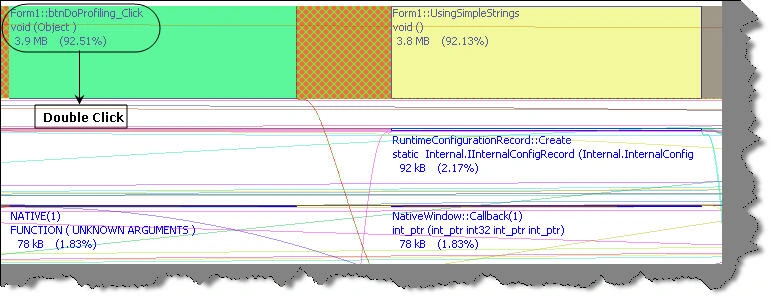
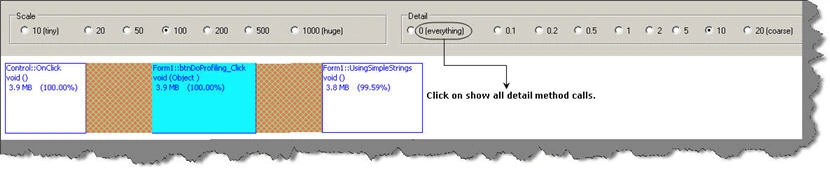
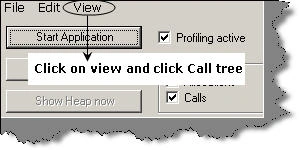
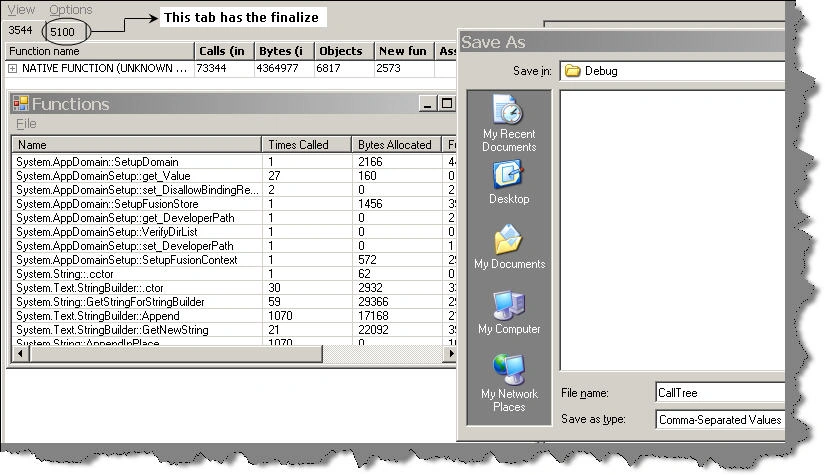
Now that we know our application we will try to use profiler to see which function uses how much memory. So click on start application --> browse to the application exe and click on check memory allocation button and close the application. You will be popped up with a complete summary dialog box.
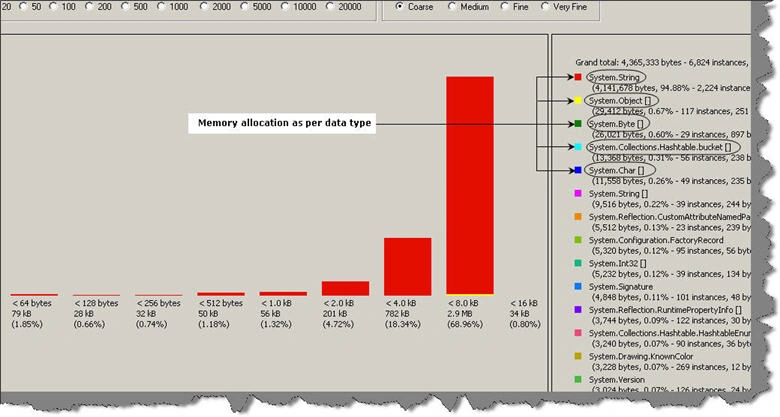
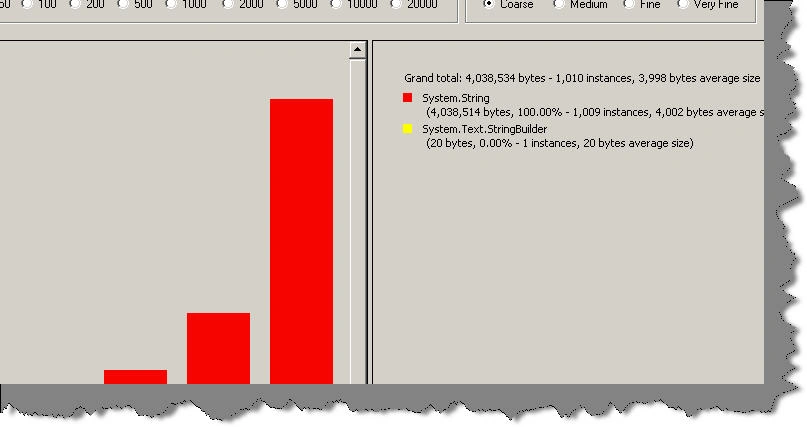
If you click on histogram button you can see memory allocations as per data type. I understand it's very confusing. So leave this currently.
SenthilkumarPosted Aug 17, 2009, 4:32 AM
Really it is great article. This is a good example who writes new articles in this site. Shivprasad thanx lot for share your knowledge. With regards, S.Senthilkumar.