

Read the previous parts of the series here,
- Quick Start Tutorial: Creating Universal Apps Via Xamarin - Part One
- Quick Start Tutorial: Creating Universal Apps Via Xamarin - Part Two
- Quick Start Tutorial: Creating Universal Apps via Xamarin: Label and Button - Part Three
- Quick Start Tutorial: Creating Universal Apps Via Xamarin: Device class - Part Four
- Quick Start Tutorial: Creating Universal Apps via Xamarin: Device Class (cont.) - Part Five
- Quick Start Tutorial: Creating Universal Apps Via Xamarin: Entry Control - Part Six
- Quick Start Tutorial: Creating Universal Apps Via Xamarin: StackLayout and Layout Options - Part Seven
- Quick Start Tutorial: Creating Universal Apps Via Xamarin: DisplayAlert and DisplayActionSheet - Part Eight
- Quick Start Tutorial: Creating Universal Apps Via Xamarin: Date Picker, Time Picker and Activity Indicator - Part Nine
- Quick Start Tutorial: Creating Universal Apps Via Xamarin: XAML And Resource Dictionary - Part Ten
- Quick Start Tutorial: Creating Universal Apps via Xamarin: Style in XAML - Part Eleven
- Quick Start Tutorial: Creating Universal Apps Via Xamarin: Style in XAML (Cont.) - Part Twelve
- Quick Start tutorial: Creating Universal Apps via Xamarin: Binding in Xaml-Part Thirteen
- Quick Start tutorial: Creating Universal Apps via Xamarin: IValueConverter in Xaml-Part Fourteen
- Quick Start Tutorial: Creating Universal Apps Via Xamarin: Picker Control Xaml - Part 15
TableView structure is given below:
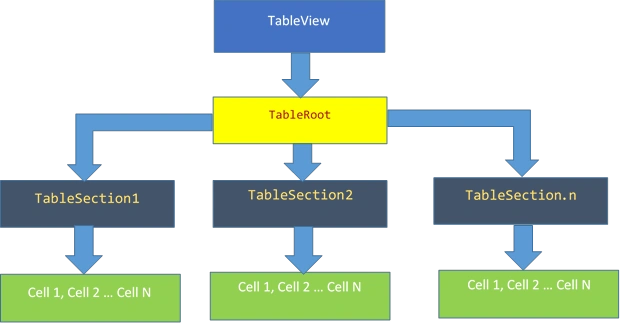
Note: TableView does not contain the row and column relationship.
Each cell is added into the TableSection and TableSection is added into the TableRoot. Finally TableRoot is added into the TableView.
Cell is a built in template. It represents a different control. Built in templates are available, which are given below:
- Entry Cell
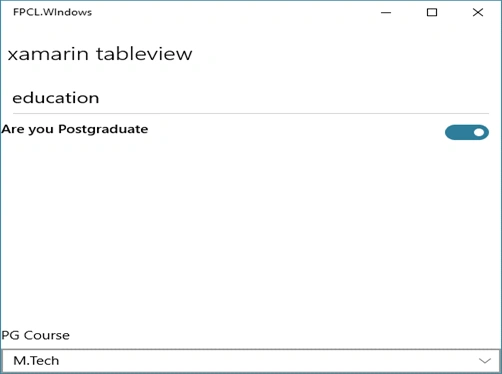
- Switch Cell
- Text Cell
- Image Cell
TableSection
Table section is differentiating different sections like in the form, it differentiates the personal information and educational information.
Properties
- Title
- BindingContext
- RowHeight
Title properties are used to set the title of the section.
RowHeight: It sets the row heights of the property.
Table Root: This is root node for the tableview. All the tablesections must be added into the TableRoot.
Properties
- Title
- BindingContext
Title: This property sets the overall title of the TableView.
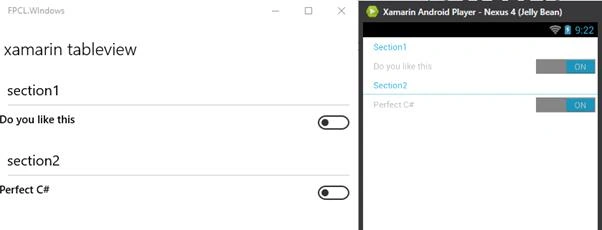
Sample code
Vignesh ManiPosted Jul 20, 2016, 11:08 AM
NIce
Shobana JPosted Jul 19, 2016, 2:51 AM
Nice one
Asad AliPosted Jul 18, 2016, 3:09 AM
Good one
kalu singh raoPosted Jul 18, 2016, 1:34 AM
Nice...
Bhavik PatelPosted Jul 17, 2016, 9:45 PM
Nice