

In this article I am going to explain about DNVM upgrade, uninstall DNVM, re-install DNVM, resolving the DNVM multiple version upgrade issue with user name having space.
ASP.NET 5 is not yet released officially and the latest version of ASP.NET 5 is RC1. To create, build, run & host ASP.NET 5 application we need DNVM, DNX and DNU.
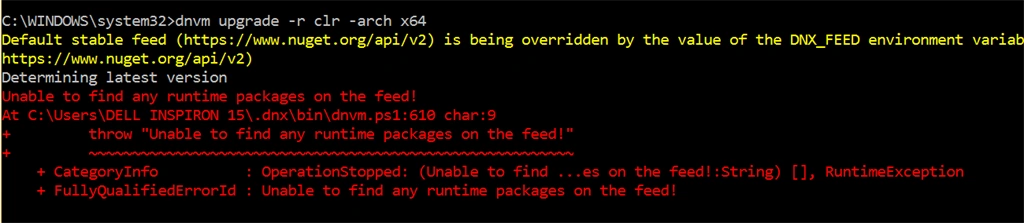
Issue with DNVM Upgrade
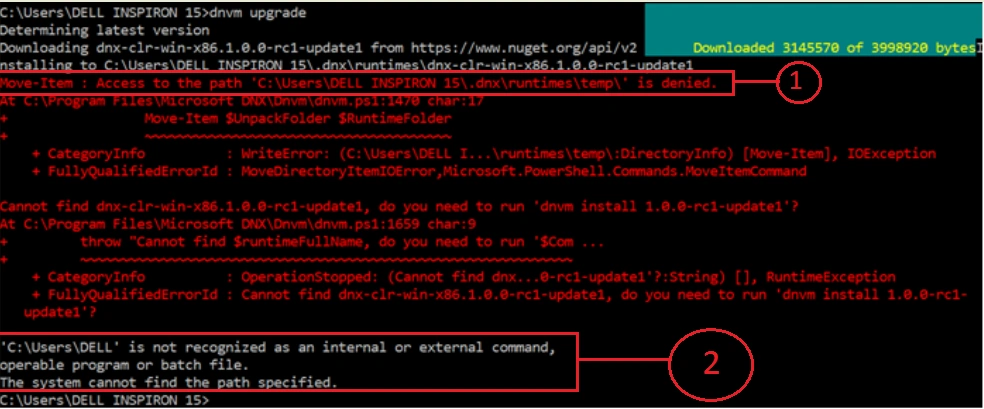
While running “dnvm upgrade” command it was saying that “Access to the path ~\.dnx\runtime\temp\” is denied.
I tried a lot to change the property of ‘~\.dnx\runtime\temp\’ folder but I was not able to do that because while it downloads latest version of dnx it was storing it in same folder and when download completed within 1-2 seconds it was displaying the message “Access to the path ~\.dnx\runtime\temp\”. In short of of time I cannot change the property of that folder.
The 2nd issue which is coming is ‘C:\Users\DeLL ’ is not recognized as an internal or external command, operable program or batch file. The system cannot find the path specified.
While searching for this issue I found a lot of threads in which it was mentioned that this issue is occurring because of space in username and it is a known bug which has not been resolved yet. I tried a lot but issue not resolved.
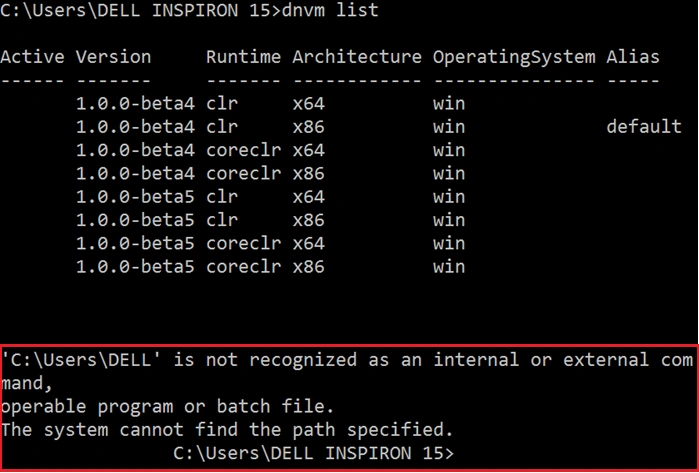
I was running any command of DNVM it was displaying the same error message. In the following screenshot I ran command “dnvm list” and get the same exception,
‘C:\Users\DeLL ’ is not recognized as an internal or external command, operable program or batch file. The system cannot find the path specified.
Resolving DNVM upgrade Issue
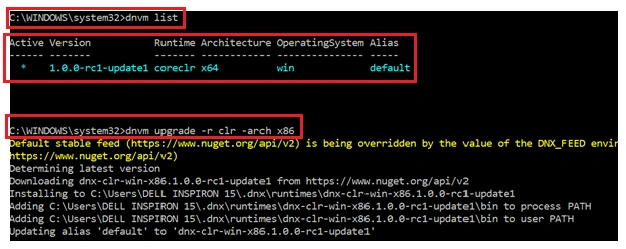
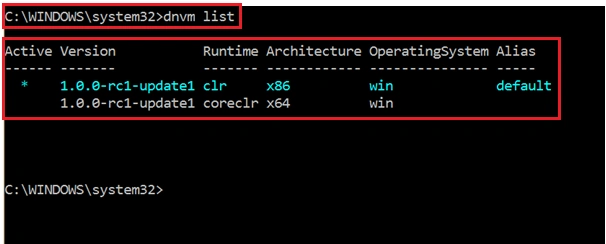
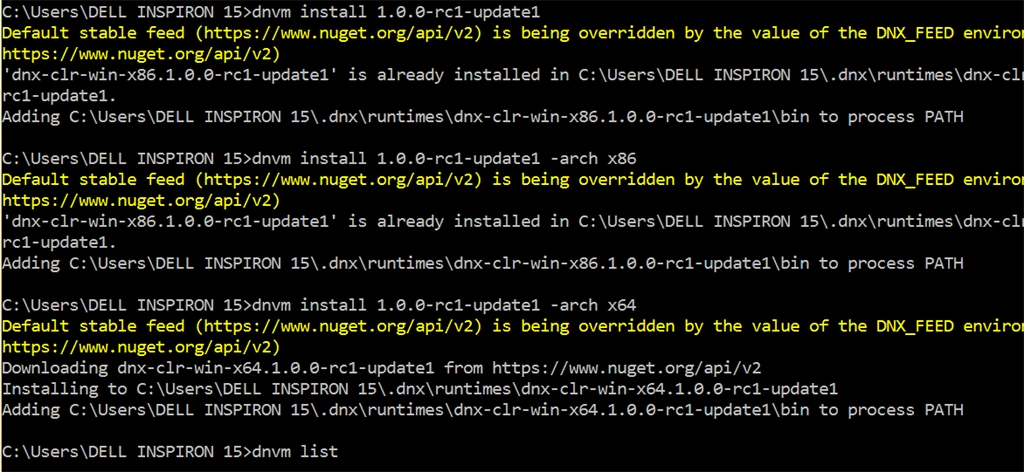
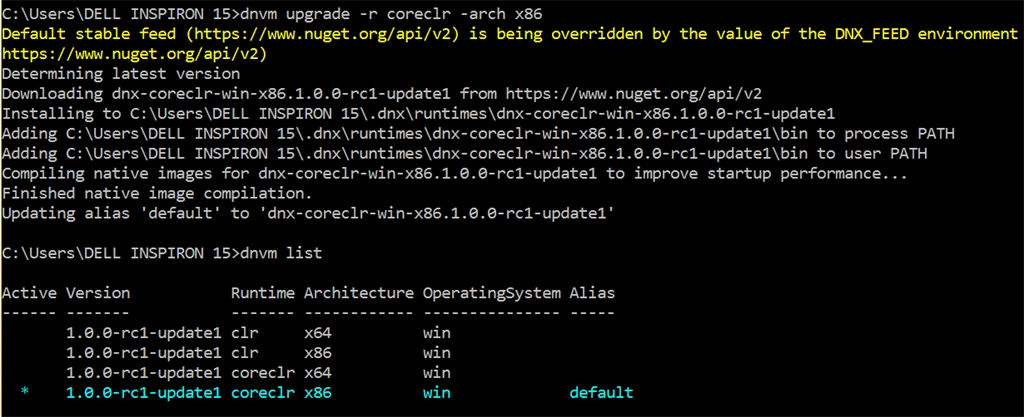
I am using old version of dnx runtime which is not being upgraded to latest version. To resolve this issue I have done the following things,
Remove all the DNX folders.
Run the following command,
- where dnvm
Now run,
- DNVM upgrade
- @powershell - NoProfile - ExecutionPolicy unrestricted - Command "&{$Branch='dev';iex ((new-object net.webclient).DownloadString('https://raw.githubusercontent.com/aspnet/Home/dev/dnvminstall.ps1'))}"
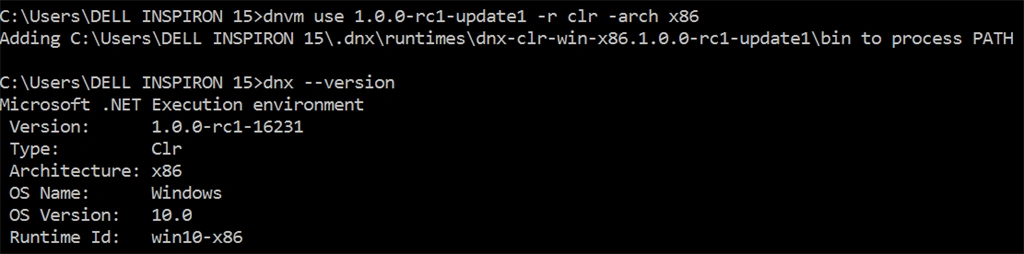
Once this step is complete you should be able to run dnvm and see some help text.
Banketeshvar NarayanPosted Mar 26, 2016, 10:27 AM
Thanks to all the readers for giving your precious time to read this article & thanks once again for your valuable comments.
Suman VermaPosted Feb 23, 2016, 7:46 AM
Thanks for sharing
Banketeshvar NarayanPosted Dec 28, 2015, 1:59 PM
Thanks Santhakumar Munuswamy
Santhakumar MunuswamyPosted Dec 28, 2015, 1:24 PM
Thanks for nice article.