

Today, I have provided an article showing you how to rotate ads with AdRotator using SQL Server in ASP.NET. There are many ways in which a user can Rotate Ads With AdRotator. Here, you will see AdRotator control with SQL Server. In this article, you learn how to dynamically create ads for our Web Application. We will explore how to easily rotate ads using SQL Server when the user refreshes the page. When the ads are clicked, it will navigate to a new web location. However the ads are rotated only when the user refreshes the page. All you have to do is implement and hook it up to your website. First of all you create a table in a SQL Server Database. Then start Visual Studio .NET and make a new ASP.NET web site using Visual Studio 2010.
Creating Table in SQL Server Database
Now create a table named Advertisement with the columns add_id, url, navigate_url, alter_text, impression and keyword. Set the identity property=true for add_id. The table looks as in the following:

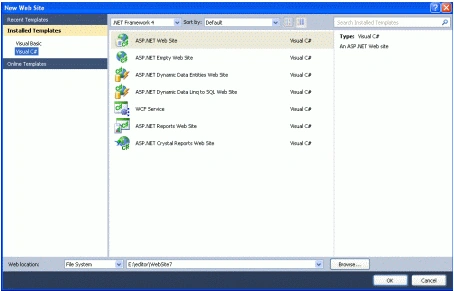
Now you have to create a web site.
- Go to Visual Studio 2010
- New-> Select a website application
- Click OK
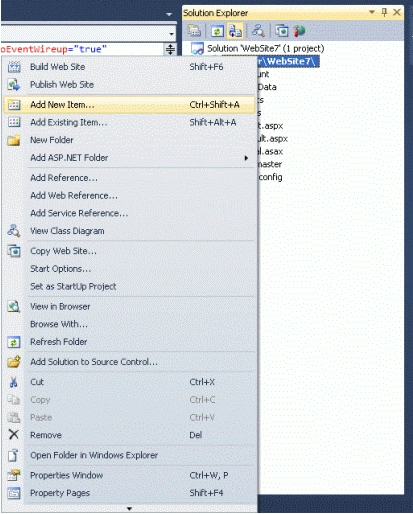
Now add a new page to the website.
- Go to the Solution Explorer
- Right-click on the Project name
- Select add new item
- Add new web page and give it a name
- Click OK
Design the page and place the required controls in it. As you can see from this design, a user can enter a url, navigate_url, alter_text, impression and keyword.

.aspx Code
<%@ Page Language="C#" AutoEventWireup="true" CodeFile="Default2.aspx.cs" Inherits="Default2" %>
<!DOCTYPE html PUBLIC "-//W3C//DTD XHTML 1.0 Transitional//EN" "http://www.w3.org/TR/xhtml1/DTD/xhtml1-transitional.dtd">
<html xmlns="http://www.w3.org/1999/xhtml">
<head runat="server">
<title>Untitled Page</title>
</head>
<body>
<form id="form1" runat="server">
<div>
Upload_Add:
<asp:FileUpload ID="FileUpload1" runat="server" />
<asp:Button ID="Button1" runat="server" Text="Upload" OnClick="Button_Click" />
<br />
Navigate_Url:
<asp:TextBox ID="TextBox1" runat="server"></asp:TextBox>
<br />
Alternate_Text:
<asp:TextBox ID="TextBox2" runat="server"></asp:TextBox>
<br />
Impression:
<asp:TextBox ID="TextBox3" runat="server"></asp:TextBox>
<br />
Keyword:
<asp:TextBox ID="TextBox4" runat="server"></asp:TextBox>
<br />
<br />
<asp:Button ID="Button2" runat="server" Text="Save" OnClick="Save_Click" />
<br />
<br />
<asp:LinkButton ID="LinkButton1" runat="server" OnClick="navi">Show ads</asp:LinkButton>
</div>
</form>
</body>
</html>
XML file elements
Here is a list and a description of the <Ad> tag items.
- ImageUrl - The URL of the image to display.
- NavigateUrl - The URL where the page will go after AdRotator image is clicked.
- AlternateText - Text to display if the image is unavailable.
- Keyword - Category of the ad, which can be used to filter for specific ads.
- Impressions - Frequency of ad to be displayed. This number is used when you want some ads to be displayed more frequently than others.
- Height - Height of the ad in pixels.
- Width - Width of the ad in pixel.
We create an image folder in the application which contains some images to rotate in the AdRotator control. Now add a XML file. To do so, right-click the App_Data folder > Add New Item > 'XML File' > Rename it to text.xml and click Add.


Manav PandyaPosted Sep 19, 2016, 5:43 AM
Nice share sir ...
Jayesh RohitPosted Jan 28, 2015, 7:32 AM
its create invalid xml file... plz give me sollution of that..
Hasmukh SavaliyaPosted Mar 8, 2013, 1:59 PM
You have given example above has no any database file or backup file....
Manish SinghPosted Mar 29, 2012, 12:34 AM
It's really help for me.Thanks for sharing.