

In this post, we are going to explore how to create a model based on the existing database (Db-First), with the help of Entityframework Core Command then learn how to generate Controller & Views using Scaffolding (Interface & Code-Generator Command) based on model.
Here are the topics.
- Manage Packages
- EF Core Model(DB-First)
- MVC Core Scaffolding
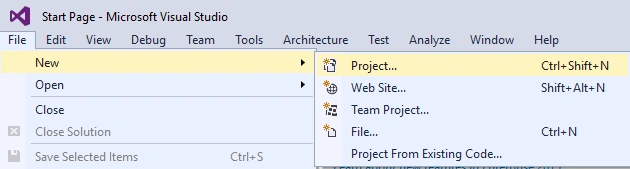
Let’s create a New Project: File > New > Project.
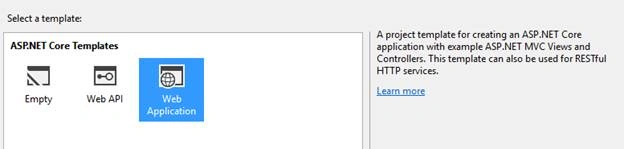
From the left menu choose .NET Core > ASP.NET Core Web Application

Choose ASP.NET Core sample template, Click OK.
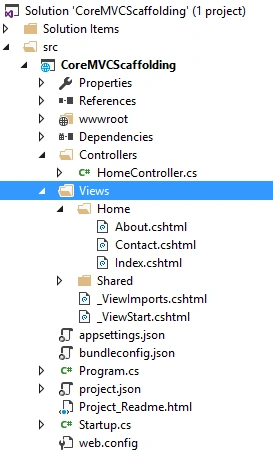
Here, the initial view of the sample template is given below in the Solution Explorer.
Create a new database, using SSMS, name it “PhoneBook”. Copy the query & run it, using query editor of SSMS.
USE [PhoneBook]
GO

/****** Object:  Table [dbo].[Contacts] Script Date: 12/9/2016 2:47:49 AM ******/
SET ANSI_NULLS ON
GO

SET QUOTED_IDENTIFIER ON
GO

CREATE TABLE [dbo].[Contacts] (
    [ContactID]   INT IDENTITY(1,1) NOT NULL,
    [FirstName]   NVARCHAR(50) NULL,
    [LastName]    NVARCHAR(50) NULL,
    [Phone]       NVARCHAR(50) NULL,
    [Email]       NVARCHAR(50) NULL,
    CONSTRAINT [PK_Contacts] PRIMARY KEY CLUSTERED (
        [ContactID] ASC
    ) WITH (
        PAD_INDEX = OFF,
        STATISTICS_NORECOMPUTE = OFF,
        IGNORE_DUP_KEY = OFF,
        ALLOW_ROW_LOCKS = ON,
        ALLOW_PAGE_LOCKS = ON
    ) ON [PRIMARY]
) ON [PRIMARY]

GO
Entity Framework Core:Entity Framework (EF) Core is data access technology, which is targeted for cross-platform. Open project.json, and add the packages given below in Dependency & Tools section.
Add Dependency Package
{
  // Database Provider for EF Core
  "Microsoft.EntityFrameworkCore.SqlServer": "1.0.1",

  // EF Core Package Manager Console Tools
  "Microsoft.EntityFrameworkCore.Tools": "1.0.0-preview2-final",

  // EF Core Functionality for MSSQL Server
  "Microsoft.EntityFrameworkCore.SqlServer.Design": "1.0.1"
}
Add Tools
{
  // Access Command Tools EF Core
  "Microsoft.EntityFrameworkCore.Tools": "1.0.0-preview2-final"
}
- EntityFrameworkCore.SqlServer:The database provider allows Entity Framework Core to be used with Microsoft SQL Server.
- EntityFrameworkCore.SqlServer.Design:Design-time allows Entity Framework Core functionality (EF Core Migration) to be used with Microsoft SQL Server.
- EntityFrameworkCore.Tools:Command line tool for EF Core that includes the commands.
For Package Manager Console.
- Scaffold-DbContext
- Add-Migration
- Update-Database
For Command Window
- dotnet ef dbcontext scaffold
Using CommandLine
In our sample Application, we are going to apply commands, using the command line.
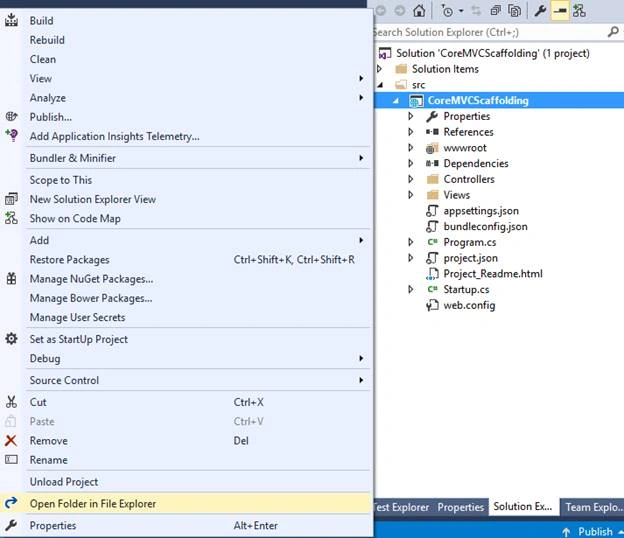
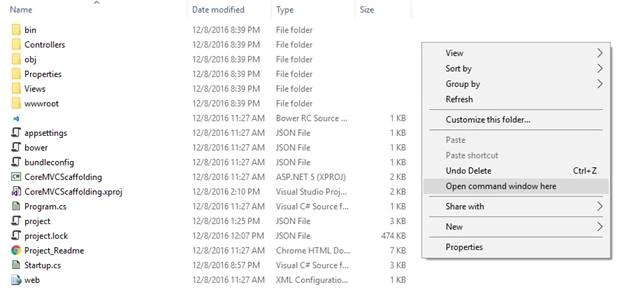
Go to Project directory > Shift + Right Click to open Command Window.
Command
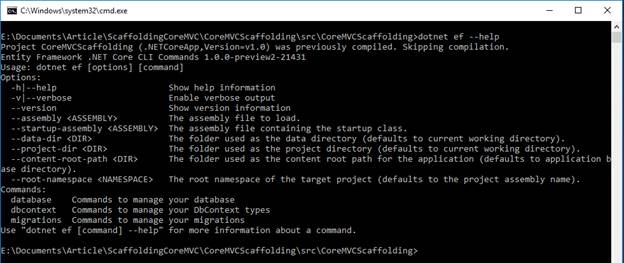
dotnet ef –help
Command
dotnet ef dbcontext scaffold "Server=DESKTOP-5B67SHH;Database=PhoneBook;Trusted_Connection=True;" Microsoft.EntityFrameworkCore.SqlServer --output-dir Models.
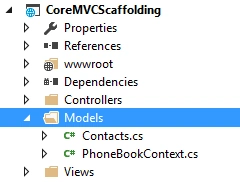
As you can see from Solution Explorer, models folder is created with context & entities.
Generated DbContext
Finally, a full view of generated Context class is given below.
public partial class PhoneBookContext : DbContext
{
    protected override void OnConfiguring(DbContextOptionsBuilder optionsBuilder)
    {
        #warning To protect potentially sensitive information in your connection string,
        #warning you should move it out of source code. See http://go.microsoft.com/fwlink/?LinkId=723263
        #warning for guidance on storing connection strings.
        optionsBuilder.UseSqlServer(@"Server=DESKTOP-5B67SHH;Database=PhoneBook;Trusted_Connection=True;");
    }

    protected override void OnModelCreating(ModelBuilder modelBuilder)
    {
        modelBuilder.Entity<Contacts>(entity =>
        {
            entity.HasKey(e => e.ContactId)
                .HasName("PK_Contacts");

            entity.Property(e => e.ContactId).HasColumnName("ContactID");

            entity.Property(e => e.Email).HasMaxLength(50);

            entity.Property(e => e.FirstName).HasMaxLength(50);

            entity.Property(e => e.LastName).HasMaxLength(50);

            entity.Property(e => e.Phone).HasMaxLength(50);
        });
    }

    public virtual DbSet<Contacts> Contacts { get; set; }
}
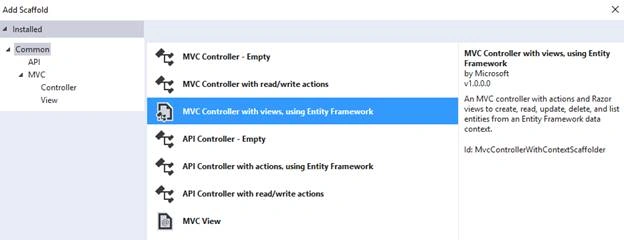
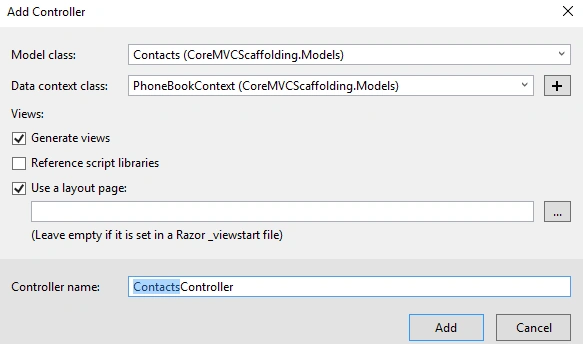
ASP.Net MVC Core Scaffolding:We have used scaffolding in previous versions of .NET, as .NET Core is new. Sometimes it’s confusing as to how to start. Here, we will explore those issues. Open project.json and add the packages given below in Dependency & Tools section.
Add Dependency Package
{
  // Code Generators Command Generate Controller, Views
  "Microsoft.VisualStudio.Web.CodeGenerators.Mvc": "1.0.0-preview2-final",
  "Microsoft.VisualStudio.Web.CodeGeneration.Tools": "1.0.0-preview2-final"
}
Add Tools
// Access Command Tools Code Generation
"Microsoft.VisualStudio.Web.CodeGeneration.Tools": "1.0.0-preview2-final"
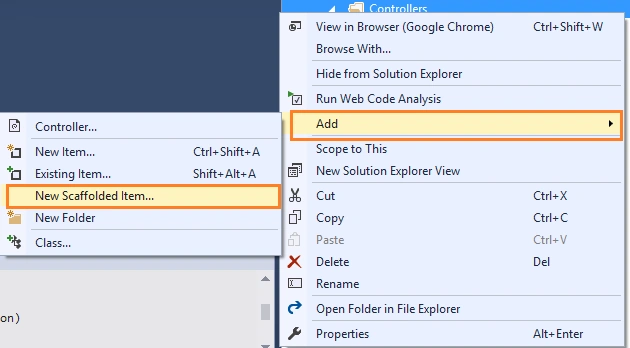
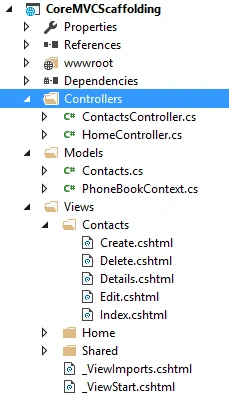
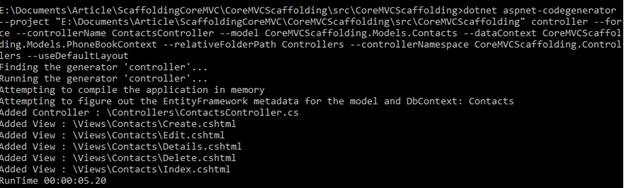
Click Save, packages will restore automatically. Well, the packages are installed to our Application. We are good to perform the next step of scaffolding, Controller & Views.



Abeer AbdelfttahPosted Apr 27, 2025, 9:05 PM
Thanks verrry
Jaco ZwartsPosted Dec 14, 2016, 2:13 AM
Good read thank you Shashangka
Manoj KulkarniPosted Dec 14, 2016, 1:20 AM
Nice article. Very helpful