
Here are the steps
Step 1: Using SharePoint Designer Create "Announcement " List.
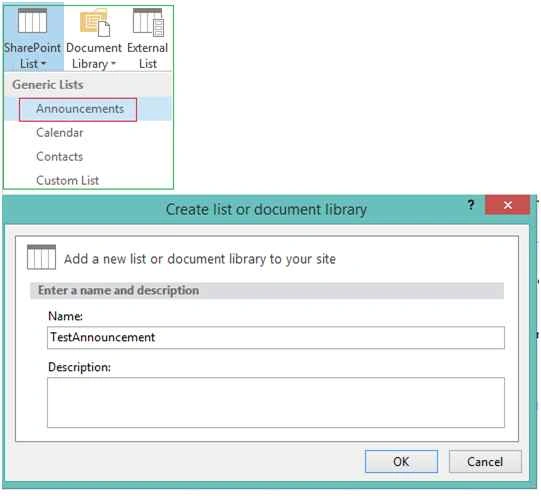
Step 2: Create List workflow for "Announcement " List with Platform type -" SharePoint 2013 workflow ".

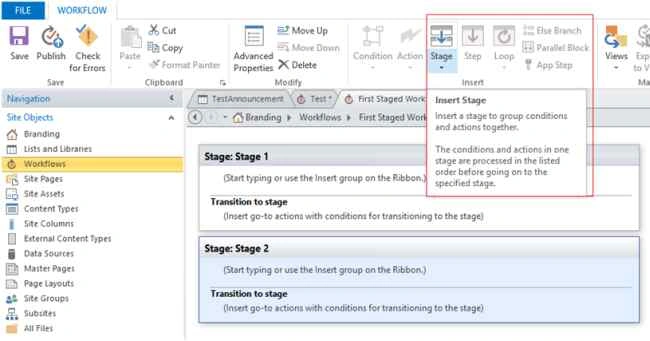
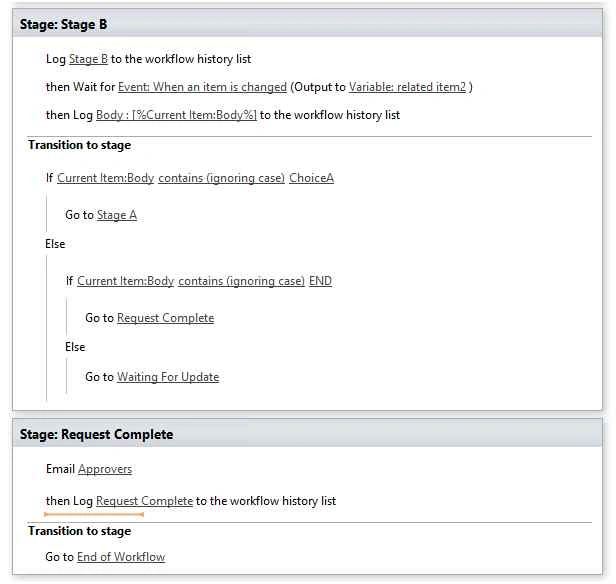
Step 3: Add Workflow Stage - We can add multiple Stages to workflow using "Insert Stage" option.
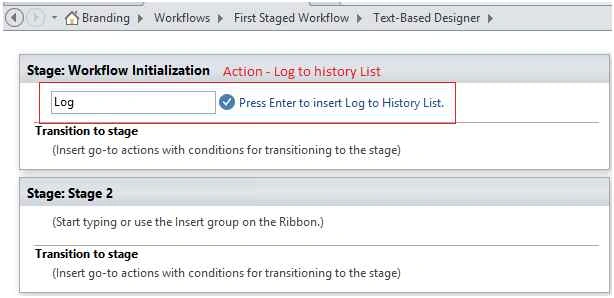
Step 4: Add Log History Action - Maintain log of workflow execution.
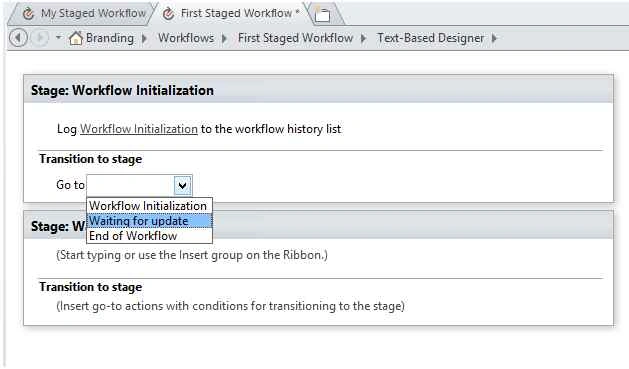
Step 5: Add Transition stage - Action -> go to Stage.
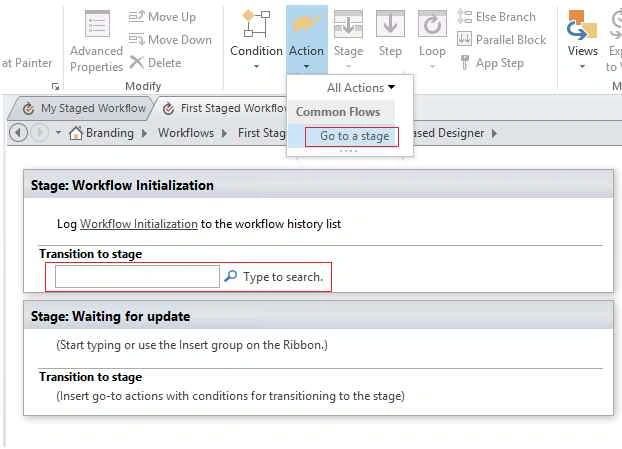
Step 6: Go to next stage.
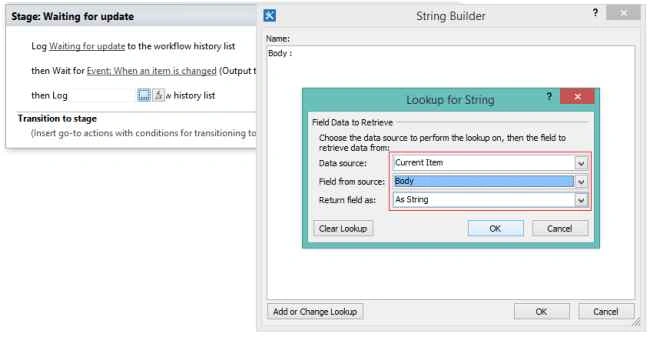
Step 7: Wait for list event occurrence - Type wait in search box. It prompt for two events, select "Wait for event in list item".

Step 8: Check List Event - There are two list events available. List item added or changed. Select "When an item is changed".

Step 9: Add Log History.
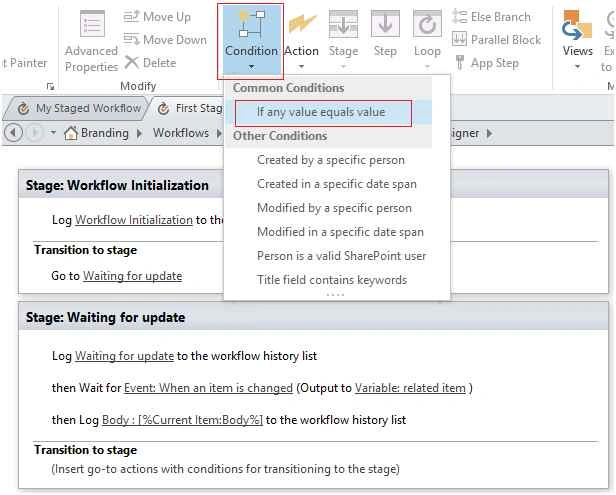
Step 10: Transition Stage Condition checking. Either go to next stage or previous stage based on value of list item body text.
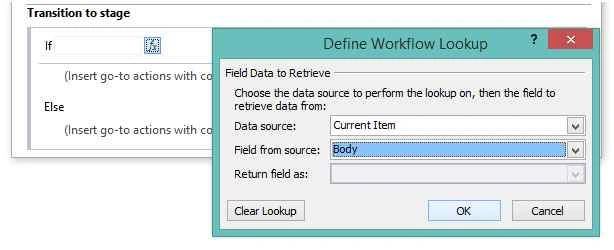
Step 11: Current item body contains ChoiceA/ ChoiceB/ End.
Next
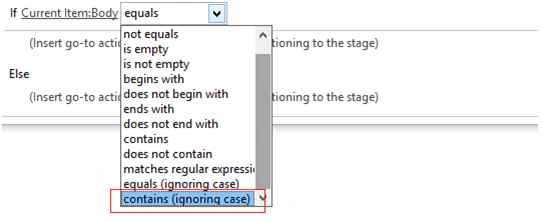
Step 12: When any of the condition is true, navigate to stage.
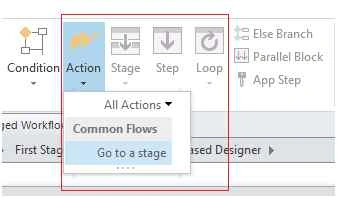
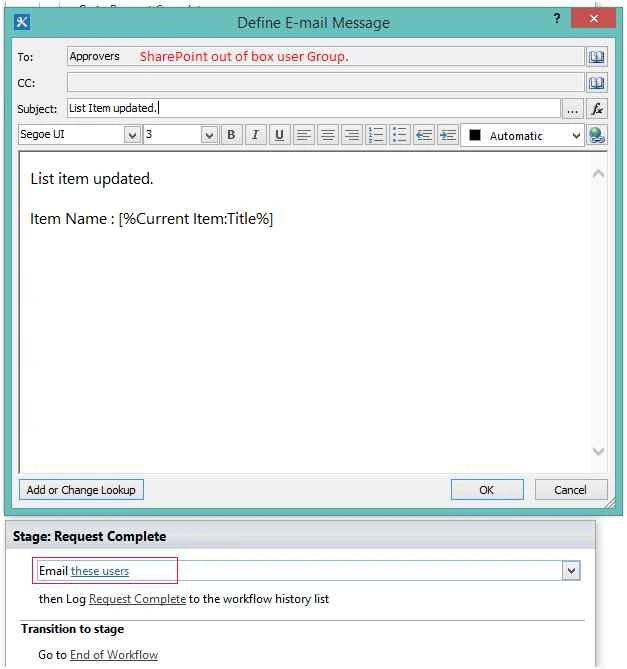
Step 13: Send Email.
Workflow
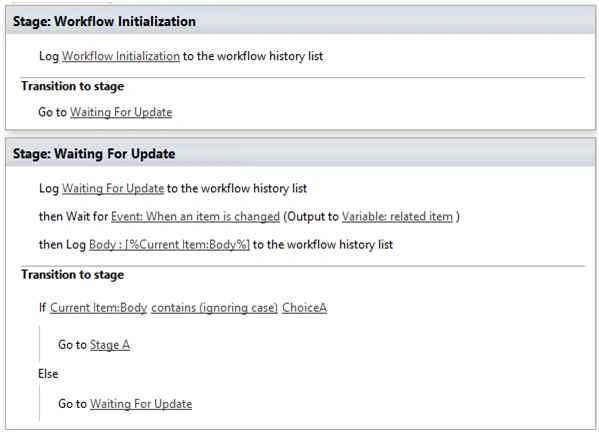

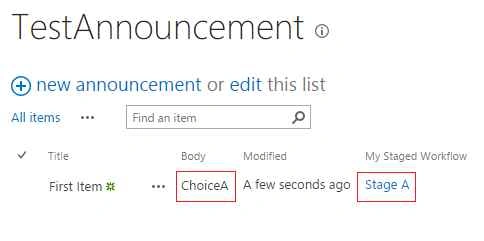
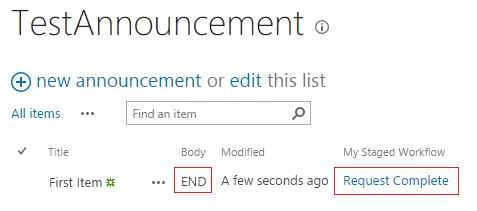
Check workflow Execution.

SharePoint Designer Staged Workflow
Join the conversation! Your thoughts help the community grow.
Sign in to leave a comment
It is the same account you read, post and publish with — and you will come straight back to this page.

Vignesh ManiPosted Jan 26, 2016, 5:53 AM
Good one
Santhakumar MunuswamyPosted Oct 18, 2015, 5:42 AM
Good one
Rupali ShindePosted Oct 9, 2015, 12:03 AM
thank you all :)
Ankit BansalPosted Oct 8, 2015, 12:51 AM
nice one..
Sujeet SumanPosted Oct 8, 2015, 12:10 AM
Nice Article..............
Vinodh NarayananPosted Oct 7, 2015, 1:21 PM
Nice share
Priyaranjan K SPosted Oct 7, 2015, 10:44 AM
Good One...
Nilesh JadavPosted Oct 7, 2015, 8:08 AM
Great Work mam
Harshad PansuriyaPosted Oct 7, 2015, 7:18 AM
Nice one]