This article shows you how to implement a nested GridView and also display a category and subcategory using a nested GridView. You create two tables, one for category and another for subcategory and also create a stored procedure for selecting category and subcategory from both tables in SQL Server. You have to create a web site and add a new page to the website. Drag and drop two GridView controls onto the form. One is to bind category and the other is for subcategory. Let's take a look at a practical example. We create tables for category and subcategory.
Creating Table in SQL Server Database
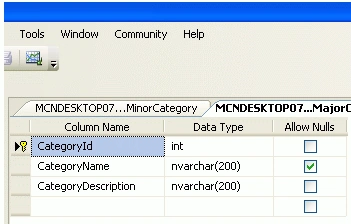
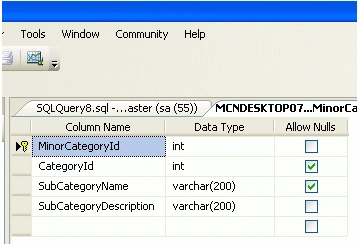
Now create two tables named MajorCategory and MinorCategory. We create CategoryID in MajorCategory table that is the foreign key for the MinorCategory also set the identity property of the CategoryID. The table looks as below.
MajorCategory Table
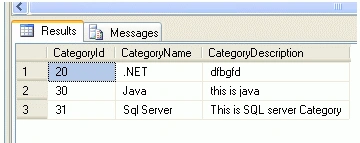
Now insert data into the table.
MinorCategory Table
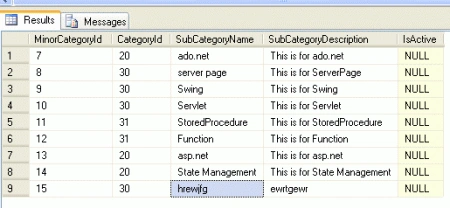
Now insert data into the table.
Creating a Stored Procedure
Now create a stored procedure to select data from both tables.
using System;
using System.Collections.Generic;
using System.Linq;
using System.Web;
using System.Web.UI;
using System.Web.UI.WebControls;
ALTER PROCEDURE [dbo].[usp_GetProductsForCategories]
AS
SELECT * FROM MajorCategory WHERE CategoryID IN
( SELECT CategoryID FROM MinorCategory )
SELECT p.MinorCategoryId , p.SubCategoryName ,p.CategoryID FROM MinorCategory p
First you have to create a web site.
- Go to Visual Studio 2010
- New-> Select a website application
- Click OK
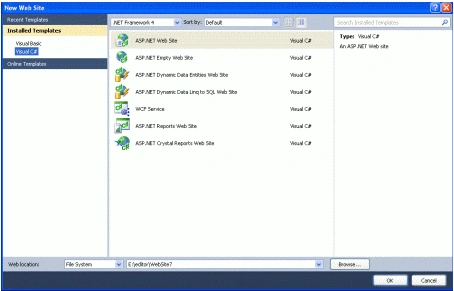
Now add a new page to the website.
- Go to the Solution Explorer
- Right Click on the Project name
- Select add new item
- Add new web page and give it a name
- Click OK
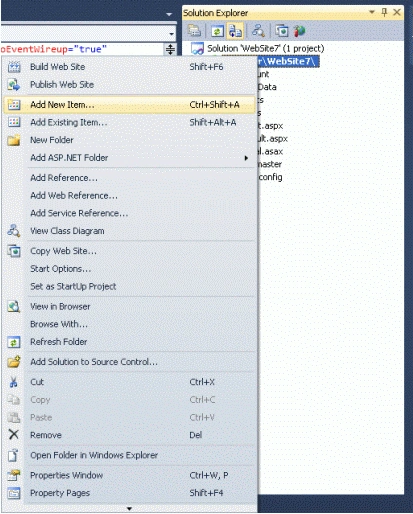
Now create a new website and drag and drop two GridView controls onto the aspx page. The GridView code looks like this.
<%@ Page Language="C#" AutoEventWireup="true" CodeFile="categorySubcategory.aspx.cs"
Inherits="categorySubcategory" %>
<!DOCTYPE html PUBLIC "-//W3C//DTD XHTML 1.0 Transitional//EN" "http://www.w3.org/TR/xhtml1/DTD/xhtml1-transitional.dtd">
<html xmlns="http://www.w3.org/1999/xhtml">
<head runat="server">
<title></title>
</head>
<body>
<form id="form1" runat="server">
<div>
<asp:GridView ID="GridView1" runat="server" AutoGenerateColumns="False" CellPadding="4"
ForeColor="#663300" OnRowDataBound="GridView1_RowDataBound">
<Columns>
<asp:TemplateField HeaderText="CategoryName">
<ItemTemplate>
<asp:Label ID="Label1" runat="server" Text='<%# Bind("CategoryName") %>'></asp:Label>
</ItemTemplate>
</asp:TemplateField>
<asp:TemplateField>
<ItemTemplate>
<asp:GridView ID="GridView2" runat="server" AutoGenerateColumns="False" CellPadding="4">
<Columns>
<asp:TemplateField HeaderText="SubCategoryName">
<ItemTemplate>
<asp:Label ID="Label1" runat="server" Text='<%# Bind("SubCategoryName") %>'></asp:Label>
</ItemTemplate>
</asp:TemplateField>
</Columns>
</asp:GridView>
</ItemTemplate>
</asp:TemplateField>
</Columns>
</asp:GridView>
</div>
</form>
</body>
</html>
Now add the following namespaces.
using System.Data.SqlClient;
using System.Data;
Now write the connection string to connect to the database.
string strConnection = "Data Source=.; uid=sa; pwd=wintellect;database=registration;";
Now double-click on the page and write the following code for binding the data with the GridView.
private void BindData()
{
SqlConnection myConnection = new SqlConnection("Data Source=.; uid=sa; pwd=wintellect;database=registration;");
SqlCommand myCommand = new SqlCommand("usp_GetProductsForCategories", myConnection);
myCommand.CommandType = CommandType.StoredProcedure;
SqlDataAdapter ad = new SqlDataAdapter(myCommand);
DataSet ds = new DataSet();
ad.Fill(ds);
// Attach the relationship to the dataSet
ds.Relations.Add(new DataRelation("CategoriesRelation", ds.Tables[0].Columns["CategoryID"],
ds.Tables[1].Columns["CategoryID"]));
GridView1.DataSource = ds.Tables[0];
GridView1.DataBind();
}
Now write the following code on the OnRowDataBound event of the GridView.
protected void GridView1_RowDataBound(object sender, GridViewRowEventArgs e)
{
if (e.Row.RowType == DataControlRowType.DataRow)
{
DataRowView drv = e.Row.DataItem as DataRowView;
GridView GridView2 = e.Row.FindControl("GridView2") as GridView;
GridView2.DataSource = drv.CreateChildView("CategoriesRelation");
GridView2.DataBind();
}
}
}
In Codebehind write the following code like this.
Codebehind
using System;
using System.Collections.Generic;
using System.Linq;
using System.Web;
using System.Web.UI;
using System.Web.UI.WebControls;
using System.Data;
using System.Data.SqlClient;
public partial class categorySubcategory : System.Web.UI.Page
{
protected void Page_Load(object sender, EventArgs e)
{
BindData();
}
private void BindData()
{
SqlConnection myConnection = new SqlConnection("Data Source=.; uid=sa; pwd=wintellect;database=registration;");
SqlCommand myCommand = new SqlCommand("usp_GetProductsForCategories", myConnection);
myCommand.CommandType = CommandType.StoredProcedure;
SqlDataAdapter ad = new SqlDataAdapter(myCommand);
DataSet ds = new DataSet();
ad.Fill(ds);
// Attach the relationship to the dataSet
ds.Relations.Add(new DataRelation("CategoriesRelation", ds.Tables[0].Columns["CategoryID"],
ds.Tables[1].Columns["CategoryID"]));
GridView1.DataSource = ds.Tables[0];
GridView1.DataBind();
}
protected void GridView1_RowDataBound(object sender, GridViewRowEventArgs e)
{
if (e.Row.RowType == DataControlRowType.DataRow)
{
DataRowView drv = e.Row.DataItem as DataRowView;
GridView GridView2 = e.Row.FindControl("GridView2") as GridView;
GridView2.DataSource = drv.CreateChildView("CategoriesRelation");
GridView2.DataBind();
}
}
}
Now run the application and test it.
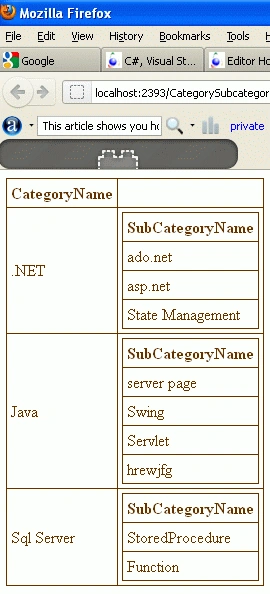
The above output displays subcategory according to the category.
Some Helpful Resources


Join the conversation! Your thoughts help the community grow.