

Site Settings in SharePoint 2013: Part 6
Welcome to the last part of site settings in SharePoint 2013. So, let's start them quickly.
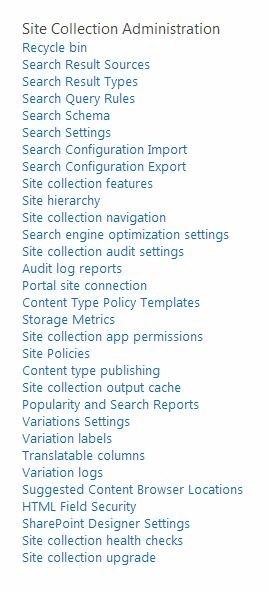
Today we will be explaining the Site Collection Administration features. Here you can see the following settings in the following category. Let's discuss them one by one.
Recycle Bin
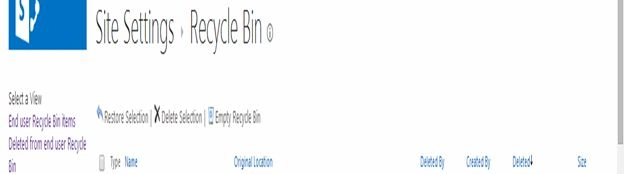
Here we have the Recycle Bin with a new added feature showing the view as per the End User Recycle Bin items and deleted from the end user Recycle Bin.
Site Collection Features
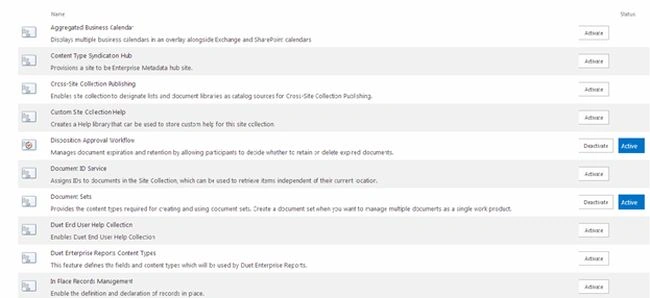
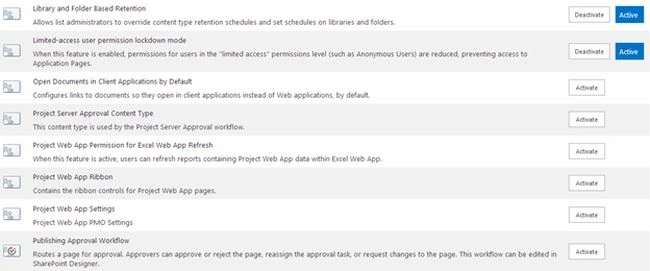
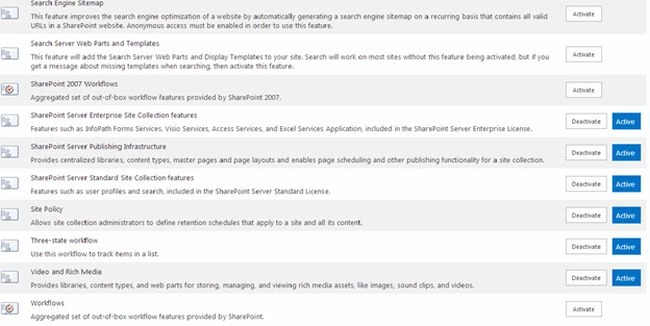
The following are the Site Collection features, It contains the default features and custom features (created by developers).
Site Hierarchy
The following view contains the Site Hierarchy that displays the Content's URLs, Titles of contents like (List and Document Library) and a link to manage them directly going to the content library and list settings.

Site Collection Navigation
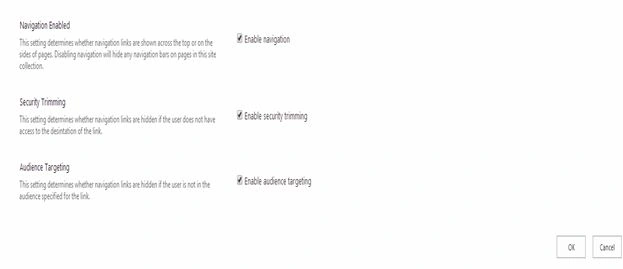
This contains the site collection navigations that contains options to enable Navigation Enabled like the Left Navigation and Global Navigation, then we have Security Trimming and Audience Targeting to be enabled to all the sites in the Site Collection.
Search Engine Optimization Settings
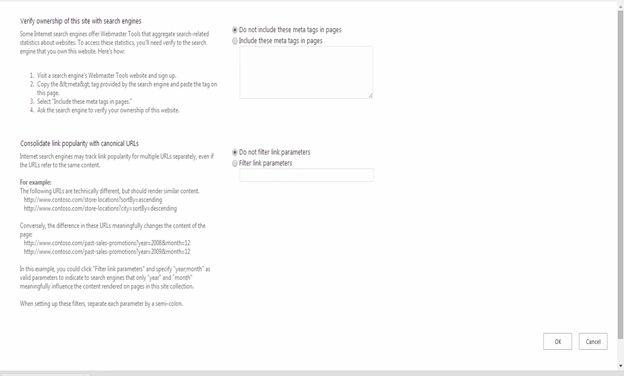
Here in the search engine optimization settings we can see it optimized by adding metatags to the pages. You also have an option to filter the link parameters to avoid a link based on popularity coming up as the search option.
Site Collection Audit Settings
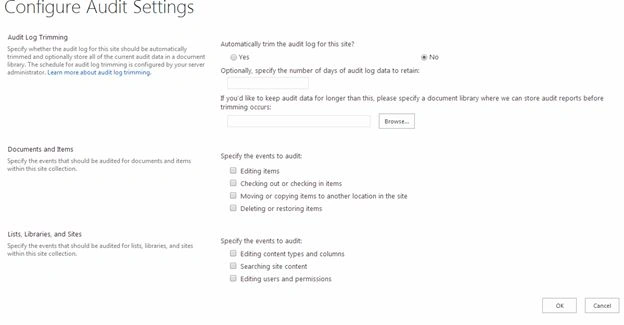
It is a beautiful feature to track down the log files for changes in the site contents like Editing items, Checking out or checking in items or moving or copying items to another location in the site and lastly deleting or restoring items.
It also logs in the events of the searching feature, editing the Content Type or a column and even the changes in the permission levels.
Audit Log Reports
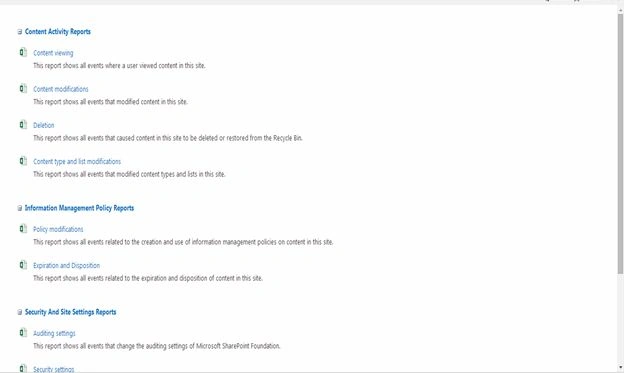
This feature is the same as the previous versions where the reports are generated on content viewing, content modifications, deletion, Content Type and list modifications all related to content activity reports. Then we have Information Management Policy Reports that contain Policy modifications and Expiration and Disposition. Then under Security and Settings Reports we have Auditing settings, Security Settings and finally under Custom Reports we have to run a custom report that you can configure your filter yourself to generate a report.
Portal Site Connection
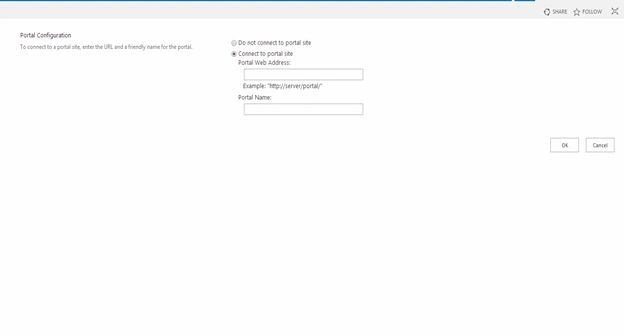
Then we have a new feature to connect to your own external content by entering the URL or the name to connect to the portal.
Content Type Policy Templates
Again a new feature in SharePoint 2013 is where we can set up policy in Content Type as well that is to be satisfied before deleting it.
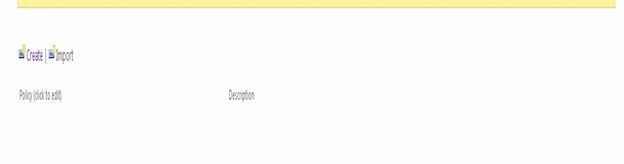
So as in the following screen shot you can either create or import a policy.
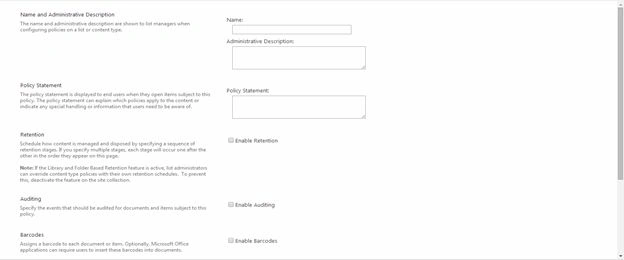
You can create the policy using the form below. You can add a Name and Administrative Description then we have a Policy Statement. You can have the Retention policy where you can schedule the content by specifying the sequence at each stage.
Then we have Auditing specifying whether you want to audit the items and documents subjected to policy. Lastly Barcodes that can be included as per policy to the documents and Bar codes can be attached.
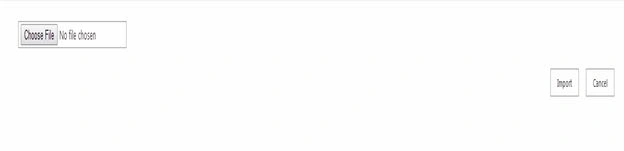
Then as said we can Import the same settings to their other sites by exporting the similar kind of policy and importing it back.
Storage Metrics
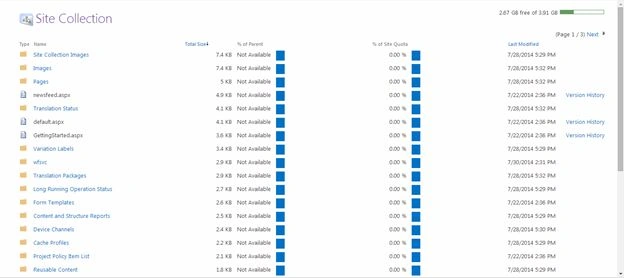
Here as we can see it contains the size of the site on the right corner and all the contents below.
Site Collection App Permissions
It contains the App Names or the site content's Display Name and their interface identifier regarding their permission level.

Site Policies
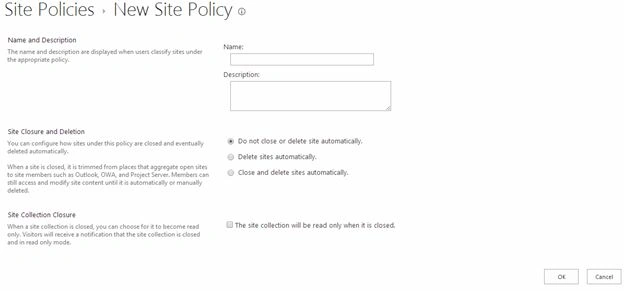
Here you can create a new Site Policy providing a Name and Description. Then we have rules to have Site Closure and Deletion configuration where we have three the following options:
Today we will be explaining the Site Collection Administration features. Here you can see the following settings in the following category. Let's discuss them one by one.
Recycle Bin
Here we have the Recycle Bin with a new added feature showing the view as per the End User Recycle Bin items and deleted from the end user Recycle Bin.
Site Collection Features
The following are the Site Collection features, It contains the default features and custom features (created by developers).
Site Hierarchy
The following view contains the Site Hierarchy that displays the Content's URLs, Titles of contents like (List and Document Library) and a link to manage them directly going to the content library and list settings.
Site Collection Navigation
This contains the site collection navigations that contains options to enable Navigation Enabled like the Left Navigation and Global Navigation, then we have Security Trimming and Audience Targeting to be enabled to all the sites in the Site Collection.
Search Engine Optimization Settings
Here in the search engine optimization settings we can see it optimized by adding metatags to the pages. You also have an option to filter the link parameters to avoid a link based on popularity coming up as the search option.
Site Collection Audit Settings
It is a beautiful feature to track down the log files for changes in the site contents like Editing items, Checking out or checking in items or moving or copying items to another location in the site and lastly deleting or restoring items.
It also logs in the events of the searching feature, editing the Content Type or a column and even the changes in the permission levels.
Audit Log Reports
This feature is the same as the previous versions where the reports are generated on content viewing, content modifications, deletion, Content Type and list modifications all related to content activity reports. Then we have Information Management Policy Reports that contain Policy modifications and Expiration and Disposition. Then under Security and Settings Reports we have Auditing settings, Security Settings and finally under Custom Reports we have to run a custom report that you can configure your filter yourself to generate a report.
Portal Site Connection
Then we have a new feature to connect to your own external content by entering the URL or the name to connect to the portal.
Content Type Policy Templates
Again a new feature in SharePoint 2013 is where we can set up policy in Content Type as well that is to be satisfied before deleting it.
So as in the following screen shot you can either create or import a policy.
You can create the policy using the form below. You can add a Name and Administrative Description then we have a Policy Statement. You can have the Retention policy where you can schedule the content by specifying the sequence at each stage.
Then we have Auditing specifying whether you want to audit the items and documents subjected to policy. Lastly Barcodes that can be included as per policy to the documents and Bar codes can be attached.
Then as said we can Import the same settings to their other sites by exporting the similar kind of policy and importing it back.
Storage Metrics
Here as we can see it contains the size of the site on the right corner and all the contents below.
Site Collection App Permissions
It contains the App Names or the site content's Display Name and their interface identifier regarding their permission level.
Site Policies
Here you can create a new Site Policy providing a Name and Description. Then we have rules to have Site Closure and Deletion configuration where we have three the following options:


Join the conversation! Your thoughts help the community grow.