

What Are SQL Window Functions?
SQL Window Functions are SQL functions that allow us to perform calculations across a defined set of rows related to the current row, returning a result for each row. Unlike aggregate functions that collapse multiple rows into a single result, window functions perform calculations across a set of rows while preserving the individual row details in the output.
The OVER clause is essential in defining the "window" over which calculations occur. It enables partitioning, ordering, and framing of rows for analytical insights.
Key Benefits:
Trend Analysis: Helps in computing running totals, moving averages, and cumulative sums.
Rankings & Percentiles: Enables ranking rows based on specific criteria.
Comparative Analysis: Allows access to previous or next row values for better data insights.
How SQL Window Functions Work
For the demonstration of SQL window functions, we are using SQL Server 2022. We are using dbForge Studio for SQL Server to write and execute the T-SQL code.
PARTITION BY Clause
In the SQL window functions, the partition by clause divides the entire set into different groups before performing the calculations. Instead of the entire dataset, the window function will be applied and processed on each partition created by the PARTITION BY clause.
Here is the syntax:
SELECT <window_function> OVER (PARTITION BY column_name) In the syntax:
Window_function: Specify the window function that you want to use.
PARTITION BY column_name : Specify the name of the column on which you want to create the partition.
ORDER BY Clause
The ORDER BY clause determines the sequence of rows when the calculations will be applied within the partition created using PARTITION BY clause. The ORDER BY clause ensures that ranking, cumulative totals and moving average always follow the same order.
Here is the syntax
SELECT <window_function> OVER (ORDER BY column_name) In the syntax,
Сolumn_name: The column_name refers to the column on which the calculation order is applied.
In the syntax, the ORDER BY clause is used inside the OVER() clause to define the order of calculation.
ROWS vs. RANGE
The ROWS and RANGE options are used to define the window frame for each row . Both options look similar but the behavior during the selection of the rows in the calculation is entirely different.
Here is a short summary of the difference between ROWS and RANGE
| ROWS | RANGE |
|---|---|
| ROWS is row-based. It considers the specific number of rows before and after the current row. | RANGE is value-based. It includes all the records with the same value as the current row. |
| The ROWS includes the exact number of the records specified in the function. | The RANGE includes all rows with equal ordering vales. |
| The performance of ROWS is faster. | Compared to the ROWS, the RANGE is slower, but it depends on the sorting of rows specified in the query. |
| It is used to find moving averages and running totals | It is used to find cumulative totals and ranking. |
Now, let us explore the types of SQL window function.
Types of SQL Window Functions
There are mainly three types of window functions.
Ranking functions
Aggregate window functions
Value based window functions
For better understanding, this article uses a table named tblemployees with sample data to demonstrate how ranking window functions work.
Here is the code to create a table and insert data.
CREATE TABLE tblemployees (
    employee_id INT PRIMARY KEY,
    name VARCHAR(100),
    department VARCHAR(50),
    salary INT
);
INSERT INTO tblemployees (employee_id, name, department, salary) VALUES
(1, 'Amrish S', 'HR', 60000),
(2, 'Nirali S', 'HR', 75000),
(3, 'Dhanush S', 'IT', 90000),
(4, 'Dixit Pandya', 'IT', 80000),
(5, 'Manushi Raval', 'IT', 90000),
(6, 'Bharti Dave', 'Finance', 80000),
(7, 'Mehul Raval', 'Finance', 78000);
Now, let us understand about the ranking functions.
Ranking Functions
ROW_NUMBER()
The ROW_NUMBER() function assigns a unique number to each row within a defined partition, regardless of whether rows have the same values.
The syntax of ROW_NUMBER() is as follows:
SELECT ROW_NUMBER() OVER (PARTITION BY column_name ORDER BY column_name) Here you can see, the ROW_NUMBER() will be added before the OVER (PARTITION BY) clause.
RANK() vs. DENSE_RANK()
The RANK() function assigns a unique number to each distinct value within a partition. Unlike ROW_NUMBER(), if two rows have the same values
The DENSE_RANK() function assigns the unique number to the records but unlike RANK() it does not skip the rank number. For example, if two rows within a partition have the same value, the DENSE_RANK() will assign "1" rank to both rows and next row will get "2" rank.
The syntax of RANK() is as follows:
SELECT RANK() OVER (PARTITION BY column_name ORDER BY column_name) The syntax of DENSE_RANK() is as follows:
SELECT DENSE_RANK() OVER (PARTITION BY column_name ORDER BY column_name) As you can see, the RANK() and DENSE_RANK() are added before the OVER clause.
For example, we want to extract the salary of employees and rank the employees based on the salary they receive. This example includes all ranking functions in one query.
Here is the SQL Query to do that.
SELECT Name, department, salary,
ROW_NUMBER() OVER (ORDER BY Salary DESC) AS RowNumber,
RANK() OVER (ORDER BY Salary DESC) AS [Rank],
DENSE_RANK() OVER (ORDER BY Salary DESC) AS DenseRank
FROM tblemployees
Query output
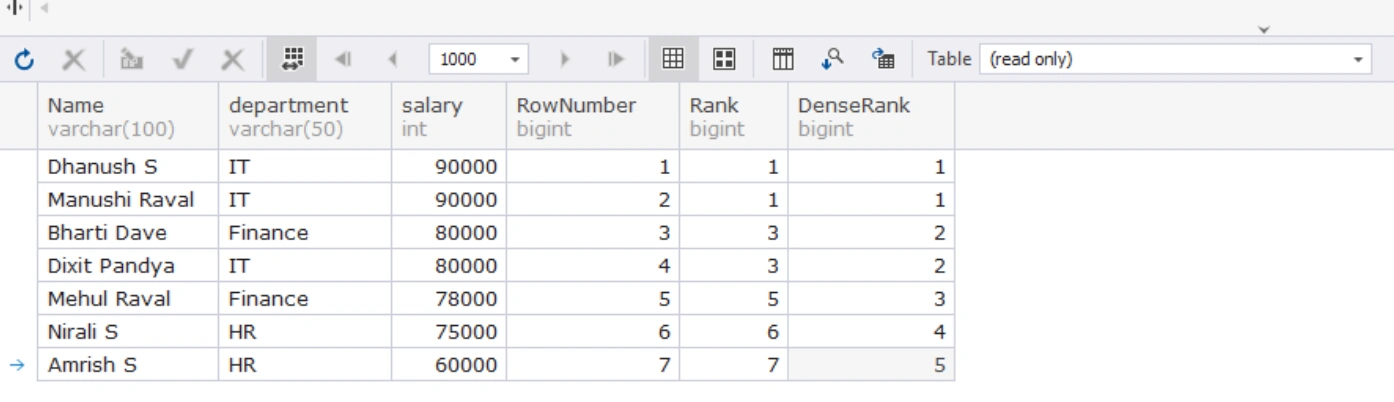
As you can see in the above screenshot the different behavior of ROW_NUMBER(), RANK() and DENSE_RANK() function.
ROW_NUMBER(): Each employee gets a unique rank based on their descending salary.
RANK(): If two employees have the same salary, both get the same rank, and the next rank is skipped.
DENSE_RANK(): If two employees have the same salary, both get the same rank, and the next rank continues.
NTILE()
The NTILE() differs from other ranking functions. It divides the rows into N groups and assigns the group number to each row. The NTILE() is commonly used for percentile or quartile analysis.
Here is the syntax of NTILE().
NTILE(number_of_tiles) OVER (
    [PARTITION BY partition_expression]
    [ORDER BY sort_expression]
)
In the syntax, the number_of_tiles represents the number of groups. If you specify NTILE(4), the SQL will divide the result into 4 groups.
Suppose we want to analyze sales data in three groups for each customer based on the Amount of their sales. To do that, execute the following query.
SELECT
    CustomerName,
    SaleDate,
    Amount,
    NTILE(3) OVER (PARTITION BY CustomerName ORDER BY Amount) AS SalesTile
FROM
    CustomerSales
ORDER BY
    CustomerName, Amount;
Query output
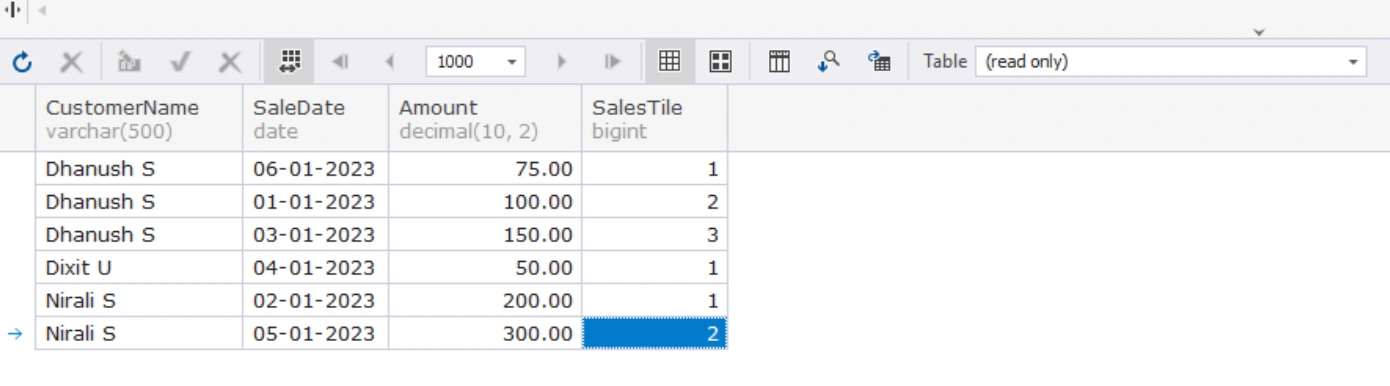
As you can see in the above screenshot, the customer Dhanush S has three sales and each sale is assigned to separate tile. The smallest sale amount is 75 hence it is in tile 1. The next sale is 100, hence it is in tile 2 and the largest is 150, hence it is in tile 3.
Now, let us understand the aggregate window functions.
Aggregate Window Functions
The aggregate window functions are used to perform the calculation on specific range of the rows (window). Unlike regular aggregate functions which collapse multiple rows in a single output, the aggregate window functions perform calculations (SUM(), AVG(), COUNT(), etc.) over the defined range of rows and it also retains the original data.
In this article we will understand the aggregate windows functions using three examples. I have created a table named tblSales which contains details of sales transactions of various customers.
Here is the code to create a table and insert dummy records.
-- Create CustomerSales Table
CREATE TABLE CustomerSales (
    SaleID INT PRIMARY KEY,
    CustomerName varchar(500),
    SaleDate DATE,
    Amount DECIMAL(10, 2)
);
-- Insert Data into CustomerSales Table
INSERT INTO CustomerSales (SaleID, CustomerName, SaleDate, Amount)
VALUES
(1, 'Dhanush S', '2023-01-01', 100),
(2, 'Dhanush S', '2023-01-06', 75),
(3, 'Dhanush S', '2023-01-03', 150),
(4, 'Dixit U', '2023-01-04', 50),
(5, 'Nirali S', '2023-01-05', 300),
(6, 'Nirali S', '2023-01-02', 200);
Now, we want to forecast the sales for each customer. To do that, we will be using running totals. To do that, we will use the sum()over() function.
SUM() OVER()
The sum()over() is used to generate the cumulative sum, running totals on the given set of rows or partition. Unlike SUM() aggregate function, the SUM()OVER() does not collapse the result in one single result. It shows the sum of each row in the result set based on the specified partition or window.
Here is the syntax
SUM(column_name) OVER (
    [PARTITION BY partition_expression]
    [ORDER BY sort_expression]
)
In the syntax
Column name: Specify the column name on which you want to apply the sum.
Partition By: Divide the entire result set into multiple partitions on which you want to apply the SUM aggregate function.
ORDER BY: Specify the order of the rows within the specified partition.
Suppose we want to observe the sales trend of customers. We can use the running totals to observe the sales trends for all customers. To do that, the query is written as follows:
SELECT
    CustomerName,
    SaleDate,
    Amount,
    SUM(Amount) OVER (PARTITION BY CustomerName ORDER BY SaleDate) AS RunningTotalByCustomer
FROM
    CustomerSales;
In the query,
PARTITION BY CustomerName: This groups the data by CustomerName, so the running total is calculated separately for each customer.
ORDER BY SaleDate: The running total must be calculated in proper order based on the SaleDate column.
SUM(Amount): The SUM is used to calculate the cumulative sum of the Amount column for each customer.
Here is the query output.
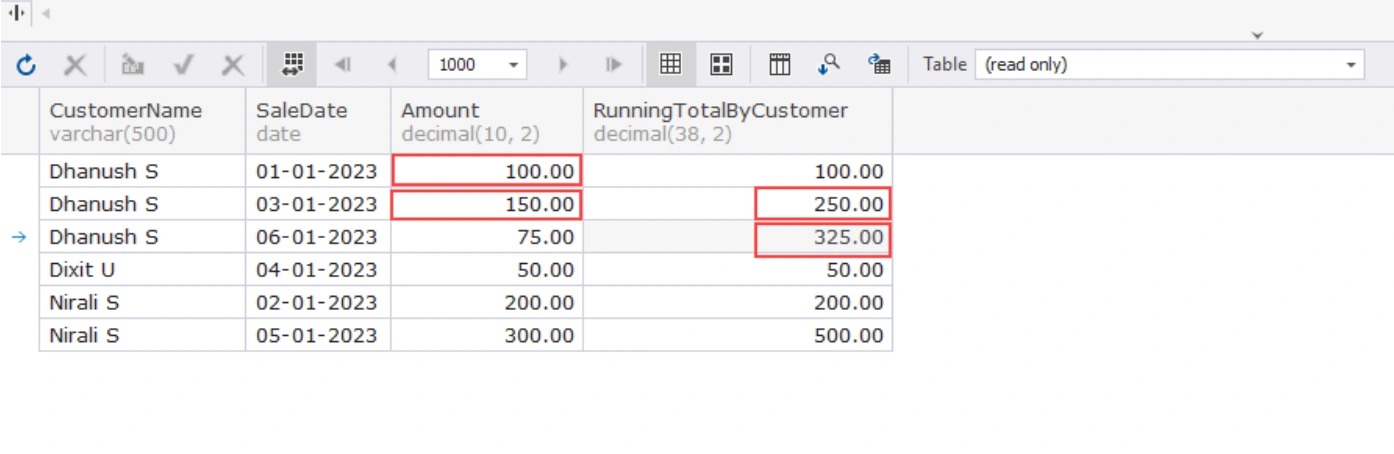
As you can see from the above screenshot, The first sale of customer Dhanush S is 100 INR, therefore running total is 100. The second sale of Dhanush S is 150 INR so the running total will be 100+150 = 250 INR and so on. This analysis helps us to identify the sales trends and forecast.
AVG() OVER()
The avg()over() window function is used to calculate the average of a set of values specified in a partition or a window the records. Like other windows functions, the AVG()OVER() function does not collapse the result set in one row, instead it shows the average for the each row based on the defined partition or window.
Here is the syntax of AVG()OVER()
AVG(column_name) OVER (
    [PARTITION BY partition_expression]
    [ORDER BY sort_expression]
)
In the syntax
Column name: Specify the column name whose average value you want to compute.
Partition By: Divide the entire result set into multiple partitions on which you want to apply the AVG() aggregate function.
ORDER BY: Specify the order of the rows within the specified partition.
For example, we want to analyze the average sale amount for each customer across their transactions. To do that, the query is written as follows:
SELECT
    CustomerName,
    SaleDate,
    Amount,
    AVG(Amount) OVER (PARTITION BY CustomerName) AS AverageSalesByCustomer
FROM
    CustomerSales;
In the query:
PARTITION BY CustomerName: This groups the data by CustomerName, so the average sale is calculated separately for each customer.
AVG(Amount): The AVG is used to calculate the average of the Amount column for each customer.
Here is the query output:
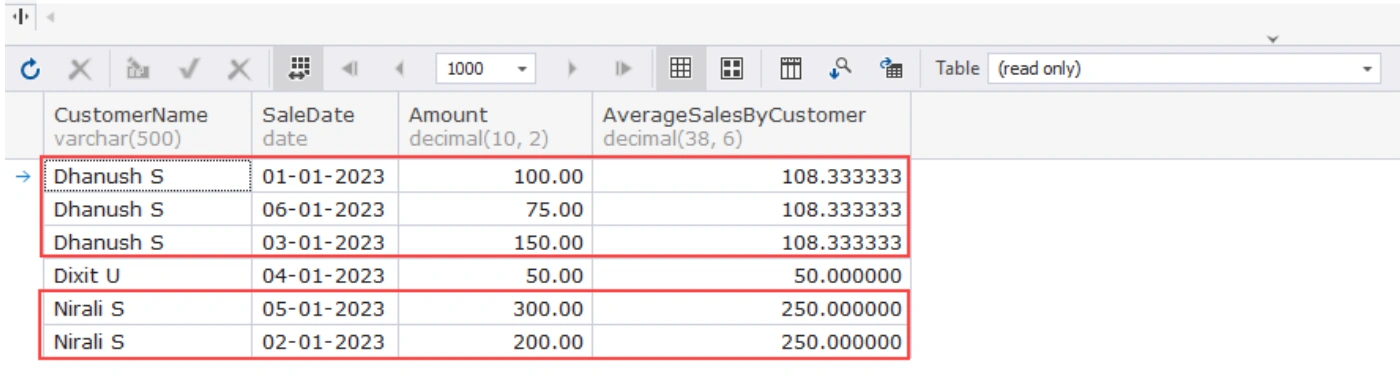
As you can see from the above screenshot, the average sale of customer Dhanush S is 108.33, Nirali S is 250.00, and Dixit U is 50.00.
COUNT() OVER()
The count()over() function is used to calculate the number of records within the specified partition or the window. Like other windows functions, the COUNT()OVER() does not collapse the result in one row. Note that the regular aggregate function can perform the same calculations but when you want to show the count of transactions with each row, the over() clause can be useful.
Here is the syntax
COUNT(column_name) OVER (
    [PARTITION BY partition_expression]
    [ORDER BY sort_expression]
)
In the syntax
Column name: Specify the column name.
Partition By: Divide the entire result set into multiple partitions on which you want to apply the COUNT()function.
ORDER BY: Specify the order of the rows within the specified partition.
Suppose we want to find the total transaction made by the customers. To do that, the SQL query can be written as follows:
SELECT
    CustomerName,
    SaleDate,
    Amount,
     COUNT(Amount) OVER (PARTITION BY CustomerName) AS [Total Transaction by Customer]
FROM
    CustomerSales;
In the query,
PARTITION BY CustomerName: This groups the data by CustomerName, so the count of transaction is calculated separately for each customer.
COUNT(Amount): The COUNT is used to calculate the total transaction made by customer.
Query output:
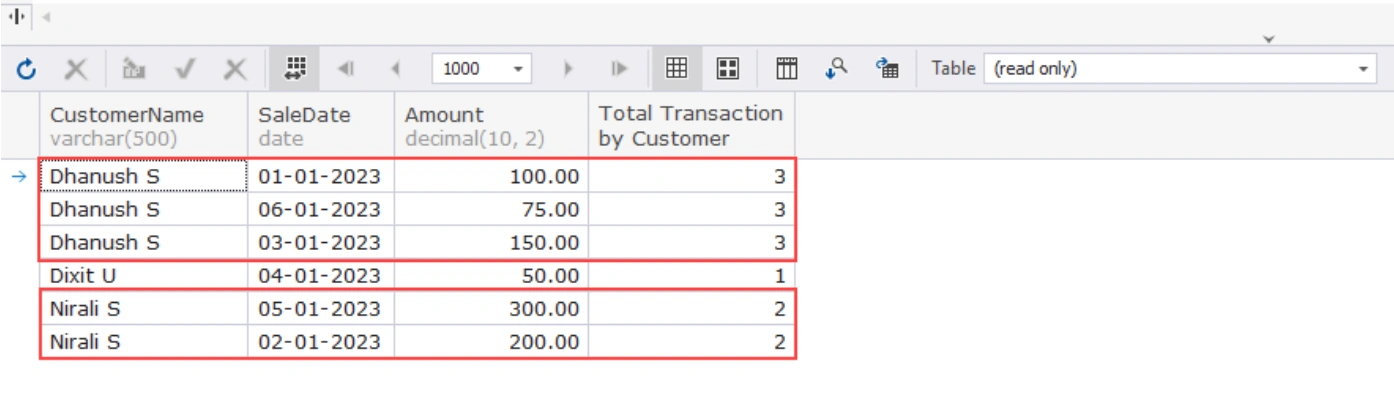
As you can see from the above screenshot, the total transaction done by customer Dhanush S is 3, Nirali S is 2 and Dixit U is one.
Now, let us learn about the value-based window functions.
Value-Based Functions
In this article, we will explore value-based window functions.
LAG()
The LAG() function is used to access the value of a certain column from a previous record within the same partition. The LAG() function is useful when you are comparing the current record with the previous records.
The syntax is below:
LAG(column_name) OVER ([PARTITION BY partition_expression]
    [ORDER BY sort_expression]
)
In the syntax.
column_name: The column whose value you want to access from the previous record.
PARTITION BY: Divides the result set into partitions. It is optional.
ORDER BY: Specifies the order of records within each partition.
Suppose we want to analyze the trend of customers' purchases which can be done by comparing each customer's sales figures with their previous sales figures. For that, the query should be written as follows:
SELECT
    cs.CustomerName,
    cs.SaleDate,
    CS.Amount,
    LAG(CS.Amount, 1) OVER (PARTITION BY CS.CustomerName ORDER BY CS.SaleDate) AS PreviousSaleAmount
FROM
    CustomerSales CS
Query output:
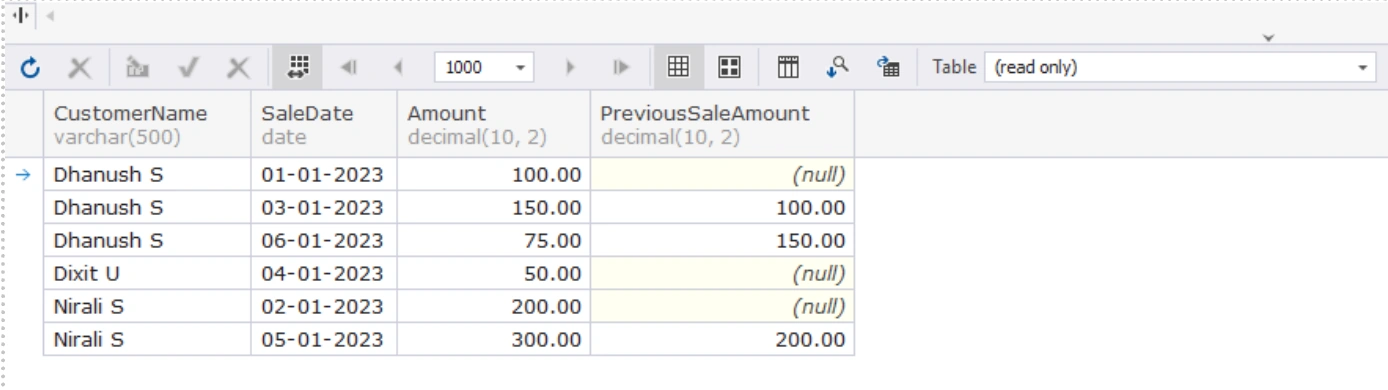
As you can see, the value of PreviousSaleAmount column contains the previous sales figures of the customer.
LEAD()
The LEAD() function is used to access the value of a certain column from a subsequent record within the same partition. The LEAD() function is useful when you are comparing the current record with the next records.
The syntax is below:
LEAD(column_name) OVER ([PARTITION BY partition_expression]
    [ORDER BY sort_expression]
)
In the syntax.
column_name: The column whose value you want to access from the next record.
PARTITION BY: Divides the result set into partitions. It is optional.
ORDER BY: Specifies the order of records within each partition.
Suppose we want to analyze the trend of customers' purchases which can be done by comparing each customer's sales amount with their next sales amount. For that, the query should be written as follows:
SELECT
    cs.CustomerName,
    cs.SaleDate,
    CS.Amount,
    LEAD(CS.Amount, 1) OVER (PARTITION BY CS.CustomerName ORDER BY CS.SaleDate) AS NextSaleAmount
FROM
    CustomerSales CS
Query output:
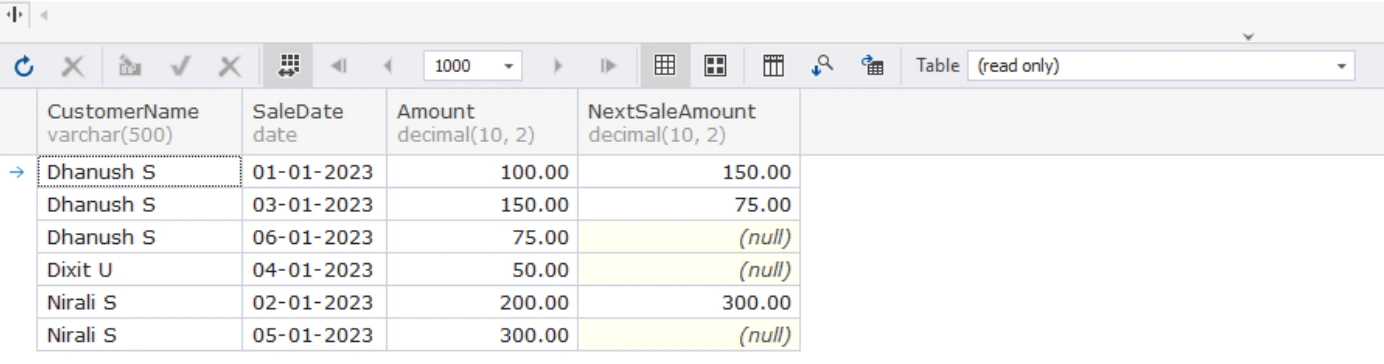
As you can see, the value of NextSaleAmount column contains the next sales figures for the customer.
FIRST_VALUE() and LAST_VALUE()
The FIRST_VALUE() function is used to retrieve the first value of a column within a defined partition. The function is useful when you want to compare the value of the current row and first row of the partition.
Here is the syntax
FIRST_VALUE(column_name) OVER (
    [PARTITION BY partition_expression]
    [ORDER BY sort_expression]
)
In the syntax,
column_name: The column whose first value you want to use.
PARTITION BY: Divides the result set into partitions.
ORDER BY: Specifies the order of rows within each partition.
and LAST_VALUE() function is used to retrieve the last value of the column within a defined partition. The function is useful when you want to compare the value of the current row and last row of the partition.
Here is the syntax
LAST_VALUE(column_name) OVER (
    [PARTITION BY partition_expression]
    [ORDER BY sort_expression]
)
In the syntax
column_name: The column whose last value you want to use.
PARTITION BY: Divides the result set into partitions.
ORDER BY: Specifies the order of rows within each partition.
Let us understand both functions with simple examples.
Suppose you want to compare the sales figures of each customer with their first purchase amount and last purchase amount. The query to do that is as follows:
SELECT
    CustomerName,
    SaleDate,
    Amount,
    FIRST_VALUE(Amount) OVER (PARTITION BY CustomerName ORDER BY SaleDate) AS FirstSaleAmount,
    LAST_VALUE(Amount) OVER (PARTITION BY CustomerName ORDER BY SaleDate) AS LastSaleAmount
FROM
    CustomerSales
ORDER BY
    CustomerName, SaleDate;
Here is the query output
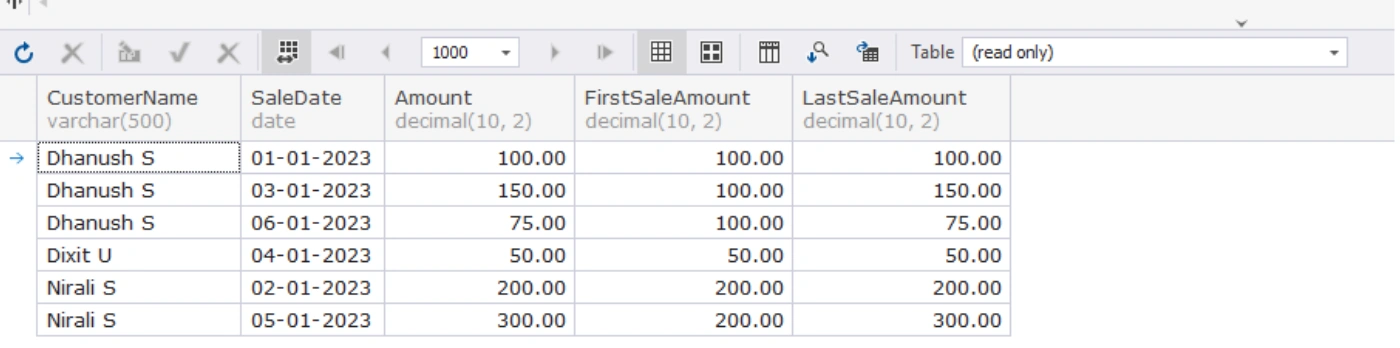
As you can see, the column "FirstSaleAmount" contains the first sale amount and column "LastSaleAmount" contains the last sale amount.
Conclusion
In this article, we learned about the various SQL window functions that are used to perform various advanced calculations for data analysis. In the article, we learned about the different functions that are categorized in ranking functions like RANK(), ROW_NUMBER(), value-based functions like LEAD(), LAG(), and aggregate functions like SUM() OVER() and COUNT() OVER() with a simple example. I hope this article can help the data analysts who are learning SQL queries for advanced calculations.
Join the conversation! Your thoughts help the community grow.