

Lets start, Open the visual studio 2010 and create new project. Now select the template for Silverlight Application for Windows Phone. and click ok.
Note: If you are new to Windows Phone and want to start with it. [Here] is the post for how to start with Windows Phone 7 development.
To Create a UI in the Main.XAML file like below you need aTextBlock, a ListBox and a TextBox control. This application is to show the list of your favorite football players and selecting any player would show you the details of that player in the Textbox.
[Keeping things Little simple]
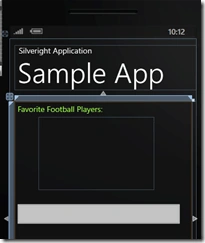
Here's the markup for this UI
<Grid x:Name="LayoutRoot" Background="Transparent">
<Grid.RowDefinitions>
<RowDefinition Height="Auto"/>
<RowDefinition Height="*"/>
</Grid.RowDefinitions>
<!--TitlePanel contains the name of the application and page title-->
<StackPanel x:Name="TitlePanel" Grid.Row="0" Margin="12,17,0,28">
<TextBlock x:Name="ApplicationTitle" Text="Silveright Application" Style="{StaticResource PhoneTextNormalStyle}"/>
<TextBlock x:Name="PageTitle" Text="Sample App" Margin="9,-7,0,0" Style="{StaticResource PhoneTextTitle1Style}"/>
</StackPanel>
<!--ContentPanel - place additional content here-->
<Grid x:Name="ContentPanel" Grid.Row="1" Margin="12,0,12,0">
<ListBox Height="191" HorizontalAlignment="Left" Margin="62,40,0,0" Name="listBox1"
VerticalAlignment="Top" Width="297" >
</ListBox>
<TextBlock Height="30" HorizontalAlignment="Left" Margin="9,6,0,0" Name="textBlock1" Text="Favorite Football Players:" VerticalAlignment="Top" Foreground="#FF9EFF4B"></TextBlock>
<TextBox Height="74" HorizontalAlignment="Left" Margin="-3,255,0,0" Name="textBox1" Text="" VerticalAlignment="Top" Width="440" />
</Grid>
</Grid>
Now, create view model for this UI that'll hold the data that would be displayed on it and will update itself when required.
[DataContract]
public class ViewModel : INotifyPropertyChanged
{
private string textboxText1;
private Person selectedPerson; // for selection from the listbox
ObservableCollection<Person> personList;
public ViewModel()
{
//populate some sample data
personList = new ObservableCollection<Person>()
{
new Person(){Name="Syed Mehroz Alam", Age=10, City="Delhi", Country="India"},
new Person(){Name="Zinedine Zidane", Age=20, City="Marseille", Country="France"},
new Person(){Name="Ronaldinho", Age=30, City="Porto Alegre", Country="Brazil"},
new Person(){Name="John Smith", Age=40, City="Washington", Country="USA"}
};
}
#region Properties
[DataMember]
public ObservableCollection<Person> PersonList
{
get { return personList; }
set
{
personList = value;
NotifyPropertyChanged("PersonList");
}
}
[DataMember]
public Person SelectedPerson
{
get { return selectedPerson; }
set
{
selectedPerson = value;
NotifyPropertyChanged("SelectedPerson");
}
}
[DataMember]
public string TextBoxText1
{
get
{
return textboxText1;
}
set
{
textboxText1 = value;
NotifyPropertyChanged("TextBoxText1");
}
}
#endregion
public event PropertyChangedEventHandler PropertyChanged;
private void NotifyPropertyChanged(string property)
{
if (PropertyChanged != null)
{
PropertyChanged(this, new PropertyChangedEventArgs(property));
}
}
}
[DataContract]
public class Person
{
[DataMember]
public string Name { get; set; }
[DataMember]
public int Age { get; set; }
[DataMember]
public string City { get; set; }
[DataMember]
public string Country { get; set; }
}
In the view model the selectedPerson property is created to keep the user's selection in from listbox. The selected item's details would be shown to the text box. Now bind the UI controls with the view model. Keep the DataContract and DataMember attribute on the Class and its members that needs to be save in the State collection. This will help in serialization of data. Now bind the ViewModel with the UI Main.XAML
<ListBox Height="191" HorizontalAlignment="Left" Margin="62,40,0,0" Name="listBox1" ItemsSource="{Binding PersonList}"
DisplayMemberPath="Name" SelectionChanged="listBox1_SelectionChanged"
SelectedItem="{Binding SelectedPerson, Mode=TwoWay}" VerticalAlignment="Top" Width="297" >
</ListBox>
<TextBox Height="74" HorizontalAlignment="Left" Margin="-3,255,0,0" Name="textBox1" Text="{Binding TextBoxText1, Mode=TwoWay}" VerticalAlignment="Top" Width="440" />
<Grid x:Name="DesignGrid" Background="Transparent" Margin="0,0,0,12" Visibility="Collapsed" >
Now everything is set for the sample application. As per the Application execution model we have to handle the NavigatedTo and NavigatedFrom event with checking if user is launching the application first time or if user is coming back and keeping the track when user navigates away from the application. In case user navigates away from the page the NavigatedFrom save the ViewModel instance to state collection. In case user returns back use the custom boolean flag isNewPageInstance that would be true when the page constructor get executed. Based on that we'll create new ViewModel instance otherwise retrieve the saved ViewModel from the State Collection if exists. Here's the complete code for the MainPage.XAML.cs file.
public partial class MainPage : PhoneApplicationPage
{
ViewModel viewModel;
bool isNewPageInstance = false;
// Constructor
public MainPage()
{
InitializeComponent();
isNewPageInstance = true;
}
protected override void OnNavigatedTo(System.Windows.Navigation.NavigationEventArgs e)
{
base.OnNavigatedTo(e);
if (isNewPageInstance)
{
if (viewModel == null)
{
if (State.Count > 0)
{
viewModel = (ViewModel)State["ViewModel"];
}
else
{
viewModel = new ViewModel();
}
}
DataContext = viewModel;
}
isNewPageInstance = false;
}
protected override void OnNavigatedFrom(System.Windows.Navigation.NavigationEventArgs e)
{
base.OnNavigatedFrom(e);
if (e.NavigationMode != System.Windows.Navigation.NavigationMode.Back)
{
State["ViewModel"] = viewModel;
}
}
}
Now handle the List selection changed event and update the textbox accordingly.
private void listBox1_SelectionChanged(object sender, SelectionChangedEventArgs e)
{
Person selectedPerson = (Person)listBox1.SelectedItem;
textBox1.Text = selectedPerson.Name.Split(' ')[0] + ", " + selectedPerson.Age + ", " + selectedPerson.City + "," + selectedPerson.Country;
}
Now start the application and select any person from the list

Now press Start button from the Phone.
It will navigates away from the application letting it into the Dormant start now do something let say launch some other application
now press back button to get back to the application.
It'll show you the last selection that you have made.
Shalini JunejaPosted Aug 17, 2011, 11:59 PM
Good Article..........