

Introduction
Microsoft SQL Server 2016 is a hybrid cloud environment designed to allow data and services to enable users to perform advanced analytics within their databases and create business insight visualizations.
Stretch DB in SQL Server
One of the highly anticipated features new to Microsoft SQL Server 2016 is Stretch DB, a feature that migrates your historical data transparently and securely to the Microsoft Azure cloud.
Moreover, it can be configured to migrate a complete table to the cloud or to migrate only part of a table based on certain conditions. For example, one won’t migrate its complete transaction table, but migrating data which is older than five years makes sense!
Benefits of Stretch DB
- Ability to determine which rows to migrate to the cloud and which rows to keep On-Premise by using predicates.
- Stretch DB ensures that no data is lost if a failure occurs during migration. - It also has retry logic to handle connection issues that may occur during migration.
- Data Migration can be paused to troubleshoot problems on the local server or to maximize the available network bandwidth.
- Existing Applications do not have to be changed. The change will be done seamlessly.
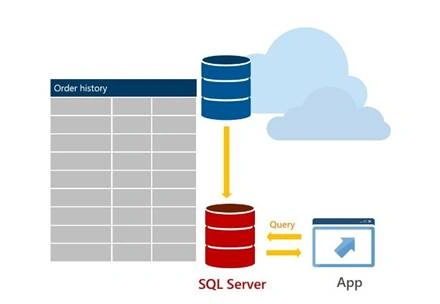
Source: http://wikidba.net/
Is Stretch DB for you?
Stretch Database targets transactional databases with large amounts of historical data, typically stored in a small number of tables. These tables may contain more than a billion rows. Some cases where Stretch DB can be used are:
- Transaction data is stored for a long time.
- Historical Data is queried occasionally.
- The size of tables is exponentially increasing and needs more storage.
To identify databases and tables that can be “stretched,” Use Stretch Database Advisor, a feature of SQL Server 2016 Upgrade Advisor.
Stretch DB Advisor in SQL Server
Download and install Upgrade Advisor from here. This tool is not included in the SQL Server 2016 Release Candidate (RC0) installation media.
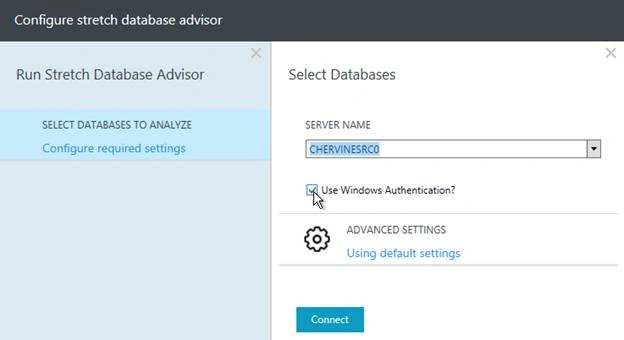
To verify if a database and table are eligible for Stretch DB, open upgrade advisor and click on “Run Stretch Database Advisor.”

Select the server where the Database resides.
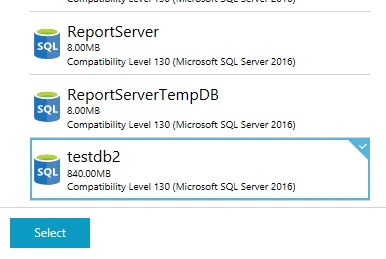
Select the Database to be stretched.
Select the tables to stretch and view the results.
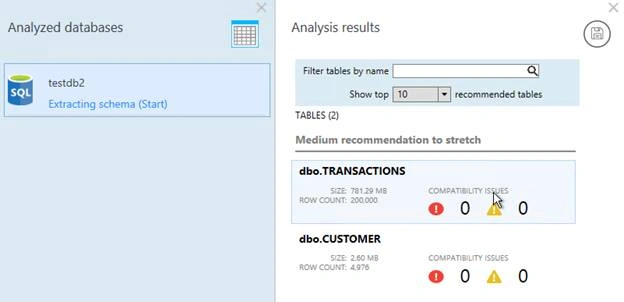
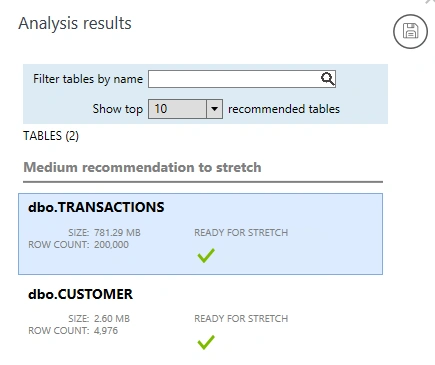
Configure and Use Stretch DB
How to enable Stretch DB at the server level?
Before a Database can be stretched, Stretch DB needs to be configured at the server level.
EXECsp_configure'remote data archive','1';
GO
RECONFIGURE;
GO
This operation requires sysadmin or serveradmin permissions.
Enable Stretch Database on a database?
The easiest way to get started is to use the wizard.
-
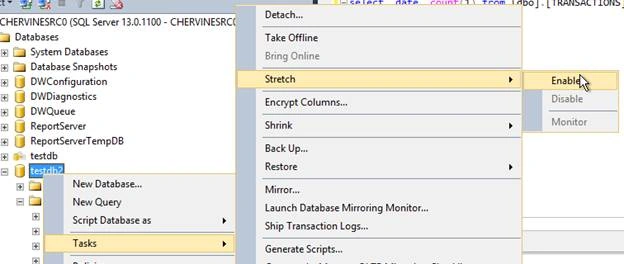
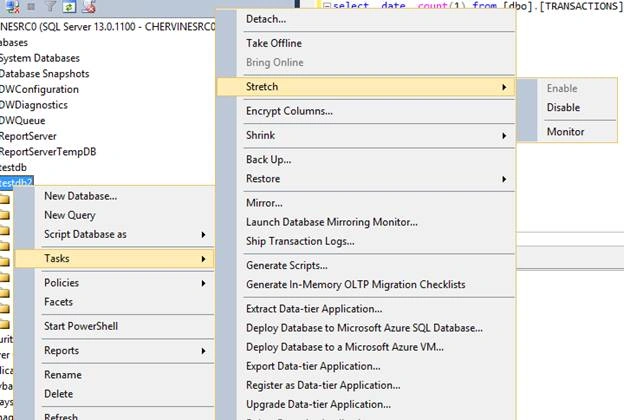
Go to Tasks, Stretch, then click Enable.
-
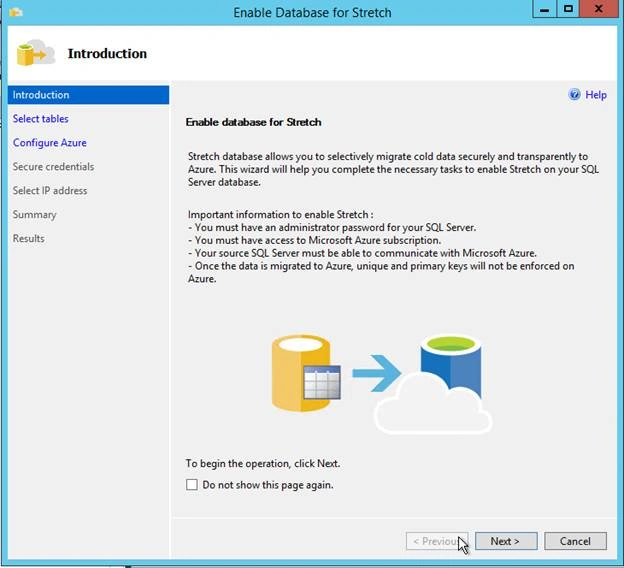
This will lead to a Stretch DB Intro Page.
-
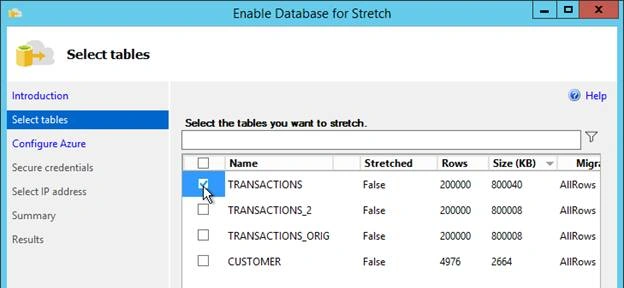
Then, select the tables that need to be stretched.
-
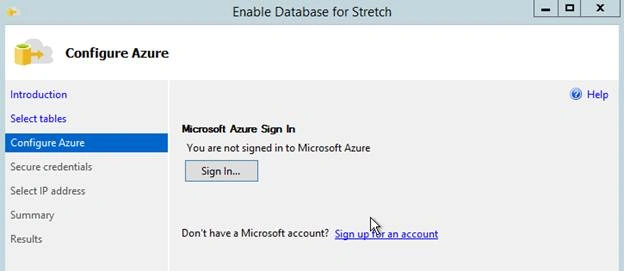
Sign in to your Microsoft Azure Account.
-
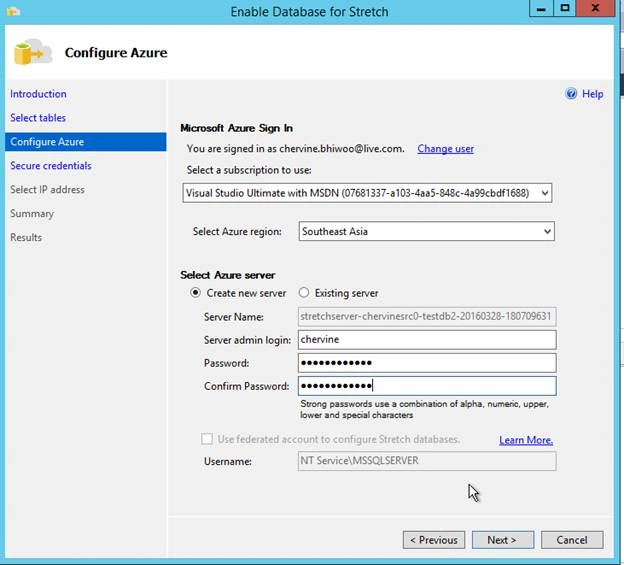
Once signed in, you may create a new server or connect to an existing SQL Server.
-
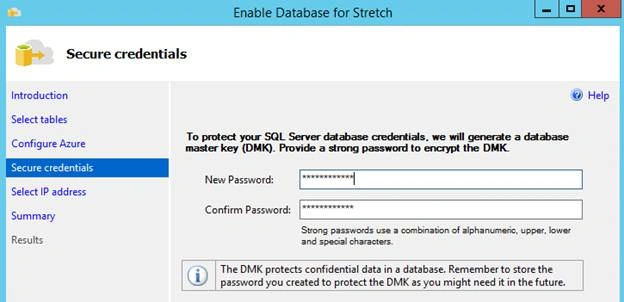
Create a Master Key.
-
The database master key is a symmetric key used to protect the private keys of certificates and asymmetric keys that are present in the database.
-
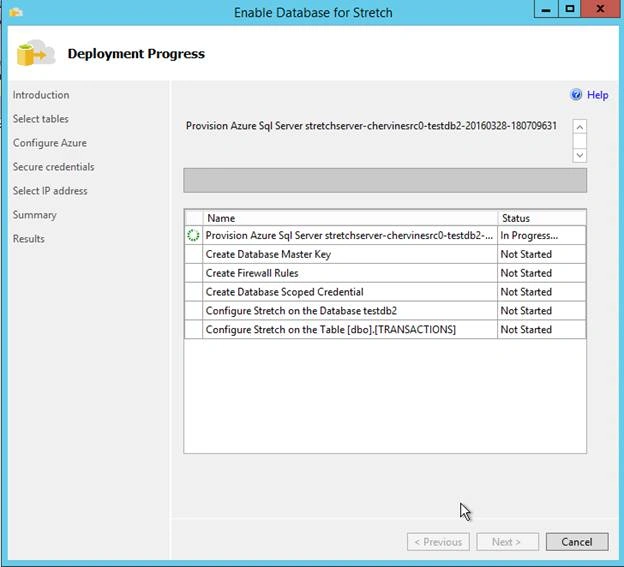
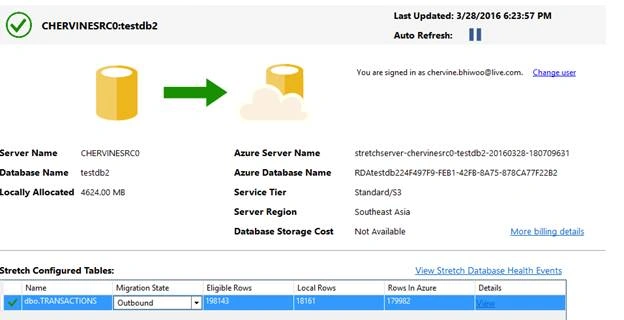
The wizard will then create the server and perform the configurations to stretch the Database and the required tables.


SubashPosted Jul 28, 2016, 4:16 AM
Nice
Rahul Kumar SaxenaPosted Apr 4, 2016, 7:44 AM
Good Show
Vignesh ManiPosted Mar 30, 2016, 5:55 AM
Nice
Rishi JadaunPosted Mar 30, 2016, 3:45 AM
NICE
Jaipal ReddyPosted Mar 30, 2016, 12:27 AM
Nice. .
Debendra DashPosted Mar 29, 2016, 3:14 PM
Nice article.........
Kashif SohailPosted Mar 29, 2016, 1:56 PM
Nice Article, Informative
Mohammed IbrahimPosted Mar 29, 2016, 11:08 AM
nice
Debasis SahaPosted Mar 29, 2016, 10:47 AM
Thanks for the nice article...
Saillesh PawarPosted Mar 29, 2016, 10:45 AM
Nice share
Mahesh ChandPosted Mar 29, 2016, 8:51 AM
Love it. Very well written.