

Switch control is a View control, which provides a toggled value.
Before reading this article, please go through the article How To Create And Use XAML Content Page In Xamarin.Forms Application For Android And Universal Windows Platform.
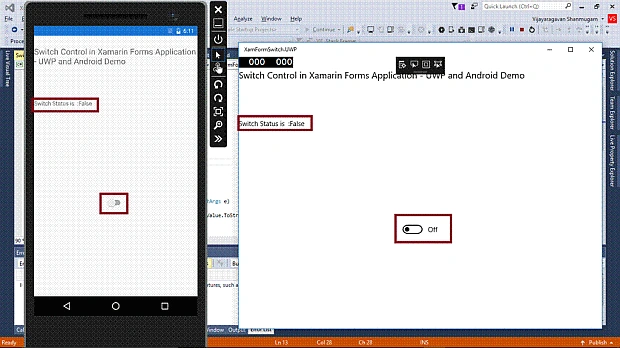
After reading this article, you will know how to add Switch control in Xamarin.Forms Application for Android and Universal Windows Platform with XAML and Visual C# in cross platform application development.
The important tools are given below, which are required to develop UWP.
- Windows 10 (Recommended).
- Visual Studio 2015 Community Edition (It is a free software available online).
- Using Visual Studio 2015 Installer, Enable the Xamarin (cross platform mobile development and C#/.NET, while installing/modifying Visual Studio 2015.
Now, we can discuss step-by-step app development.
Step 1
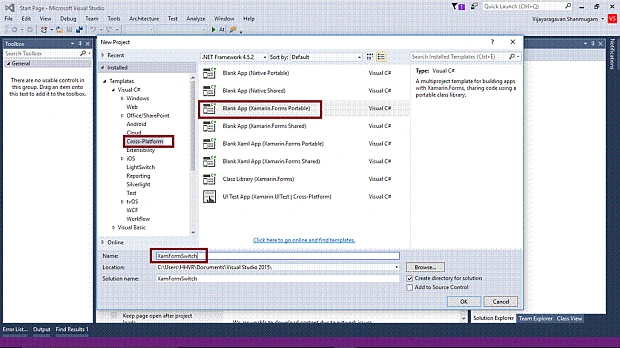
Open Visual Studio 2015 -> Start -> New Project-> Select Cross-Platform (under Visual C#-> Blank app (Xamarin.Forms Portable)-> Give the suitable name for your app (XamFormSwitch) ->OK.
Step 2
Now, create project “XamFormSwitch_Droid”. Choose the Target and minimum platform version for your Universal Windows Project.
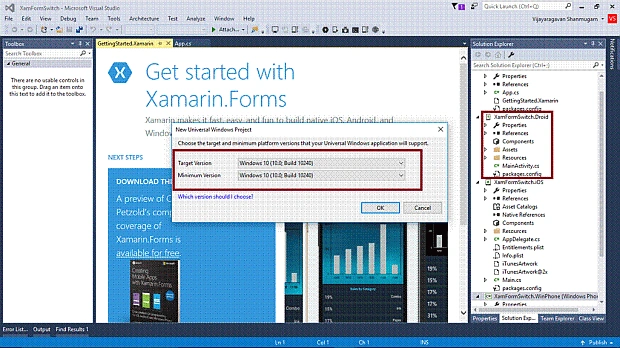
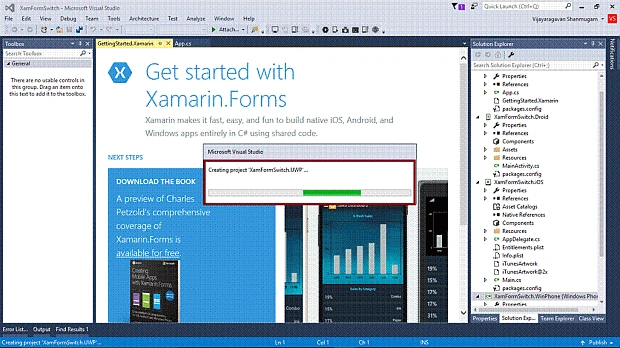
Create project “XamFormSwitch_UWP”.
Step 3
Afterwards, Visual Studio creates 6 projects and displays Getting Started.XamarinPage. Now, we have to update the Xamarin.Forms Reference for Portable Project and XamFormSwitch_Droid project.
(Please refer How To Create And Use XAML Content Page In Xamarin.Forms Application For Android And Universal Windows Platform).
Step 4
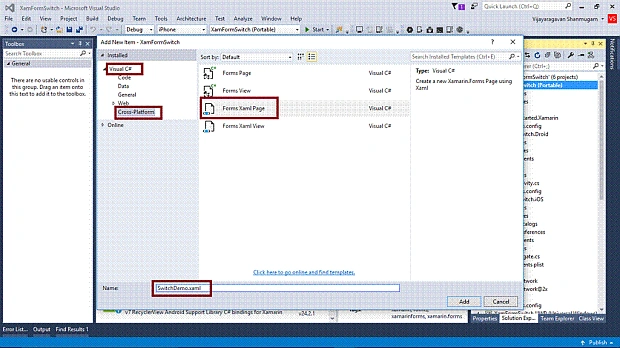
Add XAML page for Switch Control demo. Right click XamFormSwitch (Portable) project. Select ADD-> NewItem.
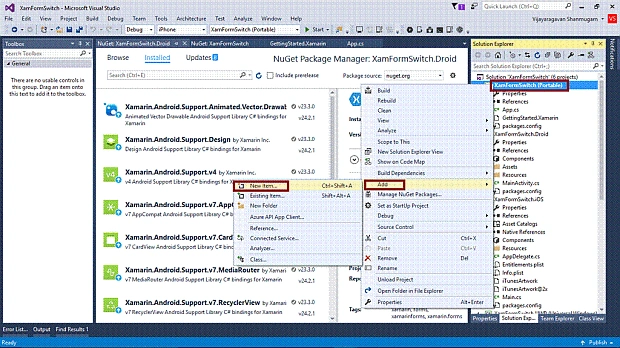
Select ->CrossPlatform-> FormXamlPage-> Give the relevant name.
Step 5
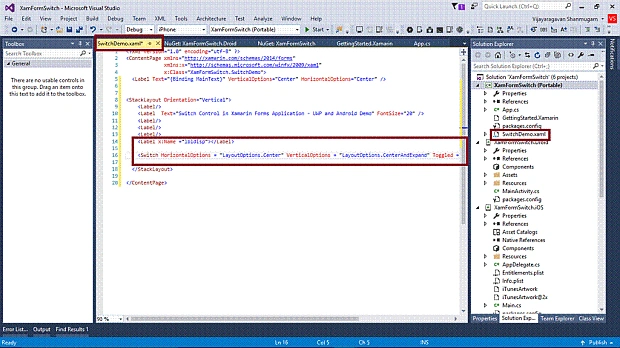
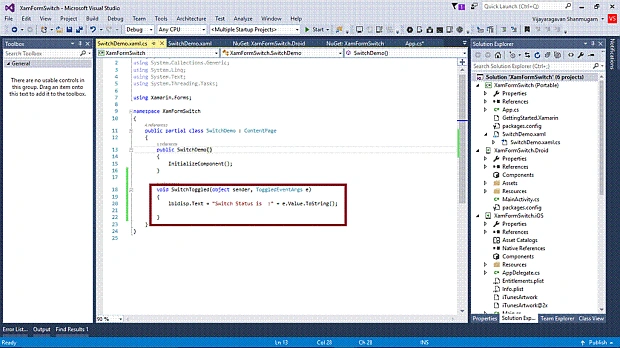
Add Switch tag and labels in SwitchDemo.Xaml.
Join the conversation! Your thoughts help the community grow.