


Introduction
In this tutorial, we will learn how to create a Tabbed Page in Xamarin.Forms using Fresh MVVM. We already learned how to create a master details page in my previous tutorials. If you are new to Fresh MVVM, you can read my previous articles here:
Article on FreshMVVM
- MVVM Databinding in Xamarin.Forms using Fresh MVVM.
- Master Detail Page in Xamarin.Forms using Fresh MVVM.
Coding Part
Steps
I have split this part into 3 steps as in the following.
- Step 1: Creating new Xamarin.Forms Projects.
- Step 2: Setting up the plugin for Xamarin.Forms Application.
- Step 3: Implementing Fresh MVVM.
Step 1
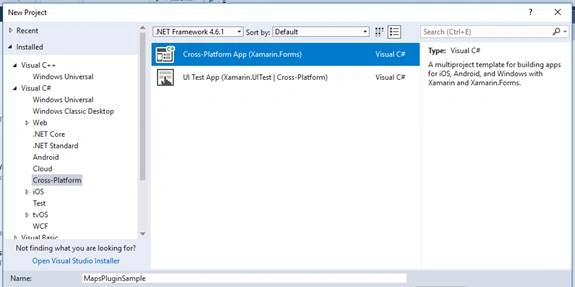
Create a new project by selecting New - Project - Xamarin Cross-Platform App and click "OK".
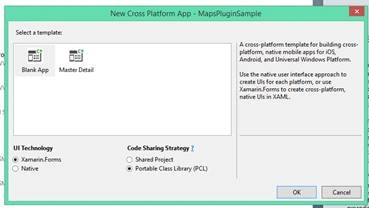
Select Android and iOS Platforms as shown below with Code-Sharing Strategy as PCL or .NET Standard and click "OK".
Step 2
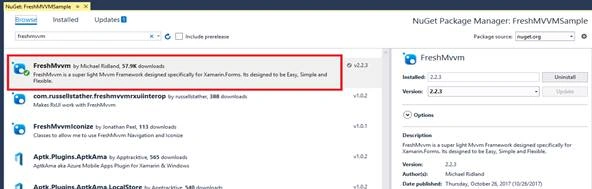
We will start coding for Fresh MVVM. Create a new Xamarin.Forms Project. Open NuGet Package Manager against the solution and do search for Fresh MVVM plugin or paste the following NuGet Installation.
Install-Package FreshMvvm -Version 2.2.3
Click "Install" to install this plugin against your PCL Project or .NET Standard Project.
Step 3
I have created two pages for creating a tabbed navigation as “Detail1Page” and “Detail2Page” with two respective page models “Detail1PageModel” and “Detail2PageModel”. We should follow the same set of rules we followed for our previous articles.
Set MainPage
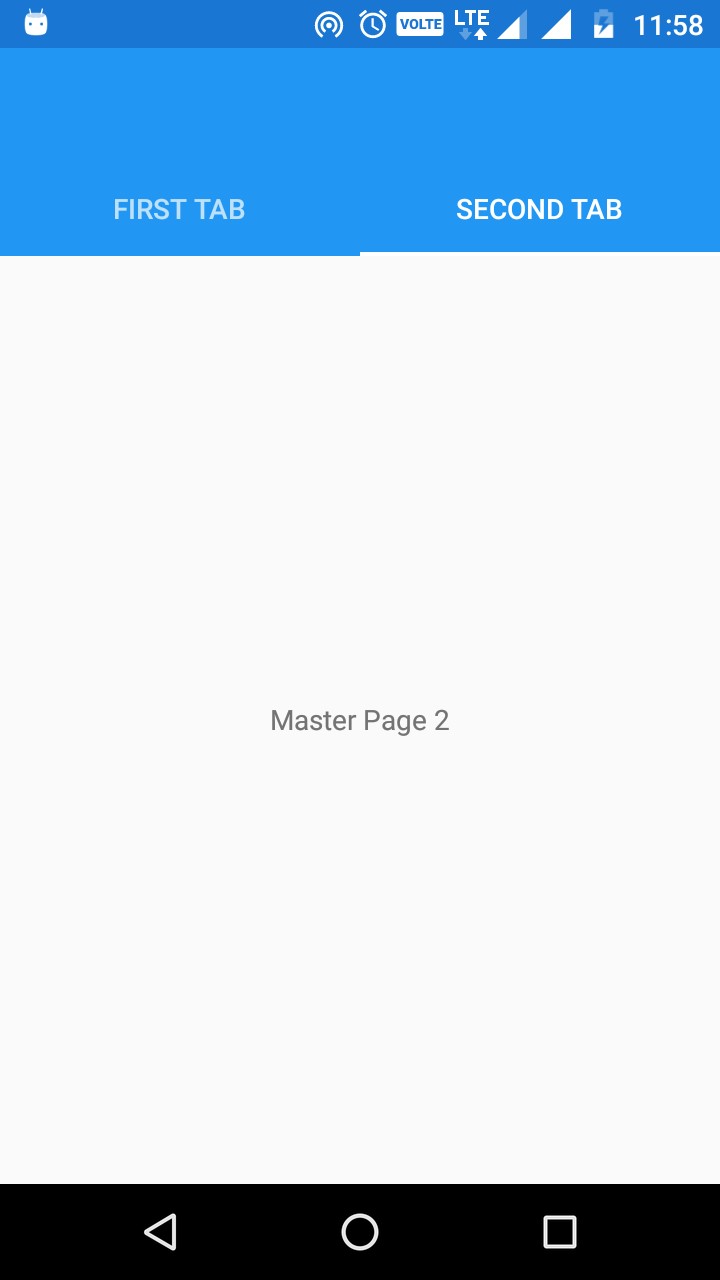
To create a Fresh MVVM Tabbed Page as MainPage, we should use Fresh Tabbed Navigation Container with the following code.
- Open xaml.cs or App.cs and set MainPage.
- var tabbedNavigation = new FreshTabbedNavigationContainer();
- tabbedNavigation.AddTab<Detail1PageModel>("First Tab", null);
- tabbedNavigation.AddTab<Detail2PageModel>("Second Tab", null);
- MainPage = tabbedNavigation;
Neetin NarendraPosted Apr 23, 2019, 5:15 AM
In App.xaml.cs public App() { InitializeComponent(); //MainPage = new MainPage(); var loginPage = FreshPageModelResolver.ResolvePageModel<LoginPageModel>(); var basicNavContainer = new FreshNavigationContainer(loginPage); MainPage = basicNavContainer; } After Login is successful in the LoginPageModel i do this: private void Login() { if (!LoginSuccessful) { DisplayInvalidLoginPrompt(); } else { var tabbedNavigation = new FreshTabbedNavigationContainer(); tabbedNavigation. tabbedNavigation.AddTab<FirstPageModel>("First Tab", null); tabbedNavigation.AddTab<SecondPageModel>("Second Tab", null); App.Current.MainPage = tabbedNavigation; CoreMethods.PushPageModel<QuoteListPageModel>(); } }
Neetin NarendraPosted Apr 23, 2019, 5:13 AM
I achieved it using following way:
Neetin NarendraPosted Apr 23, 2019, 5:07 AM
Hi , i i need a Login Page as the first page. Once login is succesful then i should launch a tabbed page as shown above how can i do this ?