

Introduction
TypeScript is a new language from Microsoft. It is actually an Open Source project hosted on CodePlex. You can refer to many of the other articles on this web site for more about TypeScript.
The TypeScript plugin does not support versions of Visual Studio prior to 2012. Since TypeScript is Open Source it is likely someone will create a plugin for versions of Visual Studio prior to 2012. It is possible however to use TypeScript within Visual Studio, although without most of the features that the plugin provides.
TypeScript files normally have a "ts" file extension. You can edit ts files using Visual Studio, then convert (compile) the TypeScript to JavaScript by executing tsc (the TypeScript "compiler") as a Visual Studio Tool. So let us back up a bit. Whether you use TypeScript or not, you can execute JavaScript that is in a file. You can do that without a web site, without Internet Explorer or any browser and without HTML. With TypeScript, you can use the tsc command to convert (compile) TypeScript to JavaScript. You can also get tsc to execute the JavaScript after it converts (compiles). After the TypeScript is converted to JavaScript, you can then execute the JavaScript directly just as if the original TypeScript does not exist.
The following is the overall procedure:
- Install the TypeScript Visual Studio 2012 Plugin
- Create a Visual Studio "Tool" to execute tsc
- Create a .ts file then compile and execute it
Install the TypeScript Visual Studio 2012 Plugin
Go to the TypeScript web site. Click the button that says "Get TypeScript now". Then click on the link that says "Download the plugin". The plugin installation will also install the tsc command. Note that the "System requirements" only lists editions of Visual Studio 2012, nothing prior to that. You can still install the plugin and when you do get Visual Studio 2012, you can re-run the plugin installation.
Create a Visual Studio "Tool" to execute tsc
Find where the tsc command was installed; it probably will be:
C:\Program Files (x86)\Microsoft SDKs\TypeScript\0.8.0.0
Then in Visual Studio in the "Tools" menu select "External Tools...". The External Tools window will appear; it looks like:
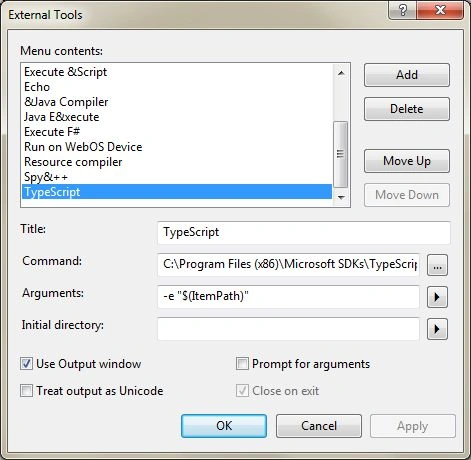
Except for you, the "Menu Contents" box will likely be empty or nearly empty. Click the "Add" button, and then the fields at the bottom will be cleared and a new entry will be created. Enter values as in the preceding image. The following describes the values to use:
- Title
- whatever you want to use
- Command
- the path and the filename for the tsc command
- Argument
- -e "$(ItemPath)"
- Use Output window
- Select it
You can leave everything else as their default values. For Command, the path is explained above; the filename is tsc.exe. In other words, the following is what I have for "Command":
- C:\Program Files (x86)\Microsoft SDKs\TypeScript\0.8.0.0\tsc.exe
Using those arguments, you must have a .ts file open as the active (visible) file in the Visual Studio editor, and when you use the tool, the .ts file will be converted to a .js file and then executed. If the code writes to the console then the output will go to the VS Output window.
Create a .ts file then compile and execute it
Create a .ts file. There are many ways to do that but one way is to use "File" | "New" | "File..." then select "Text File". Then rename that file so as to change the txt extension to ts. Then put the following one line in the .ts file:
- WScript.Echo("Hello");
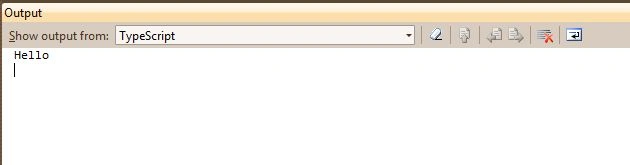
Save the file. Note that when you use a Tool in this manner, VS does not automatically save the file; you must explicitly save the file before using the tool. In the Tools menu, there should be a menu item with the name you provided previously; if you used my suggestion, it is called "TypeScript". Warning: The compiler will replace a file, if it exists already, that is in the same location as the ts file with the same name except the new or replaced file will have a .js extension, so ensure you do not have such a file that you need to preserve. After using the tool with the .ts file visible in VS with the preceding code, you should get the following for the Output window:
You can refer to the other articles on this web site for more sample code.
Hashim ShafiqPosted Aug 21, 2015, 10:16 PM
Nice
Sam HobbseditedPosted Oct 10, 2012, 1:14 AMEdited Oct 15, 2012, 1:37 AM
Thank you, Rick. Note that you can create an extension to this article; any member can create an extension to an article. There are many things such as what you say to add to this. Yes, you can create a keyboard shortcut like that. Something else that can be done, and this is what I am more likely to do, is to create a custom toolbar and put the tool in the toolbar. This tool is a quick and relatively crude way to work with TypeScript. Something else that can be done is to specify a custom build tool, which I have now written an article about. So instead of writing a console application to run the compiler, I hope my other article about using a build tool will help.
Rick LovePosted Oct 10, 2012, 12:56 AM
Thanks for the help getting started! (You are the top search on google for VS 2010 typescript) There is a way to force the installation of the extension in VS 2010: http://stackoverflow.com/a/12699938/567524 This will enable Intellisense, highlighting, (and a little instability). I am compiling using your method. You might add a note about assigning a Keyboard shortcut: Tools > Options >> Environment > Keyboard >> (Search "tools.ext" ) > Tools.ExternalCommand[?] >> Enter Shortcut (I used "TextEditor" ctrl+shift+t) When I have a large amount of .ts files, I will create a simple console app to run the compiler on all the .ts files and another to remove the .ts files for publishing.
Sam HobbsPosted Oct 6, 2012, 7:14 PM
Thank you, Mahesh. This was just a quick article. I am working on others but most articles take time. I am quite disappointed that JavaScript is getting as much support as it gets. I am disappointed that something as good as C# cannot be used as an interpreter like JavaScript is. I suspect that TypeScript is the beginning of a JavaScript version of Silverlight. I am not sure what direction Microsoft will go, but probably something like that. Microsoft probably understands something now that they should have figured out many years ago. As for hobbies, there are many more other projects that are more my style. I still intend to make a little detour for this site.
Mahesh ChandPosted Oct 6, 2012, 6:52 PM
Nice going Sam. Looks like you found a new hobby. Looks like Microsoft is up to something with first supporting HTML 5, JavaScript and now TypeScript.