

Here are the steps,
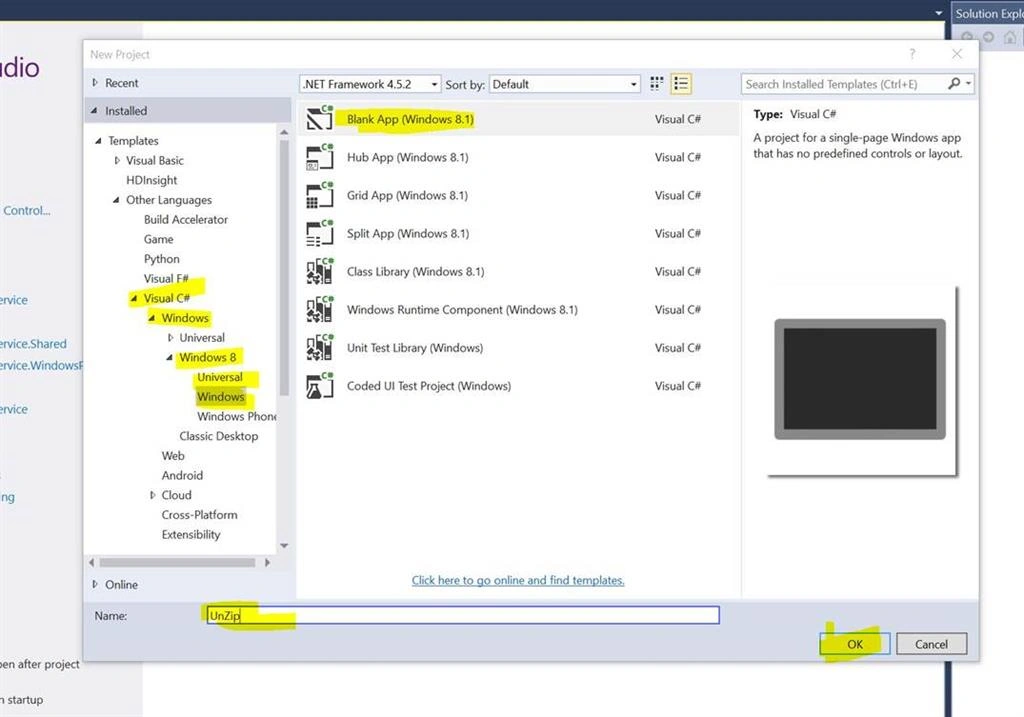
Step 1 - Create a simple Windows Project. Click New Project, Visual C#, Windows 8, Windows, then select Blank App (Windows 8.1).
Here you can go through my previous article: Zip Folder and Its Content in Windows Runtime Apps.
Step 2 - Let us add a button in MainPage.xaml :
Here you can go through my previous article: Zip Folder and Its Content in Windows Runtime Apps.
Step 2 - Let us add a button in MainPage.xaml :
- A button with the Click event.
Complete MainPage.xaml:
- <Page
- x:Class="UnZip.MainPage"
- xmlns="http://schemas.microsoft.com/winfx/2006/xaml/presentation"
- xmlns:x="http://schemas.microsoft.com/winfx/2006/xaml"
- xmlns:local="using:UnZip"
- xmlns:d="http://schemas.microsoft.com/expression/blend/2008"
- xmlns:mc="http://schemas.openxmlformats.org/markup-compatibility/2006"
- mc:Ignorable="d">
- <Grid Background="#FF2077D4">
- <Button x:Name="btn_Unzip" Content="Unzip" HorizontalAlignment="Left" Margin="351,270,0,0" VerticalAlignment="Top" Height="83" Width="313" Click="btn_Unzip_Click"/>
- </Grid>
- </Page>
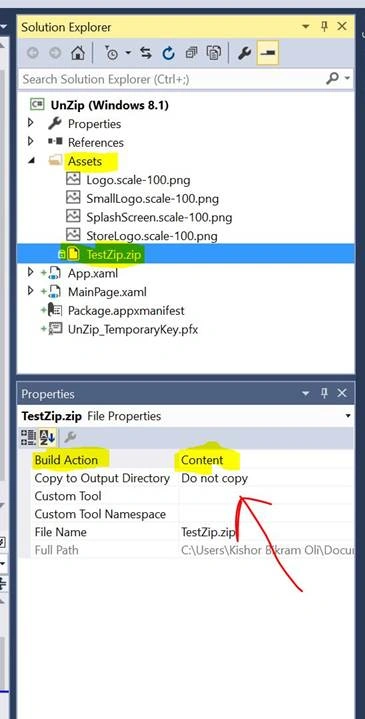
Note: Make sure the Build Action is set to Content in the Properties of your zip file.
Step 4 - In the code behind: MainPage.xaml.cs,
Update your code with this:
- using System;
- using System.Collections.Generic;
- using System.IO;
- using System.IO.Compression;
- using System.Linq;
- using System.Runtime.InteropServices.WindowsRuntime;
- using Windows.ApplicationModel;
- using Windows.Foundation;
- using Windows.Foundation.Collections;
- using Windows.Storage;
- using Windows.UI.Xaml;
- using Windows.UI.Xaml.Controls;
- using Windows.UI.Xaml.Controls.Primitives;
- using Windows.UI.Xaml.Data;
- using Windows.UI.Xaml.Input;
- using Windows.UI.Xaml.Media;
- using Windows.UI.Xaml.Navigation;
- namespace UnZip
- {
- public sealed partial class MainPage : Page
- {
- public MainPage()
- {
- this.InitializeComponent();
- }
- private async void btn_Unzip_Click(object sender, RoutedEventArgs e)
- {
- try
- {
- StorageFolder appFolder = ApplicationData.Current.LocalFolder;
- var zipFile = await Package.Current.InstalledLocation.GetFileAsync("Assets\\TestZip.zip");
- using (var zipFileStream = await zipFile.OpenStreamForReadAsync())
- {
- using (MemoryStream memoryStream = new MemoryStream((int)zipFileStream.Length))
- {
- await zipFileStream.CopyToAsync(memoryStream);
- using (var zipArchive = new ZipArchive(memoryStream, ZipArchiveMode.Read))
- {
- foreach (ZipArchiveEntry zipArchiveEntry in zipArchive.Entries)
- {
- string[] arrayFolder = zipArchiveEntry.FullName.Split(new string[] { "/" }, StringSplitOptions.None);
- string folderName = string.Empty;
- for (int i = 0; i < arrayFolder.Length - 1; i++)
- {
- folderName += "\\" + arrayFolder[i];
- }
- if (zipArchiveEntry.Name != "")
- {
- using (Stream fileData = zipArchiveEntry.Open())
- {
- StorageFile outputFile = await appFolder.CreateFileAsync(folderName + "\\" + zipArchiveEntry.Name, CreationCollisionOption.ReplaceExisting);
- using (Stream outputFileStream = await outputFile.OpenStreamForWriteAsync())
- {
- await fileData.CopyToAsync(outputFileStream);
- await outputFileStream.FlushAsync();
- }
- }
- }
- else
- {
- await appFolder.CreateFolderAsync(folderName, CreationCollisionOption.ReplaceExisting);
- }
- }
- }
- }
- }
- }
- catch (Exception ex)
- {
- }
- }
- }
- }

That’s it.
You can also get the complete project from GitHub.
Sr KarthigaPosted May 6, 2016, 3:48 AM
good one
Kuppurasu NagarajPosted May 5, 2016, 1:29 PM
Nice Sharing..
Debasis SahaPosted May 5, 2016, 9:42 AM
Good one..
NitinPosted May 5, 2016, 3:12 AM
Good one