

INTRODUCTION
In this article, I am going to explain how to use a LinkLabel on a Windows.Forms app using Visual Studio 2017.
STEP 1 - Start the Project
Let's create a new project using Visual Studio 2017.
In this article, I am going to explain how to use a LinkLabel on a Windows.Forms app using Visual Studio 2017.
STEP 1 - Start the Project
Let's create a new project using Visual Studio 2017.
Select New Project--->Visual C#-->Windows Forms App (.NET Framework), give your project a name and click OK.
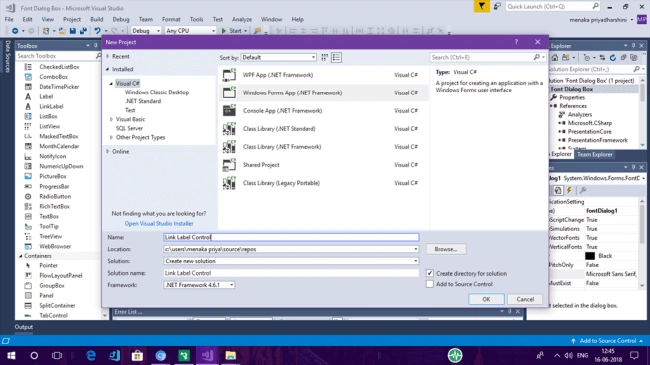
This action creates a WinForms project with a default form and you should see the Windows Designer.
STEP 2 - Drag and Drop Control
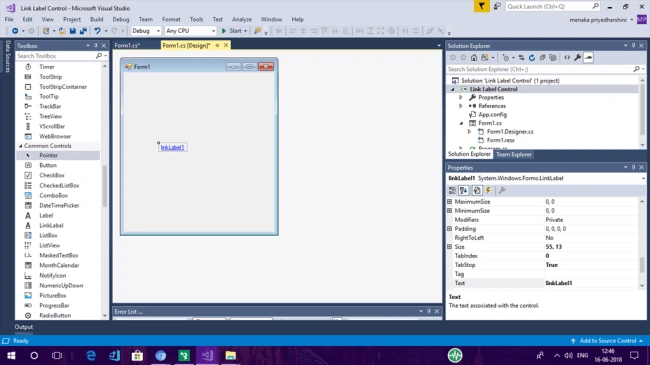
Let's add a LinkLabel control to the form by dragging it from Toolbox and dropping it to the form. You will see that a LinkLabel 1 is added to the form. This control is now available to you in the code behind.
LinkLabel Control
Hyperlinks are sometimes useful in Windows Forms programs. LinkLabel control provides hyperlinks similar to those on Web Pages. This control has some complexities and must be initialized in C# code.
LinkData
The LinkData reference is of an object type. You can store anything there and use it through casting. You can simply store a string in the location and on the Link click, you can access the Link Data from the Parameter "e" and cast it.
Text Property
Text property on the LinkLabel determines what text will be shown when the LinkLabel is displayed on a form. This is a property that you will want to set every time you add new LinkLabel.
Multiple links
Multiple links can be used in the same LinkLabel. This is useful if you want to have a LinkLabel with two clickable links. To do this, add two Link objects to the LinkLabel in the Load Event.
Link Colors
You can adjust the active, default, and visited link colors in Windows.Forms. Also, you can set the disabled color. The active color is the one shown when the user is actively clicking on a link.
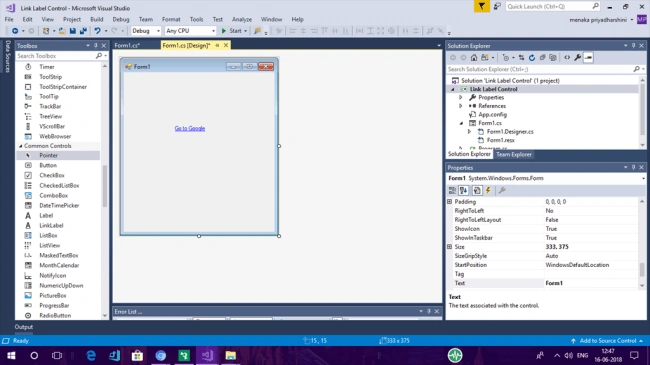
Change the text of LinkLabel control to what you like.
STEP 3 - Coding
Follow the coding given below.
- private void linkLabel1_LinkClicked(object sender, LinkLabelLinkClickedEventArgs e)
- {
- System.Diagnostics.Process.Start("IExplore", "http://www.google.com");
- }
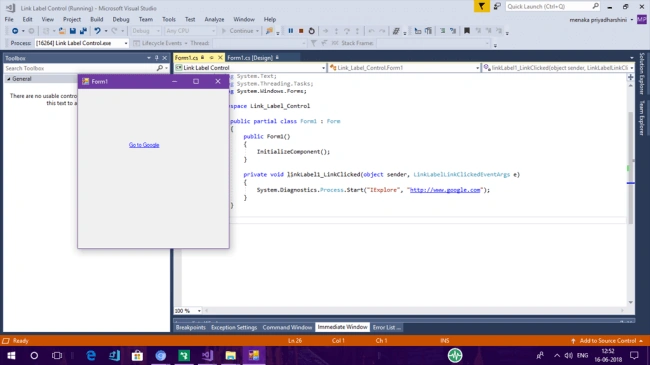
Now, simply compile and run the aplication.
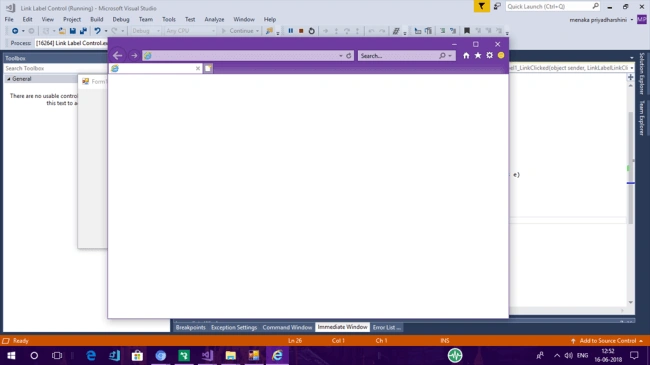
Once you click the LinkLabel, it will directly open the Google link.
Summary
In this basic article, you saw how to use a LinkLabel control. Hope you found this article interesting. For any feedback, please post it as a comment at the bottom of this article. Thank you!.
Summary
In this basic article, you saw how to use a LinkLabel control. Hope you found this article interesting. For any feedback, please post it as a comment at the bottom of this article. Thank you!.
Join the conversation! Your thoughts help the community grow.