

Scope
The following article demonstrates use of Microsoft Azure DocumentDB in an ASP.NET MVC Application.Introduction
Azure DocumentDB is a NoSQL storage service which stores JSON documents natively and provides indexing capabilities along with other interesting features.
The following are some of the key terms used in this article:
Collection
A collection is a named logical container for documents.
A database may contain zero or more named collections and each collection consists of zero or more JSON documents.
Being schema-free, the documents in a collection do not need to share the same structure or fields.
Since collections are application resources, they can be authorized using either the master key or resource keys.
DocumentClient
The DocumentClient provides a client-side logical representation of the Azure DocumentDB service. This client is used to configure and execute requests against the service.
Creating a DocumentDB Account
Please refer to this article to create and setup a DocumentDB Account on Microsoft Azure.
Getting Started
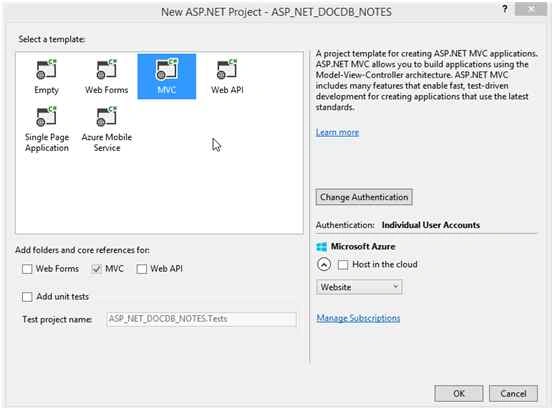
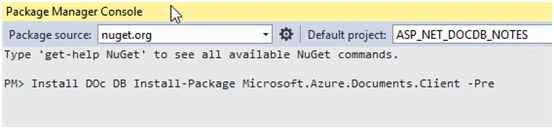
To get started, create a new ASP.NET MVC project in Visual Studio and add the DocumentDB NuGet package by going to Tools NuGet Package Manager > package Manager Console and key in the following:
Install-Package Microsoft.Azure.Documents.Client -Pre
The Web.Config File
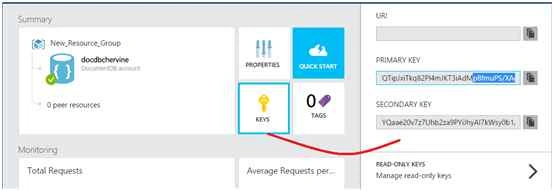
Retrieve the endpoint(URI) and the authKey (Primary/Secondary key) from your DocumentDb Account and add them in the Web Config file.
The keys database and collection represents the name of the database and collections that shall be used in your applications respectively.
- <add key="endpoint" value="xxx" />
- <add key="authKey" value="xxx" />
- <add key="database" value="NotesCb" />
- <add key="collection" value="NotesCOllectionCb" /> sCOllectionCb"
This is where all the codes that shall be used to communicate with Azure DocumentDB shall be found.
- Retrieve the DatabaseId and CollectionId from the Web.Config file
- /// <summary>
- /// Retrieve the Database ID to use from the Web Config
- /// </summary>
- private static string databaseId;
- private static String DatabaseId
- {
- get
- {
- if (string.IsNullOrEmpty(databaseId))
- {
- databaseId = ConfigurationManager.AppSettings["database"];
- }
- return databaseId;
- }
- }
- /// <summary>
- /// Retrieves the Collection to use from Web Config
- /// </summary>
- private static string collectionId;
- private static String CollectionId
- {
- get
- {
- if (string.IsNullOrEmpty(collectionId))
- {
- collectionId = ConfigurationManager.AppSettings["collection"];
- }
- return collectionId;
- }
- }
- Retrieve the DocumentClient
The document Client provides a client-side logical representation of the Azure DocumentDB service.
This client is used to configure and execute requests against the service.- private static DocumentClient client;
- private static DocumentClient Client
- {
- get
- {
- if (client == null)
- {
- string endpoint = ConfigurationManager.AppSettings["endpoint"];
- string authKey = ConfigurationManager.AppSettings["authKey"];
- Uri endpointUri = new Uri(endpoint);
- client = new DocumentClient(endpointUri, authKey);
- }
- return client;
- }
- }
- Get the database that shall be used
If no database is found, the method ReadOrCreateDatabase() is called, to verify if the database exist and creates if it does not exist.- private static Database database;
- private static Database Database
- {
- get
- {
- if (database == null)
- {
- database = ReadOrCreateDatabase();
- }
- return database;
- }
- }
- private static Database ReadOrCreateDatabase()
- {
- var db = Client.CreateDatabaseQuery()
- .Where(d => d.Id == DatabaseId)
- .AsEnumerable()
- .FirstOrDefault();
- if (db == null)
- {
- db = Client.CreateDatabaseAsync(new Database { Id = DatabaseId }).Result;
- }
- return db;
- }
- Get the DoucmentCollection which will be used
A collection is a named logical container for documents.
A database may contain zero or more named collections and each collection consists of zero or more JSON documents.
If the required collection is not found, the method ReadOrCreateCollection is called that creates it.- private static DocumentCollection collection;
- private static DocumentCollection Collection
- {
- get
- {
- if (collection == null)
- {
- collection = ReadOrCreateCollection(Database.SelfLink);
- }
- return collection;
- }
- }
- private static DocumentCollection ReadOrCreateCollection(string databaseLink)
- {
- var col = Client.CreateDocumentCollectionQuery(databaseLink)
- .Where(c => c.Id == CollectionId)
- .AsEnumerable()
- .FirstOrDefault();
- if (col == null)
- {
- col = Client.CreateDocumentCollectionAsync(databaseLink, new DocumentCollection { Id = CollectionId }).Result;
- }
- return col;
- }

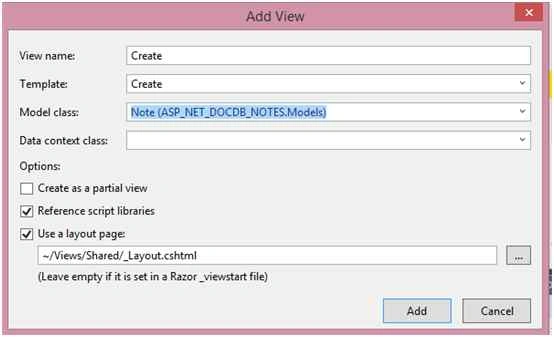
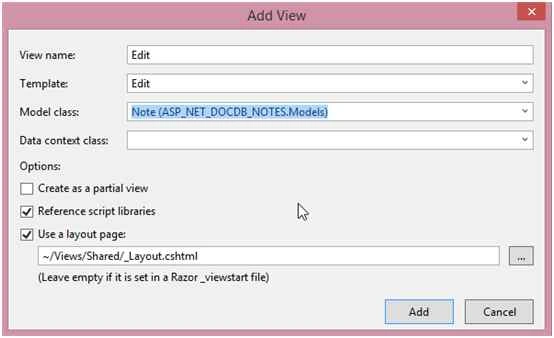
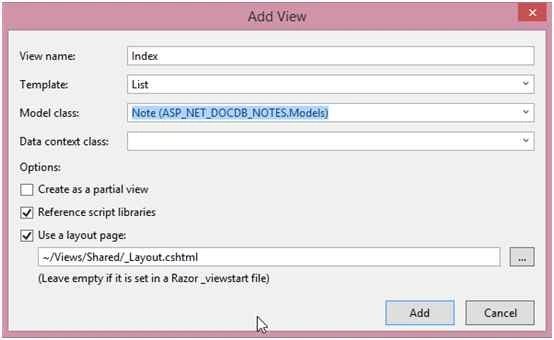
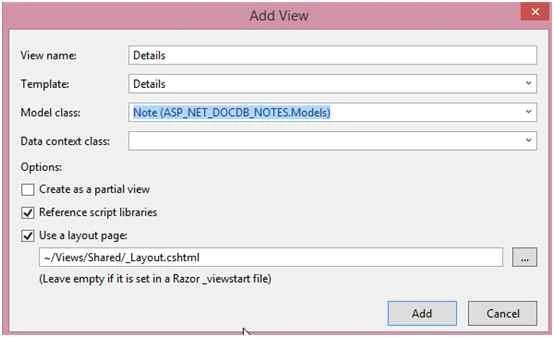
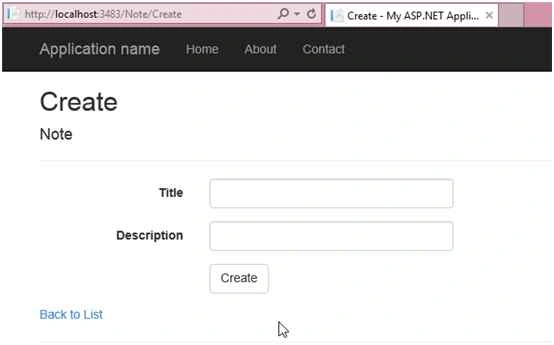
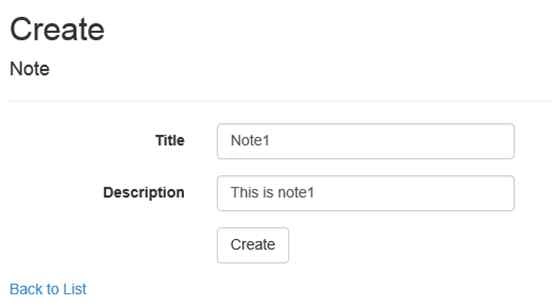
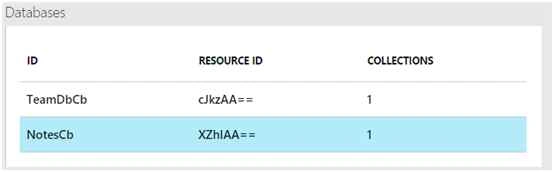

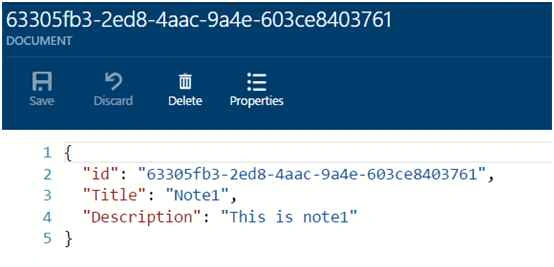
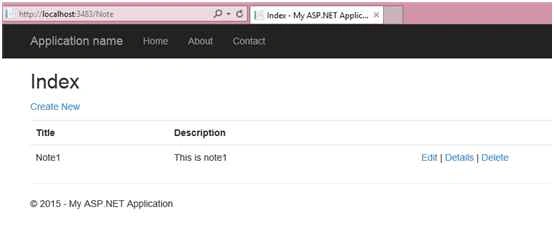
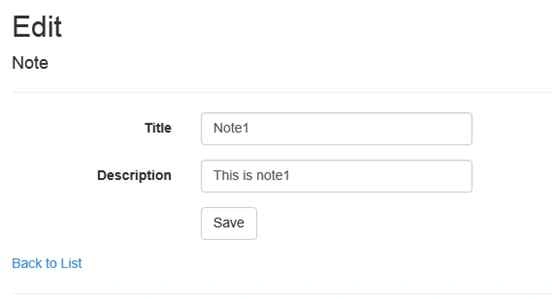
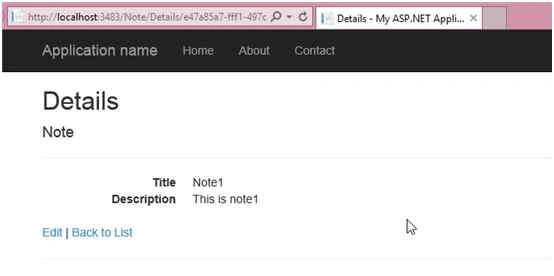
Sr KarthigaPosted Mar 29, 2016, 8:55 AM
good one
Sr KarthigaPosted Mar 29, 2016, 8:55 AM
nice explanation
Karthikeyan KPosted Sep 20, 2015, 1:35 AM
Good one sir...Thanks for sharing us
Santhakumar MunuswamyPosted Sep 17, 2015, 10:28 AM
Thanks for nice article:)
Sibeesh VenuPosted Sep 17, 2015, 6:26 AM
Nice Share
Ankit BansalPosted Sep 17, 2015, 4:34 AM
thanks for share..
Pankaj Kumar ChoudharyPosted Sep 16, 2015, 10:18 PM
Nice Explain Sir.......
Mohammed IbrahimPosted Sep 16, 2015, 2:28 PM
nice
RakeshPosted Sep 16, 2015, 11:09 AM
Good explain sir
Ratnesh SinghPosted Sep 16, 2015, 8:13 AM
nice..........
Sibeesh VenuPosted Sep 16, 2015, 4:07 AM
Nice Share
Rajeesh MenothPosted Sep 16, 2015, 1:11 AM
Good One..
Harshad PansuriyaPosted Sep 16, 2015, 12:02 AM
Nice one
Karthikeyan KPosted Sep 15, 2015, 11:16 PM
Good one sir...Thanks for sharing