

Before reading this article, please go through the articles given below.
- Introduction To Universal Windows Platform (UWP) App Development Using Windows 10 And Visual Studio 2015
- Getting Started With Microsoft Azure Cognitive Services - Text Analytics API
Microsoft Cognitive Services (formerly Project Oxford) is a set of APIs, SDKs and Services available to developers to make their applications more intelligent, engaging and discoverable. Microsoft Cognitive Services expands on Microsoft’s evolving portfolio of machine learning APIs and enables the developers to easily add intelligent features. Microsoft Cognitive Services allows you to build apps with powerful algorithms, using a few lines of code. They work across the devices and platforms such as iOS, Android and Windows, which keep improving and are easy to set up.
Text Analytics API, as described by Microsoft, is designed to detect the sentiment, key phrases, topics and language from your text.
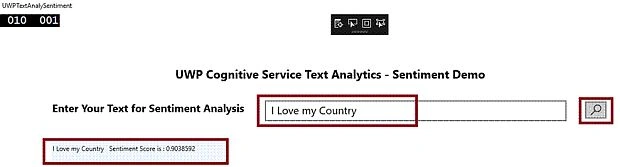
Sentiment - API returns a numeric score between 0 and 1. Scores close to 1 indicate positive sentiment, while scores close to 0 indicate negative sentiment. Sentiment score is generated, using classification techniques. The input features to the classifier include n-grams, features generated from part-of-speech tags and word embeddings. Currently, the following languages are supported: English, Spanish, French, and Portuguese.
After reading this article, you will learn how to do sentiment analysis, using Cognitive Service Text Analytics in Universal Windows apps development with Azure, XAML and Visual C#.
The following important tools are required to develop UWP and are as follows.
- Windows 10 (Recommended).
- Visual Studio 2015 Community Edition (It is a free software available online).
- Cognitive Service Text Analytics API Key, using Azure (Getting Started With Microsoft Azure Cognitive Services - Text Analytics API)
Now, we can discuss step by step app development.
Step 1
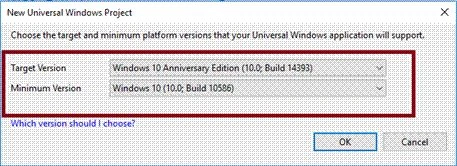
Open Visual Studio 2015 -> Start -> New Project-> Select Universal (under Visual C#->Windows)-> Blank app -> Give the suitable name for your app (UWPTextAnalySentiment)->OK.

After choosing the Target and minimum platform version your Windows Universal Application will support, the project creates App.xaml and MainPage.xaml.
Step 2
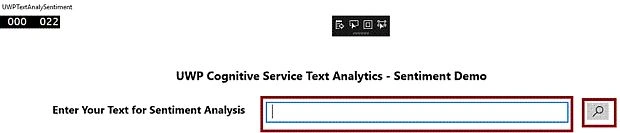
Add a TextBlock control, change the Name and text property for Title.

Add a TextBlock control, change the Name and Text property for caption.
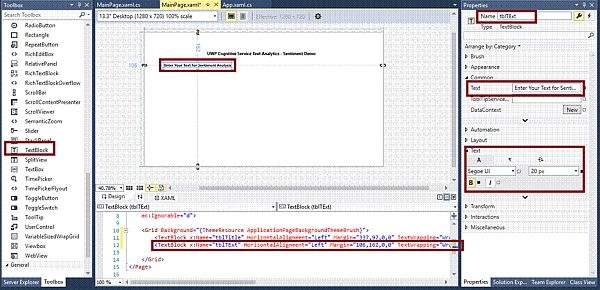
Add a TextBox control, change the Name and clear the Text property to get the input text.

Add a Button control, set the Name and add the Edit icon for sentiment analysis.

Step 3
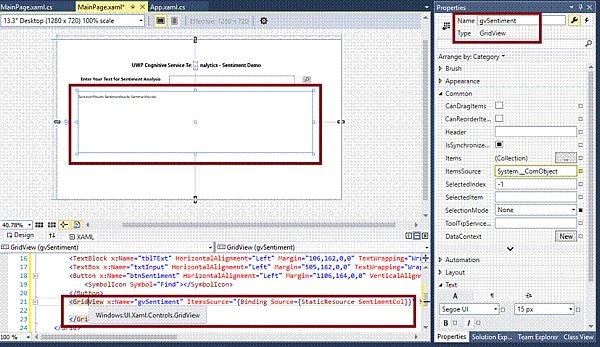
Add GridView Resources, using the code, mentioned below.
- <Grid.Resources>
- <CollectionViewSource x:Name="SentimentCol" Source="{x:Bind SentimentResults}" IsSourceGrouped="False" /> </Grid.Resources>
- <GridView x:Name="gvSentiment" ItemsSource="{Binding Source={StaticResource SentimentCol}}" SelectionMode="None" IsItemClickEnabled="False" HorizontalAlignment="Left" Height="276" Margin="96,233,0,0" VerticalAlignment="Top" Width="1054">
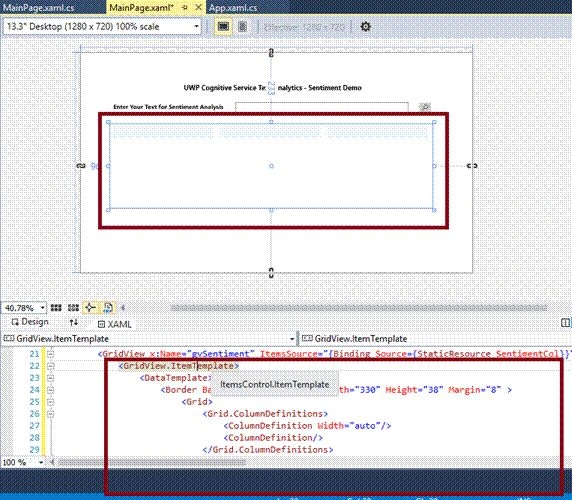
Add the code, mentioned below for Grid View Item Template for Phrase list.
- <GridView.ItemTemplate>
- <DataTemplate>
- <Border Background="AliceBlue" Width="330" Height="38" Margin="8">
- <Grid>
- <Grid.ColumnDefinitions>
- <ColumnDefinition Width="auto" />
- <ColumnDefinition/> </Grid.ColumnDefinitions>
- <Grid Grid.Column="1" Margin="3,3,3,10">
- <Grid.RowDefinitions>
- <RowDefinition Height="auto" /> </Grid.RowDefinitions>
- <StackPanel Margin="0,0,0,-143">
- <TextBlock TextWrapping="Wrap" Text="{Binding stco.Scores}" Style="{StaticResource CaptionTextBlockStyle}" Height="28" /> </StackPanel>
- </Grid>
- </Grid>
- </Border>
- </DataTemplate>
- </GridView.ItemTemplate>
Step 4
Add the Click event method for Analyze button.
Step 5
Open (double click) the file MainPage.xaml in Solution Explorer and add Newtonsoft.Json reference in the project. Right click your project (UWPTextAnalySentiment) and select Manage NuGet Packages.

To add Newtonsoft.Json Reference, choose Browse and search Newtonsoft.Json, select the package and install it.
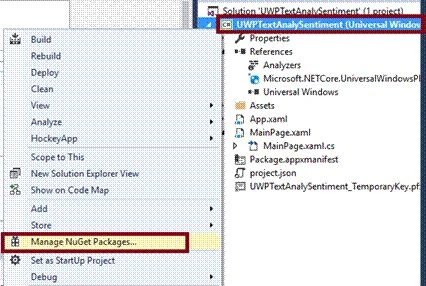
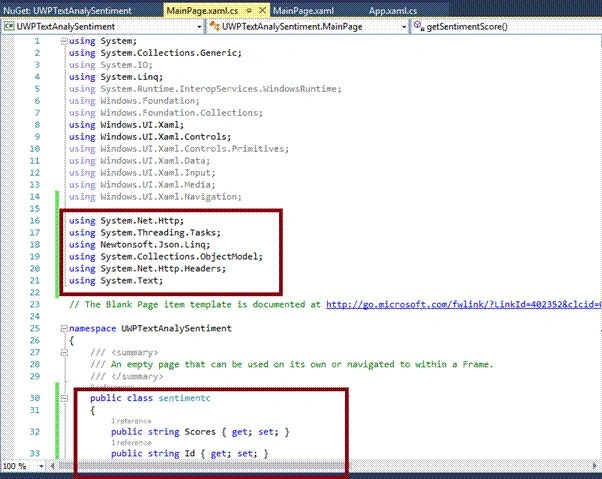
Reference is added to your project.

Note
Automatically, the code mentioned below will be generated in XAML code view, while we are done in the design view.
- <Page x:Class="UWPTextAnalySentiment.MainPage" xmlns="http://schemas.microsoft.com/winfx/2006/xaml/presentation" xmlns:x="http://schemas.microsoft.com/winfx/2006/xaml" xmlns:local="using:UWPTextAnalySentiment" xmlns:d="http://schemas.microsoft.com/expression/blend/2008" xmlns:mc="http://schemas.openxmlformats.org/markup-compatibility/2006" mc:Ignorable="d">
- <Grid Background="{ThemeResource ApplicationPageBackgroundThemeBrush}">
- <Grid.Resources>
- <CollectionViewSource x:Name="SentimentCol" Source="{x:Bind SentimentResults}" IsSourceGrouped="False" /> </Grid.Resources>
- <TextBlock x:Name="tblTitle" HorizontalAlignment="Left" Margin="337,97,0,0" TextWrapping="Wrap" Text="UWP Cognitive Service Text Analytics - Sentiment Demo" VerticalAlignment="Top" FontWeight="Bold" FontSize="22" />
- <TextBlock x:Name="tblTExt" HorizontalAlignment="Left" Margin="106,162,0,0" TextWrapping="Wrap" Text="Enter Your Text for Sentiment Analysis" VerticalAlignment="Top" FontSize="20" FontWeight="Bold" />
- <TextBox x:Name="txtInput" HorizontalAlignment="Left" Margin="505,162,0,0" TextWrapping="Wrap" Text="" VerticalAlignment="Top" Width="566" FontSize="20" />
- <Button x:Name="btnSentiment" HorizontalAlignment="Left" Margin="1106,164,0,0" VerticalAlignment="Top" RenderTransformOrigin="3.6,0.312" ToolTipService.ToolTip="Click to Key Phrase" Click="btnSentiment_Click">
- <SymbolIcon Symbol="Find"></SymbolIcon>
- </Button>
- <GridView x:Name="gvSentiment" ItemsSource="{Binding Source={StaticResource SentimentCol}}" SelectionMode="None" IsItemClickEnabled="False" HorizontalAlignment="Left" Height="276" Margin="96,233,0,0" VerticalAlignment="Top" Width="1054">
- <GridView.ItemTemplate>
- <DataTemplate>
- <Border Background="AliceBlue" Width="330" Height="38" Margin="8">
- <Grid>
- <Grid.ColumnDefinitions>
- <ColumnDefinition Width="auto" />
- <ColumnDefinition/> </Grid.ColumnDefinitions>
- <Grid Grid.Column="1" Margin="3,3,3,10">
- <Grid.RowDefinitions>
- <RowDefinition Height="auto" /> </Grid.RowDefinitions>
- <StackPanel Margin="0,0,0,-143">
- <TextBlock TextWrapping="Wrap" Text="{Binding stco.Scores}" Style="{StaticResource CaptionTextBlockStyle}" Height="28" /> </StackPanel>
- </Grid>
- </Grid>
- </Border>
- </DataTemplate>
- </GridView.ItemTemplate>
- </GridView>
- </Grid>
- </Page>

Join the conversation! Your thoughts help the community grow.