

INTRODUCTION
In this article, I am going to explain how to work with panel control in Windows Forms using Visual Studio 2017. Panel creates a group of Controls. This Control provides a simple frame for putting sub-controls inside. These sub-Controls include Buttons and Textboxes. It furthur provides an optional border and ways to change its visibility.
Sub Controls in Panel
The entire point of the panel is to provide a visual and logical grouping for controls. To add some controls to the panel, drag them to the inner part of the panel in Visual Studio
STEP 1 - Start the Project
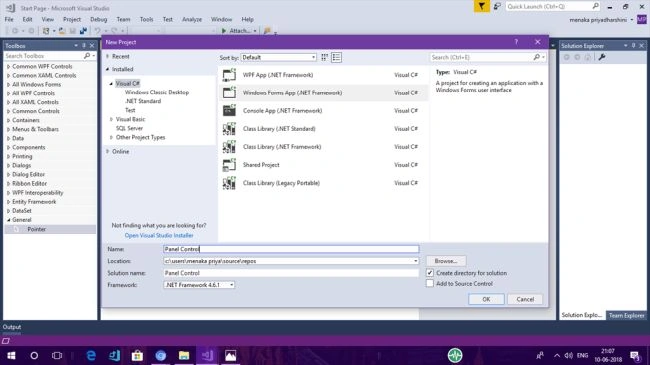
Let's start the Project. Open Visual Studio 2017--->Start new Project--->Windows.Forms Application-->Name it as Panel Control
In this article, I am going to explain how to work with panel control in Windows Forms using Visual Studio 2017. Panel creates a group of Controls. This Control provides a simple frame for putting sub-controls inside. These sub-Controls include Buttons and Textboxes. It furthur provides an optional border and ways to change its visibility.
Sub Controls in Panel
The entire point of the panel is to provide a visual and logical grouping for controls. To add some controls to the panel, drag them to the inner part of the panel in Visual Studio
STEP 1 - Start the Project
Let's start the Project. Open Visual Studio 2017--->Start new Project--->Windows.Forms Application-->Name it as Panel Control
STEP 2 - Drag and Drop Controls
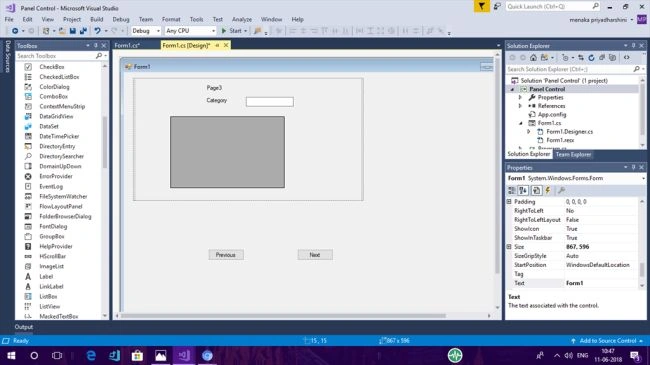
By Default Form Designer Page will be loaded and in the Designer page, You need to create three pages with the Panel Control.
By Default Form Designer Page will be loaded and in the Designer page, You need to create three pages with the Panel Control.
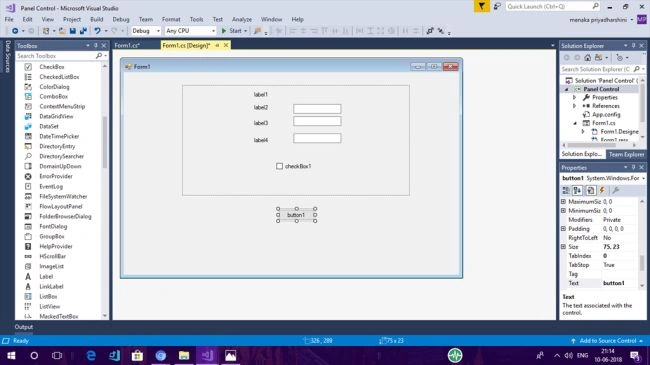
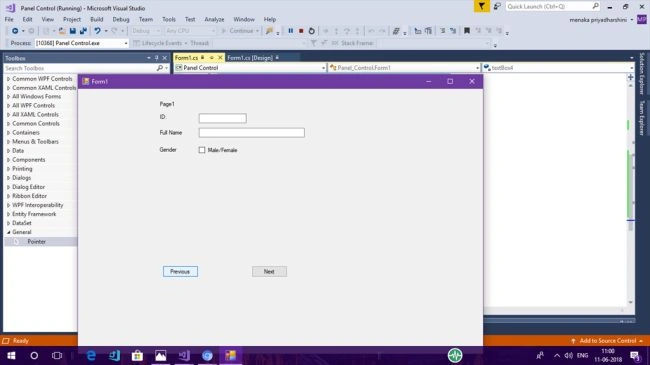
Page1:
In the form drag and drop Panel control from the toolbox onto the form in Visual Studio 2017. Inside the Panel Control, drag and drop other sub controls like Label ,TextBox, and Checkbox. Change the text of the controls as given below in the screenshot.
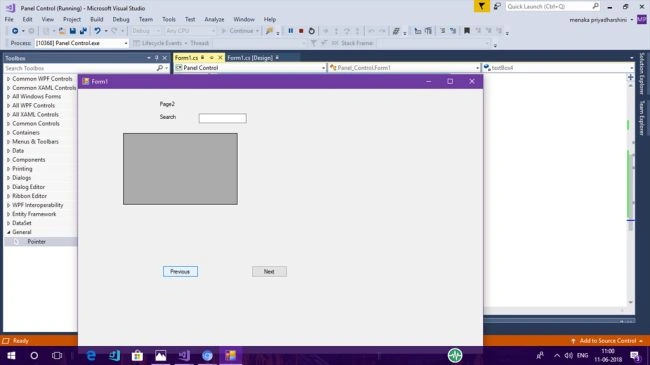
Page 2
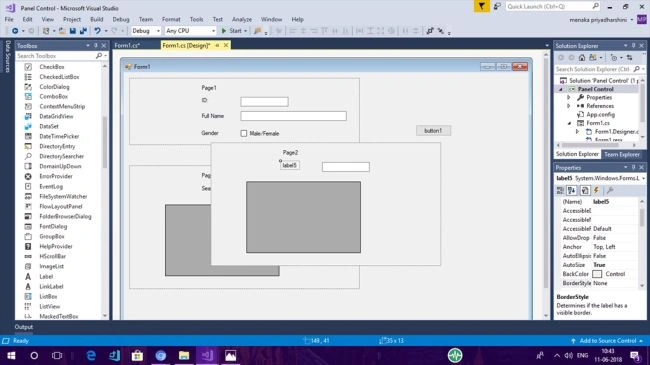
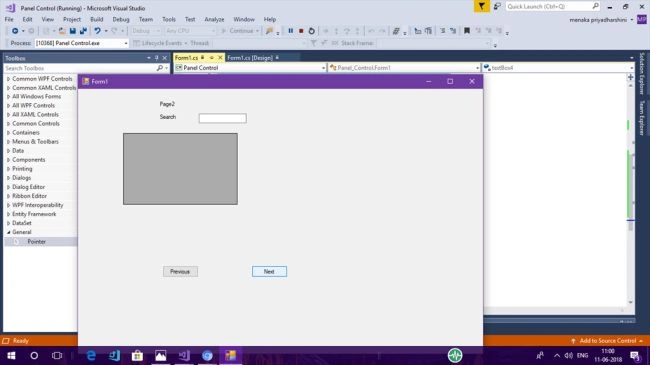
In the form, drag and drop panel control from toolbox onto the form in Visual Studio 2017. Insidde the Panel Control drag and drop other sub controls like Label,TextBox and PictureBox. Change the text of the controls as given below in the screenshot.
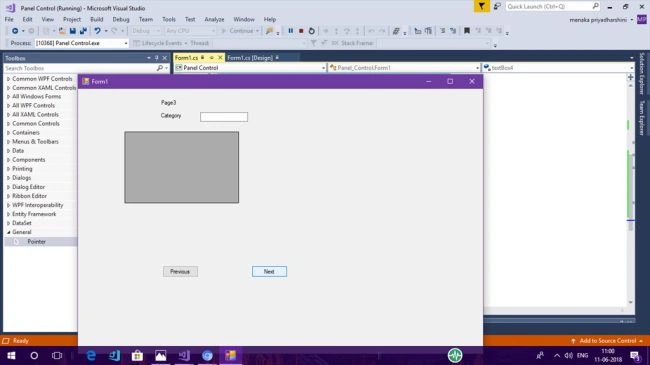
Page 3
In the form drag and drop panel control from the toolbox onto the form in Visual Studio 2017. Inside the Panel Control drag and drop other sub controls like Label,TextBox and Picture Box. Change the text of the controls as given below in the screenshot.
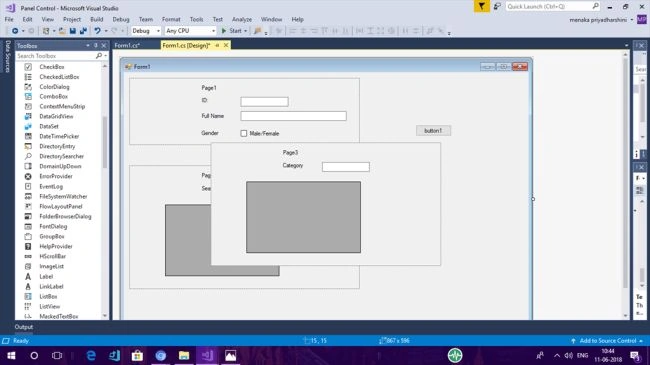
Drag and drop button control onto the form from toolbox in Visual Studio 2017 and change the text of the button as previous and next.
STEP 3 - Coding
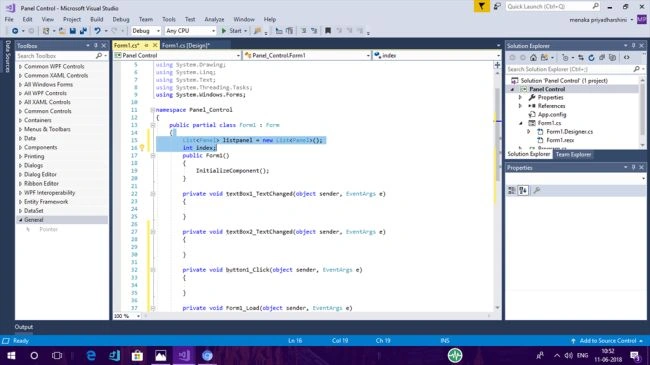
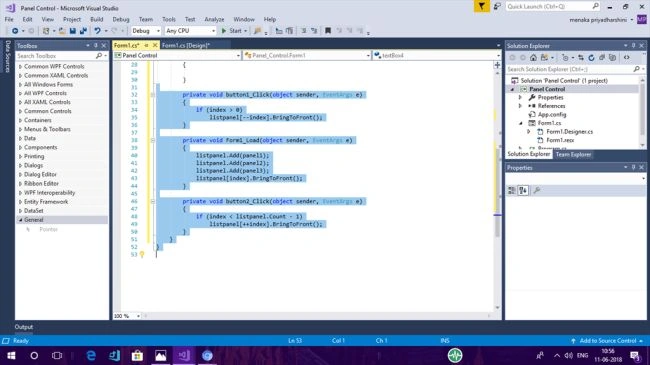
Follow the coding given below in the screenshot for panel cotrol in the windows forms application.
In the form drag and drop Panel control from the toolbox onto the form in Visual Studio 2017. Inside the Panel Control, drag and drop other sub controls like Label ,TextBox, and Checkbox. Change the text of the controls as given below in the screenshot.
Page 2
In the form, drag and drop panel control from toolbox onto the form in Visual Studio 2017. Insidde the Panel Control drag and drop other sub controls like Label,TextBox and PictureBox. Change the text of the controls as given below in the screenshot.
Page 3
In the form drag and drop panel control from the toolbox onto the form in Visual Studio 2017. Inside the Panel Control drag and drop other sub controls like Label,TextBox and Picture Box. Change the text of the controls as given below in the screenshot.
Drag and drop button control onto the form from toolbox in Visual Studio 2017 and change the text of the button as previous and next.
STEP 3 - Coding
Follow the coding given below in the screenshot for panel cotrol in the windows forms application.
Menaka Priyadharshini BPosted Aug 16, 2018, 1:54 AM
Thank you mam
Hadshana KamalanathanPosted Aug 16, 2018, 1:01 AM
Thanks for sharing
Menaka Priyadharshini BPosted Aug 15, 2018, 11:10 PM
Sure bro..
Ricky LimantoPosted Aug 15, 2018, 10:55 PM
Can you provide me with a whole code in .txt file? Thanks