

Stratis platform is a blockchain platform for software developers and architects who want to build new blockchain applications or want to integrate Stratis blockchain in their existing applications.
Stratis blockchain is open source and supports templates for Visual Studio to build blockchain solutions using C# and .NET. Stratis provides different products like Full Node, Smart Contract, Sidechains, Identity, etc. If you want to learn more about Stratis blockchain head over to Introduction to Stratis Platform.
In this article, you'll learn how to configure the required tools to start the development with Stratis blockchain, write a simple smart contract in C#, and deploy and execute your first Smart Contract over the Stratis blockchain.
To complete this article, you must have a basic understanding of C# and .NET. If you are new to C# programming, please learn C# here - Programming C# for Beginners. You should also have basic knowledge of Blockchain and how it works. If you do not have a basic understanding of Blockchain, please read this What is Blockchain.
Prerequisites
Here are the prerequisites to complete this tutorial:
- Visual Studio 2019 Community or later version
- Stratis Smart Contract Template
- Sct tool
- Stratis FullNode
- Postman
- Swagger
Download and install Visual Studio 2019
We are going to use Visual Studio 2019 in this tutorial. Visual Studio Community 2019 edition is free to download. You may use any other editions of Visual Studio 2019 or later.
If you wish to install Visual Studio 2019, download, and install it from here.
Install Stratis Smart Contract Template
Stratis Smart Contract template is a Visual Studio project template that creates a sample Stratis smart contract project in Visual Studio. You can install the template using the below command in your Visual Studio command terminal.
dotnet new --install Stratis.SmartContracts.Templates.CLI
Once the above command is successful, it will install the Stratis Smart Contracts Visual Studio project template.
Once it's installed successfully, it should appear in the list of available templates.

You can find this template in the Visual Studio available templates too. This template will be available to you when you create a new project in Visual Studio. To find it, you can simply type “Stratis” in the search box. We will see how to create a Visual Studio smart contracts project using this template later in this tutorial.
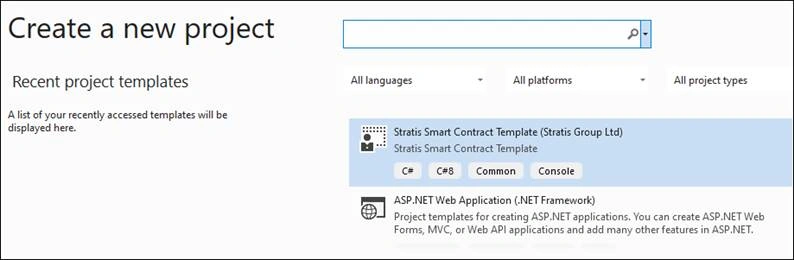
Quick Fix
If you cannot find the template in the list, enable the option from Tools > Options and look for the “Show all .NET Core templates in the New Project dialog” checkbox and check it.
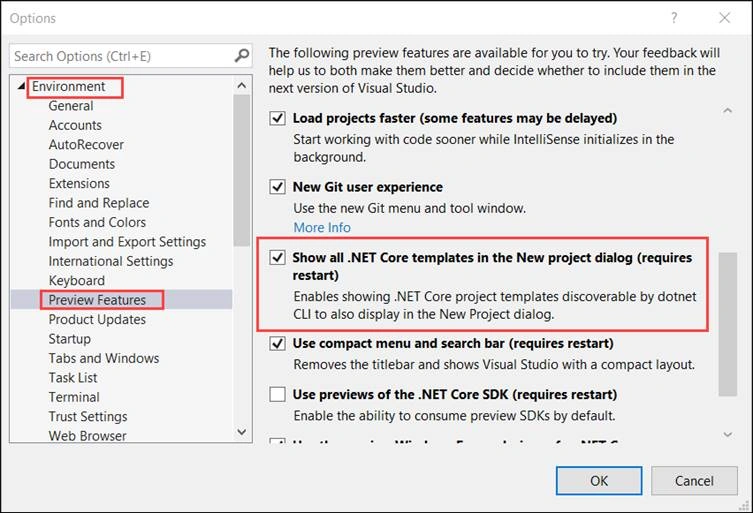
Click the OK button.
After enabling, you need to restart the Visual Studio instance. Then try to create a new project, you should see the Stratis Smart Contract Template in the list. As I said earlier, we will use this for Smart Contract development later in this article.
Sct tool
When we create Stratis smart contracts, we must validate that the smart contract is correct. The Smart Contract validation process is completed using the sct tool provided by Stratis.
Download that sct project from here and keep it in the directory where you can easily access it. We will see more about the validation process later in this article.
Stratis Full Node (Private Blockchain)
Now, here comes the most important part. We need to install Stratis Blockchain on the local development machine, Stratis Blockchain is Stratis Full Node. If you want to learn more about Stratis Full Node, check out here.
Please note
For development, it is preferable to use a local blockchain network to deploy and test the smart contracts. Once you deploy and tested and have a clear understanding of smart contracts and Stratis, then you can go ahead and deploy your smart contracts on Live Stratis public blockchain. Stratis public blockchain has two live chains, “testnet” and “mainnet”. The “testnet” is used to deploy your smart contracts for testing purposes and the “mainnet” is the live public blockchain that’s where you will deploy your real working product smart contracts. However, to deploy on mainnet blockchain, there is going to be a small fee in form of $STRAX. We will discuss these two chains later in this series.
A local blockchain network is a clone of the actual blockchain (aka mainnet) but it uses a different consensus mechanism. To make the development and learning easier, it provides the flexibility of simple execution and testing of smart contracts on the development machine without any outside miners or validators required.
To run the blockchain on a local machine for development, download the Stratis full node master branch from here.
And run the Stratis.CirrusMinerD project with the -devmode parameter as shown below,
cd StratisFullNode\src\Stratis.CirrusMinerD
dotnet run -devmode=miner
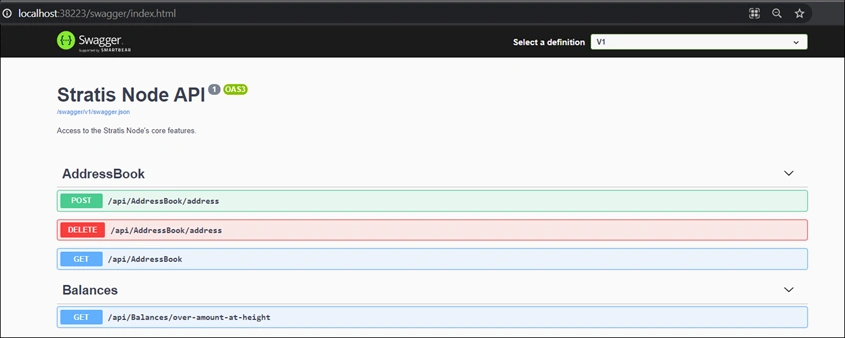
This runs a single block-producing node utilizing the PoA (Proof-of-Authority) consensus algorithm. Open http://localhost:38223/swagger in your machine and the list of APIs should be visible. Using these API endpoints, we can interact with the blockchain.
All chain logs would appear in the terminal. You can find account and balance information there.
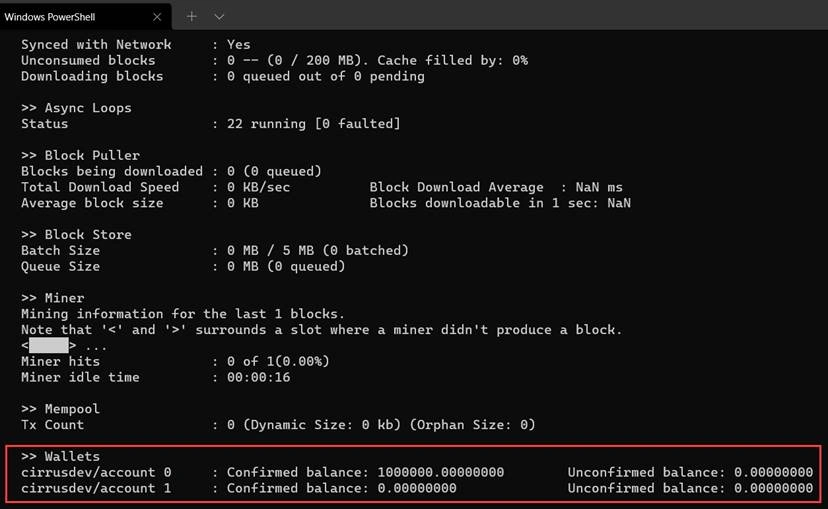
As you can see from the above screen, initially your Stratis wallet has a balance of 100,000 tokens.
Postman
Postman is a popular API client that is used to call API endpoints.
Download and install Postman from here.
To use Postman, you need to create an account. We will use Postman to deploy our contract and execute contract methods.
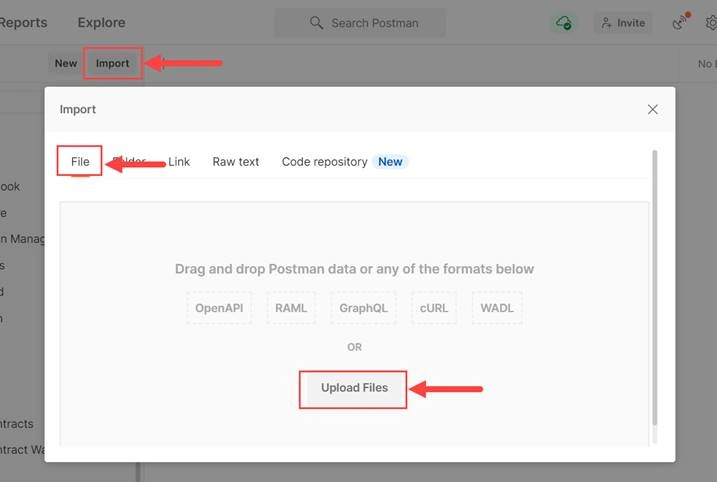
To get all available methods on the Swagger page to the Postman, go to http://localhost:38223/swagger/v1/swagger.json save it as a JSON file, and import it to the Postman.
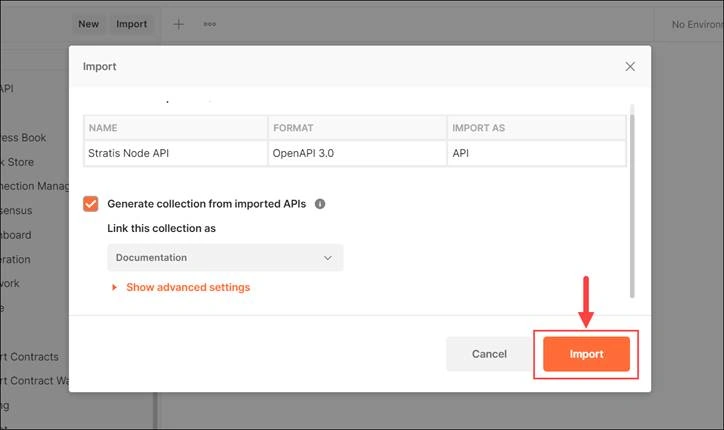
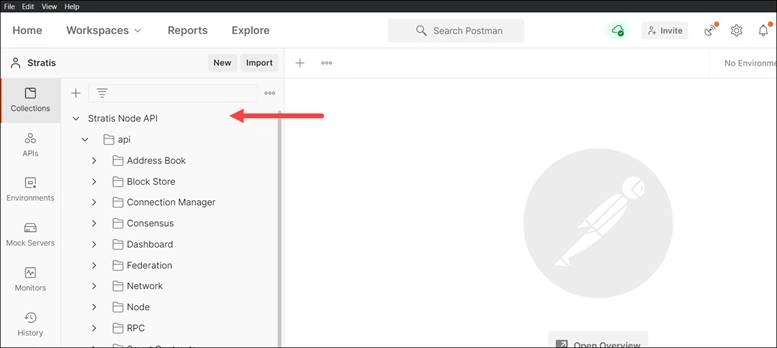
This will create a new collection “Stratis Node API” in your workspace.
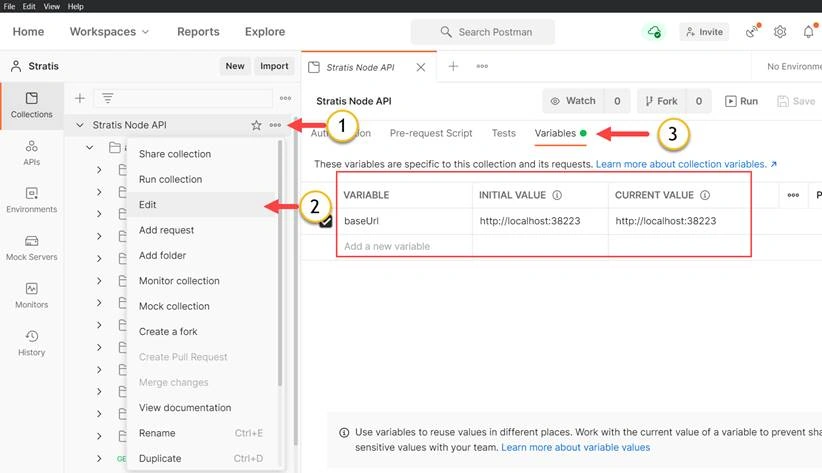
Change base URL variable value to http://localhost:38223
We have configured all required tools, now let’s create our first smart contract.
Step 1 - Development
Open a Visual Studio, select Stratis Smart Contract Template and create a project.
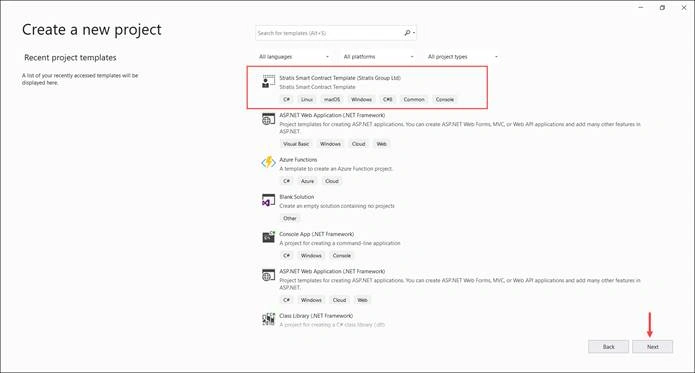
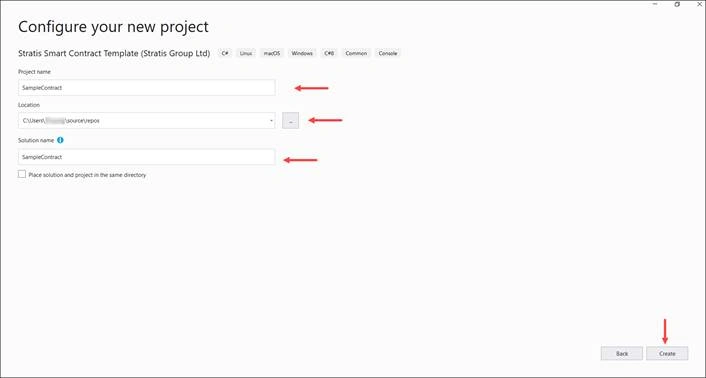
Click Create button.
Once a project is created, you will land upon the page below. The MyContract is a simple contract. You can customize it to your needs.
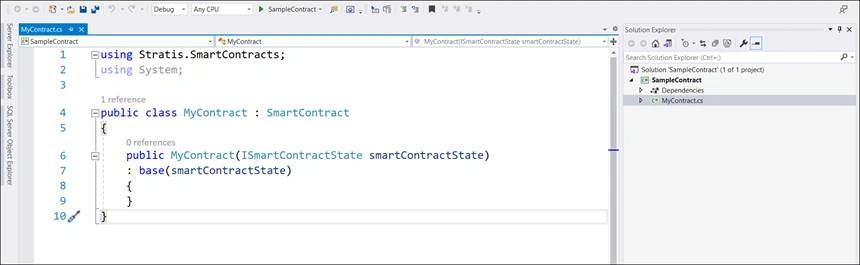
A smart contract stores the information in key-value pair. Using PersistentState we can store the information in a smart contract.
For our simple contract, we will create a smart contract that will modify the default contract to store the contract owner's information. Then after deployment, we’ll retrieve that smart contract owner information.
Here is the modified version of the MyContract.
public class MyContract : SmartContract
{
    public MyContract(ISmartContractState smartContractState)
    : base(smartContractState)
    {
        SetOwner(Message.Sender);
    }

    private void SetOwner(Address owner)
    {
        PersistentState.SetAddress("owner", owner);
    }

    public Address GetOwner()
    {
        return PersistentState.GetAddress("owner");
    }
}
The above contract has two methods, SetOwner and GetOwner to set and get the owner of the contract.
Things to notice,
- The sender is the address currently interacting with the contract.
- The owner property will set when the contract will be deployed.
- The constructor will be called only once when the smart contract will be deployed.
- PersistentState stores data in key-value format permanently to the state database.
Step 2 - Validating a smart contract
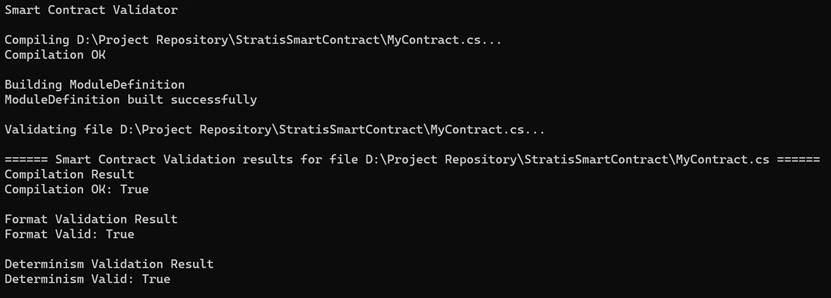
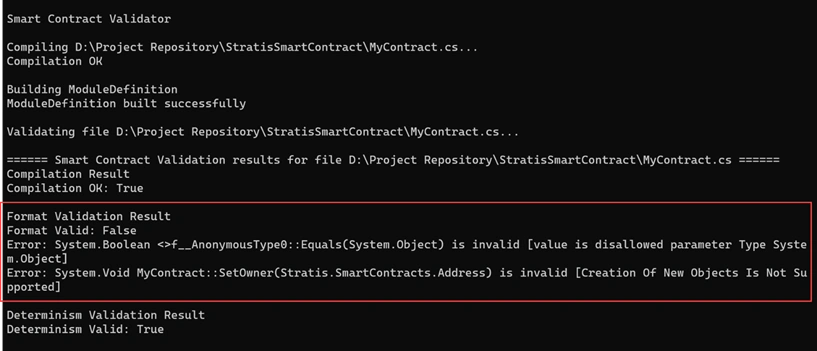
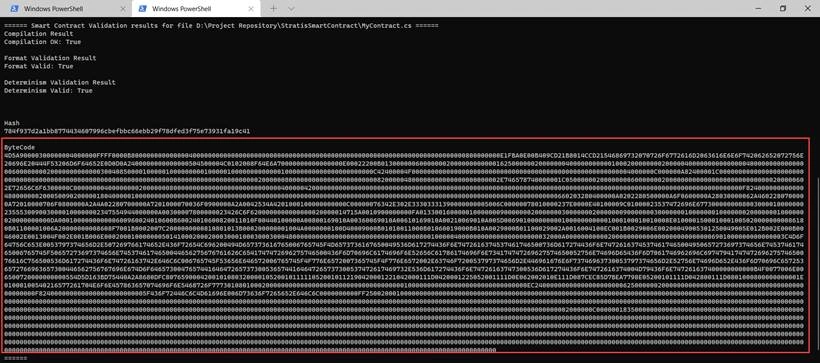
The validation process is a must to check the valid constraints used in a smart contract. The process ensures that a smart contract is free from the non-deterministic elements and additional constraints around the format of the contract are met.
We have already downloaded sct tool previously. Open a terminal and step into the sct project, and run the below commands.
Paulo OliveiraPosted Nov 27, 2021, 11:02 AM
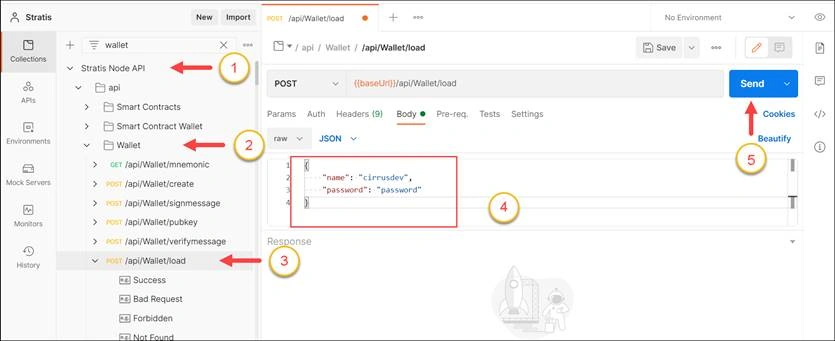
This is great! I got everything working but I have some doubts: So far in crypto I always worked with a wallet address and seed phrases, only, but here we seem to use username and password, which feels strange, is this a Stratis exclusive thing or am I missing something? Also what does Load wallet does? We are not using any data returned there, we just call that end point and I can't see anywhere what comes out of it, does it populate something somewhere?
Christopher StigsonPosted Jun 27, 2021, 4:54 PM
STRAX doing work. Thanks!
EBinimoy BDPosted Jun 26, 2021, 2:24 PM
Thank you sir for sharing. All steps completed successfully...
Satya KarkiPosted Jun 19, 2021, 9:05 AM
Thank you sir for sharing. All steps completed successfully; however, in Get Receipt I am getting Error 400. Error Details: "errors": [ { "status": 400, "message": "The receipt was not found.", "description": "No stored transaction could be found for the supplied hash." }
Pranam BhatPosted Jun 13, 2021, 2:46 PM
Good one..
Vinay AyinapurapuPosted Jun 4, 2021, 7:48 PM
Thanks a lot Mahesh for sharing