
Software developers have used ActiveX controls on their web pages to add advanced functionality to the web experience. With my migration from a Visual Basic 6 world to a Microsoft .NET C# world, I had some question as to how I can create an ActiveX control with .NET. After some research I found out that the solution is really quite simple. Create a Windows control project in Visual Studio .NET and expose an interface to the COM world.
In this example, I will walk you through creating an ActiveX control that will show a simple user interface and accept input from a web page. This process will involve the following steps:
-
Create an assembly
(class library project) that contains an item of type User Control.
-
Expose an interface for the
control.
-
Embed the user control into
a web page.
- Transfer data from a web form to the control and display the data on the control.
Step 1: Create an assembly.
You can use the example
provided for download, or simply create your own project from scratch. In this
section I will outline everything you need to do in order to properly create
your assembly.
Once the project
is created, delete the Class1.cs file from your project as it will not be
necessary. Next, add a User Control to the project by right clicking on the
project in your solution explorer, choose Add, then User Control. Name your user
control "myControl".
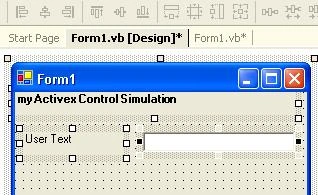
On the user control, add some UI elements, and a text box control named txtUserText. The txtUserText control will display the user data that is typed into the web form. This will demonstrate how to pass data to your User Control.
When you are done adding your user interface to the control we now have to add a key element to the control, an Interface. The interface will allow COM/COM+ objects to know what properties they can use. In this case, we are going to expose one public property named UserText. That property will allow us to set the value of the text box control.
Step 2: Expose the Interface for the control.
First, create a private String to hold the data passed from the web form to the control:
private Dim mStr_UserText as String
Place this String just inside the Class myControl.
Next, we will create a public property. The web page will use this property to pass text back to your control. This property will allow reading and writing of the value mStr_UserText.
Public Property UserText() As [String]
Get
Return mStr_UserText
End Get
Set(ByVal Value As [String])
mStr_UserText = value
'Update the text box control value also.
txtUserText.Text
= value
End Set
End Property
In this example, you will note the extra code in the set section of the public property. When a value is passed from the web form to the control we will set the private String value equal to the value passed to the property. In addition, we are simply going to modify the value of the Text Box control directly. Typically you would NOT do this. Instead, you would raise an event and then validate the data being passed by examining the private variable mStr_UserText. Then you would set the value of the Text Box Control. However, that would add significant code to this example and for simplicity sake I am omitting that security precaution.
Now that you have a public property that .NET assemblies can use, you need to make that property available to the COM world. We do this by creating an Interface and making the myControl class inherit the interface. This will allow COM objects to see what properties we have made available.
Your code will now look like this:
Namespace ActiveXDotNet
{
Public Interface AxMyControl
Property UserText() As String
End Property
End Interface 'AxMyControl
David SandorPosted Jan 30, 2013, 10:30 AM
@N M - This article was written 9 years ago and it applied to the browser technology available at the time. If you try this now you will run into CAS problems with .net. A better approach in today's browser climate is to author a browser extension. http://developer.chrome.com/extensions/index.html http://msdn.microsoft.com/en-us/library/aa753587(v=vs.85).aspx
N MPosted Jan 30, 2013, 10:12 AM
hi david, can you provide a demo project and html with working dll. following your steps I was not able to achieve this functionality.