

Introduction
In this article, you will learn how to consume cognitive services for recognizing a celebrity in Xamarin.Android by using a mobile camera. I hope you will learn some cool stuff in Xamarin using cognitive services.

Prerequisites
- Computer Vision API Key
- Microsoft.Net.Http
- Newtonsoft.Json
Computer Vision API keys
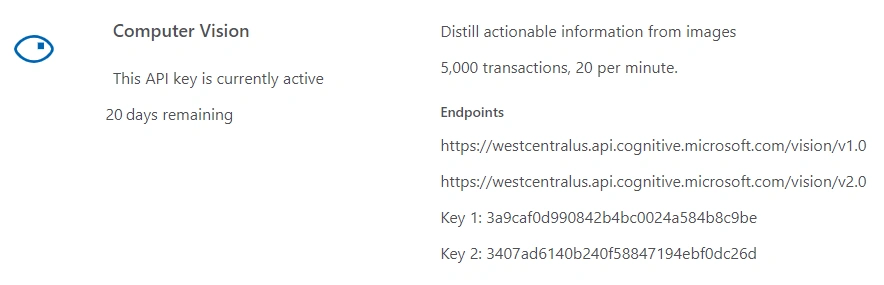
Computer vision services require special subscription keys. Every call to the Computer Vision API requires a subscription key. This key needs to be either passed through a query string parameter or specified in the request header.
To sign up for subscription keys, see Subscriptions. It's free to sign up. Pricing for these services is subject to change.
If you sign up using the Computer Vision free trial, your subscription keys are valid for the west-central region (https://westcentralus.api.cognitive.microsoft.com).
The steps given below are required to be followed in order to create a Celebrities Recognize app in Xamarin.Android, using Visual Studio.
Step 1 - Create an Android Project
Create your Android solution in Visual Studio or Xamarin Studio. Select Android and from the list, choose Android Blank App. Give it a name, like RecognizeCelebritiesbyCamera.
(ProjectName: RecognizeCelebritiesbyCamera)
Step 2 - Add References of Nuget Packages
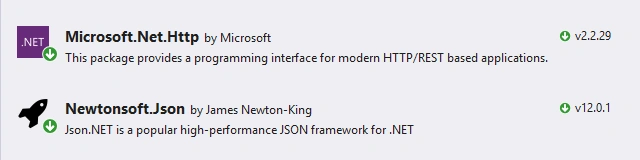
First of all, in References, add the reference of Microsoft.Net.Http and Newtonsoft.Json using NuGet Package Manager, as shown below.
Step 3 - User Interface
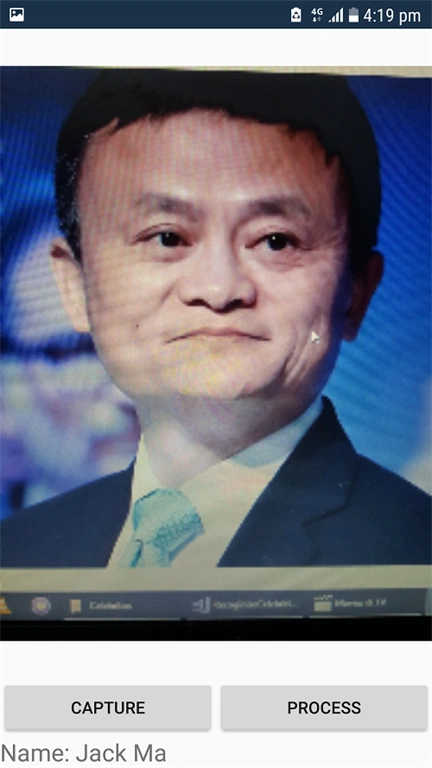
Open Solution Explorer-> Project Name-> Resources-> Layout-> Main.axml and add the following code. The layout will have an ImageView in order to display the preview of Celebrities image. I also added a TextView to display the contents of the Celebrities and two buttons.
(FileName: Main.axml)
- <?xml version="1.0" encoding="utf-8"?>
- <RelativeLayout xmlns:android="http://schemas.android.com/apk/res/android"
- xmlns:app="http://schemas.android.com/apk/res-auto"
- xmlns:tools="http://schemas.android.com/tools"
- android:layout_width="match_parent"
- android:layout_height="match_parent">
- <ImageView
- android:id="@+id/image"
- android:layout_width="match_parent"
- android:layout_height="match_parent"
- android:layout_above="@+id/group_button" />
- <LinearLayout
- android:layout_above="@+id/txtDescription"
- android:id="@+id/group_button"
- android:layout_width="match_parent"
- android:layout_height="wrap_content"
- android:orientation="horizontal"
- android:weightSum="2">
- <Button
- android:id="@+id/btnCapture"
- android:layout_width="0dp"
- android:layout_height="wrap_content"
- android:layout_weight="1"
- android:text="Capture" />
- <Button
- android:id="@+id/btnProcess"
- android:layout_width="0dp"
- android:layout_height="wrap_content"
- android:layout_weight="1"
- android:text="Process" />
- </LinearLayout>
- <TextView
- android:id="@+id/txtDescription"
- android:layout_width="match_parent"
- android:layout_height="wrap_content"
- android:text="Description: "
- android:textSize="20sp"
- android:layout_alignParentBottom="true" />
- </RelativeLayout>
Step 4 - Analysis Model Class
Add a new class in your project with name AnalysisModel.cs. Add the following properties to get the result set from JSON response with the appropriate namespace.
- using System.Collections.Generic;
- namespace RecoginizeCelebrities
- {
- public class AnalysisModel
- {
- public IList<Category> categories { get; set; }
- public object adult { get; set; }
- public IList<Tag> tags { get; set; }
- public Description description { get; set; }
- public string requestId { get; set; }
- public Metadata metadata { get; set; }
- public IList<Face> faces { get; set; }
- public Color color { get; set; }
- public ImageType imageType { get; set; }
- }
- public class FaceRectangle
- {
- public int left { get; set; }
- public int top { get; set; }
- public int width { get; set; }
- public int height { get; set; }
- }
- public class Celebrity
- {
- public string name { get; set; }
- public FaceRectangle faceRectangle { get; set; }
- public double confidence { get; set; }
- }
- public class Detail
- {
- public IList<Celebrity> celebrities { get; set; }
- public object landmarks { get; set; }
- }
- public class Category
- {
- public string name { get; set; }
- public double score { get; set; }
- public Detail detail { get; set; }
- }
- public class Tag
- {
- public string name { get; set; }
- public double confidence { get; set; }
- }
- public class Caption
- {
- public string text { get; set; }
- public double confidence { get; set; }
- }
- public class Description
- {
- public IList<string> tags { get; set; }
- public IList<Caption> captions { get; set; }
- }
- public class Metadata
- {
- public int width { get; set; }
- public int height { get; set; }
- public string format { get; set; }
- }
- public class Face
- {
- public int age { get; set; }
- public string gender { get; set; }
- public FaceRectangle faceRectangle { get; set; }
- }
- public class Color
- {
- public string dominantColorForeground { get; set; }
- public string dominantColorBackground { get; set; }
- public IList<string> dominantColors { get; set; }
- public string accentColor { get; set; }
- public bool isBWImg { get; set; }
- }
- public class ImageType
- {
- public int clipArtType { get; set; }
- public int lineDrawingType { get; set; }
- }
- }

נועה עין צביPosted Feb 10, 2020, 1:06 PM
What should I do if I want to recognize persons from my own database?
Sid OluPosted Dec 29, 2018, 7:46 AM
Nice one, weldone.
Sarathlal SaseendranPosted Dec 27, 2018, 2:10 PM
Good thought Ahsan. Thanks for sharing