

Network connectivity refers to the internet connectivity of a device, which can be either mobile data or Wi-Fi. In Xamarin.Forms, we are creating cross platform apps, so the different platforms have different implementations. In this blog, we will learn how to check internet connectivity in Xamarin.Forms apps.
Solution
To check the internet connection in Xamarin.Forms app, we need to follow the steps given below.
Step 1
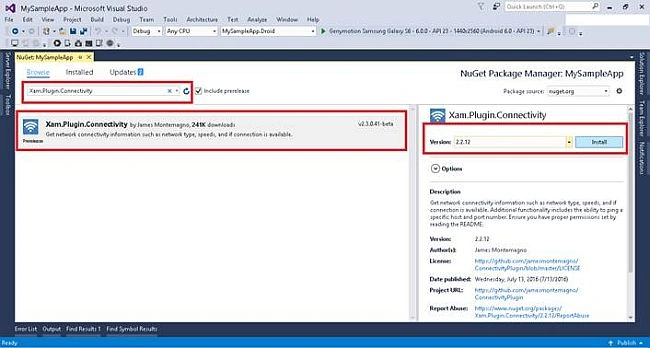
Go to your solution and on your Portable project, right click and select Manage NuGet Packages.

Step 2
Search and install Xam.Plugin.Connectivity NuGet Package.
Step 3
Write the lines of code given below to check the internet connectivity.
- if (CrossConnectivity.Current.IsConnected) {
- // your logic...
- } else {
- // write your code if there is no Internet available
- }
In Android platform, you have to allow the user permission to check internet connectivity. For this, use the steps given below.
Step 3(a)
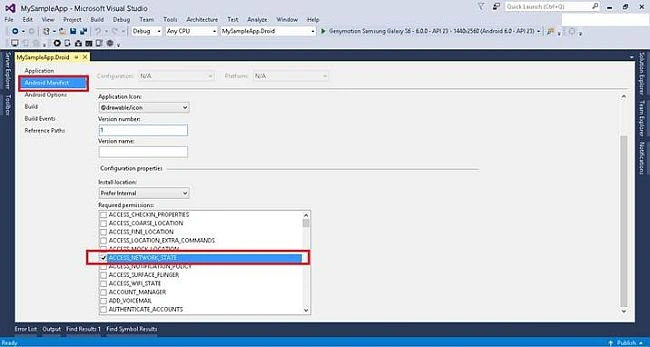
Go to Droid Project, double click on properties and select Android Manifest option.
Step 3(b)
Now, select ACCESS_NETWORK_STATE and INTERNET permission. Save it and this permission will help the user to check the network state and access the internet.
Thus, we have learnt how to check internet connectivity in Xamarin.Forms app.
suhas sawantPosted Mar 13, 2018, 1:10 AM
See i have issue with net connection..when it disconnect then its showing me toast like no network...but when network get connects thn how i could show it like "Connected"
mandar desaiPosted Nov 2, 2017, 10:00 AM
What is the stander way if i have 10 button in my project each button send data to remote server how can check net connection of each button click functionalities
NehaPosted Jan 5, 2017, 5:37 AM
Nice one.............................................
Fabio Silva LimaPosted Jan 4, 2017, 6:33 AM
Perfect! @Virendra you can improove your code using interfaces and dependency injection to check network connectivity. Is good for testing and mocking.